Category: Control System Integration Drivers

  • Control Drivers for 4×4 Multiroom+ System – HKHA414SW

    Control Drivers for 4×4 Multiroom+ System – HKHA414SW

    We have ready-made control system drivers available for the 4×4 Multiroom+ System (Singlewire HDBaseT, V1, V2 and V3) for the major control systems used in the UK. V1 and V2 drivers are based on RS232 serial connections and V3 drivers are IP or RS232 connections.

    Each download package for Control4, AMX, Crestron, Netstream and RTI also includes support for the 4×4 HDMI Matrix (HKM44-UK, both V1 and V2), 4×4 Multiroom+ POE (HKHDA44P) and the Multiroom+ 8×8 System (HKHA818SW).

    (more…)

  • Control Drivers for 4×4 HDMI Matrix + IR Passback – HKM44-UK

    Control Drivers for 4×4 HDMI Matrix + IR Passback – HKM44-UK

    We have ready-made control system drivers available for the 4×4 HDMI Matrix + IR Passback – HKM44-UK (both V1 and V2) for the major control systems used in the UK.

    Each download package for Control4, AMX, Crestron and RTI also includes support for the 4×4 Mutliroom+ Singlewire (HKHA414SW, v1, V2 and V3), 4×4 Multiroom+ POE (HKHDA44P) and the Multiroom+ 8×8 System (HKHA818SW).

    (more…)

  • Control Drivers for 8×8 Multiroom+ System – HKHA818SW

    Control Drivers for 8×8 Multiroom+ System – HKHA818SW

    We have ready-made control system drivers available for the 8×8 Multiroom+ System (Singlewire HDBaseT) for the major control systems used in the UK.

    Each download package also includes support for the 4×4 Mutliroom+ Singlewire (HKHA414SW, V1, V2 and V3), 4×4 Multiroom+ POE (HKHDA44P)  and the 4×4 HDMI Matrix (HKM44-UK, both V1 and V2).

    (more…)

  • Control 4 API 2.0 installation guide

    The latest control driver from Chowmain software can be downloaded here

    It allows the Control processor to utilise the IR inputs and outputs of the HDANYWHERE matrix as if it was there own. Allowing installers to spec smaller Control 4 processors than they would typically need and is compatible with the following HDANYWHERE products:

    MHUB431U
    MHUB862U
    MHUB4KPRO44
    MHUBPRO4440
    MHUB4KPRO88
    MHUBMAX44
    MHUBAUDIO64

    and the following Control 4 products:

    CA-1
    EA-1
    EA-3
    EA-5
    HC250
    HC800
    HC1000

    control4-ca1
    IMPORTANT

    Before setting up the Control 4 driver, the MHUB must have been through its first boot process. This can be done by navigating to the MHUB’s IP address in a web browser or in uControl and following the onscreen instructions. No other setup of the matrix is required, but this step must be completed before the C4 processor can utilise the matrix I/O ports. It is not required otherwise.

    Add the HDANYWHERE driver as you would any other driver, the driver will auto-discover a video matrix or multiple Audio Matrices

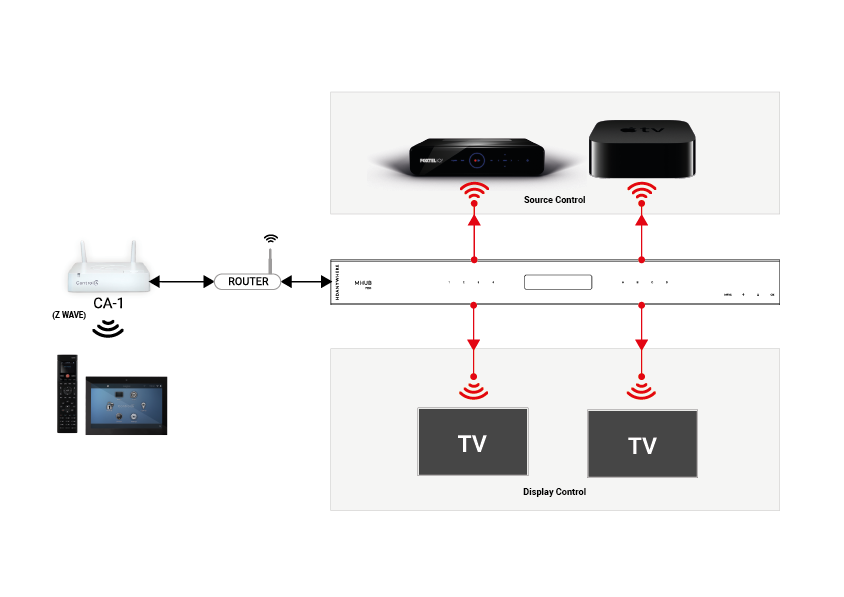
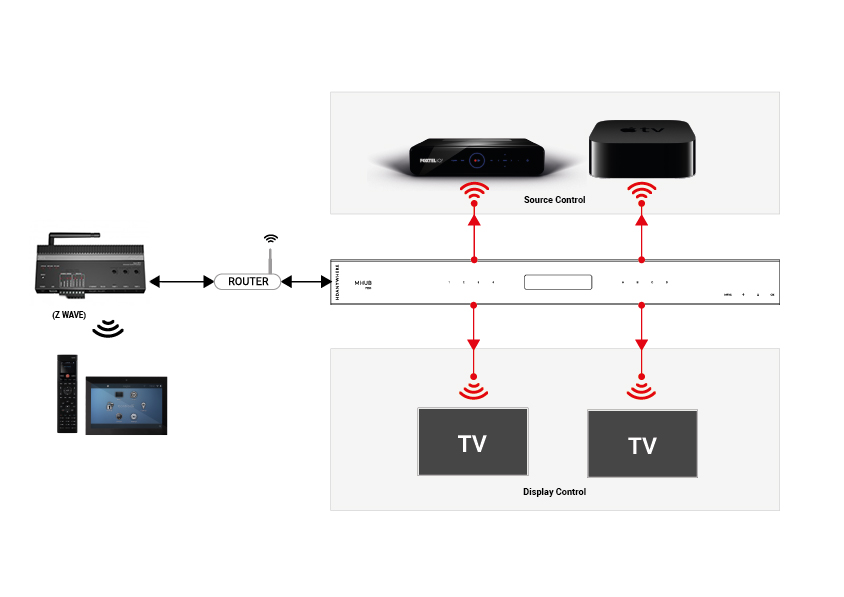
    The next step is to setup your control and AV connections. Traditionally in a normal Control 4 setup, you would bind the source devices ‘control inputs’ with an IR output on the C4 controller. Instead, with the MHUB Video driver’s you can route the control through the MHUB’s IR ports utilising the IP>IR Engine. Similarly, Display IR is routed through the Display IR ports on the matrix. This video shows how to make these bindings

  • RTI API 2.0 installation guide

    The latest control driver from Chowmain software can be downloaded here included in the download is also an in-depth guide to installing the driver

    The HDAnywhere MHUB RTI driver allows for control of the HDAnywhere range of Video and Audio distribution products. The driver allows for direct switching of inputs to outputs,  the ability to switch preconfigured zones, control of audio levels (volume, mute, etc) and the ability to send IR codes as well as being able to reboot or restart the system.  It is compatible with the following systems:

    MHUB431U
    MHUB862U
    MHUB4KPRO44
    MHUBPRO4440
    MHUB4KPRO88
    MHUBMAX44
    MHUBAUDIO64

    and the following RTI products:

    RP-4RF
    XP-3
    XP-6
    XP-6s
    XP-8s
    XP-8v

    rti-HDA

    IMPORTANT

    Before setting up the RTI driver, the MHUB must have been through its first boot process. This can be done by navigating to the MHUB’s IP address in a web browser or in uControl and following the onscreen instructions. No other setup of the matrix is required, but this step must be completed before the RTI processor can utilise the matrix I/O ports. It is not required otherwise.

  • Loxone API 2.0 installation guide

    The latest control driver from Loxone can be downloaded here

    The Loxone API 2.0 driver is compatible with the following HDANYWHERE products:

    MHUB431U
    MHUB862U
    MHUB4KPRO44
    MHUBPRO4440
    MHUB4KPRO88
    MHUBMAX44
    MHUBAUDIO64

    and the following Loxone products:

    Miniserver
    Miniserver Go


    IMPORTANT

    Before setting up the Loxone driver, the MHUB must have been through its first boot process. This can be done by navigating to the MHUB’s IP address in a web browser or in uControl and following the onscreen instructions. No other setup of the matrix is required.

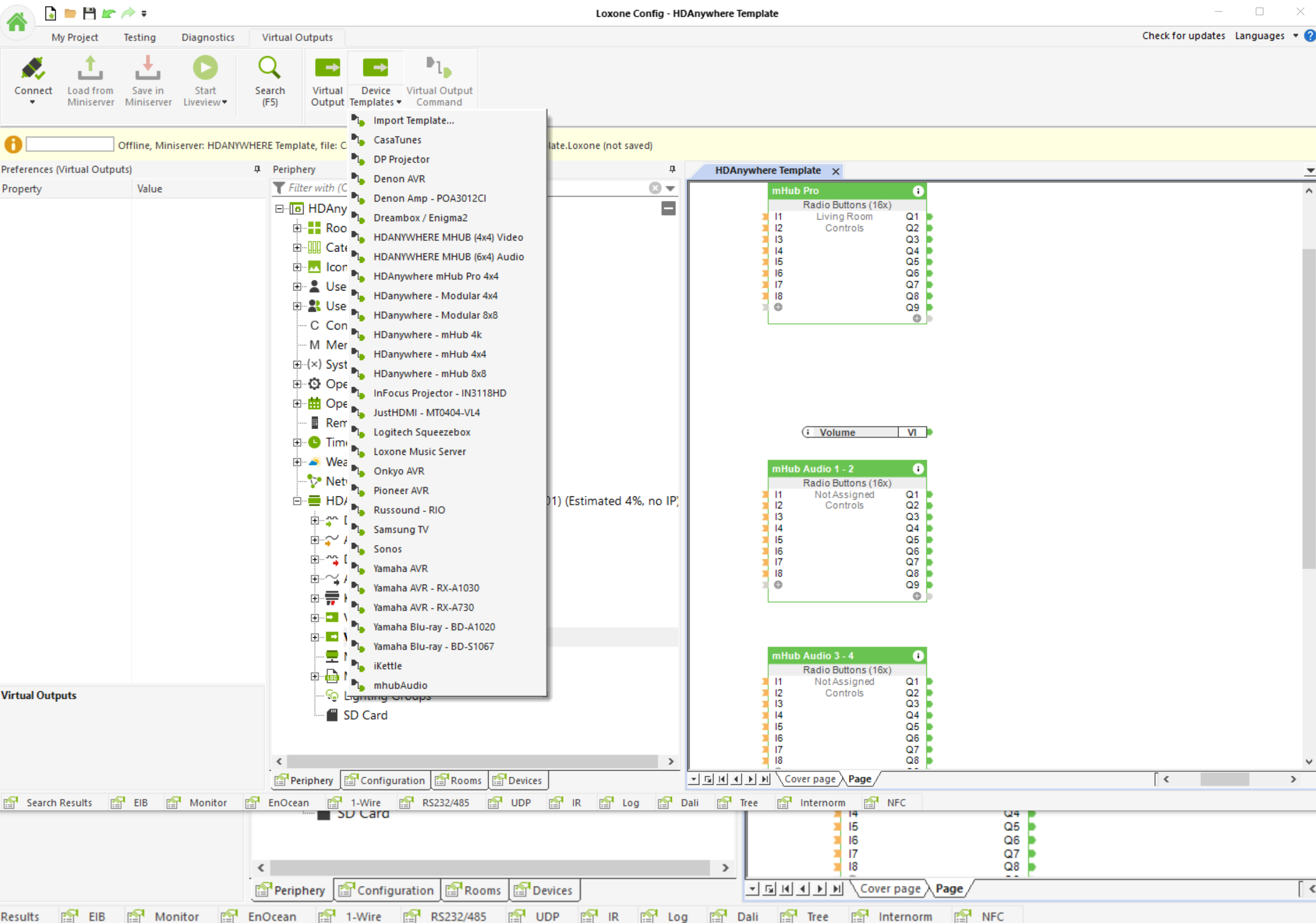
    Add the HDANYWHERE MHUB device template as a “Virtual Output”

    Loxone 1

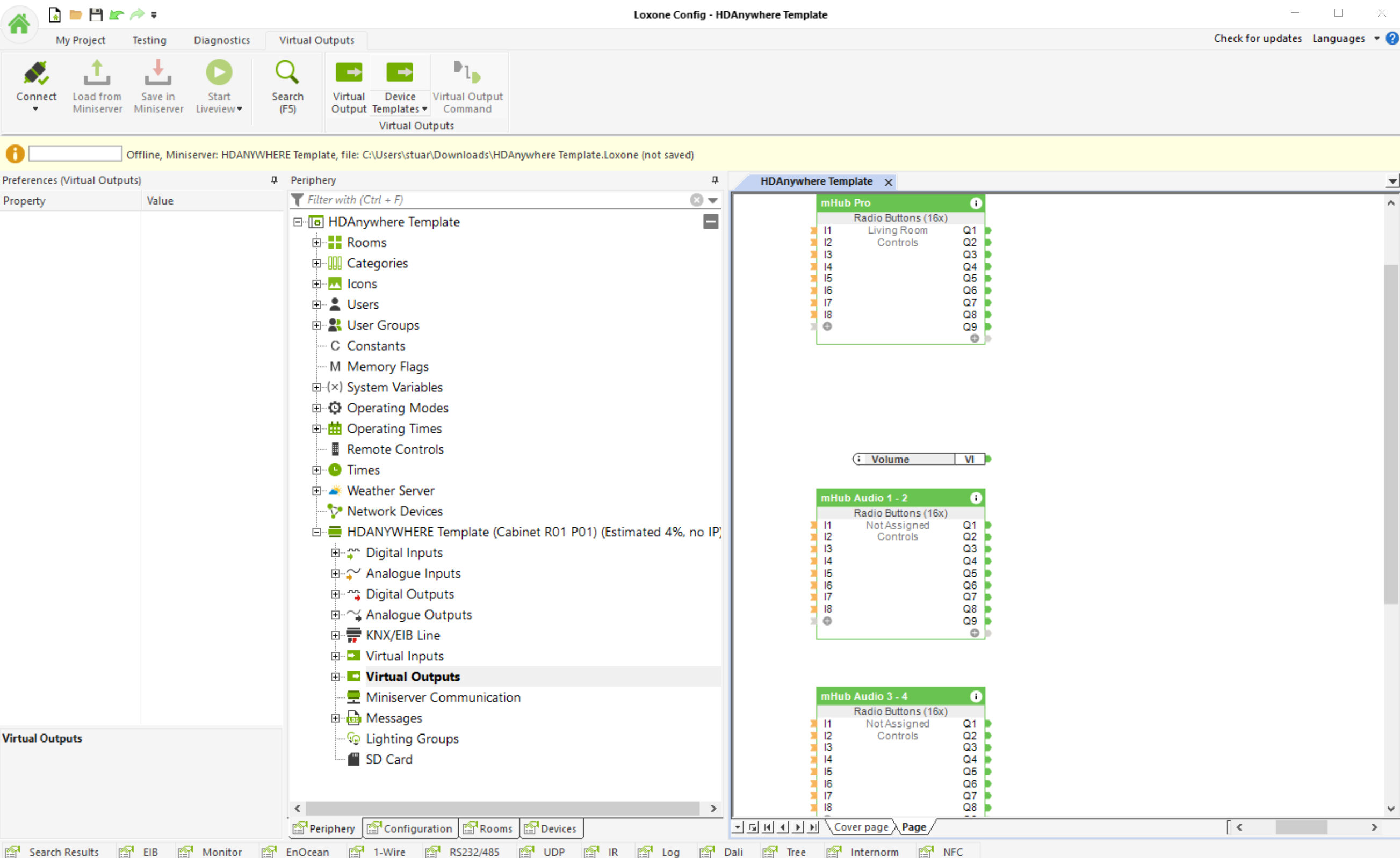
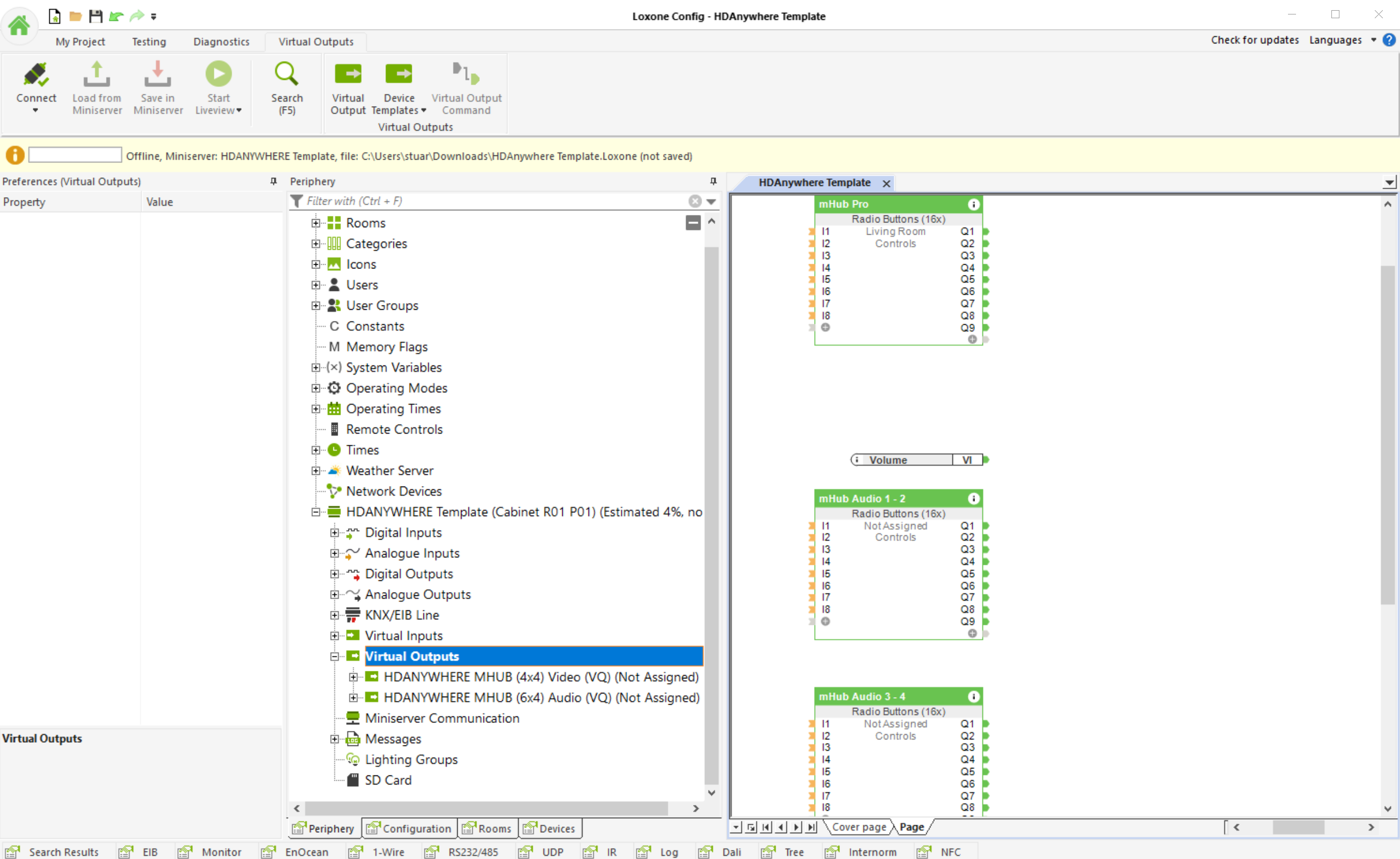
    Next, assign your Inputs and outputs

    Loxone 2

    Loxone 3

    The video below shows the entire process


  • Using ARC with Control4 and MHUB

    Control4 does not natively support Audio Return Channel (ARC). With more and more content coming from the likes of Netflix, AppleTV, Disney+ Youtube and BBC iPlayer, this presents a problem for installers who want to take this audio and feed it to external speakers as part of their Control4 project.

    This video shows you how MHUB and our Control4 driver makes the impossible possible and describes the steps you need to follow in Composer to achieve ARC in Control4.

    More information:

    Please ensure that both your MHUB and the Control4 driver supports ARC.

    Download control driver:

    http://support.hdanywhere.com/hda-control-drivers/

    Five reasons why Control4 dealers prefer working with MHUB:

    https://hdanywhere.com/why-c4-dealers-prefer-mhub-pro-2

    4×4 and 8×8 HDBaseT / HDMI Matrix: MHUB PRO 2.0

    https://hdanywhere.com/mhub-pro-2

  • General purpose IR / Pronto codes for MHUB systems

    IR codes for MHUB systems (not Modular or Multiroom+) including power control available here:

  • How to disable the beep on mHub 2K and 4K (4×4 and 8×8)

    To disable the beep on the mHub 2k range of matrices please following the instructions below using either I.P or RS232 connection methods.

    To adjust the settings on the mHub range of products, you will need to download the controller software Download

     A) Connecting to the mHub Via I.P

    The mHub 2K’s IP address is pre-configured as 192.168.0.100, your computer will need to have it’s IPV4 range configured to be within the same range initially while you setup the matrix. (You don’t need to follow this step if you have a mHub 4K system)

    To configure your IPV4 settings you will need to navigate to the following menu

    ->Network and sharing center

    —>Ethernet
    —–>Properties
    ——->Internet Protocol Version 4 (TCP/IPv4)
    ———>Properties
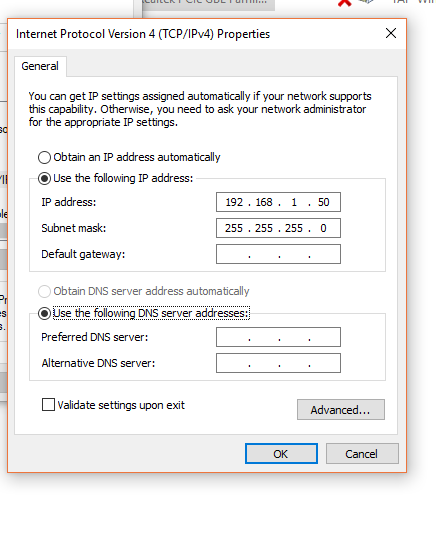
    IPV4

    Once you have changed the IP settings on your PC, open the Mhub controller software.

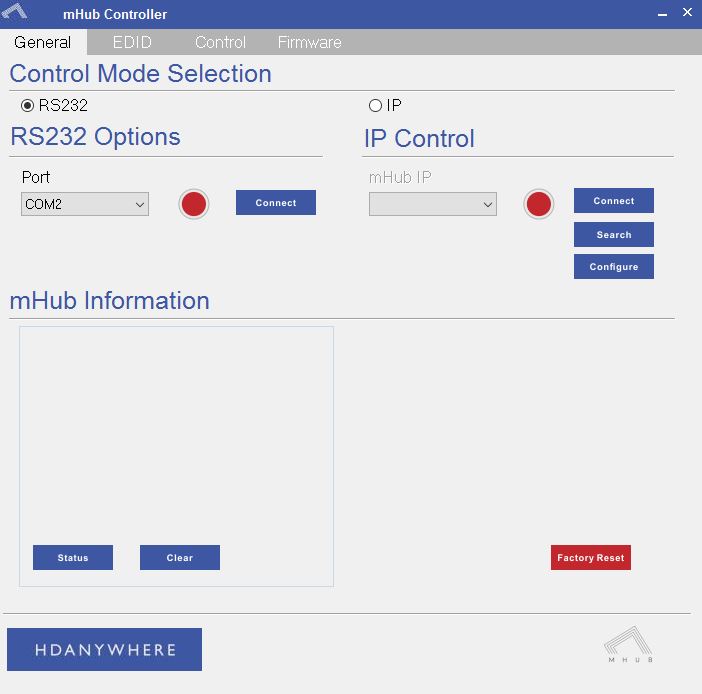
    In the Control Mode Select Box choose ‘IP’, then click the ‘Search’ button. When the IP address shows in the mHub IP box, click connect.


    B)  Connecting to the mHub Via RS232

    To connect via RS232 use the supplied serial cable can connect between the mHub and your PC, then on the Controller software select ‘RS232’, then in the RS232 Options section select the Com port being used from the drop down menu then click connect
    Capture


    C) Disabling the Beep

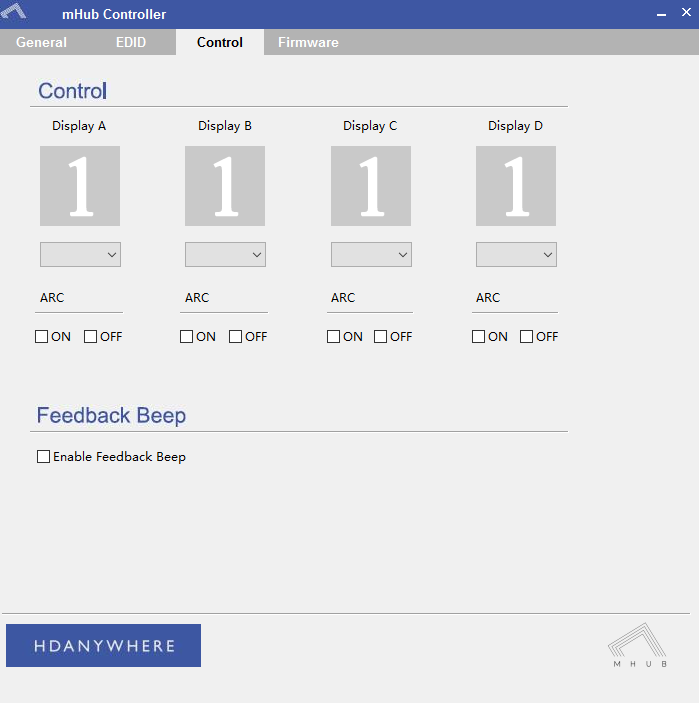
    To disable the beep select the ‘Control’ tab and untick the box labeled ‘Enable Feedback Beep’.
    mHubbeepimage

    Once changed, you can verify the beep has been disabled by performing a source switch operation.

  • Software configuration tool for MHUB 2K and MHUB 4K (2014-2016)

    Windows configuration tool for MHUB 2K and MHUB 4K systems. Search for MHUB, configure EDID and network settings.

    Download the MHUB 2K and MHUB 4K configuration tool.

    The software configuration tool has been written for an older version of Windows. If you run the exe file on your laptop and you receive a C++ error message then please read this support article.