Category: General articles

  • ULTRA HD 4K Q&A

    Answers to various 4K / Ultra HD questions we’ve been asked recently…

    What is the content availability for Ultra HD/4K currently?
    Very limited right now. In the US, Sony are shipping pre-loaded media servers with their 4K panels (in what seems to be a stop-gap measure) until an industry-ratified medium comes along. This will most likely be answered by Blu-ray, with the BDA working on defining a new expanded and elevated specification right now, expected for release later this year.

    Why do home technology professionals need to be aware of Ultra HD/4K? Are consumers buying into this new technology?
    The need to be aware because it’s happening now. It’s possible some are thinking of it as 3D – a passing fad or a peripheral feature. In reality it is similar to the leap we made from SD to 1080p; it’s being supported by SMPTE, studios and vendors alike to such a high level that most in the community are not yet aware. Consumers will inevitably buy into the technology, but it will take time. Serious penetration won’t happen until prices come right down and content is broadly available. Ten years ago you could only get 1080p by upscaling before Blu-ray (and HD-DVD) came along in 2006, but look at it now – 1080p is ‘normal’. The 4K path will be the same, albeit in a much shorter timeframe.

    What are some common misconceptions about Ultra HD/4K?
    Misconception one – there’s no content. OK, it’s true right now – but it’s close. There is actually already an impressive back catalogue of movies in 4K – but the new BD spec needs to be released (and new players to implement it) before we’ll be able to truly tap in.
    Misconception two – it will deliver no benefit: The resolution would exceed our own visual acuity. Look back through recent history – there was a time that an 34” TV (not rear pro) was regarded as HUGE. Now 42” is small, 50-60′ is normal, and even sizes up to 84” are gaining popularity. However we’re not sitting further away than we used to. IMAX cinemas allow a much bigger picture with relatively close seating by increasing picture resolution. 4K panels and content will do the same.

    Can you suggest one way Ultra HD/4K will help the bottom line?
    There are a few opportunities for 4K to help drive business:
    Old install refurbishments: all-new hardware and possibly even new cabling.
    New 4K sales and installation requirements.
    It defers cloud based delivery methods and in-home wireless technologies (for AV), reducing the DIY plug-n-play capability of consumers. That is, the high bandwidth specialty installation of 4K sustains the need for a professional integrator, with a chance for more hardware sales.
    It will even help software (BD disc) sellers as 4K reduces the threat of downloads due to sheer file size and delivery bit rates.

    On the technical side, where will the common mistakes be made?
    Cables mislabelled: 4K is deliverable via HDMI at one fixed clock speed of 297MHz (up to 30 frames). This equates to an aggregate data rate nearing 9Gbps, which before the year is out will double again with an upcoming new HDMI spec. Although the existing ‘High Speed’ HDMI cable spec technically has this 9Gbps rate covered, many HDMI cables are possibly not accurately labelled.

    Devices simply not capable: The big ‘gotcha!’ is with devices and the HDMI silicon they contain. Currently most devices employ HDMI chipsets (transmitters & receivers) that are limited to 225MHz, or 6.75Gbps, emanating from 2006 specifications. This is clearly insufficient for 4K, even with firmware upgrades. The pipe simply isn’t big enough. Many HDMI extenders, switchers, splitters, matrix switchers etc, on the market also contain this restricted silicon, and so are not adaptable to 4K applications. Even if the silicon is upgraded, length potential will be much reduced, perhaps by more the half. CATx cable has become a favourite choice for installers for HDMI extension but 4K fundamentally challenges the limits of this cable type. Technologies like HDBaseT already address this through proprietary firmware driven timing technologies, but it’s no longer native HDMI. Matrix switchers with HDBaseT will generally still perform the cross-point switching in the HDMI space, so they may still be restricted even though the HDBaseT stage is capable of more.

    Do you have a final comment?
    4K is not only coming, it’s here. We’ll exist in a world of upscaling and some proprietary file delivery for perhaps a year or two, then things will turn very quickly to more mass-market. The challenge for the custom installer is that they are expected to pre-wire jobs for future 4K support NOW, even though they can’t yet even test what they’re putting in for validation. They will need to rely on their product suppliers and a leap of faith that the products will deliver as expected, when expected. The phrase ‘futureproof’ is scarier and more difficult to define than ever.
    The new HDMI spec will push data rates up to at least 18Gbps, driving the need for all-active connectivity and pretty much wiping out CATx cable as a viable extension cable option (other than possibly HDBaseT).

    It’s exciting times ahead with the best sales opportunities opening-up to those that learn the basics NOW and stay ahead of the curve.

  • Troubleshooting: HDMI to Component Converter

    No video/audio being outputted

    First troubleshooting question is: Are you using the converter with the source device’s HDMI video output set to 1080i, not 1080p?

    The digital to analogue processor (DAC) cannot accomodate a 1080p input signal. The component converter is 1080i pass-through conversion to component video device – it cannot actively reconfigure a 1080p input signal to 1080i.

    This is stated on the website, but some people miss it. The HDMI to Component Converter is a Digital to Analogue (DAC) conversion device that will take a HDMI source input (up to 1080i) and output the video signal as RGB component (YPbPr).”

    Finally, always power on the system in the following order from an ‘off at the wall’ starting point.

    1. TV
    2. Converter
    3. Source
  • Comparing HD matrices on a like-for-like basis

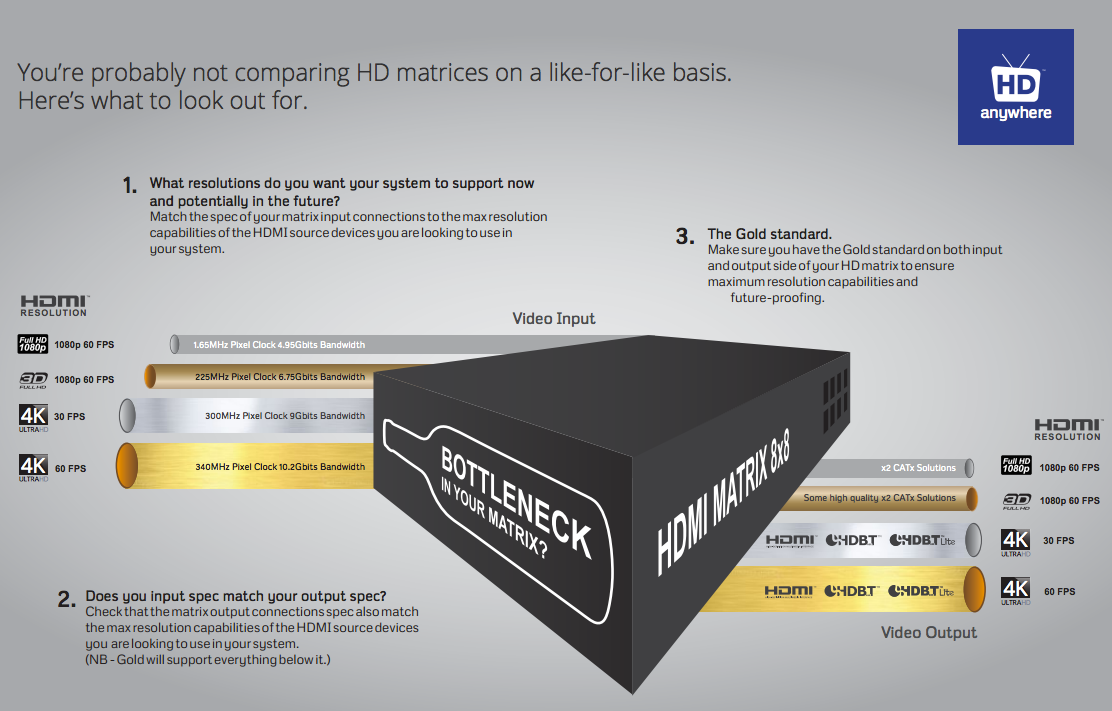
    matrix-like-for-like

    Click here for enlarged image: matrix-comparison

    With all the technical jargon and various names given to 4K video, it’s difficult to properly compare HD matrices on a like-for-like basis. So here’s our HD matrix buyers guide to help simplify things.

     1. Ask yourself, what is the maximum resolution you want your system to support now and in the future?

    To help, you can look at the maximum resolution of your displays and / or HDMI sources that you want to connect to the HD matrix. To date, there are very few 4K sources, but lots of 4K capable displays. So you may only have 1080p sources, but 4K displays. So the choice is often if you would like 4K support from your HD Matrix or not, in order to future proof yourself for the eventual arrival of 4K capable source devices.

    To understand the resolutions in the table below in greater depth, you can click here for our more detailed 4K support article.

    Once you’ve decided on the support you’d like your HD matrix to have, you can match it off to the chipset specification required by studying the table below.

    This chipset specification can then be compared across HD matrix products. We’ve also broken the typcial chipset speeds down into levels to help make the next stage easier.

    (NB – Platinum will support all Gold resolutions, Gold will support all Silver resolutions and Silver will support all bronze resolutions.)

    Input Side Level

    Maximum Resolutions Supported

    Typical HDMI Chipset Specifications

    Platinum

    HDMI 2.0

    4096×2160 @ 60Hz 4:4:4

    600 Mhz Pixel Clock

    18 Gbits Bandwidth

    Gold

    HDMI 1.4

    3840×2160 @ 60Hz 4:2:0

    4096×2160 @ 30Hz 4:4:4

    1080p @ 60Hz 3D

    340 Mhz Pixel Clock

    10.2 Gbits Bandwidth

    Silver

    1080p @24Hz 3D

    1080p @ 60Hz

    720p @ 60Hz 3D

    165 Mhz Pixel Clock

    4.95 Gbits Bandwidth

    Bronze

    1080p @ 24Hz

    720p @ 60Hz

    1080i @ 60Hz

    75 Mhz Pixel Clock

    2.25 Gbits Bandwidth

    2. Therefore, which type of output technology do you need? 

    Next, it’s important to match your desired resolution support to an output technology level that supports that resolution. So you can match gold to gold for example from the previous table.

    Once you’ve chosen the appropriate level, there can be multiple types of output technology at the same level. So your choice between them may be based on features other than resolution capability. For a full breakdown of the different types of output technology on offer and their key features, you can read our article here.

    You can then compare HD matrices looking for the required or your chosen technology.

    (NB – Platinum technology will support all Gold technology resolutions, Gold technology will support all Silver technology resolutions and Silver technology will support all bronze technology resolutions.)

    Output Side Level

    Maximum Resolutions Supported

    Output Technology Choices

    Platinum

    4096×2160 @ 60Hz 4:4:4

    Native HDMI 2.0

    Gold

    3840×2160 @ 60Hz 4:2:0

    4096×2160 @ 30Hz 4:4:4

    1080p @ 60Hz 3D

    All Platinum Choice and:

    Native HDMI 1.4 (High Speed)

    HDBaseT-Pro (100m CATx Soltution)

    HDBaseT-Lite (70m CATx Solution)

    Silver


    1080p @24Hz 3D

    1080p @ 60Hz

    720p @ 60Hz 3D

    All Platinum and Gold Choices plus:

    Some high quality (non-HDBT) SingleWire & TwinWire 2x CATx solutions. Such as the HDAnywhere mHub.

     Bronze

    1080p @ 24Hz

    720p @ 60Hz

    1080i @ 60Hz

    All Platinum, Gold and Silver Choices.

    3. Lastly, make sure your matrix doesn’t have a bottleneck.

    A HD Matrix is most commonly made up of three main stages. The input stage, the multiplexing stage and the output stage.

    It’s vital to check that each stage of the matrix has the same chipset capability or resolution capability. Most manufacturers will list the chipset speeds they are using and will group together the input stage and the multiplexing stage. Always seek clarification if this is not clear.

    Some HD Matrices will have a Gold level input specification, but a silver level output. The result of this is that whilst you may be able to send into the HD matrix a 4K signal (such as 3840×2160 @ 60Hz 4:2:0) you cannot output it from the HD matrix to a TV. So the HD matrix does not have 4K support throughout.

    If you work through the above and check in enough detail, you should get what you expect from your HD matrix purchase.


  • Troubleshooting: Mixing 3D and 2D on a matrix or splitter

    In order to route 3D content easily via a matrix switch or splitter, ALL connected displays need to be 3D compatible. Even, if just one of the displays is not 3D compatible, the 3D source player will NOT output the 3D content. The HDMI handshaking process will trigger the source player to drop it’s resolution output so that all displays can show content.

    The problem is HDMI is designed such that the source ‘polls’ the EDID data (EDID is a display’s identity card stating what it’s capabilities are, a bit like a top trumps card) from all connected Sink devices (your 3D enabled display and non-3D enabled AVR) and outputs the lowest quality video signal all devices support (2D in your case).

    To ensure 3D IS routed via the Matrix Switch or Splitter, the non-3D compatible display device must not be ‘active’. Sometimes turning the display into standby will be sufficient and sometimes full power off is required.

    Essentially, the 3D source player must not be able to ‘see’ a 2D only display connected to the Matrix Switch or Splitter.

    For best results when using 3D Blu-ray – HD Connectivity recommends… not actually connecting your 3D Blu-ray (BR) player to the Matrix. As Blu-ray 3D content is generally only viewed at a single ‘main’ TV location, in this instance it is better to have a direct connection between source and display, bypassing the Matrix completely. This will avoid any potential for ‘black screen’ situations at the other TV locations. It will also ensure that absolutely the best 3D format is selected for use on that display, not a potentially reduced quality 3D format that a lower 3D-capable display, connected to the matrix can influence the 3D BR to output. (Plus wearing those massive 3D glasses all around your house is really not cool and could result in you bumping into doorframes! – Ed)

  • Using a HDMI Splitter before an AVR and Display

    Due to the way that HDMI handshaking negotiations take place between source and displays or AVR devices, the display (unless it can accept multi-channel audio and has a setting for such) will communicate with the source to only output 2.0 channel stereo. This is due to the fact that in most cases an HDTV only has 2 speakers.

    When using a HDMI splitter or distribution amp (DA) effectively you have 2 display devices competing for the source to send them the audio signal format type that they prefer. The technical rules of HDMI dictate that the lowest common denominator always wins that battle. The logic being that this rule should result in the maximum number of display devices functioning in some way. (i.e. a 7.1 capable device should still be able to output 2.0 channel stereo also, meaning both displays have picture + sound)

    Unfortunately, what you and a lot of people really want from HDMI is for a mix of audio formats to be delivered from one source, which is just not possible currently.

    Some splitters including ours can be pre-loaded with firmware where the highest denominator formats win the battle, but of course that would leave your 2.0 capable HDTV without sound.

  • Hard reset device back to factory condition

    If you have been advised to ‘hard reset’ your HDanywhere device back to it’s factory condition, please perform the following.

    A hard reset will clear any corrupted DDC, EDID or HDCP data on the device’s NVRAM memory and re-initiate the handshaking process with all the connected devices.

    Firstly we need to ensure that any manufacturer HDMI CEC link protocols are switched to “off”.

    Trade names for CEC are Anynet+ (Samsung); Aquos Link (Sharp); BRAVIA Link and BRAVIA Sync (Sony); HDMI-CEC (Hitachi); E-link (AOC); Kuro Link (Pioneer); CE-Link and Regza Link (Toshiba); RIHD (Remote Interactive over HDMI) (Onkyo); RuncoLink (Runco International); SimpLink (LG); HDAVI Control, EZ-Sync, VIERA Link (Panasonic); EasyLink (Philips); and NetCommand for HDMI (Mitsubishi)

    To perform the hard reset:

    Power down every device in the set-up – that’s all sources, all displays and the device itself. Leave off at the mains for 10 to 15 minutes.

    Now switch all connected display devices on and select the HDMI channel on those displays.

    Power the device back on at the mains.

    Now one by one, power on the source devices, starting with input 1, input 2 and so on. If you are using a cable/satellite receiver such as Virgin or Sky+HD, please ensure that this is connected to input 1, not input 2. Please note that Sky HD boxes take around two minutes to fully reboot.

    After a few seconds everything should have synced and shaken hands correctly and normal operation should resume.

    If the problem still persists, Contact Customer Services. for further troubleshooting advice.

  • Troubleshooting: IR over HDMI Kit

    NB: Both dongles have ‘RX’ moulded into the casing.

    When using the IR over HDMI function, ensure that the switch is pushed across to ‘IR’ and not ‘CEC’.

    Connect the dongles into the source device’s HDMI output port and the display device’s HDMI input port, initially without the HDMI cable connected.

    Connect the IR cables. Connect the IR TX cable to the dongle that’s connected to the source device and connect the IR RX cable to the dongle connected at the display.

    In order to use your source device remote(s) at the TV location, ensure that the IR RX cable receiver eye is fully inserted into the 3.5mm jack port on the dongle and the IR RX cable magic eye is positioned in sight of where you would usually like to point the remote control(s).

    Connect the IR TX emitter cable to the 3.5mm jack port on the source device dongle and position the IR emitter in sight of the IR receiving window on that connected source device.
    TIP: tape the TX cable flat to a piece of card sat under the source device pointing at the IR window

    When using the IR over HDMI kit is set-ups involving splitters/switches/matrices, remember that the IR dongle has to be connected at either ends of a single HDMI cable run. So the dongle will be connected to the HDMI output port of the splitter/switch/matrix and not the HDMI output of the source device. To control the desired source device(s) – ensure that the IR TX emitter cable is positioned in sight of the IR receiving window on that connected source device.

    The exact position of the IR window can vary between makes and models of source. Generally it is on the left hand side about 2 inches from the middle of the box. Often it can be a bit of trial and error to locate the optimum IR emitter placement position. Once found I would advice taping/fixing the emitter in place.

    A final tip is to ensure that the batteries in your remote control are at full strength. (It’s amazing how a fresh set of batteries can resolve weak IR issues).

    If you have all this in place and are still experiencing issues, please contact Customer Services

  • Troubleshooting: Multiroom+ System IR

    Troubleshooting Approach

    When attempting to troubleshoot any issue, we need to isolate where the root cause of the fault could lie by a logical process of elimination.

    At the start of a troubleshooting process, never rule out anything as not a potential cause of the problem. Every aspect of the installation should be considered as a potential suspect. Each component of the installation should be ruled out one-by-one and only then eliminated from the troubleshooting process as the potential problem.

    (more…)

  • Routing 3D Blu-ray via a multiroom+ system

    Routing 3D Blu-ray (BR) via a multiroom+ system can be a challenge and in some cases, due to an incompatible mix of displays, will not be possible. Whether or not 3D Blu-ray formats can be routed via a multiroom+ system greatly depends on the mix of HDTVs, their capabilities and the 3D BR source itself.

    (more…)