
| Error Code | Description |
| 1001 | Corrupt Service Card – Replace the SDCard or format and re-create |
| 1002 | Insert valid SDCard – No card detected or installed in the unit |
| 1003 | Write Protect Mode – SDCard is in write protect mode |
| 1004 | System Failure – MatrixOS is missing from the system and needs to be installed – i.e. rebuild the SDCard |
| 1005 | Insert Service Card – Insert an SDCard with a valid matrix OS firmware image |
| 1006 | Update failed – No firmware image found |
| 1007 | Update failed – Firmware image is corrupt or invalid |
| 1008 | Update failed – Firmware image is too large for the system. |
| 1009 | Remove service card – A bulk update card is installed and the update is complete, ready for a normal service card. |
| 1010 | Onscreen message varies – The unit update has failed and will be showing where internally in the unit it has failed. |
| 1011 | Update failed writing to flash. A critical error and process was stopped |
| 1012 | Communication Fault – The system cannot bring up internal communication bus and is unable to proceed |
| 1013 | Module Fault – Comes with specified module number |
| 1014 | System Fault – An internal IC has failed, indicated by the extended error code |
| 1015 | Input hotplug fault. Unable to enable the hot plug 5V voltage for one or more input modules |
| 1016 | EDID Setup Fault – The system cannot bring up the EDID mixing routines |
| 1017 | Communication fault – The system cannot bring up the 5V I2C communication line |
| 1018 | IR Mux fault – The system cannot bring up the IR Mux subsystem |
| 1019 | IR Capture fault – The system cannot bring up the IR capture subsystem |
| 1020 | Local Network Failure – Unable to ping the local gateway |
| 1021 | Remote Net Failure – Unable to ping DNS servers |
| 1022 | Module Power Fault – The system reports that one of the voltages used to power modules is not functioning correctly |
| 1023 | Network HW Fault – The network hardware has a hardware fault |
| 1024 | Network HW Fault – EDID Read Failure – the system has failed to read the EDID from a connected device |
| 1025 | Network HW Fault – Filesystem Fault – The system has an issue reading from the SDCard |
| 1026 | Network HW Fault – Invalid update URL – The custom URL for retrieving updates is not valid |
| 1027 | Network HW Fault – Discovery failure – the system has failed to enable its auto discovery feature (SDDP) |
| 1028 | Network HW Fault – Invalid Aux MCU – the Component fitted is incorrect |
| 1029 | Update failed – This version is too old for this part |
| 1030 | Invalid Module – A module is inserted in the wrong port |
Author: HDA Support Team
-
Modular Error Codes (4×4 and 8×8)
-
First generation HDMI 1.4 spec UHD 4K, next-generation HDMI 2.0 spec UHD 4K and what integrators need to know.
An analysis of 4K Interim vs 4K Proper by Chris Pinder, Founder and MD of HDanywhere, June 2015.

4K is a complicated subject matter. 4K isn’t one format, it’s an umbrella term for many combinations of resolutions, frame rates and colours. Talking about 4K in too generalised a way is dangerous. When I discuss 4K with anyone, in as non-patronising a way as possible to simplify and aid understanding, I refer to ‘i’ and ‘p’, (like 1080i and 1080p) but my ‘i’ and ‘p’ doesn’t mean interlaced and progressive, I mean first generation 4K and next-generation 4K, or in other words ‘interim’ and ‘proper’. P could also quite easily stand for ‘premium’.
This is my take on the two-speed world of 4K UHD devices at the moment. It may be labelled and marketed as 4K, it may even support HDCP 2.2 – but is it 4Ki or 4Kp?
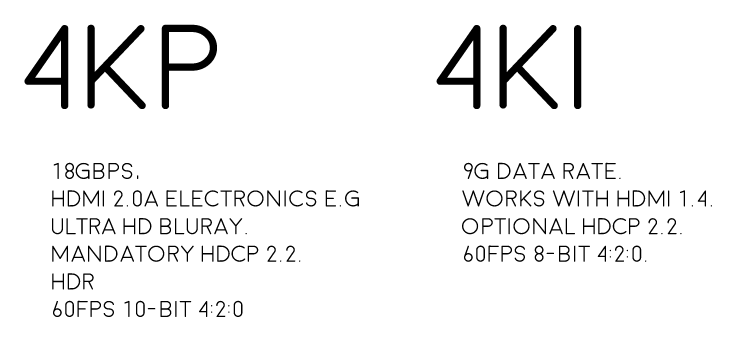
Proper 4K (4Kp) is next-generation HDMI 2.0 spec 4K, it’s what Ultra HD Blu-ray is and what premium 4K content will be. Ultra HD video refreshes at a smooth 60 frames per second in amazing 10-bit 4:2:0 colour (or if your display doesn’t support 10-bit) 8-bit 4:4:4 colour – basically hugely superior colours than what we have seen before over HDMI. 4Kp can also support HDR content and runs at very high 18Gbps data rates and, as a result, will require all new high-bandwidth HDMI 2.0a* spec electronics. 4Kp will also have HDCP 2.2 copy protection encrypting the content, which I’ll touch on later.
What is most important from integrator perspective is that single-cable HDBaseT DOES NOT carry 4Kp. It will only carry 4Ki because HDBaseT is max 10.2Gbps and 4Kp requires 18Gbps.
Most devices out there today labelled as ‘4K’ do not support 4Kp, they only support 4Ki. And by most, I mean over 95%. But this is improving, more and more displays are coming out now that support HDMI 2.0 and have a 10-bit panel. Ultra HD Blu-ray is likely going to be the first 4Kp source device we see. So what is 4Ki?
Interim 4K (4Ki) runs at a 9G data rate (half that of 4Kp) and doesn’t necessarily require new HDMI 2.0 electronics. It will work on older HDMI 1.4 spec devices. It may or may not have HDCP 2.2 encryption. And colour-wise if it’s running at 60fps it can only be the lesser 8-bit 4:2:0 quarter colours. For 4:4:4 a lower 30fps refresh rate is used instead and smooth panning shots are sacrificed. 10-bit colour content just flatly isn’t supported full stop.
What is so important about colours?
4Kp/60 and 4Ki/60 if watched in black and white are EXACTLY the same. The same number of pixels wide and high, refreshing at 60 times per second, with the same pixel data for light and dark contrast. So no difference in sharpness, motion or contrast.
Where they differ is with a compromise on colour. The resolution of the colour layer that gets laid over the top of the black and white frame when combined to make the final image. With 8-bit 4:4:4 each pixel can choose a colour, whereas with 4:2:0 every 4 pixels have to share a single colour choice. Even though a cluster 4 pixels are sharing the same colour, the overlay of the black and white image creates different shades. The resulting 4:2:0 video content, although a lesser quality, is not as substantially different from 4:4:4 as you might think. In fact, when viewing the two from a couple of metres away, the human eye really struggles to differentiate them.
OK, now that you’re thinking is in tune with there being two primary types of 4K material and you understand the difference between the two.
You also NEED to be aware of a couple of associated meteors about to hit the AV side of the CI industry that relate to the facilitation of working 4K HDMI systems. (Remember HDMI is a system, NOT a cable) One is called ‘HDMI 2.0’ and the other is ‘HDCP 2.2’. The two meteors should really hit simultaneously, but not necessarily.
Meteor 1: HDMI 2.0 is the new twice-as-big digital pipeline to accommodate the higher data rates of proper 4K jumping from 9G to 18G bandwidth. Its not a new cable design, its new electronics at either end of the existing (short) HDMI cable we use. So that is new source devices (Ultra HD Blu-ray players for example) and new displays (10-bit SUHD Samsung panels for example). However for longish cable distances, say 3m and over, current passive cables may struggle with the higher data rates. We’ll begin to see some new breeds of HDMI cable types appear to solve this. Some will use integrated active/powered boosting chips and others are likely to be a copper/fibre hybrid cable. Existing long length HDMI cables, that may be buried in walls for example will be able to be utilised through the use of restorative dongles that can be placed at the start and end of the cable run. I expect to see this HDMI cable rescue/fixer market grow over the coming years sharply.
Meteor 2: HDCP 2.2 is the new 128 bit encryption designed to secure 4K content from being pirated. It is the same level of security encryption as credit card issuers use for internet transactions. Unless every device in the signal path is HDCP 2.2-capable, theoretically the content will not be shown. Source, matrix, AVR, balun, display, projector must all support HDCP 2.2. One weak link means black screen. The thing about HDCP 2.2 support is that it’s essential to ensure the best chance of displaying 4K content from your favourite content providers (i.e Hollywood and sports). The HDCP 2.2 event horizon will largely be determined by the release of Ultra-HD 4K Blu-ray and 4K content being delivered via our set-top-boxes.
Conclusion
In summary, until more next-gen 4Kp source devices, like Ultra HD Blu-ray, set-top-boxes, and media players are released we live in a kind of interim 4K limbo land, a phoney, interim 4K world with no proper, premium 4K content to enjoy. In addition to this, more displays with HDMI 2.0, HDCP 2.2 and 10-bit panels need to be released so that users can take full advantage of the advancements in picture quality offered by 4Kp. Month-on-month this situation improves.
From an integrator perspective, quite rightly there is a lot of emphasis currently on HDCP 2.2 support within matrixes. But even when HDCP 2.2 compliant, single-cable HDBaseT is a bottleneck in many video distribution systems, which will result in premium 4K content video quality being downgraded when distributed. There is a quality compromise currently in order to deliver a distributed solution over a single network cable.
SIDELINE RED HERRING: What about 4K streaming like Netflix?
Well it’s not 4Kp and it’s not 4Ki… It’s dynamically compressed, streamed 4K content using AVC H.264 and HEVC H.265 codecs with varying quality from home to home according primarily to the speed and quality of their network. For the purposes of this article, I am talking about uncompressed 4K content.
-
Modular 8×8 Firmware version 1.5.100 – IMPORTANT
On Monday 18th of May we rolled out a firmware release to all live Modular 8×8 units. Whilst the update was being delivered to the units we suffered an ISP issue causing the update file to be corrupted in some instances. Most units will repair themselves automatically. If your unit is displaying a ‘1021 cant reach gateway’ error or stuck in a boot loop please follow the instructions below
1. Remove and re-insert the SDCard from the slot on the front by pressing it once to pop it out and press again to pop it back in. This should resolve things in most cases. (This may need to be repeated if the first attempt fails)
2. In more rare cases, it may be that removing all of the cat5 cables from any HDBaseT outputs and then removing and replacing the SDCard is required.
3. In extreme instances, a manual software update is required. To perform this, the SDCard needs to be fully removed from the unit and placed in a Windows based PC. Open The SD Card and remove all files except the ‘SETTINGS.INI’ File. Then file below needs to be downloaded, extracted, then the three files within need to be placed on the root of the 8×8 SDCard. Once there, the card can be inserted back into the 8×8, it should reboot and apply the correct software. Normal operation of the 8×8 will then resume.
If none of the above works, or you require further assistance please contact the technical team via phone or email on 01684576348 & support@hdanywhere.com
Firmware files – Download
-
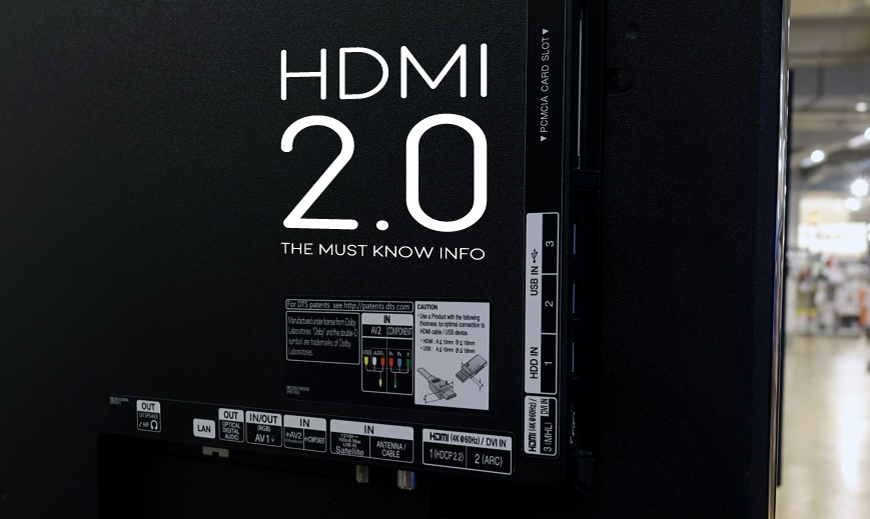
HDMI 2.0- the must-know info.
HDMI 2.0
HDMI technology has different versions or specifications, the newest of which is HDMI 2.0, which has been causing a lot of confusion and questions within the AV distribution world.
The main feature of this HDMI 2.0 specification which is relevant to custom installers, is this:
“The HDMI 2.0 specification defines a new, more efficient signalling method, for speeds above the limits of the earlier HDMI 1.4b specification (10.2Gbps), to allow higher bandwidths (up to 18Gbps) over existing High Speed HDMI Wire Cables.” (HDMI.org)
What does this mean?
This will allow transmission of higher bandwidth video formats such as 2160p @60Hz 4:4:4 UHD / 4K and 4:2:0 UHD with HDR. It’s worth pointing out that currently there is only ONE HDMI source device in existence (the Sony FMP-X10 4K) that is capable of outputting these resolutions and is HDMI 2.0 licensed. But more HDMI 2.0 licensed source devices will probably begin to appear at the end of 2015.
Will you need new cables or specific HDMI 2.0 cables?
HDMI 2.0 is backwards compatible, so you won’t need new cables (as long as the HDMI cables you’ve been using are high speed, passive and under 5m)
What is HDCP 2.2?
HDCP 2.2 is the new encryption format for UHD content. It’s designed to create a secure connection between a source and a display. This is so you can’t take the output from a source (a Blu-ray player, say) and plug it into a recording device to make a copy of the content. HDCP doesn’t care what goes across the cable, as long as that cable is secure.
The key point is all devices in a chain need to be HDCP 2.2 compliant or you’ll get an error message.
What is the point of HDMI matrixes with HDCP 2.2 but NOT HDMI 2.0? Should I invest?
The best way to answer that is with another question: ‘what HDCP 2.2 compliant devices are you planning on installing that don’t need HDMI 2.0?’
The big push for compliance is going to come at the end of the year when new UHD Blu-Ray players are released. These will definitely require HDMI 2.0 and won’t work on the HDCP 2.2 matrices that have just hit the market.
Another key point is that HDMI 2.0 will require HDCP 2.2, but HDCP 2.2 does NOT require HDMI 2.0. Hence new HDCP 2.2 compatible matrices hitting the market before HDMI 2.0 + HDCP 2.2 compliant matrices.
The other big factor is what Sky will do with UHD. The current industry belief is that the new sky box won’t need HDCP 2.2. The logic is that there are not enough HDCP 2.2 compatible TV’s in the UK currently to be able to justify a new Sky box that isn’t compatible.
What TVs are HDMI 2.0?
The vast majority of TV’s marketed as UHD or 4K that were bought before 2015 don’t have HDMI 2.0 and don’t have HDCP 2.2. Some manufacturers have produced TVs with one or more HDMI 2.0 ports with HDCP 2.2, these are below:
Samsung UE65HU8500
Samsung UE55HU7500
Sony KD-65X9005B
Panasonic CX600 and CX 650 Series
-
EDID management: Modular 4×4 and 8×8
EDID (Extended Display Identification Data) is information provided by a display to describe its capabilities to a source. It contains information including resolution, audio formats and frame rates. Modular has the ability to ‘Fix’ the EDID profile to allow a source to always pass video with a fixed resolution and/or specific audio output (i.e 1080p 60Hz, with 5.1 multi-channel audio)
If the system is functioning as normal, then no EDID management is required, however if you have a source that will not output the correct resolution/audio type, this can be resolved by following the instructions below
Please remove the SD card from the unit and connect it to a PC (Please do not use a MAC). On the route of the SD card is a file called ‘settings.ini’, this is the file that will be edited. Open the file in a text editor such as notepad, then scroll down to the bottom of the file
Enter one or more the following lines where required
edidprofile1 = x ; sets the EDID profile for source connected to input 1
edidprofile2 = x ; sets the EDID profile for source connected to input 2
edidprofile3 = x ; sets the EDID profile for source connected to input3
edidprofile4 = x ; sets the EDID profile for source connected to input4
edidprofile5 = x ; sets the EDID profile for source connected to input 5 (8×8 only)
edidprofile6 = x ; sets the EDID profile for source connected to input6 (8×8 only)
edidprofile7 = x ; sets the EDID profile for source connected to input 7 (8×8 only)
edidprofile8 = x ; sets the EDID profile for source connected to input 8 (8×8 only)where x equals:
0 – Presents the source with the 1080p template EDID
1 – Fixes the EDID
2 – presents the source with the 4K template EDID
3 – presents the source with the 1080p template EDID with 5.1 enabled
101 – presents source with the EDID of the Sink connected to Output 1
..108 – presents the source with the EDID of the Sink connected to Output 8
Once all editing has been done, save the settings.ini file, and reinsert the SD card back into the Modular unit.
Also please reboot any source where the EDID profile has been modified to allow the new EDID data to be passed.
-
mHub 4K Network Discovery Tool
mHub 4K Network Discovery tool
To enable access to the mHub 4K web interface, you will require the IP address of the unit.
This is found using the Network Discovery tool. Simply download and run the software below and this will give you the current IP settings of your unit, and also the option to change the settings to suit you network infrastructure.
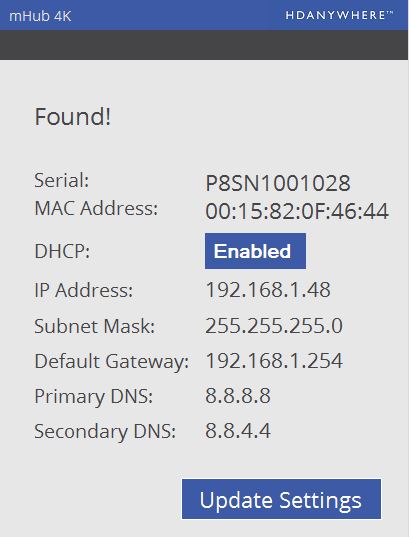
To change to fixed IP settings, please click ‘Enabled’. This then allows you to manually enter network information. Finally click ‘Update Settings’ to store entered information.
Download software – Network Discovery Tool
-
General purpose IR / Pronto codes for MHUB systems
IR codes for MHUB systems (not Modular or Multiroom+) including power control available here:
-
Guide: How to wire HDMI over Cat
HDanywhere 2K systems, such as the mHub 2K family, require a single network cable to be run from each HDTV location, back to a central point.
HDanywhere 2K systems use HDMI over Cat technology to transmit over a single Cat5e/6/7 cable up to a 50 metre distance.
-
Modular and IR Control
Modular units have the ability to receive Infra-red(IR) commands in two different ways; Code-based IR and Contextual based IR. Code-based IR uses unique codes for each room/output, whilst Contextual IR uses a single set of codes, with the unit determining where the IR command originated.
If you wish to revert the unit to Code based IR control please edit the settings.ini file on the SD card (Please use only PC based systems to edit the SD card contents) and remove the following information.
cir1 = 0x00ff9867
cir2 = 0x00ffd827
cir3 = 0x00ff8877
cir4 = 0x00ffa857cir1 = 0x00ff807f
cir2 = 0x00ff00ff
cir3 = 0x00ff30cf
cir4 = 0x00ff906f -
Android APK Download
If you want to manually install the Android version of uControl you will need to enable Developer Mode on you phone, and allow app installation from unknown sources.
Once set click the link below.
Important– Development for this version of uControl has stopped, no update will be made, and you install this apk at your own risk.