Category: General articles

  • Troubleshooting: Green screen

    Important:
    In most cases, if you are experiencing green screen on your display then this is often down to the HDMI cable in between. A quick way to test to see if this is the case is to replace your existing HDMI cable with our range of 4K or 8K HDMI cables. If that doesn’t work, move your HDMI source to another display in your property (use a different HDMI cable), connect it up and observe to see if the same behaviour follows the box. This will help you determine if the issue is the cable or the HDMI source.

    The article below describes how to troubleshoot a green screen when using a HDANYWHERE product, if you are having green screen issues and you do not own a HDA product then we recommend you buy our 4K or 8K HDMI cables and give that a go first – they come with free shipping!

    Symptom:

    There is no picture or maybe a green screen following standby or when switching between source devices via a matrix. Most often this problem occurs once the TV goes to standby, and when brought out of standby to an ‘on’ state, it will not handshake properly and green screen instead of video appears.

    Green screen flashes generally indicate a HDCP (Digital Content Protection) handshaking issue, or a HDMI hot plug detect issue between that particular source device and display.
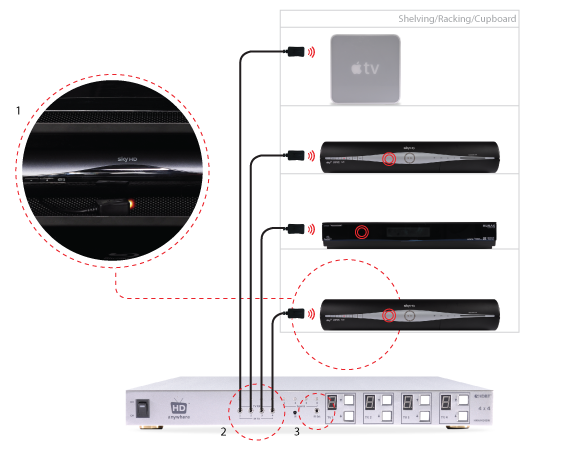
    (more…)

  • Sky HD Freezes / Locks Up / Powers Off / Non-responsive

    Sky HD and Sky+HD boxes freezing, locking up, powering themselves off etc are not uncommon. A quick google search will reveal just how many people suffer from this occurrence.

    Their connection to other devices is in most cases not the cause of the Sky box fault.

    In order to resolve this issue, HD Connectivity’s experience is that a full Sky system reset is the best medicine. Instructions on how to do this can be found here: Sky box full system reset

  • Routing 3D Blu-ray via a multiroom+ system

    Routing 3D Blu-ray (BR) via a multiroom+ system can be a challenge and in some cases, due to an incompatible mix of displays, will not be possible. Whether or not 3D Blu-ray formats can be routed via a multiroom+ system greatly depends on the mix of HDTVs, their capabilities and the 3D BR source itself.

    (more…)

  • Troubleshooting: Multiroom+ System IR

    Troubleshooting Approach

    When attempting to troubleshoot any issue, we need to isolate where the root cause of the fault could lie by a logical process of elimination.

    At the start of a troubleshooting process, never rule out anything as not a potential cause of the problem. Every aspect of the installation should be considered as a potential suspect. Each component of the installation should be ruled out one-by-one and only then eliminated from the troubleshooting process as the potential problem.

    (more…)

  • Troubleshooting: IR over HDMI Kit

    NB: Both dongles have ‘RX’ moulded into the casing.

    When using the IR over HDMI function, ensure that the switch is pushed across to ‘IR’ and not ‘CEC’.

    Connect the dongles into the source device’s HDMI output port and the display device’s HDMI input port, initially without the HDMI cable connected.

    Connect the IR cables. Connect the IR TX cable to the dongle that’s connected to the source device and connect the IR RX cable to the dongle connected at the display.

    In order to use your source device remote(s) at the TV location, ensure that the IR RX cable receiver eye is fully inserted into the 3.5mm jack port on the dongle and the IR RX cable magic eye is positioned in sight of where you would usually like to point the remote control(s).

    Connect the IR TX emitter cable to the 3.5mm jack port on the source device dongle and position the IR emitter in sight of the IR receiving window on that connected source device.
    TIP: tape the TX cable flat to a piece of card sat under the source device pointing at the IR window

    When using the IR over HDMI kit is set-ups involving splitters/switches/matrices, remember that the IR dongle has to be connected at either ends of a single HDMI cable run. So the dongle will be connected to the HDMI output port of the splitter/switch/matrix and not the HDMI output of the source device. To control the desired source device(s) – ensure that the IR TX emitter cable is positioned in sight of the IR receiving window on that connected source device.

    The exact position of the IR window can vary between makes and models of source. Generally it is on the left hand side about 2 inches from the middle of the box. Often it can be a bit of trial and error to locate the optimum IR emitter placement position. Once found I would advice taping/fixing the emitter in place.

    A final tip is to ensure that the batteries in your remote control are at full strength. (It’s amazing how a fresh set of batteries can resolve weak IR issues).

    If you have all this in place and are still experiencing issues, please contact Customer Services

  • Hard reset device back to factory condition

    If you have been advised to ‘hard reset’ your HDanywhere device back to it’s factory condition, please perform the following.

    A hard reset will clear any corrupted DDC, EDID or HDCP data on the device’s NVRAM memory and re-initiate the handshaking process with all the connected devices.

    Firstly we need to ensure that any manufacturer HDMI CEC link protocols are switched to “off”.

    Trade names for CEC are Anynet+ (Samsung); Aquos Link (Sharp); BRAVIA Link and BRAVIA Sync (Sony); HDMI-CEC (Hitachi); E-link (AOC); Kuro Link (Pioneer); CE-Link and Regza Link (Toshiba); RIHD (Remote Interactive over HDMI) (Onkyo); RuncoLink (Runco International); SimpLink (LG); HDAVI Control, EZ-Sync, VIERA Link (Panasonic); EasyLink (Philips); and NetCommand for HDMI (Mitsubishi)

    To perform the hard reset:

    Power down every device in the set-up – that’s all sources, all displays and the device itself. Leave off at the mains for 10 to 15 minutes.

    Now switch all connected display devices on and select the HDMI channel on those displays.

    Power the device back on at the mains.

    Now one by one, power on the source devices, starting with input 1, input 2 and so on. If you are using a cable/satellite receiver such as Virgin or Sky+HD, please ensure that this is connected to input 1, not input 2. Please note that Sky HD boxes take around two minutes to fully reboot.

    After a few seconds everything should have synced and shaken hands correctly and normal operation should resume.

    If the problem still persists, Contact Customer Services. for further troubleshooting advice.

  • Using a HDMI Splitter before an AVR and Display

    Due to the way that HDMI handshaking negotiations take place between source and displays or AVR devices, the display (unless it can accept multi-channel audio and has a setting for such) will communicate with the source to only output 2.0 channel stereo. This is due to the fact that in most cases an HDTV only has 2 speakers.

    When using a HDMI splitter or distribution amp (DA) effectively you have 2 display devices competing for the source to send them the audio signal format type that they prefer. The technical rules of HDMI dictate that the lowest common denominator always wins that battle. The logic being that this rule should result in the maximum number of display devices functioning in some way. (i.e. a 7.1 capable device should still be able to output 2.0 channel stereo also, meaning both displays have picture + sound)

    Unfortunately, what you and a lot of people really want from HDMI is for a mix of audio formats to be delivered from one source, which is just not possible currently.

    Some splitters including ours can be pre-loaded with firmware where the highest denominator formats win the battle, but of course that would leave your 2.0 capable HDTV without sound.

  • Troubleshooting: Mixing 3D and 2D on a matrix or splitter

    In order to route 3D content easily via a matrix switch or splitter, ALL connected displays need to be 3D compatible. Even, if just one of the displays is not 3D compatible, the 3D source player will NOT output the 3D content. The HDMI handshaking process will trigger the source player to drop it’s resolution output so that all displays can show content.

    The problem is HDMI is designed such that the source ‘polls’ the EDID data (EDID is a display’s identity card stating what it’s capabilities are, a bit like a top trumps card) from all connected Sink devices (your 3D enabled display and non-3D enabled AVR) and outputs the lowest quality video signal all devices support (2D in your case).

    To ensure 3D IS routed via the Matrix Switch or Splitter, the non-3D compatible display device must not be ‘active’. Sometimes turning the display into standby will be sufficient and sometimes full power off is required.

    Essentially, the 3D source player must not be able to ‘see’ a 2D only display connected to the Matrix Switch or Splitter.

    For best results when using 3D Blu-ray – HD Connectivity recommends… not actually connecting your 3D Blu-ray (BR) player to the Matrix. As Blu-ray 3D content is generally only viewed at a single ‘main’ TV location, in this instance it is better to have a direct connection between source and display, bypassing the Matrix completely. This will avoid any potential for ‘black screen’ situations at the other TV locations. It will also ensure that absolutely the best 3D format is selected for use on that display, not a potentially reduced quality 3D format that a lower 3D-capable display, connected to the matrix can influence the 3D BR to output. (Plus wearing those massive 3D glasses all around your house is really not cool and could result in you bumping into doorframes! – Ed)

  • Troubleshooting: HDMI to Component Converter

    No video/audio being outputted

    First troubleshooting question is: Are you using the converter with the source device’s HDMI video output set to 1080i, not 1080p?

    The digital to analogue processor (DAC) cannot accomodate a 1080p input signal. The component converter is 1080i pass-through conversion to component video device – it cannot actively reconfigure a 1080p input signal to 1080i.

    This is stated on the website, but some people miss it. The HDMI to Component Converter is a Digital to Analogue (DAC) conversion device that will take a HDMI source input (up to 1080i) and output the video signal as RGB component (YPbPr).”

    Finally, always power on the system in the following order from an ‘off at the wall’ starting point.

    1. TV
    2. Converter
    3. Source