Category: General articles

  • Unable to get HDR through MHUB or XTND to TV / Projector

    If your MHUB is marked with “TPC” then it is capable of passing a HDR picture to your display. There are a number of reasons why HDR may not be fed through your HDA device. This support post aims to troubleshoot the most common reasons and how to resolve them.

    Important: there are different versions of HDR, make sure your display supports the format your source is outputting!
    There are multiple variants of HDR such as HLG, HDR10+ and Dolby Vision, please ensure your display supports the relevant HDR technology.

    When connecting your HDR enabled source and display to a HDA system you may need to adjust some settings to get it to work.

    1. First, disconnect the source and connect it directly to your display. Do you get HDR?
    2. Ensure you are using High Speed HDMI Cables, this is important as long HDMI cables (over 5m) unless Active or Fibre will not work.
    3. Was you HDA device manufactured before 2019? Does it have TPC markings or 18G/18Gbps on it anywhere? If it doesn’t then there is a good chance that your HDA device does not support HDR as it was made before the specification was finalised.
    4. Does your HDA device support scaling? If so please ensure it is set to bypass.
    5. Copy or set a custom EDID directly from your display. This post explains how to copy EDID directly from your display.
  • HDANYWHERE product information on power usage and BTU outputs

    The table below details the PSU DC rating, the system power draw in watts and BTU(British thermal unit) heat output of each device.

    Product Code Release PSU Rating (DC) Power Draw (watts) BTU

    XTND

    XTND2K30 2017 5V 1A 2.5 9
    XTND4K40ARC 2018 24V 1A 20 68
    XTND4K100TPC 2018 24V 1A 12 41

    MHUB

    MHUBAUDIO64 2018 24V 13.4A 520 1774
    MHUBMAX44 2018 24V 2.71A 19.2 66
    MHUB431U 2018 24V 2.71A 36 123
    MHUB862U 2018 24V 2.71A 28 198
    MHUBPRO4440 2018 24V 2.71A 40 136
    MHUBPRO8870 2018 24V 6.3A 98 334
    MHUB4K44PRO 2016 24V 2.71A 42.72 146
    MHUB4K88PRO 2016 24V 6.3A 100 341
    MHUBPRO24440 2019 24V 5A 68 232
    MHUBPRO288100 2019 24V 6.3A 130 444

    SPLITTERS AND SCALERS

    SPLITTERMAX12 2019 5V 1A 2 7
    SPLITTERMAX14 2019 5V 1A 2 7
    SIGNALMANAGER 2018 5V 1A 1.65 6
  • Voice control with Amazon Alexa* using the “MHUB AV” Skill

    HDANYWHERE (HDA) Amazon Alexa App Skill

    *Before you activate the Alexa Voice Service with your MHUB, make sure Amazon support your territory and version. We cannot guarantee voice services or offer support to those territories not officially supported by Amazon. Check here: https://www.amazon.co.uk/gp/help/customer/display.html?nodeId=202207000

    What you need to get your MHUB to respond to voice commands:

    1. You have completed the first-boot procedure within MHUB-OS
    2. You have MHUB-OS version 8.10 or higher installed on your MHUB
    3. You have an active HDA Cloud account
    4. You have downloaded uControl packs for all displays and source devices you want to control
    5. You have completed input mapping in MHUB-OS
    6. You have an active Amazon account
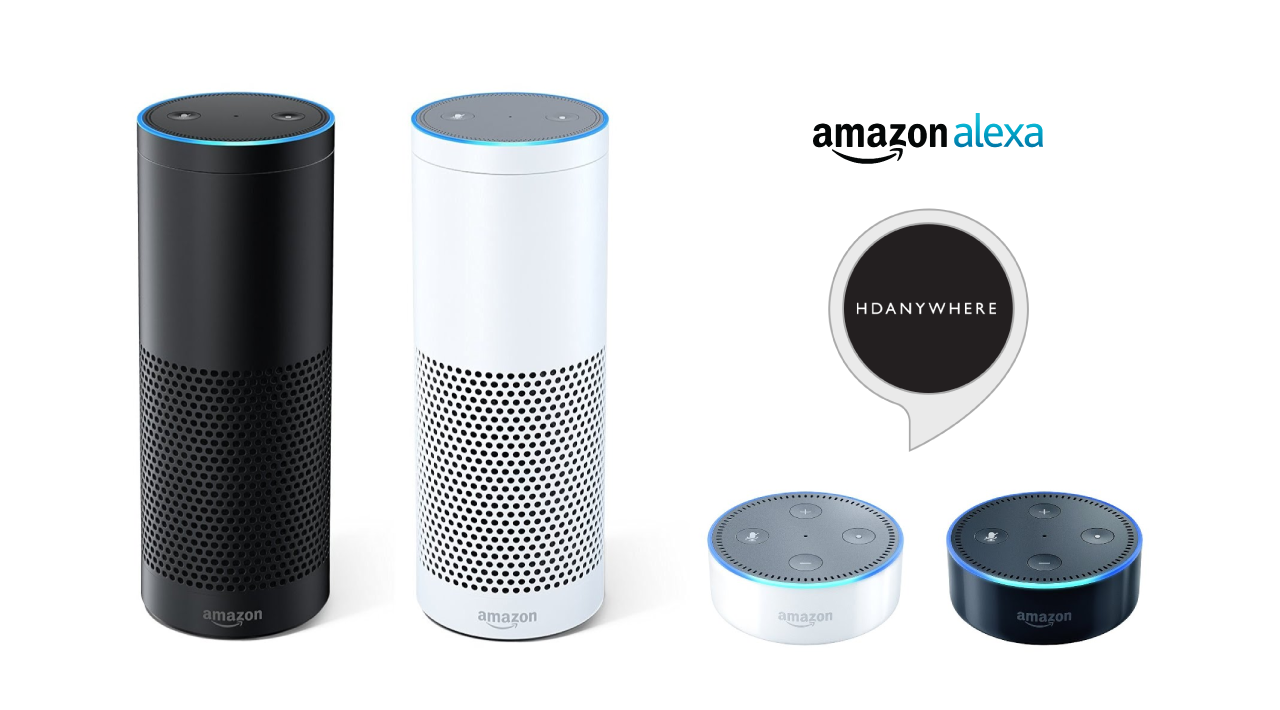
    7. You have an Amazon Alexa enabled device, such as Amazon Dot/Echo/Show

    Setting up AV Skill

    Configure voice commands to do exactly what you want

    Let’s take the command “Alexa, Turn on football” as an example.

    It might appear like a very simple command but there are a number of things that need to happen in order to watch football! First the TV might need to turn on, but in which room? The volume might need to be set to a desired limit. The correct source input might need to be selected on MHUB and finally that source will need to navigate to the channel hosting the football.

    You can configure all those actions in what we call a “Sequence”.

    Taking the example above:
    Alexa (this wakes up your Amazon Dot/Echo/Show)
    Turn on… (this invokes the smarthome skill)
    football (this is your custom name for the Sequence, it can be anything you want)

    Inside MHUB-OS we can configure exactly what “football” does.

    • You can select if you want MHUB to turn your TV on and adjust the volume
    • You can tell MHUB to switch to the source device with has the football on it
    • You can instruct MHUB to change the channel on that source device

    Read more about Sequences and Scheduling.

    Troubleshooting

    • When searching for devices, nothing is found
      1. Check you cloud account details were entered correctly
      2. Ensure only 1 system is linked with the cloud account being used
      3. Ensure you have backed up the system to cloud after configuring the Alexa Skill on MHUB-OS
    • When you try to control a zone Alexa says the command isnt supported
      1. Ensure there are no other devices linked to the Alexa that have the same name as the zone.

    Here’s a table of all the commands you can tell your MHUB to do…

    Now you’re ready to go. Take a look at a full list of commands that you can say to your Echo.

  • MHUB-OS 8: a quick guide to zones

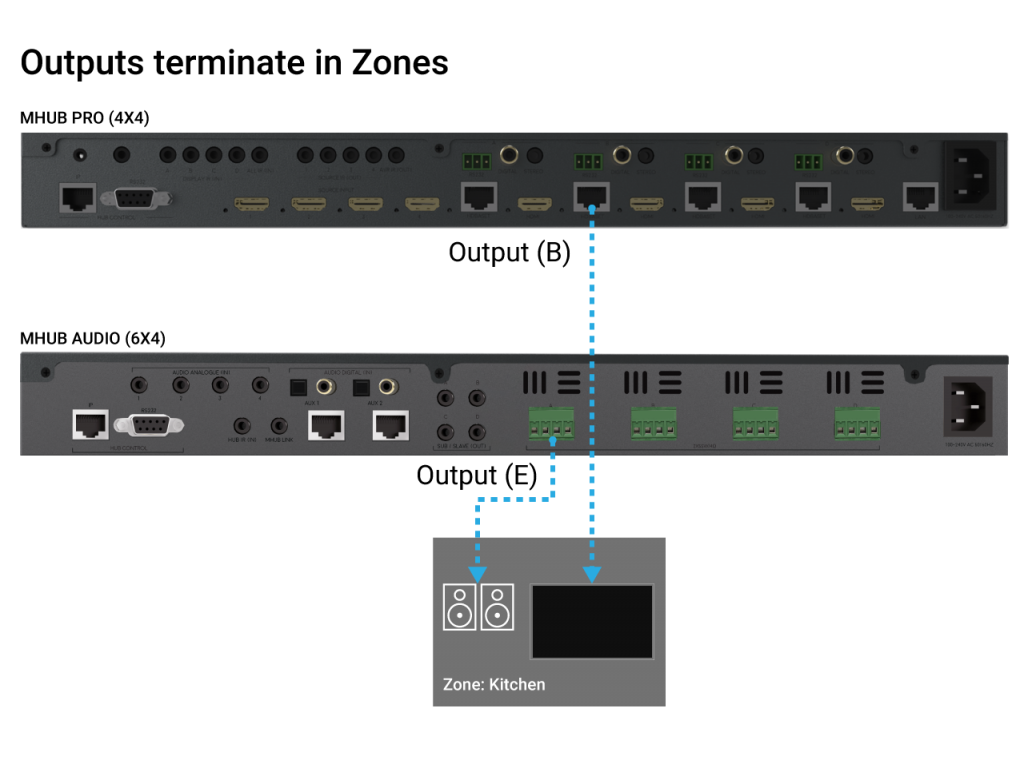
    Zones define a physical space in a property where outputs from MHUB terminate.

    A Zone can include a maximum of 1 video output and a maximum of 4 audio outputs. For example, you can create a zone called “Kitchen” and assign 1 video and 1 audio output to it to provide you with viewable TV and sound. A Zone must contain at least 1 output from an MHUB for it to be addressable for control. Note: outputs can not be shared or split to more than 1 Zone.


    MHUB zones

  • MHUB-OS 8 first boot process

    The first boot process for MHUB-OS has remained largely unchanged with the exception of zones.

    The slideshow below walks you through the steps within MHUB’s first boot process and how to setup zones to refect the different rooms or areas within you property.

    If you wish to configure a stacked system please watch this video – Creating a MHUB stacked system.

    You should be able to complete the process in under 10 minutes.

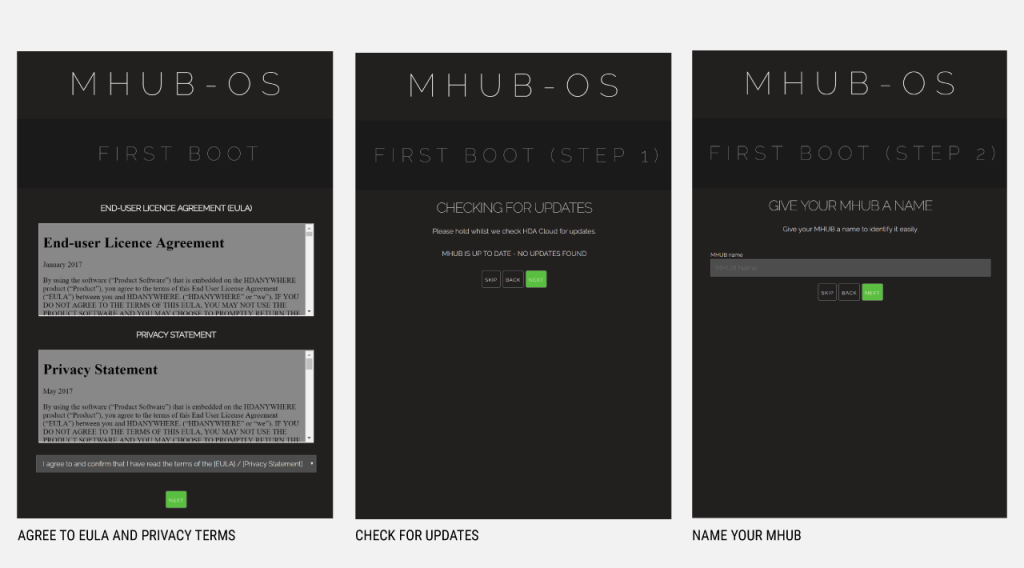
    MHUB-OS first boot steps are as follows:

    1. EULA and Privacy policy
    2. Name your MHUB
    3. Name your source devices
    4. Create zones
    5. Assign outputs to zones
    6. Confirm zones
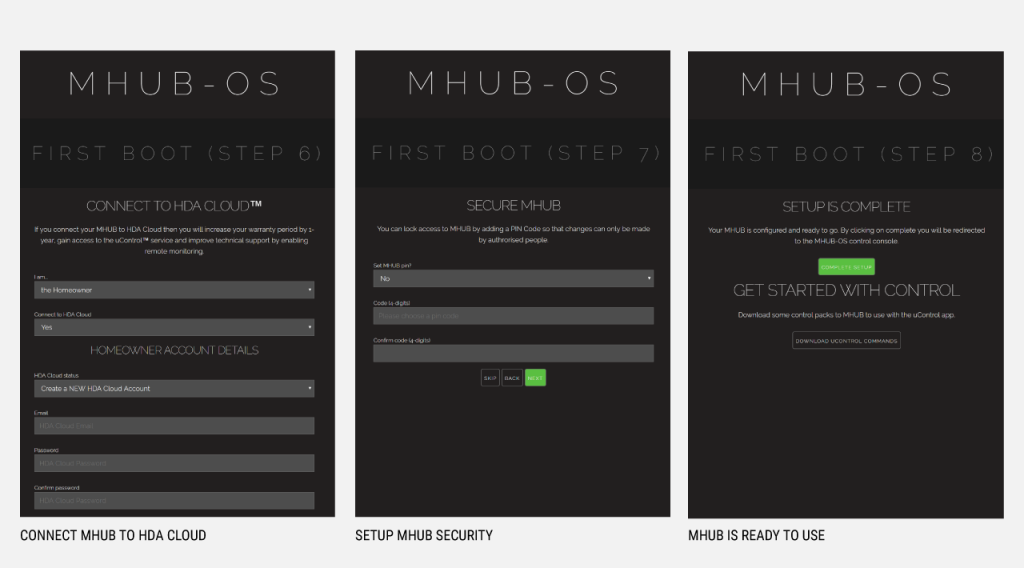
    7. Connect MHUB to HDA Cloud
    8. Complete setup

    HDANYWHERE(HDA) recommends that every MHUB install goes through its first boot process to ensure that the MHUB is setup correctly.

    How long does the process take to complete

    If you have an update to install then then first boot usually take about 10 minutes. If there is no update you can normally finish the entire process and have an operational MHUB system well within 5-7 minutes.

    Yes. You do not need to access MHUB-OS if you don’t want to. But this is only recommended if you intend to control you MHUB via a control system. You will also miss the opportunity to increase your warranty period and open your MHUB to additional features or services.

    I don’t want to use MHUB-OS or go through the first boot process, will MHUB work like a normal?

    Yes. You do not need to access MHUB-OS if you don’t want to. But this is only recommended if you intend to control you MHUB via a control system. You will also miss the opportunity to increase your warranty period and open your MHUB to additional features or services.

    I made a mistake in the first boot process, can I go back or make a change?

    Yes. You can go all the way back to the update step and correct any incorrect information you entered. Alternatively, you can also access MHUB-OS (after you have completed first boot) and change anything then.

  • Updating MHUB-OS to a new version

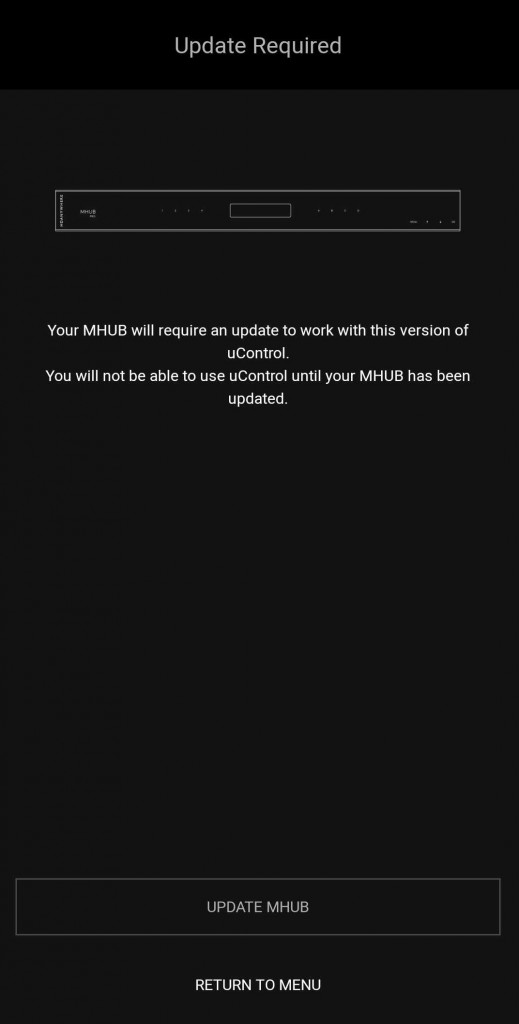
    If you have received a notification in uControl or by email that an update is available for your MHUB-OS then follow these steps to update your system. All updates are now handled by uControl. Please ensure you have installed the latest version.

    If you have not connected to your MHUB before, please follow this guide first – Connecting to a MHUB

    If you have received a notification in uControl or by email that an update is available for your MHUB then chose the correct option below:

    Updating an existing system

    The majority of MHUB customers will be on MHUB-OS 7 and their systems will contain user data which needs updating to the latest version. If this is you then follow these steps.

    1. Click ‘Connect to an exisiting MHUB system’, uControl will scan your network for any MHUB systems
    2. Select your MHUB device
    3. Connect to your MHUB
    4. uControl will show popup message that MHUB-OS requires updating, click ‘update’ and follow on screen prompts


    Updating an New system

    This is likely to happen if you have recently bought MHUB and it was shipped to you on older software. You will run through the following steps:

    1. Click ‘CONNECT TO MHUB SYSTEM’, uControl will scan your network for any MHUB systems
    2. Select your MHUB device
    3. uControl will check the current version of MHUB-OS, if an update is required, you will be prompted to update it.
    4. Connect to your MHUB
    5. Perform first boot process.

    Updating to MHUB-OS 8.00 from an earlier version

    If your version of uControl updates to version 2.0 or above automatically, any previous connection to your MHUB will be reset. This is normal and part of the update process. Follow the process as described in ‘Updating a New System’ and uControl will update your system as part of the connection process.


    update-mos

    Follow the instructions within the app to connect back to your system. During this process uControl will check MHUB(s) to see if they also require updating.

    Watch a video of it here:


    Having trouble updating your MHUB, check here –Update Troubleshooting

  • MHUB-OS first boot process

    Make sure MHUB is connected up correctly before starting the first boot process on MHUB-OS

    HDANYWHERE(HDA) recommends that every MHUB install goes through its first boot process to ensure that the MHUB is setup correctly. Please follow the quick start guide (inside MHUB packaging) to make sure your MHUB is connected correctly to your source devices, displays and has an active network connection before proceeding.

    I don’t want to use MHUB-OS or go through the first boot process, will MHUB work like a normal matrix?

    Yes. You do not need to access MHUB-OS if you don’t want to. MHUB will work distributing video as normal and will be controllable using the included remote controls. Please note that you will not be able to access advanced features such as voice control, the uControl app or build Sequences.

    Accessing MHUB-OS (MOS)

    There are two ways to access MOS:

    1. Download our app, uControl, from the iOS or Google Play Store and let it find MHUB (and run you through the first boot) for you
    2. Go to your MHUB and press and hold the “MENU” button for 5 seconds to reveal its IP address. Make a note of it then put that address in to any web browser on the same network. You will be forwarded to the first boot process.

    First boot process

    FIRST-BOOT1

    • BEFORE STARTING:Read and agree to the End User Licence Agreement (EULA) and Privacy Statement
    • First Boot Step 1 – Check for MOS updates

      This is where your MHUB requests available updates from HDA cloud so your unit will update to the latest version. This is done before proceeding.

    • First Boot Step 2 – Name your MHUB
      Here you can give your MHUB a personal name, this can also be used to differentiate multiple installations by HDA Pro’s
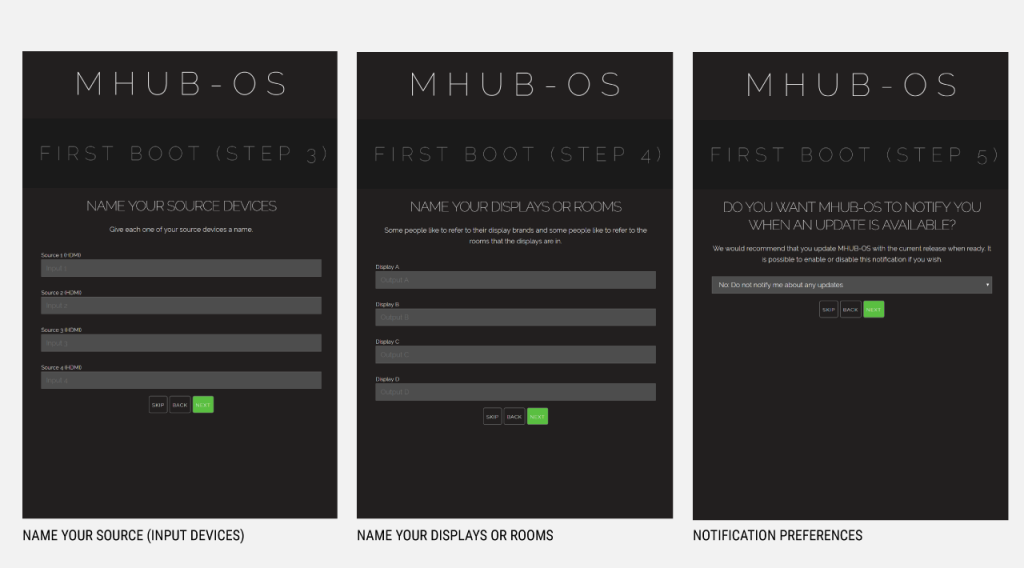
    • First Boot Step 3 – Name your sources/inputs
      On this page you can label your input devices, such as Sky, Apple or Tivo. These labels are used in the uControl app and with voice control. Please go here for best practices when adding names. [Best Practices]

    FIRST-BOOT2

    • First Boot Step 4 – Name your Displays/Rooms/outputs
      This page is similar to the previous step. You can choose to label them as display manufacturers or room names. Again please follow best practice guidelines available here – [Best Practices]
    • First Boot Step 5 – Turn update notifications On/Off
      MOS updates are released periodically, here you can choose to be notified when an update is available

    FIRST-BOOT3

    • First Boot Step 6 – Create or link your MHUB to a HDA cloud account, read and agree to our Terms and Conditions
      MHUB4K(3rd gen) and MHUB4KPRO units can be linked to a cloud based account. When registering as a homeowner this enables a couple of things. Firstly when you register, your warranty period is extended by 1 year, in addition to that cloud access is required when using the uControl IRengine feature allowing you to control source and display devices. Cloud access is also required for voice integration. For a HDA PRO the cloud account allows you to manage your MHUB installations remotely, getting system information as well as a host of other features.
    • First Boot Step 7 – Secure MHUB with a PIN number
      If you wish you can lock local access to MOS stopping any unwanted configuration changes from being made.
    • First Boot Step 8 – Complete First Boot Setup
      Once you have completed the first boot process you can either ‘COMPLETE SETUP’ and go to the MOS DASHBOARD pag, . or goto the uControl page to start adding device/source control. For more information on uControl go here uControl
  • Voice control with Amazon Echo using the “MHUB 4K PRO Control / MHUB 4K PRO Smarthome” Skill

    Setting up the MHUB 4K PRO Control / MHUB 4K PRO Smarthome Skill on the Alexa app

    HDANYWHERE (HDA) Amazon Alexa App Skill

    We are assuming that you have already downloaded the Amazon Alexa app and have a functioning Amazon account.

    Skill types:
    There are two types of skill which you can enable on the Alexa app.

    • Custom Skill
      With a Custom Skill we have full control over the voice interaction (a voice interaction is the communication you have with an ECHO device when speaking a command and also includes the response given by the ECHO) between you and your Echo device, this allows for a greater range of voice commands including playhead, change channel, switch sources, increase/decrease volume.Click here to view a the full range of voice commands.
    • Smarthome Skill
      The Smarthome skill differs from the custom skill in a couple of ways. Firstly, invoking a smarthome skill is fixed and defined by Amazon, this also applies to the voice interaction. We currently support on/off commands, allowing you to perform actions quickly by uttering “Alexa, turn on TV” or a custom label like “Alexa, turn on movies”.
    • You can of course, use both. They are FREE!

    What you need to get your MHUB to respond to voice commands:

    1. You have completed the first-boot procedure within MHUB-OS
    2. You have MHUB-OS version 7.0 or higher installed on your MHUB
    3. You have an active HDA Cloud account
    4. You have downloaded uControl packs for all displays and source devices you want to control
    5. You have an active Amazon account
    6. You have an Amazon Alexa enabled device, such as Amazon Dot/Echo/Show

    Linking the custom skill “MHUB 4K PRO Control”

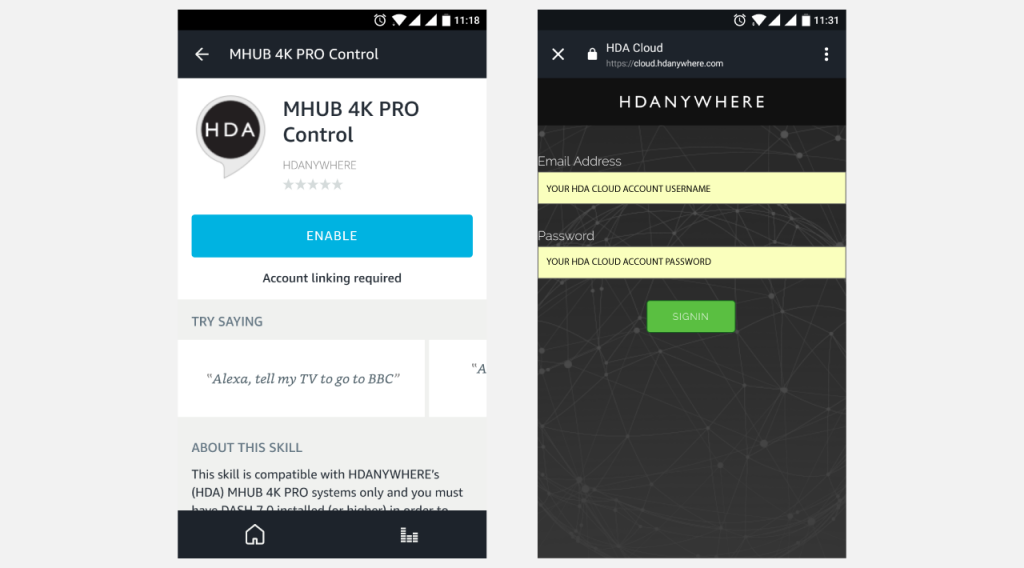
    1. Go to the Skills section on the Alexa app and search for “MHUB 4K PRO Control”
    2. Click on the skill and select “Enable”
    3. Click “Link Account” – when you do this, you will be redirected to HDA Cloud’s secure login page. Enter your username and password in to the fields.

    To enable the MHUB 4K PRO Control Skill you will need to add the skill first by pressing the "Enable" button in your Amazon Alexa app. Once enabled you will be forwarded to HDA Cloud to link your account with Amazon Alexa. Enter your HDA Cloud username and password and your MHUB will be connected to Alexa!

    Linking the smarthome skill “MHUB 4K PRO Smarthome”

    1. Go to the Skills section on the Alexa app and search for “MHUB 4K PRO Control”
    2. Click on the skill and select “Enable”
    3. Click “Link Account” – when you do this, you will be redirected to HDA Cloud’s secure login page. Enter your username and password into the fields.
    4. After the account has been linked, visit the “Smart Home” screen then navigate to the ‘Manage devices in Smart Home’ then Devices. Next click ‘Discover’.
    5. This action will communicate with MHUB and pull any devices making them ready to use.

    Configure voice commands to do exactly what you want

    Let’s take the command “Alexa, tell my TV to watch football” as an example.

    It might appear like a very simple command but there are a number of things that need to happen in order to watch football! First the TV might need to turn on, but in which room? The volume might need to be set to a desired limit. The correct source input might need to be selected on MHUB and finally that source will need to navigate to the channel hosting the football.

    You can configure all those actions in what we call a “Sequence”.

    Taking the example above:
    Alexa (this wakes up your Amazon Dot/Echo/Show)
    tell my TV to… (this invokes HDA’s custom skill)
    watch (this is a special function which tells MHUB to start a Sequence)
    football (this is your custom name for the Sequence, it can be anything you want)

    Inside MHUB-OS we can configure exactly what “football” does.

    • You can select if you want MHUB to turn your TV on and adjust the volume
    • You can tell MHUB to switch to the source device with has the football on it
    • You can instruct MHUB to change the channel on that source device

    Read more about Sequences and Scheduling.

    Here’s a table of all the commands you can tell your MHUB to do…

    Now you’re ready to go. Take a look at a full list of commands that you can say to your Echo.

  • MHUB 4K 4×3+1/8×6+2 RS232 Connection

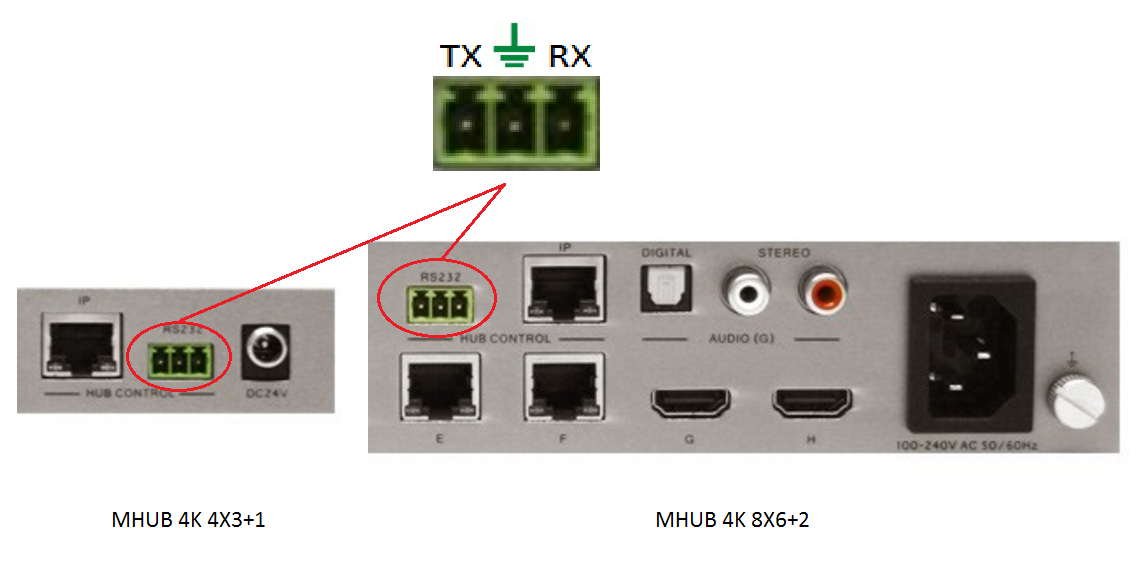
    If you wish to control your MHUB 4K 4×3+1/8×6+2 from an external control system via a RS232 connection you will need to wire the included phoenix connector to the following specification.

    rs232

  • Daisy Chaining IR – How To

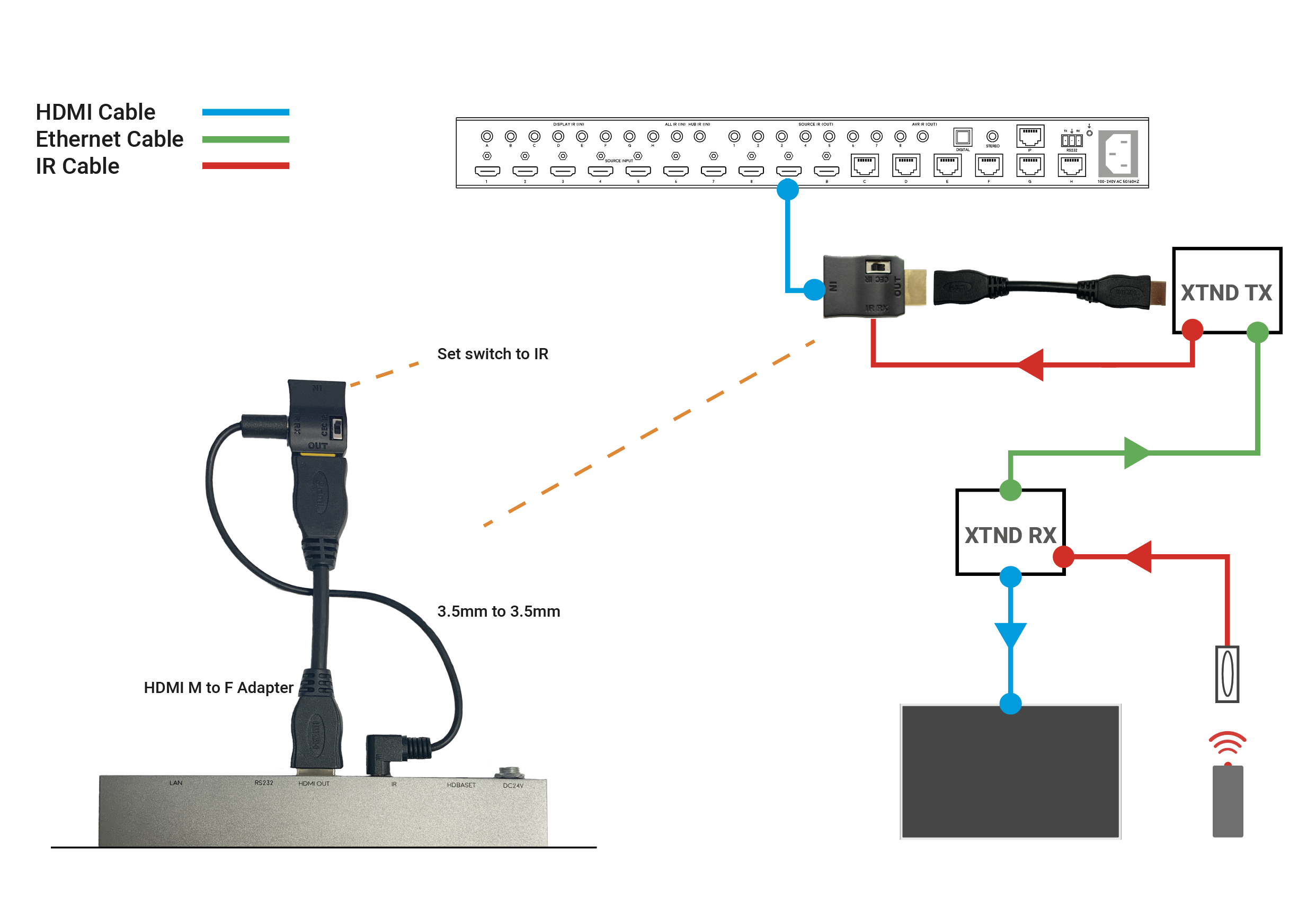
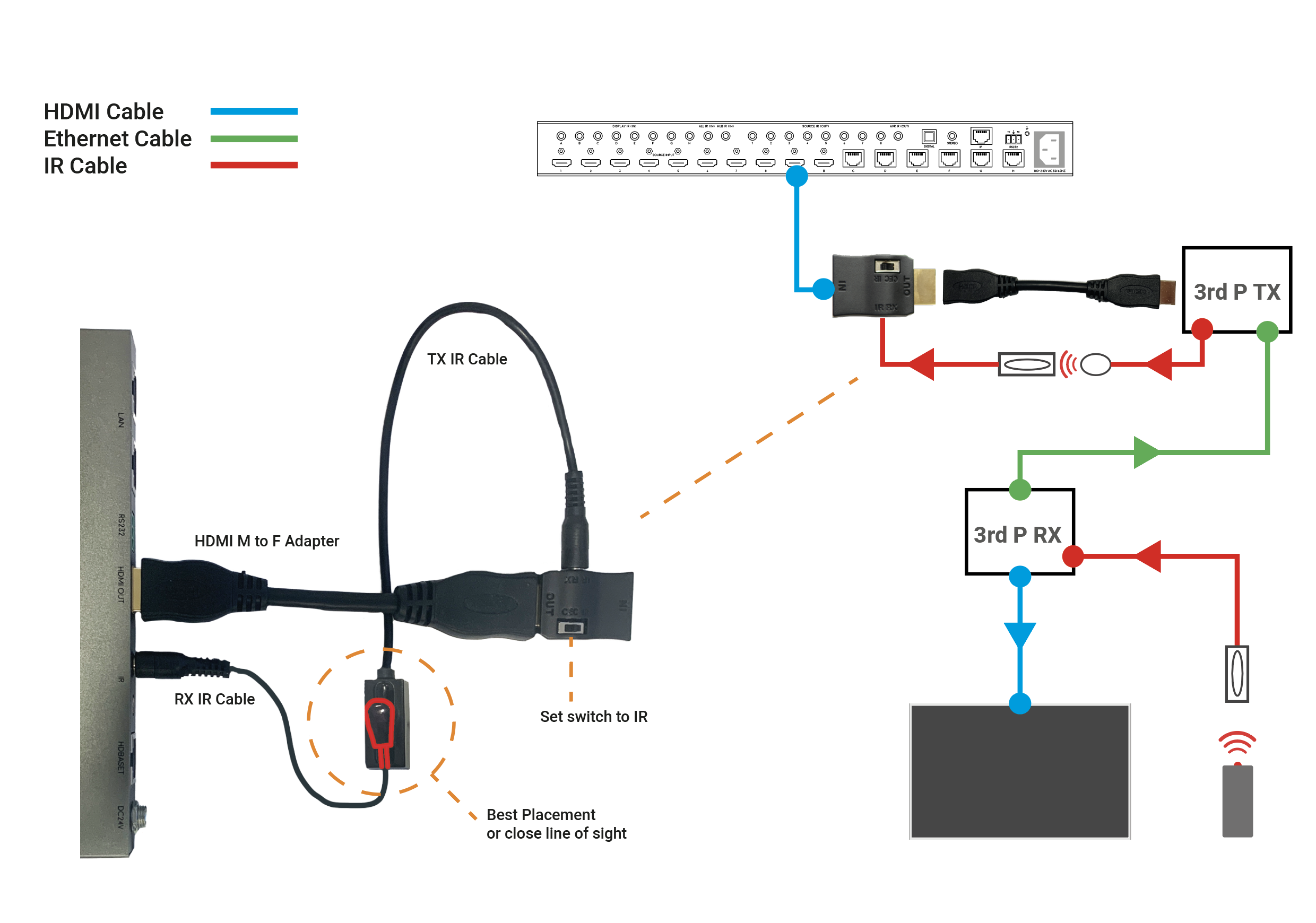
    Daisy chaining IR can allow you to connect the IR systems of 2 devices. This allows IR to pass from one device to another

    This does not work for HDMI Mirrored ports.

    a) The diagram below shows how you can link two HDA devices, such as an MHUBU86240 and an XTND4K40TPC using a MHUB + XTND Integration Kit
    Screenshot 2020-12-08 at 14.29.15

    b) This second diagram shows how you would connect a HDA system to a 3RD PARTY extender or device such as a Harmony Remote by Daisy-chaining the IR transmitter from the 3RD party device and the IR receiver included with the MHUB system.

    Screenshot 2020-12-08 at 14.21.04

    c)

    Screenshot 2020-12-08 at 14.21.04