Author: HDA Support Team

  • Using control drivers which require authorisation before use.

    update-mos

    HDANYWHERE are now working with Intrinsic Dev for control driver integration.

    If you see the label “DRIVER REQUIRES LICENSE ACTIVATION FROM VENDOR” then this means you need to create an account and generate a license key before the driver will work. As always, the driver remains FREE OF CHARGE. The process takes under 5 minutes to complete and offers HDA Pros the following benefits:

    1. Track and find your drivers for every install you commission.
    2. Be kept updated if the driver gets patched or improvements are added.
    3. Check to see if the driver is operating correctly.
    4. The ability to improve your HDA Pro listing

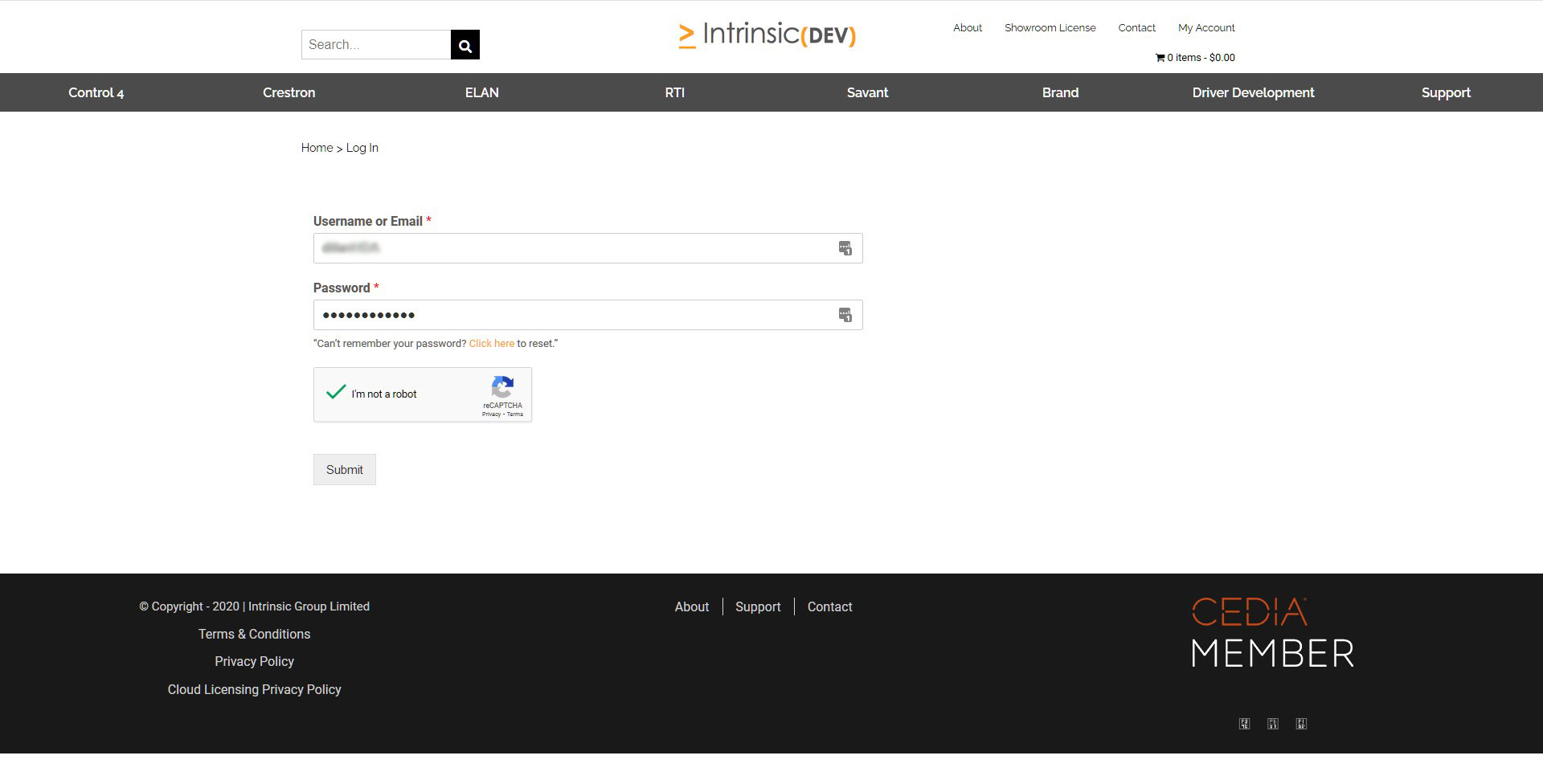
    2. Ensure that you are logged in.

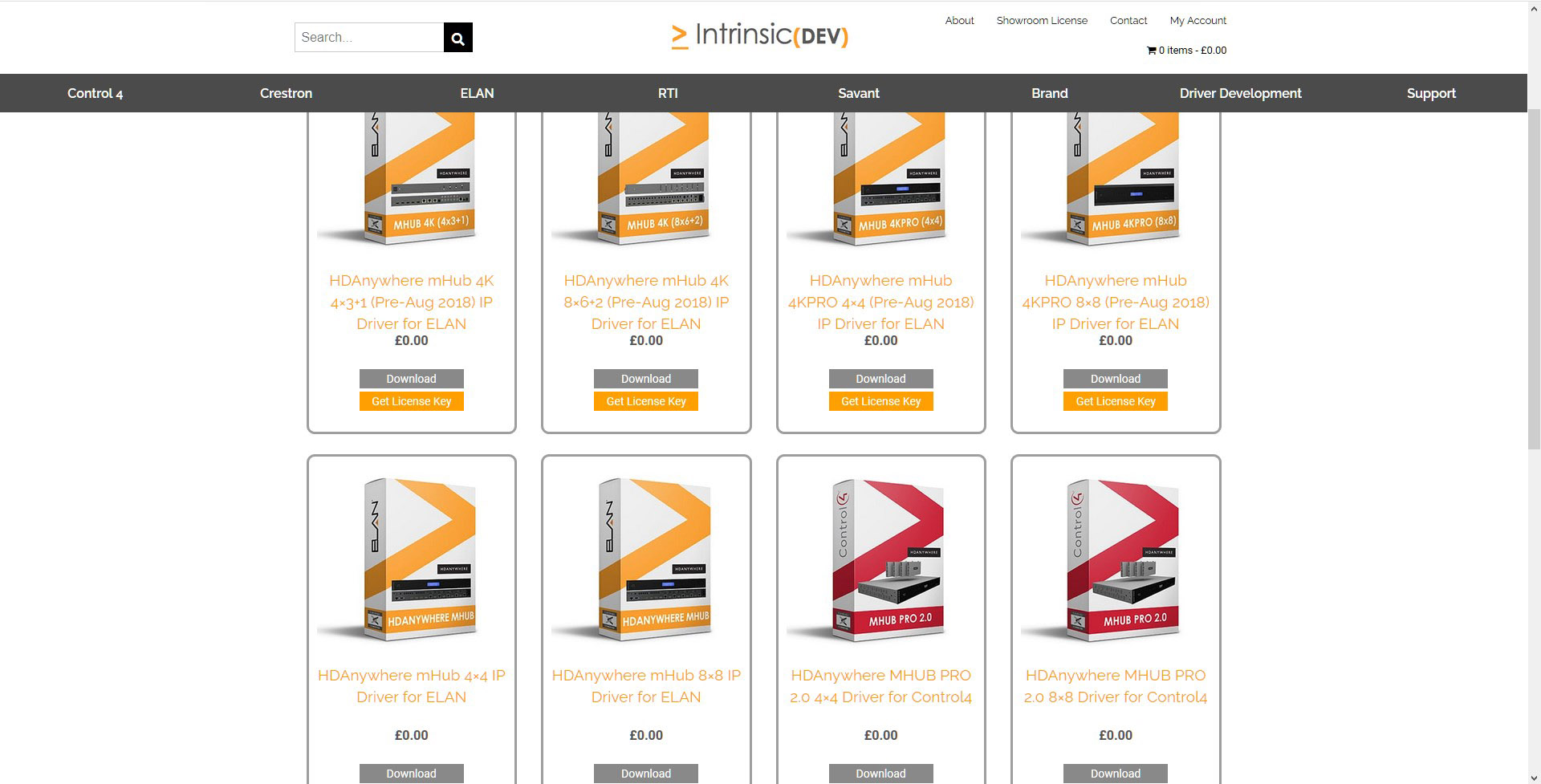
    3. Find the HDA driver you want to download https://www.intrinsicdev.com/brands/hdanywhere


    4. Click on “Get License Key”


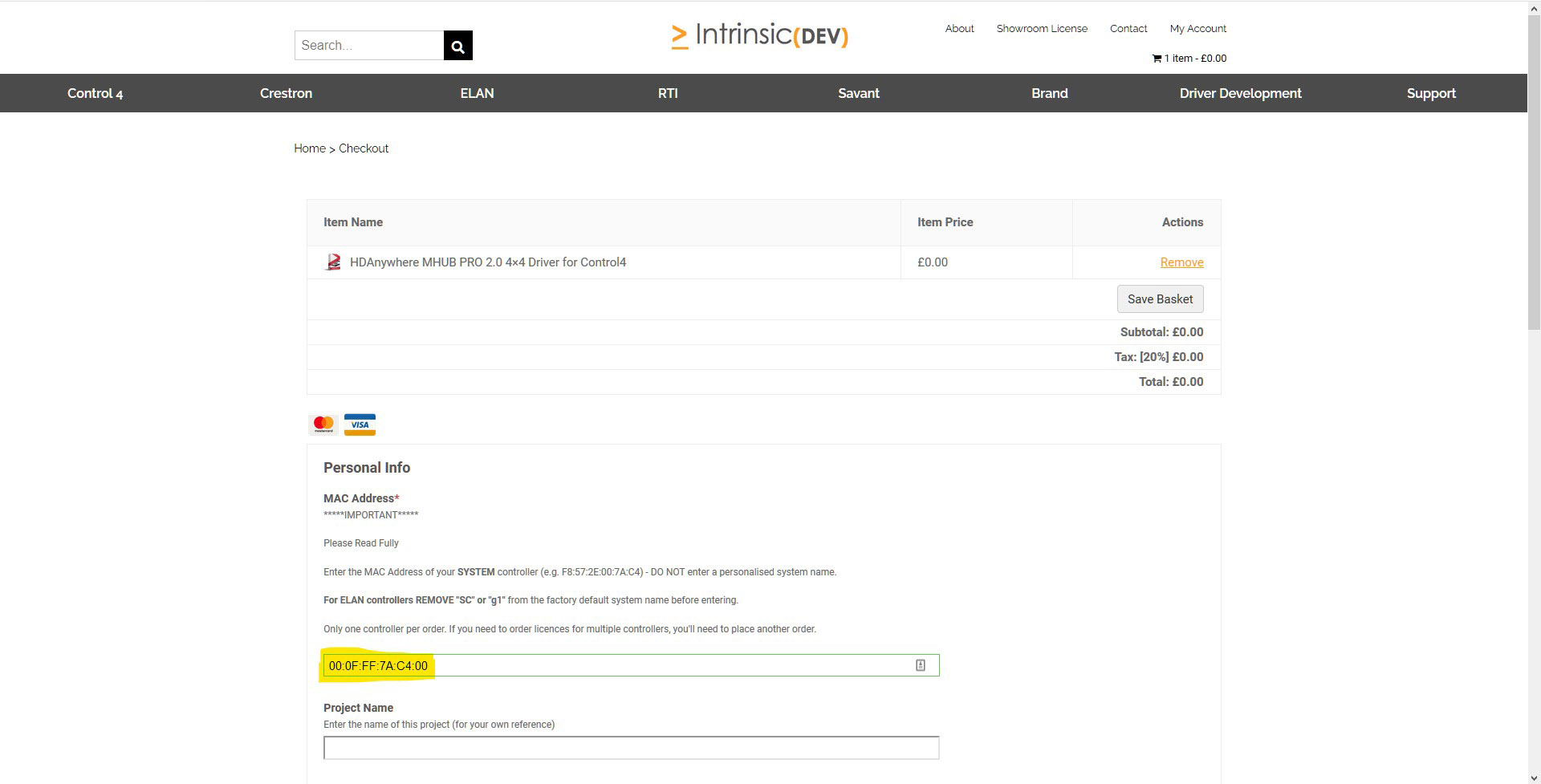
    5. You will need to provide the MAC address of your controller and some site details. Scroll to the bottom of the page and a button will appear to proceed/download. If you have not completed this step correctly then the button to download will not appear.


    6. Download the driver and make a note of the activation code.

  • Using Flirc with Amazon devices for use with uControl

    Some devices no longer have built in IR receivers. To enable them to be used with the uControl app you can add a third party device called FLIRC. This connects to a source device via USB and turns IR codes into control commands the source device recognises.

    There are two Flirc devices that we are compatible with, the first part of this guide is for the older model which can be found here. The second part of this guide is for the Flirc device that is specifically for the Amazon Fire TV and can be found here.

    Regular Flirc

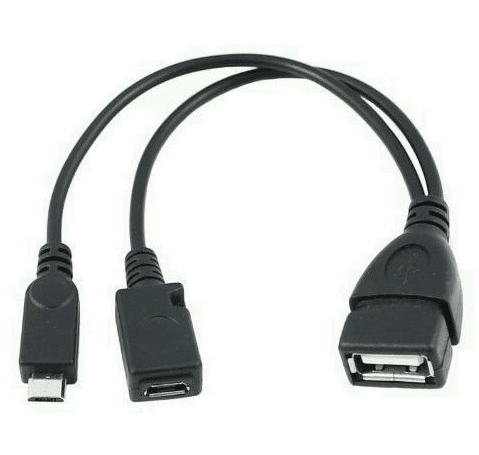
    If you are using the older model of Flirc you will need an OTG cable like this –


      update-mos

    Install the Flirc software on your computer and install this profile onto your laptop/PC – Fire TV

    Load up the Flirc software and in the top left click File, and then Load Configuration and choose the Fire TV profile you have just downloaded.

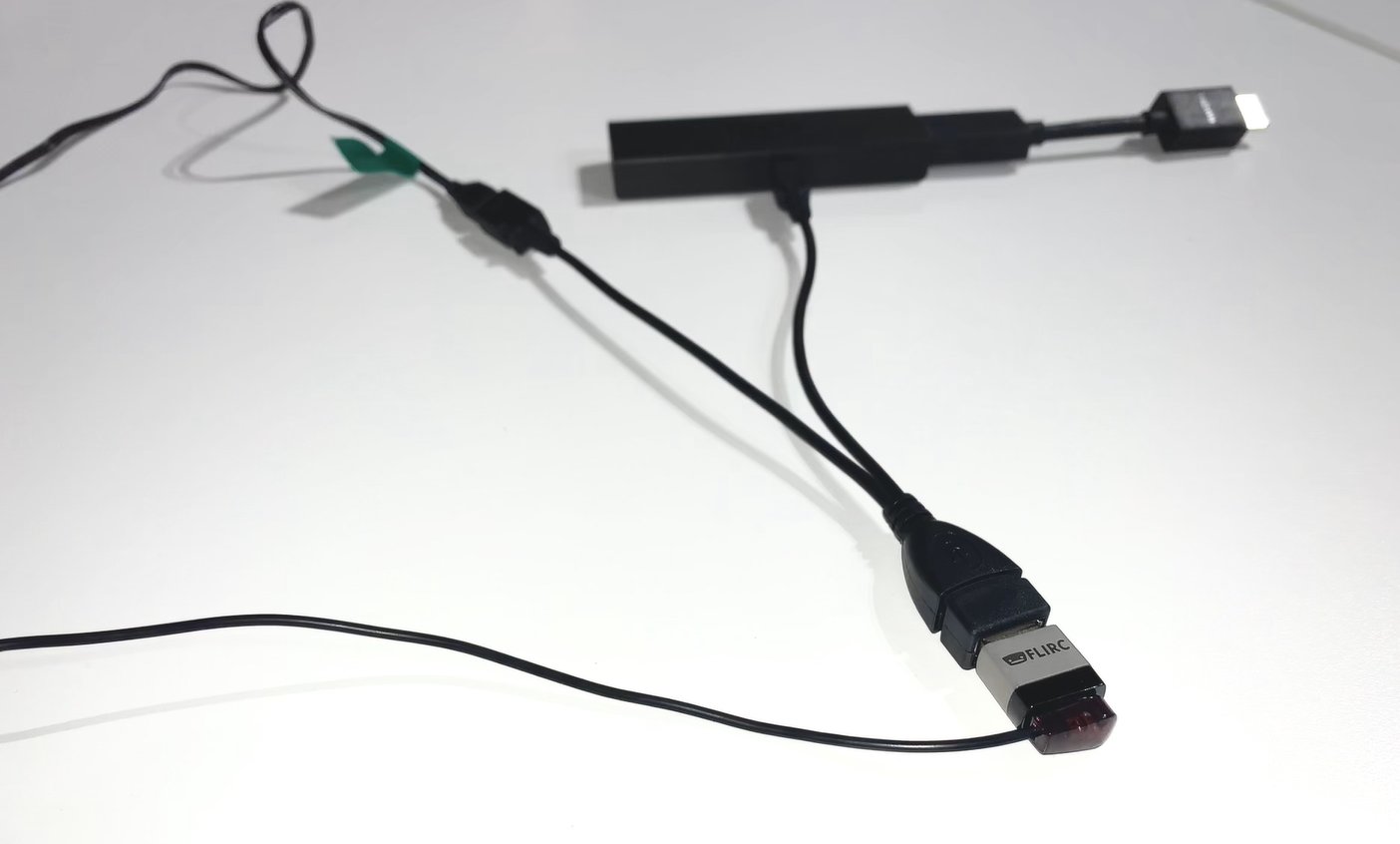
    Remove your Flirc from the laptop/PC and connect it to the female USB port on the OTG cable. Then taking the male micro USB section of the cable plug it into the Firestick. Lastly plug your power into the female micro USB port.

    Next place the IR transmitter from you HDANYWHERE device on or near to the Flirc. You may need to move it around to test which positioning works best, but we recommend taping it to the top of the Flirc.


      update-mos

    Once this is done you can install the FireTV(FLIRC) IR pack and control your Amazon device with uControl.
    Amazon Fire TV Flirc

    If you are using the Fire TV specific Flirc you will not need the OTG cable, but will need to install the Flirc software on your computer and install this profile onto your laptop/PC – Fire TV

    Load up the Flirc software and in the top left click File, and then Load Configuration and choose the Fire TV profile you have just downloaded.

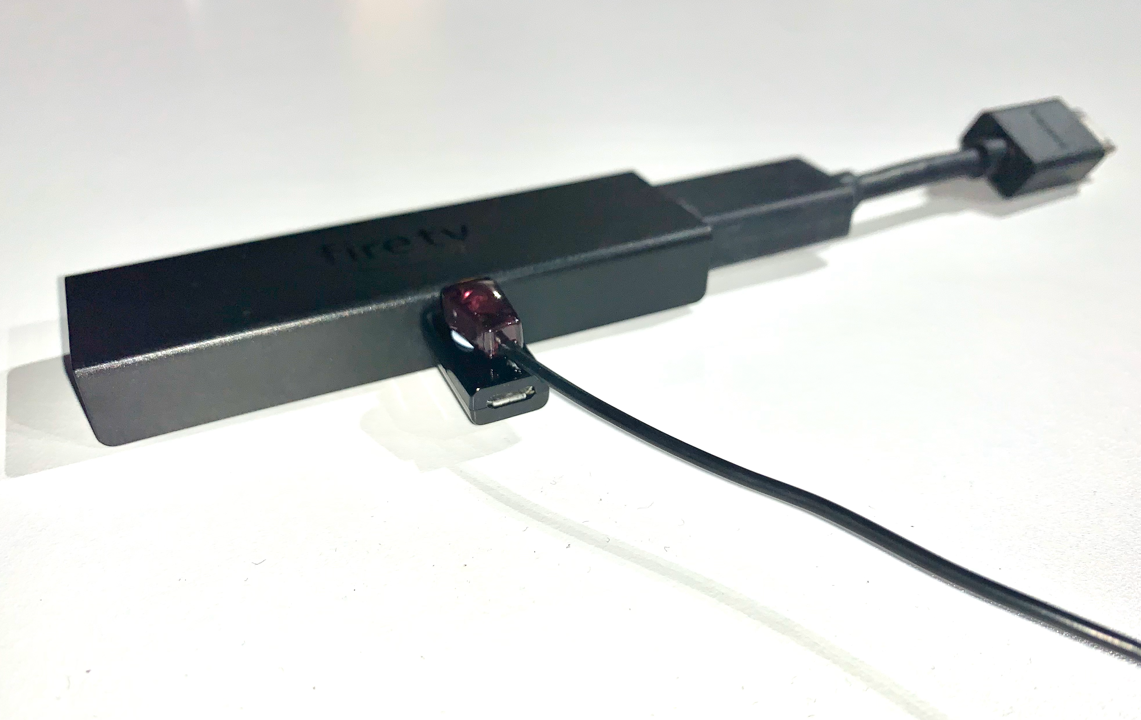
    Remove the Flirc from your laptop/PC and connect the power lead to the micro female USB port on the Flirc. Plug the other side of the Flirc (male USB) into the side of the Firestick, and then plug the Firestick into your desired input.

    Lastly place the IR transmitter from you HDANYWHERE device on or near to the Flirc. You may need to move it around to test which positioning works best, but we recommend taping it to the side, adjacent to the Flirc.


      update-mos

    Once this is done you can install the FireTV(FLIRC) IR pack and control your Amazon device with uControl.
  • uControl input error on iOS (version 2.4.6.1.0.4)

    This bug has been resolved in uControl on iOS (2.4.7.1.0.2). You must delete uControl from your iOS device first and reinstall it from the App Store for the patch to apply.

    We have received reports from customers informing us that input labels and switching ability has been lost in the latest release of uControl on iOS (version 2.4.6.1.0.4).

    Affected systems will present the following symptoms:

    No input labels inside uControl

    The problem exists exclusively within uControl on iOS. We recommend that you do not change your MHUB settings, run any updates or change any configuration. The repair will be delivered via a patch applied to the uControl app.

    • App will find and connect to MHUB as normal.
    • App will load in to zone as normal.
    • App will not display switching/uControl pack options

    The error involves MHUB systems from late 2016 / early 2017 which were sold on MHUB-OS version 7.0 or lower and then upgraded. When these systems were upgraded to MHUB-OS version 8.0+ a one-time script was required to convert data from the old format (version 7 and below) to the new format (version 8 and above) which is active today still. To maintain backwards compatibility the original data format was kept on older systems.

    uControl (version 2.4.6.1.0.4) contains updates for brand new systems (MHUB PRO 2.0) and MHUB AUDIO operating in stacked mode and removes the backwards check for compatibility. This has been confirmed as the source of the issue.

    This blog post will update daily to help keep track of our progress and attempt to rectify the problem.

    Update timeline

    Wednesday 24th June 2020
    Testing confirmed OK overnight. uControl on iOS (2.4.7.1.0.2) deployed to general userbase.
    We recommend a fresh install, by deleting the app from your iOS device then reinstalling from the app store.

    Tuesday 23rd June 2020
    Patch is being tested. Please email us (support@hdanywhere.com) if you would like to beta test this release.

    Monday 22nd June 2020
    Cause has been identified and work on patch is underway.

    Sunday 21st June 2020
    Senior technical staff upgrade issue urgency level. Developers begin work to start identifying cause.

    Saturday 20th June 2020
    First notice of problem reported. Customer services respond using standard procedures.

    Friday 19th June 2020
    uControl on iOS (2.4.6.1.0.4) deployed to general userbase.

  • Using ARC with Control4 and MHUB

    Control4 does not natively support Audio Return Channel (ARC). With more and more content coming from the likes of Netflix, AppleTV, Disney+ Youtube and BBC iPlayer, this presents a problem for installers who want to take this audio and feed it to external speakers as part of their Control4 project.

    This video shows you how MHUB and our Control4 driver makes the impossible possible and describes the steps you need to follow in Composer to achieve ARC in Control4.

    More information:

    Please ensure that both your MHUB and the Control4 driver supports ARC.

    Download control driver:

    http://support.hdanywhere.com/hda-control-drivers/

    Five reasons why Control4 dealers prefer working with MHUB:

    https://hdanywhere.com/why-c4-dealers-prefer-mhub-pro-2

    4×4 and 8×8 HDBaseT / HDMI Matrix: MHUB PRO 2.0

    https://hdanywhere.com/mhub-pro-2

  • HDANYWHERE product information on power usage and BTU outputs

    The table below details the PSU DC rating, the system power draw in watts and BTU(British thermal unit) heat output of each device.

    Product Code Release PSU Rating (DC) Power Draw (watts) BTU

    XTND

    XTND2K30 2017 5V 1A 2.5 9
    XTND4K40ARC 2018 24V 1A 20 68
    XTND4K100TPC 2018 24V 1A 12 41

    MHUB

    MHUBAUDIO64 2018 24V 13.4A 520 1774
    MHUBMAX44 2018 24V 2.71A 19.2 66
    MHUB431U 2018 24V 2.71A 36 123
    MHUB862U 2018 24V 2.71A 28 198
    MHUBPRO4440 2018 24V 2.71A 40 136
    MHUBPRO8870 2018 24V 6.3A 98 334
    MHUB4K44PRO 2016 24V 2.71A 42.72 146
    MHUB4K88PRO 2016 24V 6.3A 100 341
    MHUBPRO24440 2019 24V 5A 68 232
    MHUBPRO288100 2019 24V 6.3A 130 444

    SPLITTERS AND SCALERS

    SPLITTERMAX12 2019 5V 1A 2 7
    SPLITTERMAX14 2019 5V 1A 2 7
    SIGNALMANAGER 2018 5V 1A 1.65 6
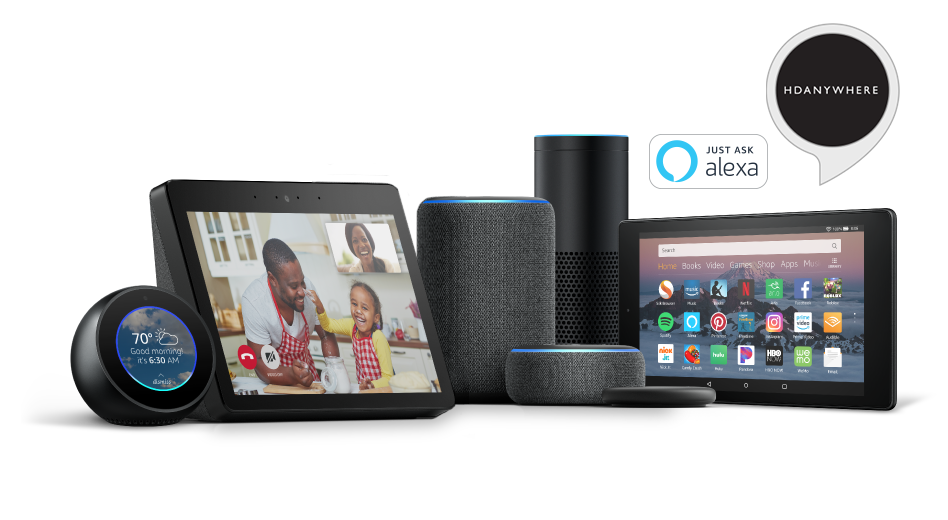
  • Voice control with Amazon Alexa* using the “MHUB AV” Skill

    HDANYWHERE (HDA) Amazon Alexa App Skill

    *Before you activate the Alexa Voice Service with your MHUB, make sure Amazon support your territory and version. We cannot guarantee voice services or offer support to those territories not officially supported by Amazon. Check here: https://www.amazon.co.uk/gp/help/customer/display.html?nodeId=202207000

    What you need to get your MHUB to respond to voice commands:

    1. You have completed the first-boot procedure within MHUB-OS
    2. You have MHUB-OS version 8.10 or higher installed on your MHUB
    3. You have an active HDA Cloud account
    4. You have downloaded uControl packs for all displays and source devices you want to control
    5. You have completed input mapping in MHUB-OS
    6. You have an active Amazon account
    7. You have an Amazon Alexa enabled device, such as Amazon Dot/Echo/Show

    Setting up AV Skill

    Configure voice commands to do exactly what you want

    Let’s take the command “Alexa, Turn on football” as an example.

    It might appear like a very simple command but there are a number of things that need to happen in order to watch football! First the TV might need to turn on, but in which room? The volume might need to be set to a desired limit. The correct source input might need to be selected on MHUB and finally that source will need to navigate to the channel hosting the football.

    You can configure all those actions in what we call a “Sequence”.

    Taking the example above:
    Alexa (this wakes up your Amazon Dot/Echo/Show)
    Turn on… (this invokes the smarthome skill)
    football (this is your custom name for the Sequence, it can be anything you want)

    Inside MHUB-OS we can configure exactly what “football” does.

    • You can select if you want MHUB to turn your TV on and adjust the volume
    • You can tell MHUB to switch to the source device with has the football on it
    • You can instruct MHUB to change the channel on that source device

    Read more about Sequences and Scheduling.

    Troubleshooting

    • When searching for devices, nothing is found
      1. Check you cloud account details were entered correctly
      2. Ensure only 1 system is linked with the cloud account being used
      3. Ensure you have backed up the system to cloud after configuring the Alexa Skill on MHUB-OS
    • When you try to control a zone Alexa says the command isnt supported
      1. Ensure there are no other devices linked to the Alexa that have the same name as the zone.

    Here’s a table of all the commands you can tell your MHUB to do…

    Now you’re ready to go. Take a look at a full list of commands that you can say to your Echo.

  • Loxone API 2.0 installation guide

    The latest control driver from Loxone can be downloaded here

    The Loxone API 2.0 driver is compatible with the following HDANYWHERE products:

    MHUB431U
    MHUB862U
    MHUB4KPRO44
    MHUBPRO4440
    MHUB4KPRO88
    MHUBMAX44
    MHUBAUDIO64

    and the following Loxone products:

    Miniserver
    Miniserver Go


    IMPORTANT

    Before setting up the Loxone driver, the MHUB must have been through its first boot process. This can be done by navigating to the MHUB’s IP address in a web browser or in uControl and following the onscreen instructions. No other setup of the matrix is required.

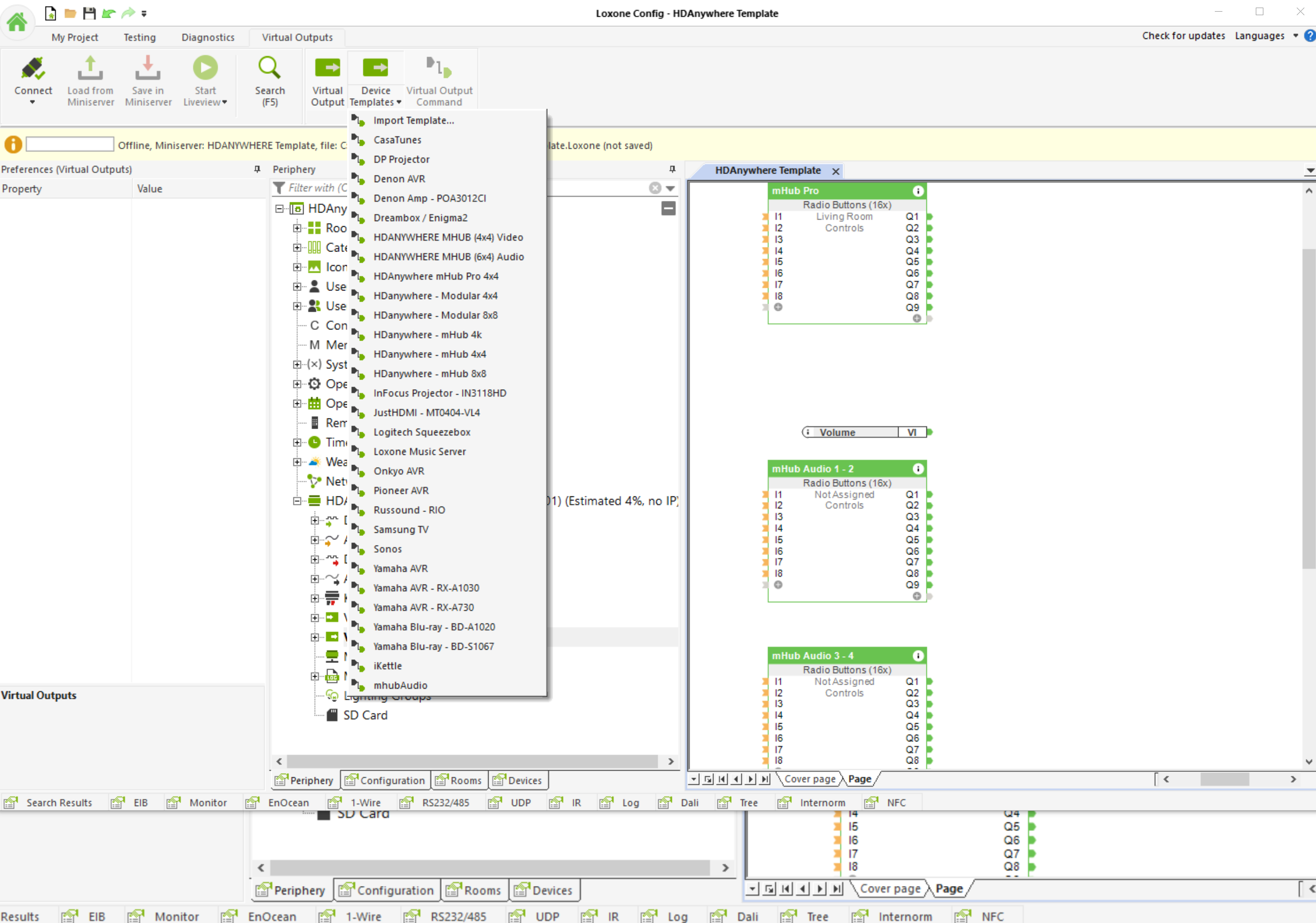
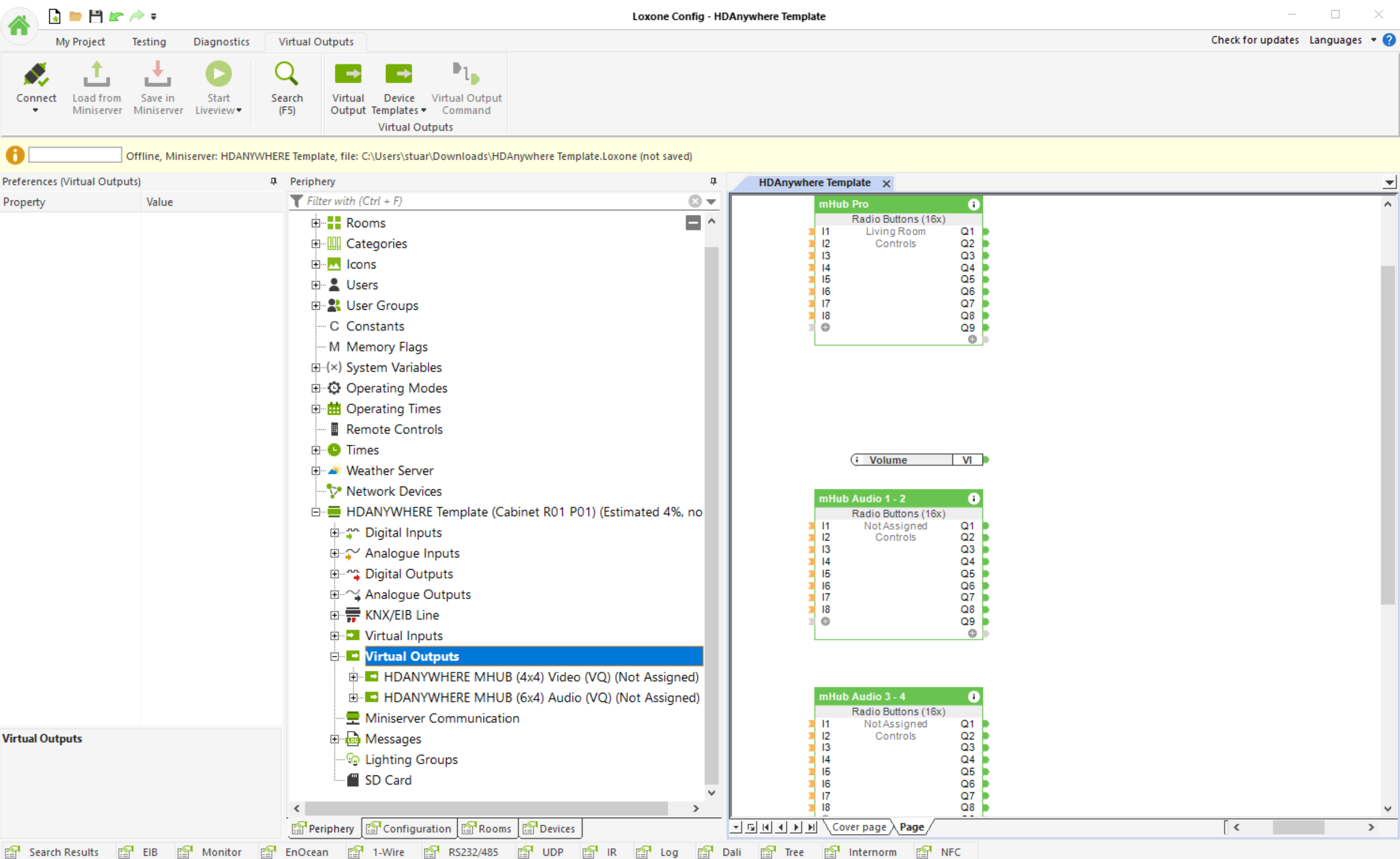
    Add the HDANYWHERE MHUB device template as a “Virtual Output”

    Loxone 1

    Next, assign your Inputs and outputs

    Loxone 2

    Loxone 3

    The video below shows the entire process


  • RTI API 2.0 installation guide

    The latest control driver from Chowmain software can be downloaded here included in the download is also an in-depth guide to installing the driver

    The HDAnywhere MHUB RTI driver allows for control of the HDAnywhere range of Video and Audio distribution products. The driver allows for direct switching of inputs to outputs,  the ability to switch preconfigured zones, control of audio levels (volume, mute, etc) and the ability to send IR codes as well as being able to reboot or restart the system.  It is compatible with the following systems:

    MHUB431U
    MHUB862U
    MHUB4KPRO44
    MHUBPRO4440
    MHUB4KPRO88
    MHUBMAX44
    MHUBAUDIO64

    and the following RTI products:

    RP-4RF
    XP-3
    XP-6
    XP-6s
    XP-8s
    XP-8v

    rti-HDA

    IMPORTANT

    Before setting up the RTI driver, the MHUB must have been through its first boot process. This can be done by navigating to the MHUB’s IP address in a web browser or in uControl and following the onscreen instructions. No other setup of the matrix is required, but this step must be completed before the RTI processor can utilise the matrix I/O ports. It is not required otherwise.

  • Control 4 API 2.0 installation guide

    The latest control driver from Chowmain software can be downloaded here

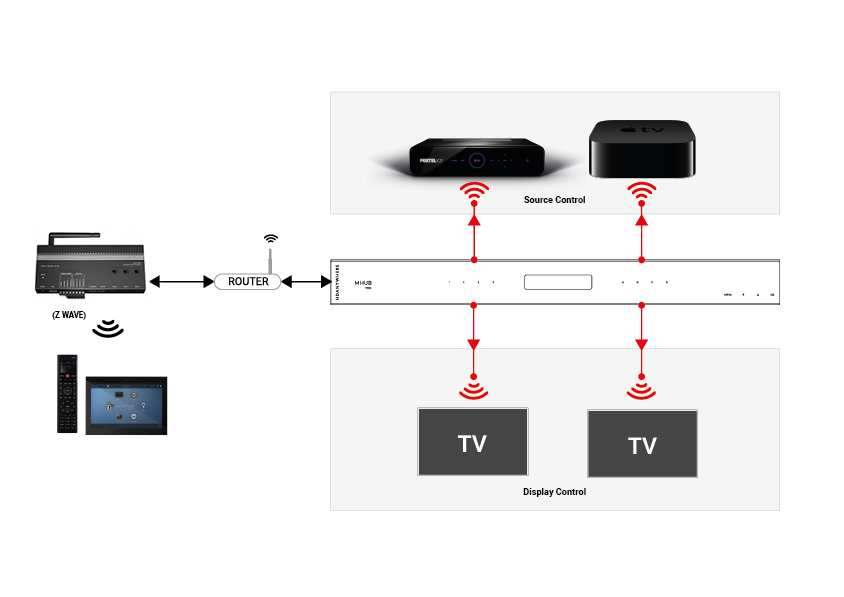
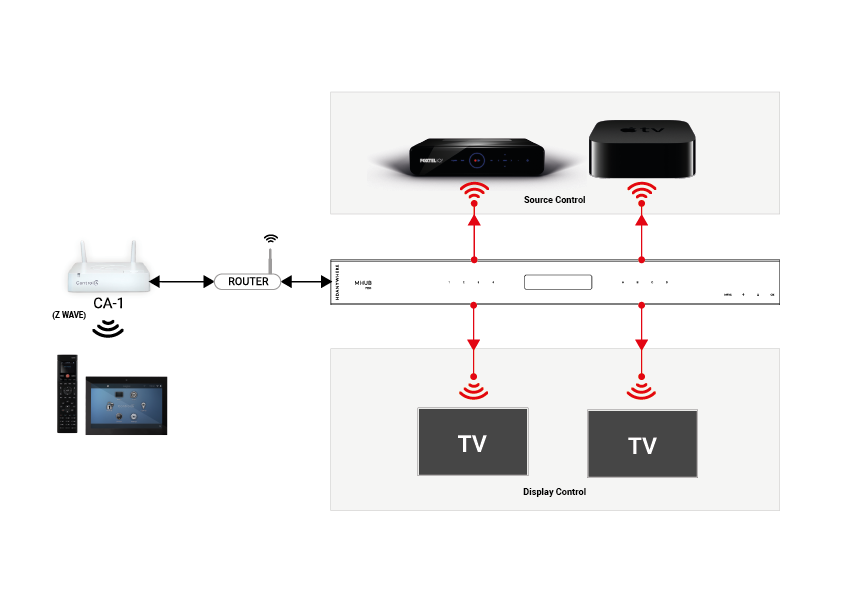
    It allows the Control processor to utilise the IR inputs and outputs of the HDANYWHERE matrix as if it was there own. Allowing installers to spec smaller Control 4 processors than they would typically need and is compatible with the following HDANYWHERE products:

    MHUB431U
    MHUB862U
    MHUB4KPRO44
    MHUBPRO4440
    MHUB4KPRO88
    MHUBMAX44
    MHUBAUDIO64

    and the following Control 4 products:

    CA-1
    EA-1
    EA-3
    EA-5
    HC250
    HC800
    HC1000

    control4-ca1
    IMPORTANT

    Before setting up the Control 4 driver, the MHUB must have been through its first boot process. This can be done by navigating to the MHUB’s IP address in a web browser or in uControl and following the onscreen instructions. No other setup of the matrix is required, but this step must be completed before the C4 processor can utilise the matrix I/O ports. It is not required otherwise.

    Add the HDANYWHERE driver as you would any other driver, the driver will auto-discover a video matrix or multiple Audio Matrices

    The next step is to setup your control and AV connections. Traditionally in a normal Control 4 setup, you would bind the source devices ‘control inputs’ with an IR output on the C4 controller. Instead, with the MHUB Video driver’s you can route the control through the MHUB’s IR ports utilising the IP>IR Engine. Similarly, Display IR is routed through the Display IR ports on the matrix. This video shows how to make these bindings

  • MHUB-OS 8 and uControl 2 update troubleshooting and FAQ

    Below is a list of three issues which have been reported to HDANYWHERE (HDA) after updating older systems to MHUB-OS 8 (MOS 8). If you have encountered any of these problems then you will find a solution below. If your issue is not shown below then contact the HDA support team via email on – support@hdanywhere.com.

    Jump to issues and solutions:

    1. My MHUB is stuck in a loop and is always prompting me to update again – I can not access any other MHUB-OS page.
    2. I am having problems connecting with HDA Cloud because there is an error with my serial number.
    3. I have connected to my MHUB and all my settings are gone.
    4. I can’t get uControl to connect to MHUB.
    5. I have an 8×8 system and I can not control my TVs anymore.

    1.
    I’ve clicked the update from within MHUB-OS and now appear to be stuck on an update page and cannot access any other MHUB-OS page.

    This error can occur when MHUB fails to complete the update process completely. This can be caused by a power outage, multiple sessions of MHUB-OS being open at the same time (browser tabs, app) or network issues as the update is applied to MHUB. This has been patched in version 8.02 of MHUB-OS. However, if you find yourself with a problem like this, you will need to contact HDANYWHERE technical support services by emailing support@hdanywhere.com with the subject line: “Update error code:728” and we will treat this with the highest priority.

    2.
    I’ve updated to MHUB-OS 8 and when linking to HDA cloud it says there is an error with my serial number.

    This error can occur when the MHUB cannot connect with HDA cloud. This can be caused by network issues or power outage. This has been patched in MHUB-OS version 8.02. However, should you find yourself in this situation you can recover the serial number following these steps

    1. Step 1 – Load a web browser on a pc or mac(such as Chrome), and enter the following in to the URL bar [MHUB IP ADDRESS]/diagnostics.php. Then click on “GET SERIAL NUMBER”
    2. Step 2 – Confirm that you want to change the serial number
    3. Step 3 – You will get a notifcation saying that the serial number has been updated, and should notice the serial number is showing in the system information section near the top of the page.

    If after using the serial number recovery method above, it still does not appear, you will need to contact HDANYWHERE technical support services by emailing support@hdanywhere.com with the subject line: “Update error code:628”

    3.
    uControl has updated, when I reconnected to my MHUB all my settings were gone.

    This can occur when reconnecting to your MHUB after uControl has updated to version 2 or greater and selecting the incorrect option. When uControl loads you are shown 2 options:

    • “SETUP A NEW MHUB SYSTEM” – This is used when you are connecting to a brand new or unconfigured MHUB system. If you select this option and have a previously configured system, all user data will be removed requiring the MHUB to be fully reconfigured like a new system.
    • “CONNECT TO AN EXISTING MHUB SYSTEM” – This is used when you are connecting to a previously configured MHUB system. Existing data will remain untouched, and uControl will sync the data stored. If you were connected with a previous version of uControl this option should be used.

    4.
    After the update, uControl can not connect to MHUB

    HDANYWHERE released an update to uControl and all MHUB systems on Wednesday 10th October 2018. To ensure that your MHUB works correctly both your MHUB and uControl must be on the correct software version.

    MHUB / MHUB-OS = version 8 or above
    uControl (iOS / Android) = version 2 or above

    If you find that one version of uControl can connect to MHUB and the other can not then it is very likely that you did not complete the update to MHUB-OS. As soon as you have run this process then uControl should work on all devices with no issue. For this solution HDANYWHERE are assuming that your system is already in a pre-configured state and that you are wanting to CONNECT TO AN EXISTING SYSTEM.

    Steps to resolve this issue:

    1. Ensure that you have the latest version of uControl installed on your iOS or Android device. Download uControl for iOS or download uControl for Android
    2. Once you have the app installed, please load it up and follow the instructions here:

    5.
    I have a 8×8 or 8×6+2 system and after the update, I lost the ability to control my TVs

    If you are able to control your source devices with uControl but can not control your displays then a quick update to your MHUB will resolve this problem. Instructions detailing how to update your MHUB can be found here. Ensure that you use uControl to update your MHUB and do not try to update your system via MHUB-OS.