Author: HDA Support Team

  • Android APK Download

    If you want to manually install the Android version of uControl you will need to enable Developer Mode on you phone, and allow app installation from unknown sources.

    Once set click the link below.

    uControl2016 for Android

    Important– Development for this version of uControl has stopped, no update will be made, and you install this apk at your own risk.

  • ADB Control Packs

    With uOS 11.08 support for ADB control of android devices is now included.

    Supported Devices

    • Amazon FireTV
    • Nvidia Shield
    • Android/Google Powered TV’s

    To enable ADB control, ensure the device you want to control is powered on and awake. You will need to know the device’s IP address.

    Step 1 – Enabling Developer Options

    To be able to use ADB control you will need to enable Developer Mode.

    For Amazon devices, follow the instructions here – Enabling Developer Tools

    For other devices –

    1. Open the menu and go to Device Preferences > About.
    2. Scroll down until Build is highlighted, then tap ok several times. You will get an onscreen message that developer mode has been enabled.
    3. Click back, scroll to the bottom of the menu you will see { } Developer Options.
    4. Open the menu and enable developer options
    5. Scroll down to Enable network debugging

    Step 2 – Installing the ADB pack.

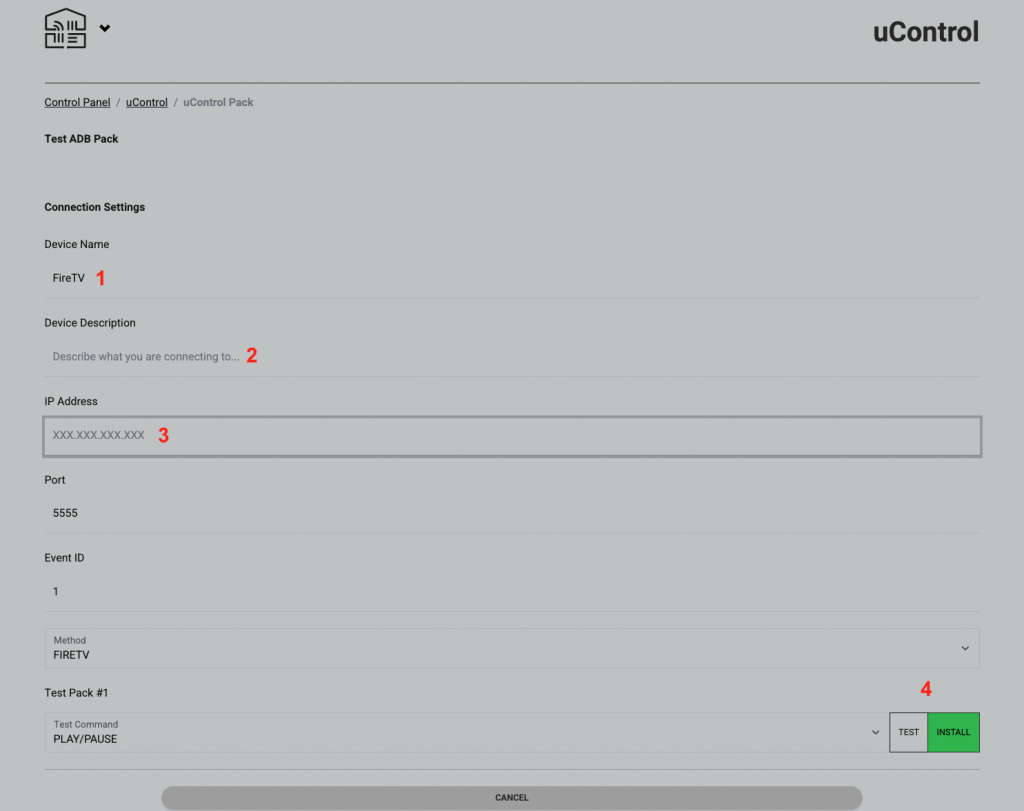
    In the example below we will install the pack for FireTV.

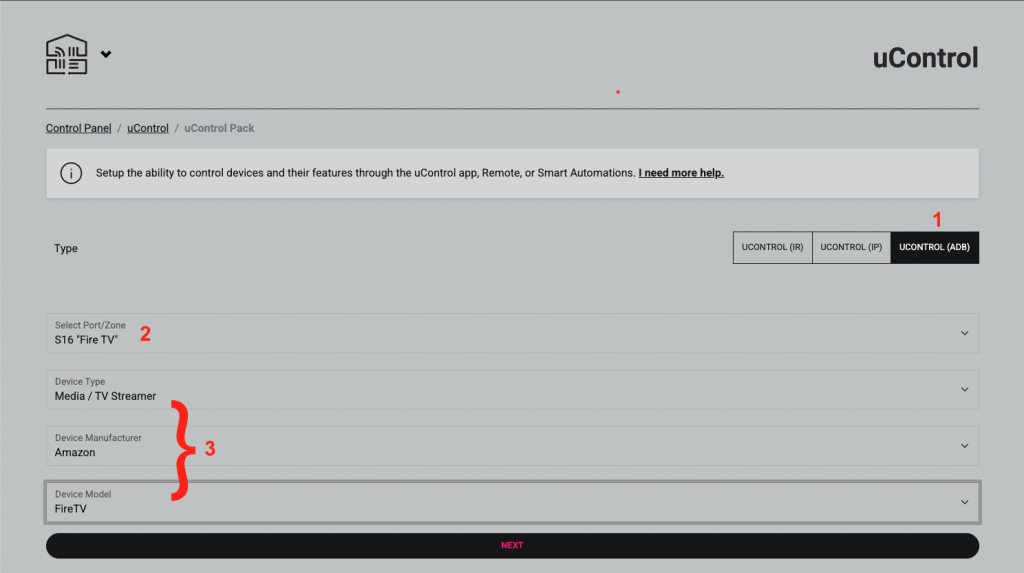
    2a – Select the pack


    1. Select uControl (ADB)
    2. Select the port or zone when the pack will be installed
    3. Select the device

    2b – Test and confirm installation


    1. Use the default name or enter a custom one. This will be displayed on the uControl app and remote
    2. Describe what you are connecting to, this field is not compulsary to install the pack
    3. Enter the IP address in the fireTV in the format xxx.xxx.xxx.xxx For example, 192.168.0.25.
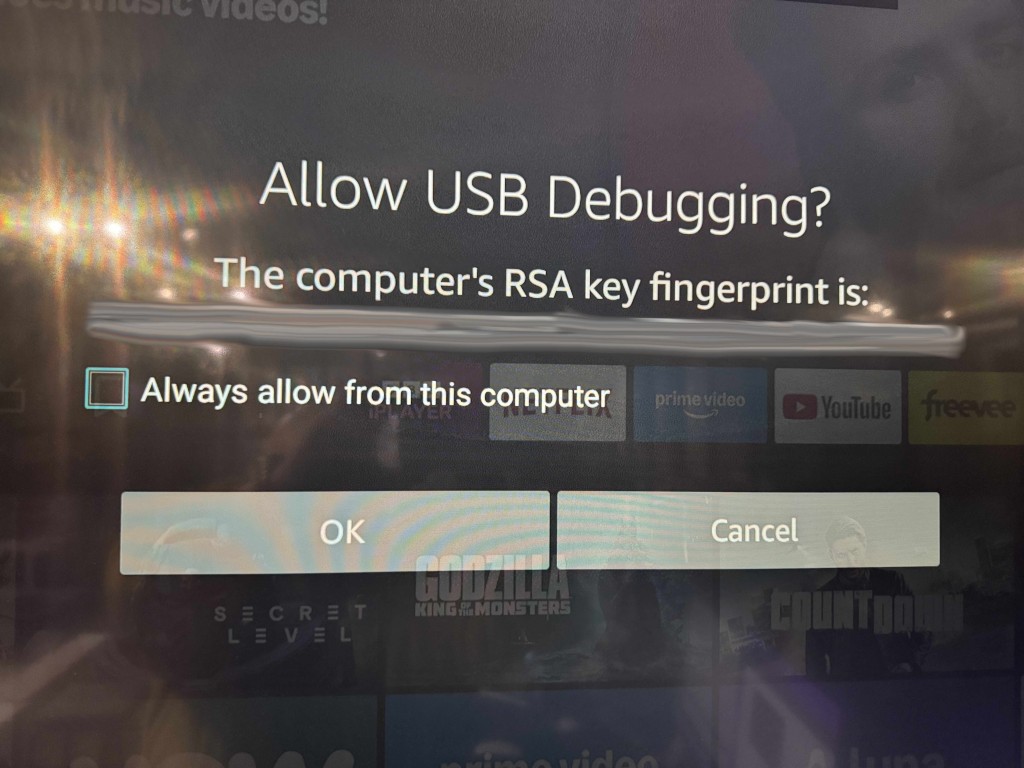
    4. IMPORTANT – the first time to connect to the device you will get an onscreen message like the one shown below. Please select always allow then click ok.
    5. Once tested, click install and the pack is ready to use

  • Controlling Philips Hue lighting from uOS

    This guide explains how to pull data from the Philips API so you can control it directly from uOS, uControl App and uControl Remote.

    • For Philips Hue V2 API click Here
    • For Philips Hue Legacy API click Here

    Philips Hue V2 API


    Before you begin, you will need:

    • A HTTPS test program such as Postman, available here
    • The Philips Hue Bridge address
    • A configured Hue lighting system on the same network as the HDA system
    • A fully-commissioned HDA or uControl system with the latest version of uOS (MHUB-OS does not support IP integrations) on the same network as the Philips Hue.
    • A tablet or laptop using any of the most popular browsers (or an iPhone with the uControl app, at the very least) on the same network as the HDA system.

    Please Note – Before you can access the full Philips Hue API you must have made a Philips Hue Developer account.


    Step 1:Get data about the Philips Hue system

    You need to know:

    • Light ID’s
    • Group ID’s
    • Scene ID’s

    There are a few ways you can get the IP address of your Philips Hue device:

    1. Use a network scanner app like Fing to find Philips Hue on your network.
    2. Use Philips Hue broker server discovery process.
    3. Log into your wireless router and look for Philips Hue in the DHCP table.
    4. The Philips Hue app – Start the Hue app and push link to connect to the bridge. Use the app to find the bridge and try controlling lights to ensure that everything is working. Then, go to the settings menu in the app, go to Hue Bridges, select your bridge and then the IP address of the bridge will be revealed.


    Step 2: Build Function


    command-generator-link

    Example Commands

    Hue Command Examples

  • Controlling Somfy from uOS

    This guide will show you how to trigger events on a Somfy Tahoma system.

    Before you begin, you will need:

    • A configured Somfy Tahoma hub, with connected devices configured
    • The Tahoma hub registered to a user account
    • The user account login credentials
    • The Tahoma hub pin (located on the bottom of the hub.)


    Step 2:Build an IP Connection in uOS


    command-generator-link

    Examples of Somfy commands – Somfy Command Examples

  • uControl Remote Changelog

    strong>Ver 2.0 (07/25)

    WiFi Version: 6.0.20250728
    Filesystem Version: 2.3.3
    BLE Version: 2.1.3

    -Added support for WPA3 wireless security
    -Battery performance improvements
    -Revised WiFi reconnection logic
    -Bug fixes and improvements

    Ver 1.02 (05/25)

    WiFi Version: 6.0.20250512
    Filesystem Version: 2.2.12
    BLE Version: 2.0.20

    -Updated internal WiFi reconnection processes
    -Added onscreen message when WiFi disconnected and IP command attempted
    -Menus can be scrolled by holding UP/Down keys
    -Battery performance improvements
    -Added support for Samsung Frame TV off via IR
    -Bug fixes and improvements

    Ver 1.01 (04/25)

    WiFi Version: 6.0.202500414
    Filesystem Version: 2.2.11
    BLE Version: 2.0.19

    -Removed password requirement when provisioning remote
    -Updates Battery Icon to better show current level
    -Bug fixes and improvements

    Ver 1.00 (01/25) Release Version

    WiFi Version: 6.0.202500204
    Filesystem Version: 2.2.8
    BLE Version: 2.0.15

    -Added HI, LO and FULL to battery icon
    -Updated remote data transfer process from uOS
    -Bug fixes and improvements

  • Controlling Loxone from uOS

    This guide will show you how to trigger events in a Loxone system using a ‘Virtual Text Input’. This allows us to send a command that can trigger switching, lighting actions, shading and more.

    Before you begin, you will need:

    • The Loxone Miniserver IP address
    • A fully-commissioned Loxone system with the Miniserver on the same network as the HDA system
    • A fully-commissioned HDA or uControl system with the latest version of uOS (MHUB-OS does not support IP integrations) on the same network as the Loxone system.
    • A laptop running the Loxone config software
    • Access to uOS using any of the most popular browsers (or an iPhone with the uControl app, at the very least) on the same network as the HDA system


    Step 2:Build an IP Connection in uOS


    Examples of the most popular Loxone commands – Loxone Command Examples

  • Controlling Rako scenes and lights from uOS

    This guide will show you how to trigger Scenes or even individual Lights and Blinds using the Rako API

    • For Rako Hub API click Here
    • For Rako Bridge API click Here

    Rako Hub API


    Before you begin, you will need:

    • The Rako Hub IP address
    • A fully-commissioned Rako system with a Rako Hub on the same network as the HDA system
    • A fully-commissioned HDA or uControl system with the latest version of uOS (MHUB-OS does not support IP integrations) on the same network as the Rako system.
    • A tablet or laptop using any of the most popular browsers (or an iPhone with the uControl app, at the very least) on the same network as the HDA system.

    Step 1:Get data about the Rako system

    You need to know:

    • Room ID
    • Channel ID
    • Scene ID

    Use your browser: type http://[Rako Hub IP]/rako.xml (e.g.http://192.168.1.13/rako.xml)

    The Example below shows Room ID 17, Channel ID 1 and Scene ID 1


    <Room id="17"> -Room ID
    <Type>Lights</Type>
    <Title>Office</Title>
    <Channel id="1"> -Channel ID
    <type>Default</type>
    <Name>Office Spotlights</Name>
    <Levels>FFBF7F3F000000000000000000000000</Levels>
    </Channel>
    <Scene id="1"> -Scene ID
    <Name>White</Name>
    </Scene>
    </Channel>

    If no scenes are listed, default scenes are set as –

    Scene 1 – All on 100%
    Scene 2 – All on 75%
    Scene 3 – All on 50%
    Scene 4 – All on 25%
    Scene 0 – All Off

    Based off this we can build the command

    SUB,BASIC,V4,uControl
    SEND,17,1,SCENE,1


    Step 2:Build an IP Connection in uOS


    command-generator-link
    Examples of the most popular Rako commands – Rako Command Examples

    Rako Bridge API


    Before you begin, you will need:

    • A fully-commissioned Rako system with a Rako Hub on the same network as the HDA system
    • A fully-commissioned HDA or uControl system with the latest version of uOS (MHUB-OS does not support IP integrations) on the same network as the Rako system.
    • A tablet or laptop using any of the most popular browsers (or an iPhone with the uControl app, at the very least) on the same network as the HDA system.

    Step 1:Get data about the Rako system

    You need to know:

    • Room ID
    • Channel ID
    • Scene ID

    – Use Rasoft Pro if you set up the Rako yourself or have been given the Project File.
    – Use your browser: type http://[Rako Hub IP]/rako.xml (e.g.http://192.168.1.13/rako.xml)

    Example of Rako XML data


    Step 2:Build an IP Connection and Function in uOS


    Step 3:Build Functions to control individual Channels or trigger Scenes


    Examples of the most popular Rako commands – Rako Command Examples
  • Replacing the uControl Remote’s battery (Step-by-step instructions)

    Required tools

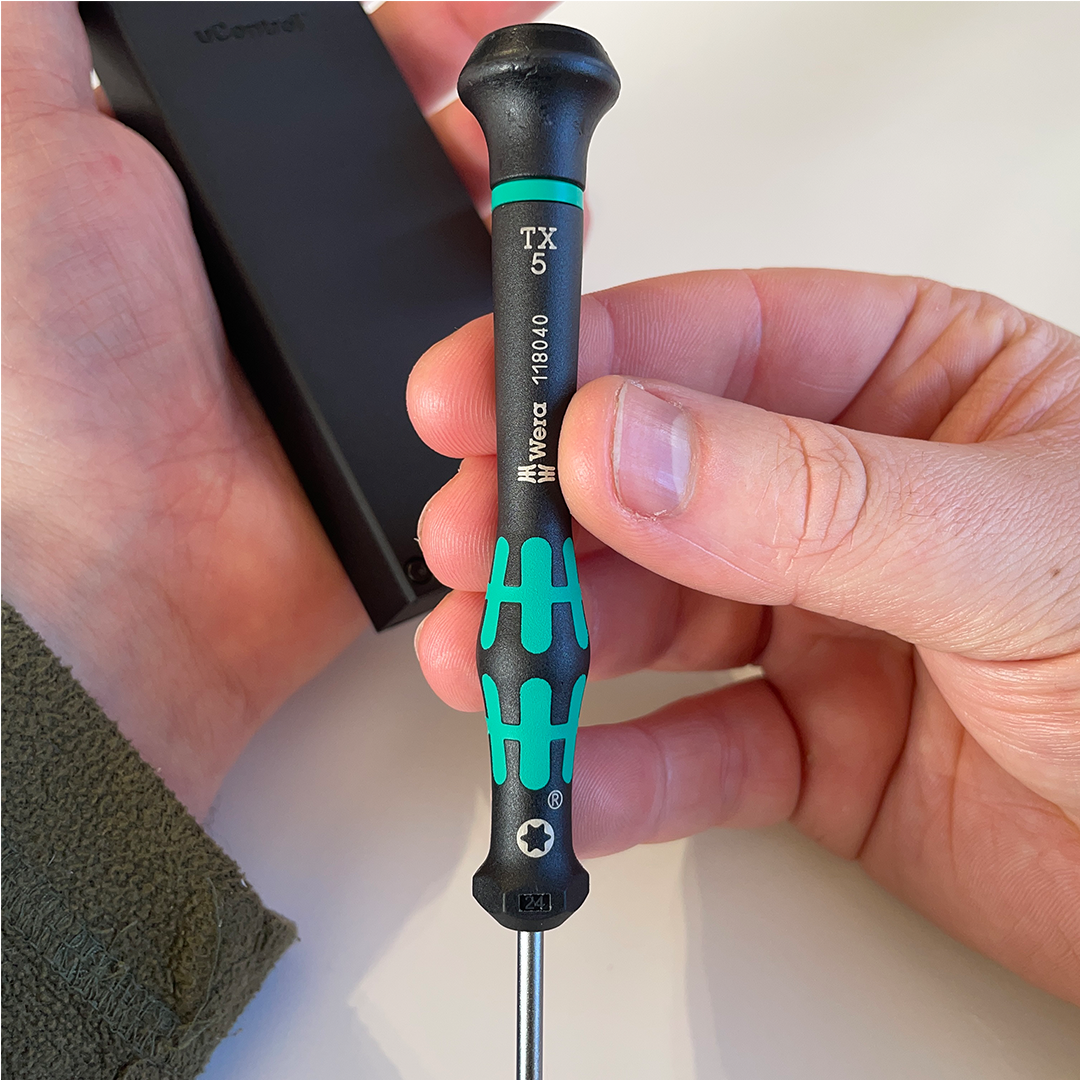
    Make sure you have a T5 Torx Screwdriver to remove the screws on the uControl Remote.


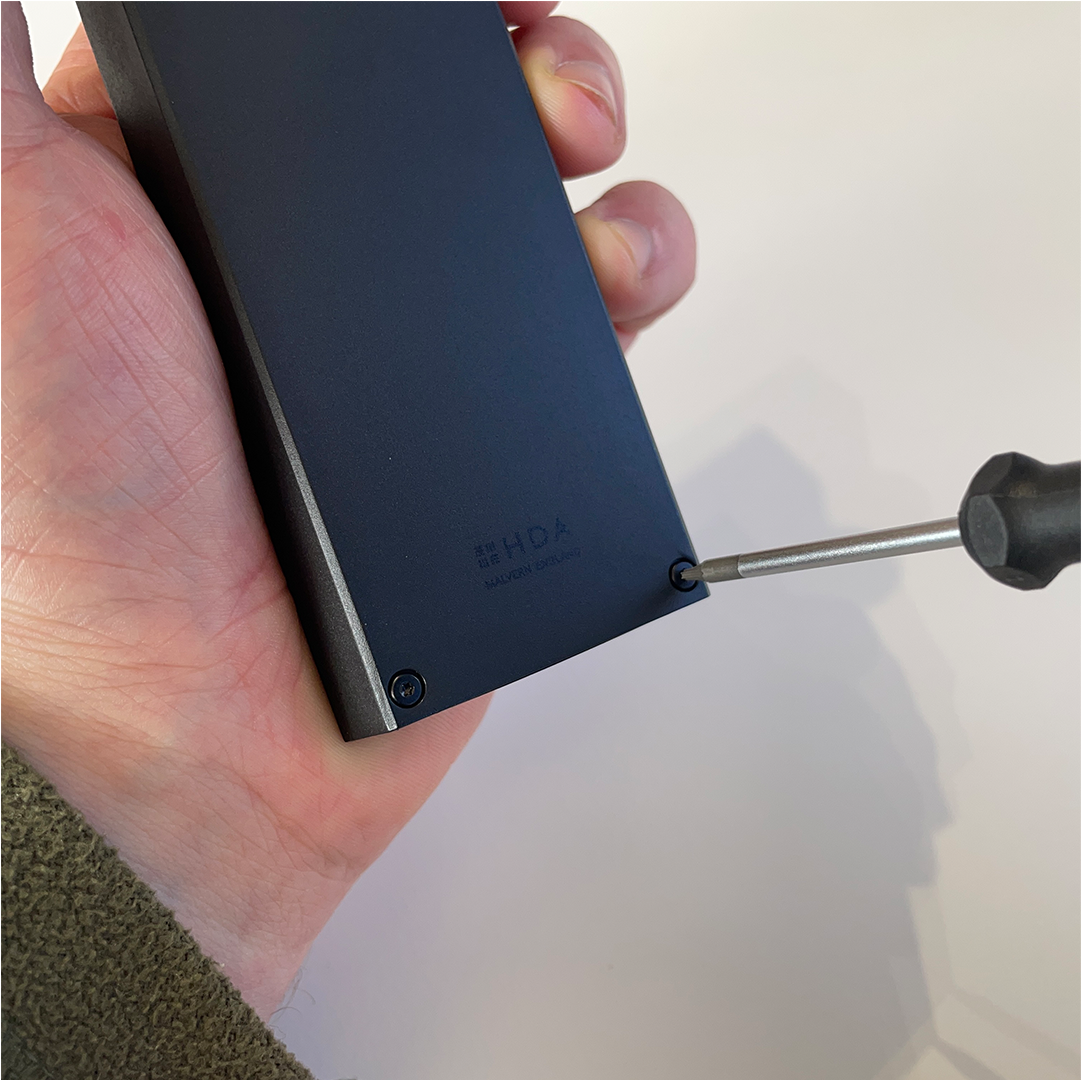
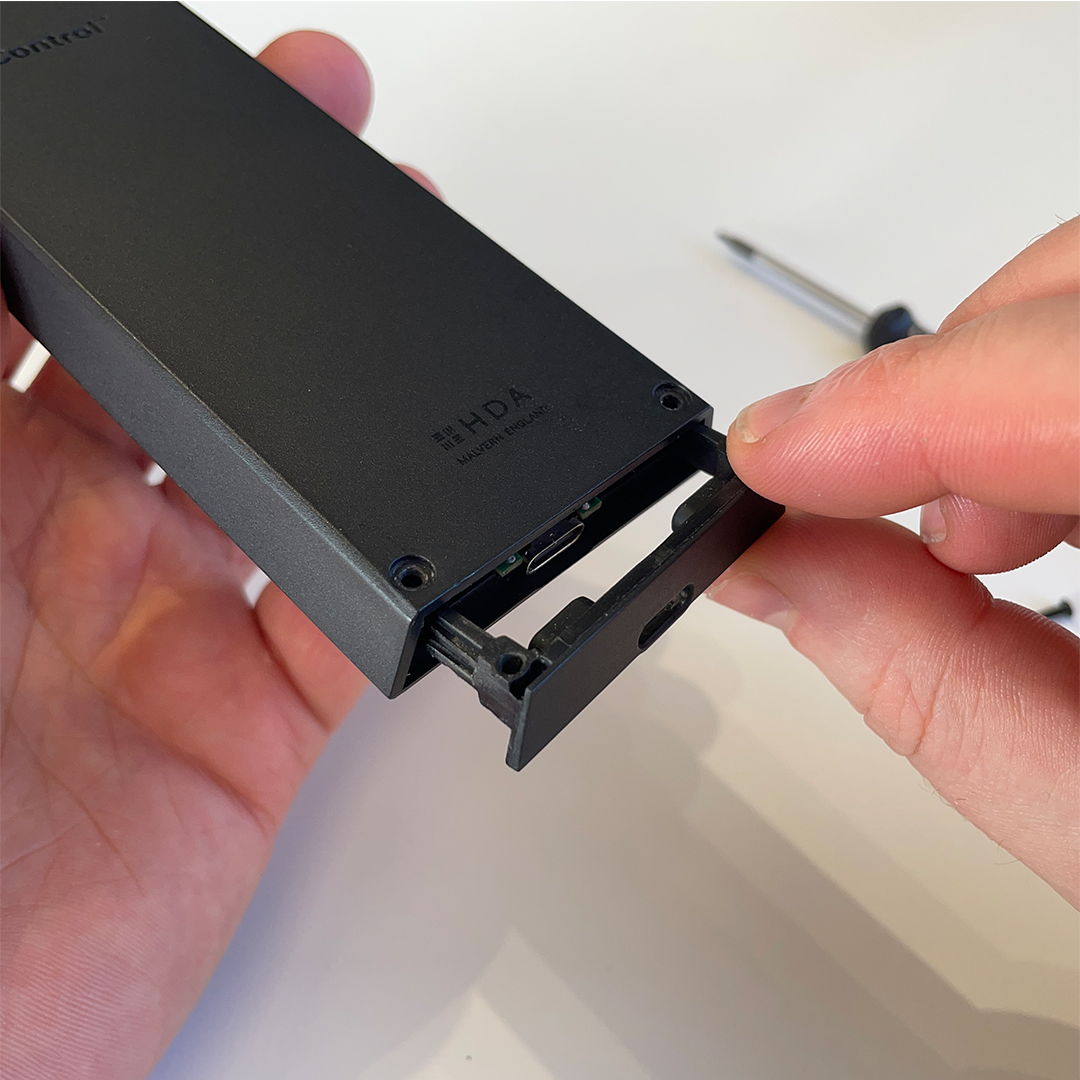
    Flip your uControl Remote over and look to the bottom of the device, you will notice two screws, remove them with your T5 screwdriver.


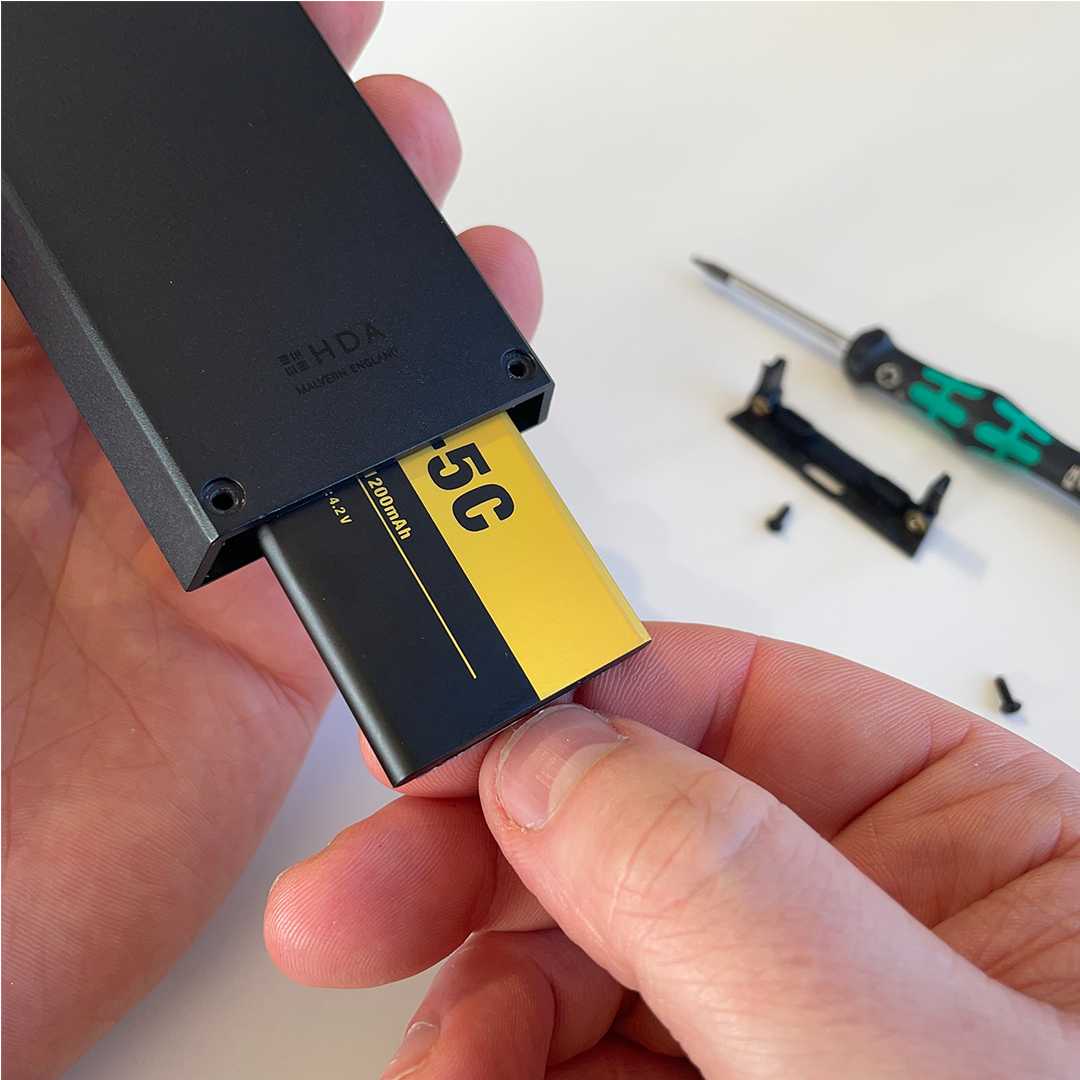
    The screws will release the battery hatch and use your fingers to extract it from the main case.


    Gently tip the uControl Remote to remove the battery, it should slide out with little resistance.


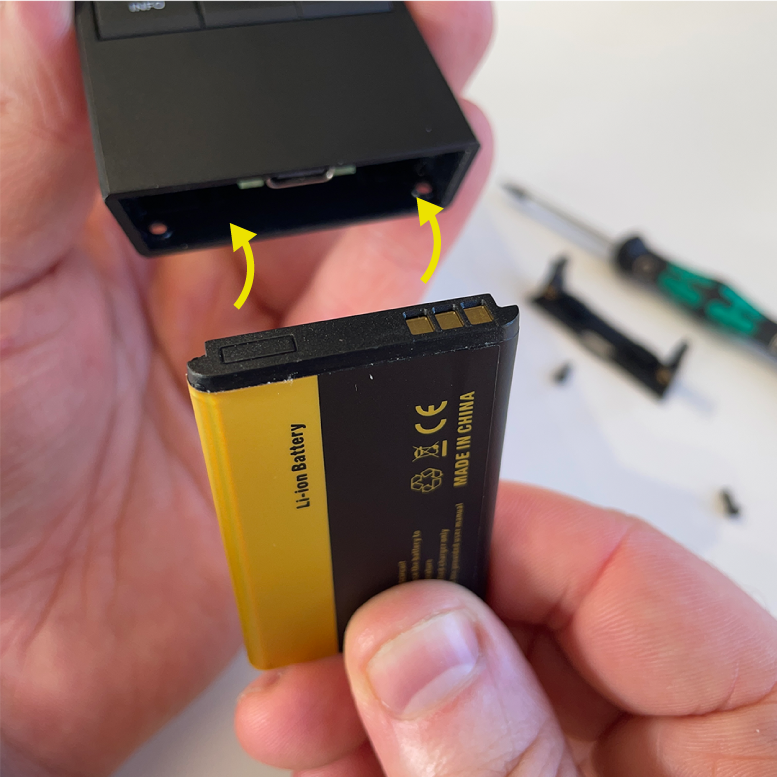
    Insert the new battery with the connector on the right-hand side, ensuring the connectors face inward. Once inserted, the connectors should be hidden. If you can see them, the battery is in the wrong way.


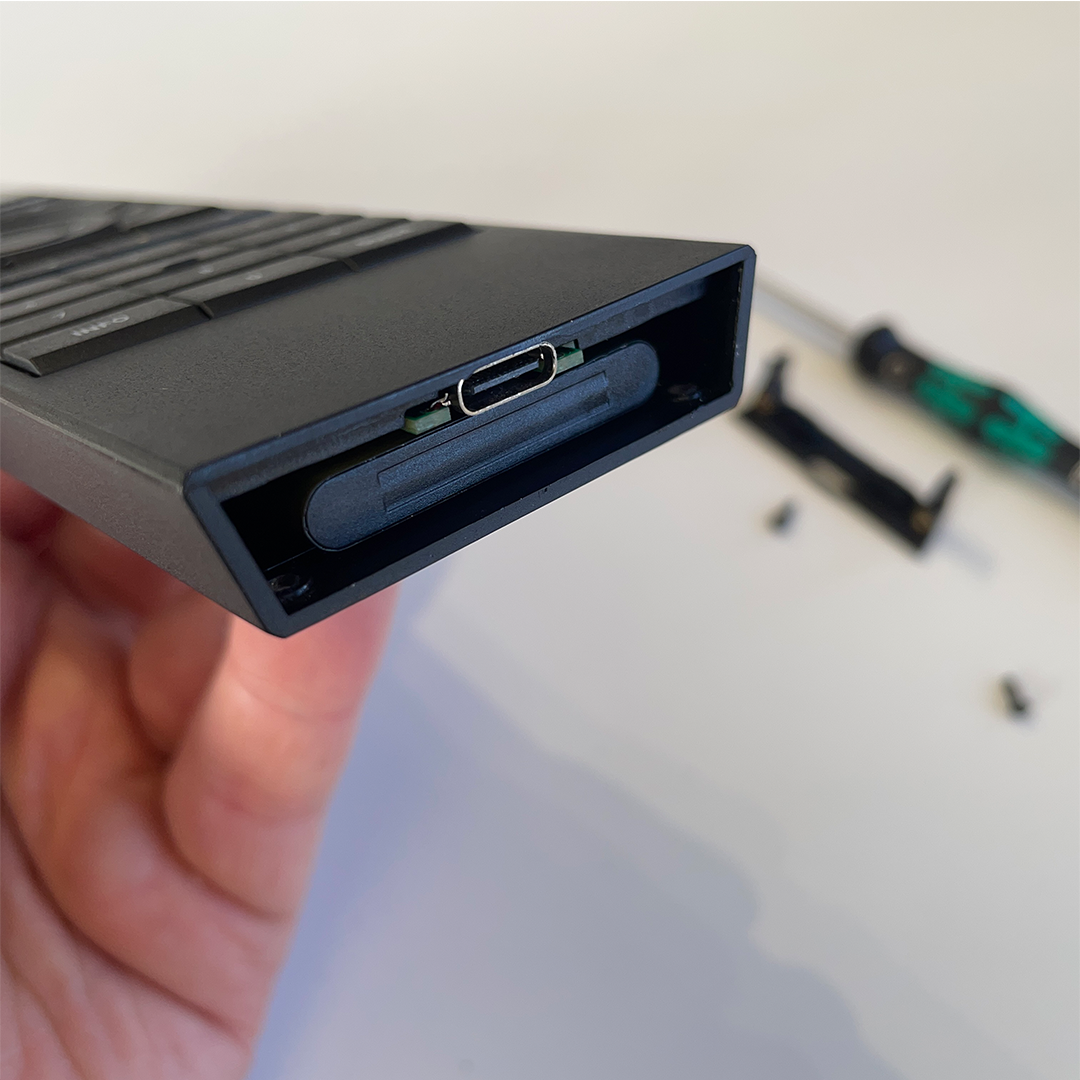
    Ensure that you can not see the battery connector once inserted.


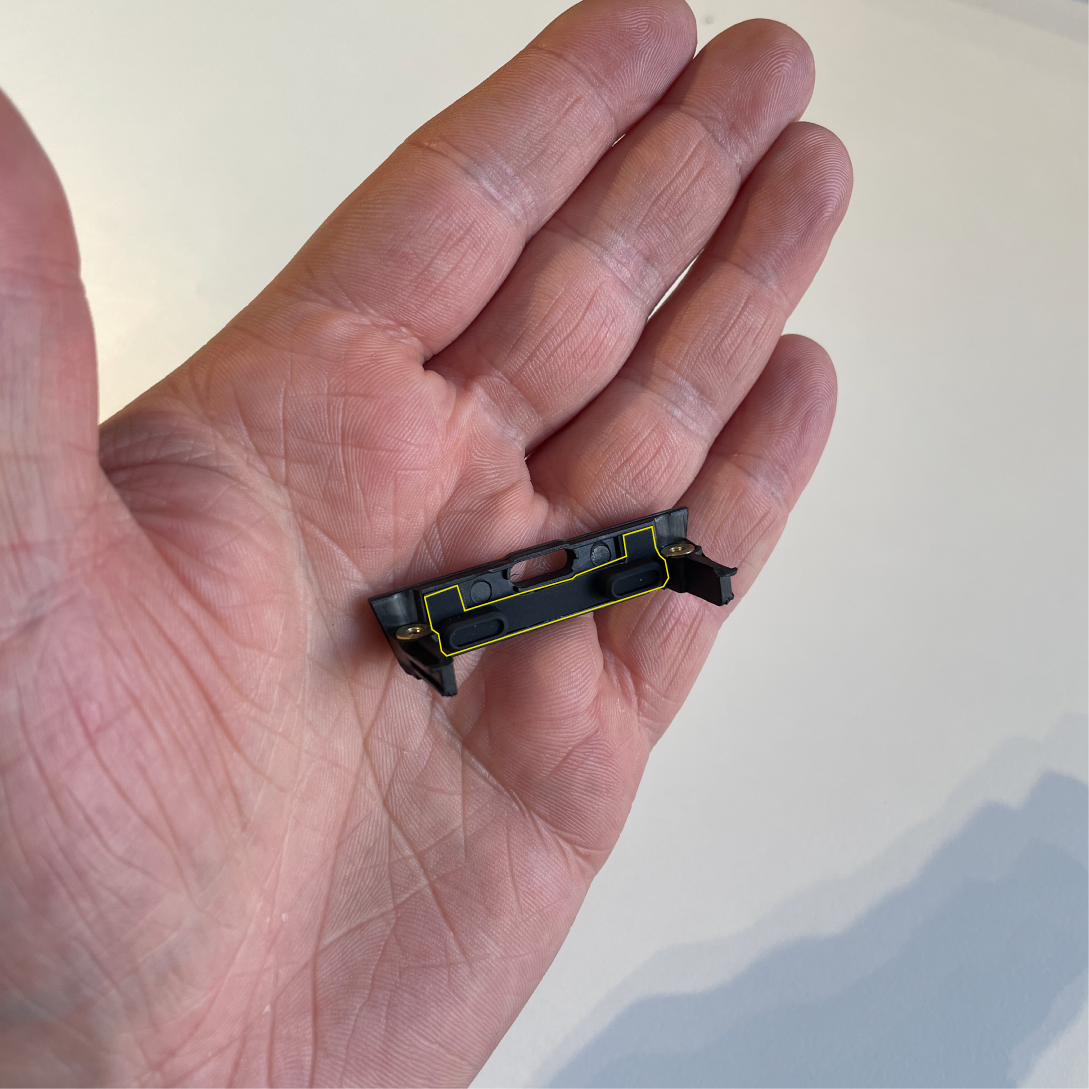
    Before closing the battery hatch, make sure that the rubber stopper is correctly seated as indicated by the yellow outline.
  • What MHUB systems does uControl Remote support?

    uControl Remote will work with any HDA system marked “uControl inside”. These are typically MHUB’s, MZMA or uControl Zone Processors which shipped with uControl OS (uOS) version 10 or above. MHUB’s which were installed with MHUB-OS (MOS) will not support the uControl Remote, but some can be upgraded (see below).

    List of systems that support uControl Remote

    Natively Supported

    MHUB (4×1+1) 40
    MHUB (4×4) 100A
    MHUB (6×6) 100A
    MHUB S (8+8×8) 100A
    MHUB S (16+16×16) 100A
    MZMA (6×4) 55
    uControl Zone Processor 1
    uControl Zone Processor 5
    uControl Connect Processor

    Upgradable

    REQUIRES A UCONTROL ZONE PROCESSOR 1

    MHUB PRO 2.0 (4×4) 40
    MHUB PRO 2.0 (8×8) 100
    MHUB U (4×3+1) 40 (coming soon)
    MHUB U (8×6+2) 40 (coming soon)

    Supported Stacked Systems

    REQUIRES A UCONTROL ZONE PROCESSOR 1

    MHUB PRO 2.0 (4×4 & 8×8) & MZMA
    MHUB S (100A) & MZMA
    MHUB S (100) + MHUB S (100A)