Author: HDA Support Team

  • Controlling Philips Hue lighting from uOS

    This guide explains how to pull data from the Philips API so you can control it directly from uOS, uControl App and uControl Remote.
    Philips Hue Lighting in uOS

    What this guide will cover:

    1. How to gather information about your lights and use this to set their states.
    2. How to create a Philips Hue API so that you can control any light in the property.
    3. How to add that API into uOS

    Important: you must have a developers account first

    Before you can access the full Philips Hue API you must have made a Philips Hue Developer account.

    Retrieving the IP address

    There are a few ways you can get the IP address of your Philips Hue device:

    1. Use a network scanner app like Fing to find Philips Hue on your network.
    2. Use Philips Hue broker server discovery process.
    3. Log into your wireless router and look for Philips Hue in the DHCP table.
    4. The Philips Hue app – Start the Hue app and push link to connect to the bridge. Use the app to find the bridge and try controlling lights to ensure that everything is working. Then, go to the settings menu in the app, go to Hue Bridges, select your bridge and then the IP address of the bridge will be revealed.

    Generating an access token

    For the purposes of this guide we are going to pretend that your Philips Hue bridge is on IP address 192.168.1.15 and your uOS device (MHUB, MZMA or Zone Processor) is on 192.168.1.196. We will use this to illustrate all examples moving forward.

    Firstly, we need to make an access token so you can make changes to the lighting.

    To start this process, head over to the web browser API by typing in the command below with the IP address specific to your Philips Hue bridge.

    http://192.168.1.15/debug/clip.html

    Once loaded, you should see a grey “CLIP API Debugger” extension pop up, you then need to type /api/newdeveloper and click GET. You will get a reply in the command response which will state you’re an unauthorised user.
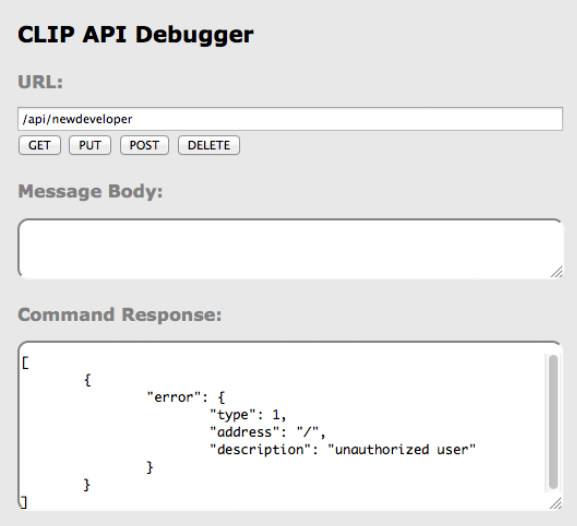
    CLIP API

    We now need to use the randomly generated username that the bridge creates for you. To incorporate this, do the following:

    1. Start off by typing /api into the URL.
    2. Then go ahead and type {"devicetype":"my_hue_app#iphone peter"} into the message body, we have used Peter as our example but your username will most likely be different so change it accordingly.
    3. Lastly, select your method as POST.
    BRIDGE

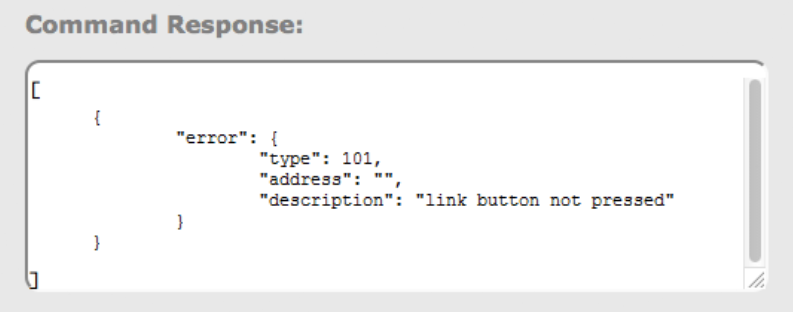
    After clicking POST you should get an error response telling you to press the link button, make sure to go press it on the bridge and then click POST again on the API. This is a security step which stops other people from accessing your lights.

    You should then be given your access code which will look similar to the one below, make sure you hold onto this as it will be needed for all commands moving forward.

    102ad6f46x253e821gcfr9ef1h07j10f

    Now we have our acces token and you’re familiar with using the API, we can start controlling our lights. Watch the slideshow to see how to do execute different commands and what they do.

    Testing your APIs

    As Philips API commands require a command for the URL and also the message body, you will have to test if they’re working on the Clip API Debugger program. If they work, they are ready to be added into uOS!

    If it doesn’t work then try the following:

    • Make sure the IP address is correct.
    • Make sure that you do not have any typos.
    • Ensure that your IDs are correct and that you’re observing a light in the correct room and location.
    • Make sure that the structure of the API matches our example no spaces, no special characters, data is in the correct case (often lowercase).

    How to add your APIs into uControl

    Need more help with the API? Get in touch.

    All HDA staff are able to help with any API questions you might have including any advanced features. Get in touch for help or assistance.


  • Controlling GUDE power switching from uOS

    This guide explains how to pull data from the Gude API so you can control it directly from uOS, uControl App and uControl Remote.


    Before you begin, you will need:

    • A HTTP test program such as Postman, available here
    • The Gude IP address on the same network as the HDA system
    • A fully-commissioned HDA or uControl system with the latest version of uOS (MHUB-OS does not support IP integrations) on the same network as the Gude
    • A tablet or laptop using any of the most popular browsers (or an iPhone with the uControl app, at the very least) on the same network as the HDA system.

    Step 1:Get data from the Gude system

    There are a few ways you can get the IP address of your Gude device:

    • Using a network scanner application like Fing on your mobile phone to scan your network.
    • Log into your wireless router and look up Gude in the DHCP table.


    Step 2: Build Function


    Example Commands

    Gude Command Examples

  • Controlling Rako scenes and lights from uOS

    This guide explains how to pull data from Rako’s API so you can control it directly from uOS, uControl App and uControl Remote.

    Rako Lighting in uOS

    What this guide will cover:

    1. How to find room, channel, scene and level IDs in Rako’s API.
    2. How to create a Rako API so that you can control any light or scene in the property.
    3. How to add that API into uOS.

    Important: you must setup Rako first

    For the purposes of this guide we are going to assume that your Rako controller is on IP address 192.168.1.15 and your uOS device (MHUB, MZMA or Zone Processor) is on 192.168.1.196. We will use this to illustrate all examples moving forward.

    Important: To get an overview of your project, which for this example is on IP address 192.168.1.15, type 192.168.1.15/rako.xml into a web browsers search engine and enter.

    What a typical Rako API looks like

    192.168.1.15/rako.cgi?room=5&ch=4&sc=0

    In most cases you will either want to turn a light on/off or change the scene in any particular room. To do this you will need to send an API which looks like the example above.

    In the example above we are going to send a command to the Rako controller (at 192.168.1.15) to execute a Scene 0 in Room 5 on Light 4.

    Understanding what those numbers in the API above mean:

    room=5
    This is the ID of the room which your Rako devices are installed in.

    ch=4
    This is the channel which is how Rako refers to individual lights or RGB values.

    sc=3
    This is the scene ID.

    “&”
    This is a separator which is used to separate room, channel and scene values or IDs.

    HELPFUL: Commonly used Scene IDs in Rako

    • Scene 0 = Off.
    • Scene 1-16 = Custom Scenes which you have made in Rako (lights at 10%, RGB value etc).

    Testing your APIs

    We recommend that you test every API before you enter them into uOS. All IP based APIs all have different requirements when it comes to testing but the Rako API is great because it is super simple.

    To test your API, open a web browser and enter the full API in the URL window and hit enter.

    Screenshot 2023-05-11 at 11.55.56

    Testing your Rako API is as easy as entering it into your favourite browser and hitting enter. If the Rako device does what you expected it to then you’re good to enter it into uOS.

    If the Rako device responds as you expected then your API is working and you can proceed adding it into uOS.

    If it doesn’t work then try the following:

    • Make sure the IP address is correct.
    • Make sure that you do not have any typos.
    • Ensure that your IDs are correct and that you’re observing a light in the correct room and location.
    • Make sure that the structure of the API matches our example (no spaces, no special characters, data is in the correct case (often lowercase).

    How to add your APIs into uControl

    Need more help with the API? Get in touch.

    All HDA staff are able to help with any API questions you might have including any advanced features. Get in touch for help or assistance.
  • Update MHUB or Zone Processor Firmware Utility

    Please read the instructions (included in the .zip file) carefully before using this software.

    In most cases the core system firmware for your device will not require updating. Most updates for uOS or MHUB-OS can be downloaded from our cloud via the uControl app. This update utility is designed to update low-level firmware and should be carried out carefully.

    Download Update Utility

    Please contact us to confirm if your system requires an update and to request your update file.

  • Setting up WiFi and Zone Processors

    WiFi on Zone Processor Setup Guide

    This guide will walk you through the process of changing your Zone Processor (ZP) device’s network connection from a wired Ethernet setup to a wireless (WiFi) setup.
    This process involves three main phases:

    1. Initial Setup: Configuring the device while it’s connected via Ethernet.
    2. Temporary AP Mode: Using the device’s own Access Point to connect to it directly.
    3. Final WiFi Mode: Connecting the device to your building’s main WiFi network.

    Part 1: Initial Wired Setup

    Before you can configure the WiFi, the ZP device must first be set up on your network using an Ethernet cable.

    1. Connect the ZP device directly to your router or network switch using an Ethernet cable.
    2. Power on the device.
    3. On a computer connected to the same network, you will need to find the ZP’s current IP address.
      Note: You can typically find this by using the uControl app or a network scanner.
    4. Open a web browser and type that IP address into the address bar to access the device’s web interface (GUI).
    Screenshot 2025-11-03 at 12.46.08

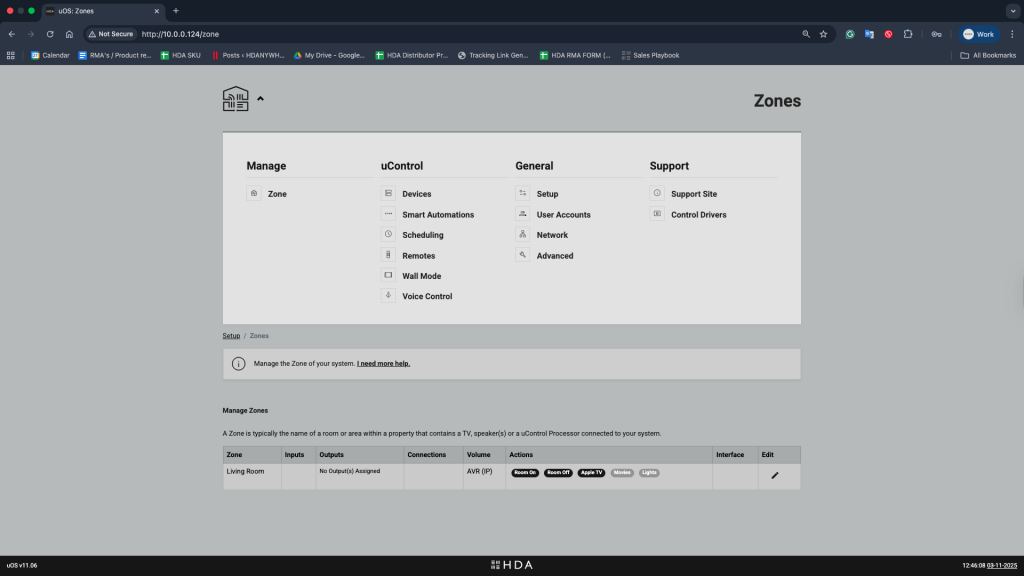
    Figure 1: ” The uOS GUI Home page navigation to go to the Network settings”

    Part 2: Switch to Access Point (AP) Mode

    Next, you will temporarily turn the ZP device into its own wireless hotspot.

    1. In the ZP’s web interface, navigate to the “Network” section.
    2. Find the “Device Mode” setting.
    3. Change the mode from Ethernet to Access Point.
    4. Save the settings.
    Screenshot 2025-11-03 at 12.46.34

    Figure 2: ” Changing Device Mode from Ethernet to Access Point in the Network Settings”

    Part 3: Connect to the ZP’s Temporary Network

    Your computer will lose connection to the device when it restarts. You must now connect to the new temporary network it is broadcasting.

    1. On your computer or mobile device, open your WiFi settings.
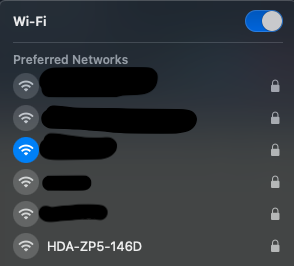
    2. Look for a new network name (SSID) broadcast by the ZP device. It starts with HDA-ZP (Example: HDA-ZP5-146D).

    Screenshot 2025-11-03 at 15.44.061

    1. Connect to this network. You will be prompted for a password.
      Password: hdanywhere
    2. Your device is now connected directly to the ZP, not to your main network.

    Part 4: Switch to WiFi

    Now that you are connected to the ZP’s temporary network, you will give it your main WiFi network’s details.

    1. Open a web browser.
    2. In the address bar, type: 192.168.100.1
      This is the ZP’s default IP address when it is in Access Point mode.
    3. Once the web interface loads, navigate to the “Network” section again.
    4. Change the “Device Mode” from Access Point to WiFi.
    5. Save the settings.
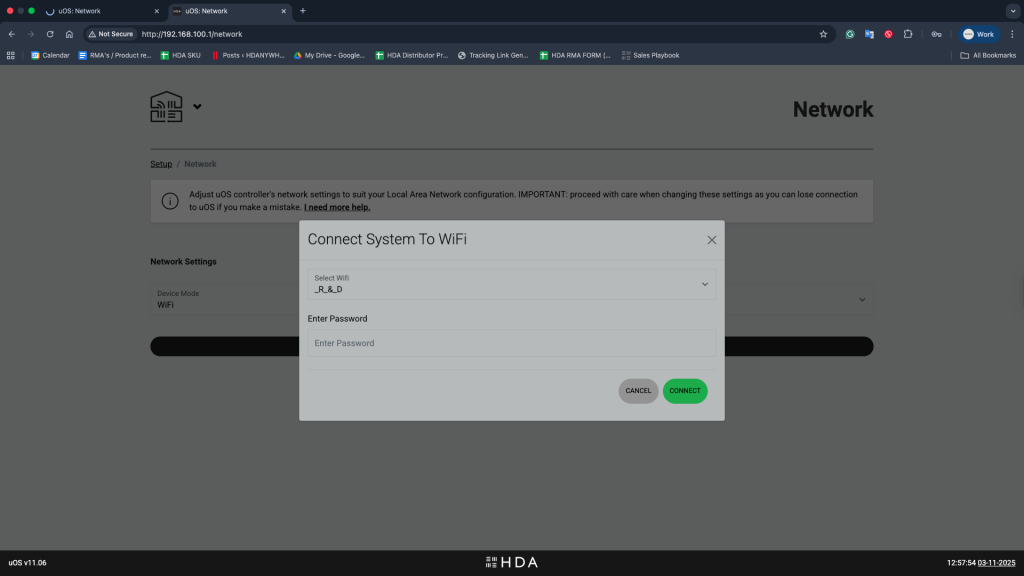
    Screenshot 2025-11-03 at 12.57.56

    Figure 4:” Selecting your WiFi SSID and Password in Navigation Settings to connect your Zone Processor to WiFi”
    1. Enter your WiFi Network and password then Save the settings again. The device will disconnect you from its temporary network.
    Important: At this point, the temporary network will disappear as the ZP device is now attempting to connect to your main WiFi network. You can now reconnect your computer to your main WiFi network.

    Part 5: Locate Your Device on WiFi

    Once the ZP device reboots, it will be connected to your network via WiFi. It will have a new IP address assigned by your main router.

    You must now find this new IP address to access the device:

    • Using the App: The simplest method is to use the uControl app, which has a built-in network scanner to find the device.
    • Using Your Router: You can log back into your router’s administration page and check the “DHCP Client List” for the ZP device to see its new IP.
    • Using a Network Scanner: You can use a third-party application (like Fing on mobile or Angry IP Scanner on a desktop) to scan your network and locate the ZP’s new IP address.

    Once you have the new IP address, you can use it to access the ZP’s web interface as normal. Your device is now successfully connected via WiFi.

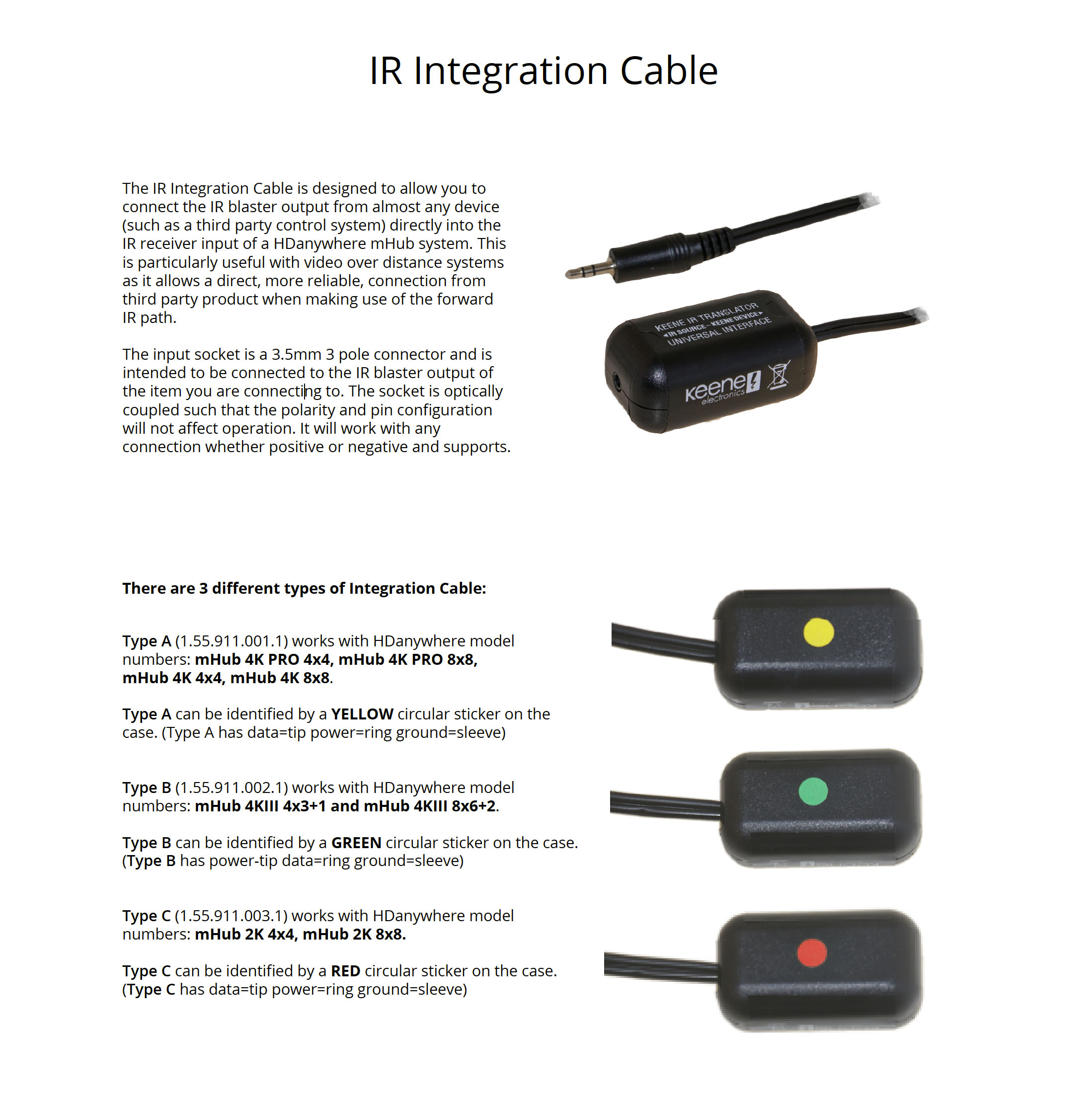
  • IR Integration Dongle for passing IR from a control system in to MHUB

    Important: The tail end connects into your MHUB system


    IR Integration Cable
    These can be purchased here: https://hdanywhere.com/products/accessories

  • Resolving MHUB-OS “Critical Error”

    IMG_1329

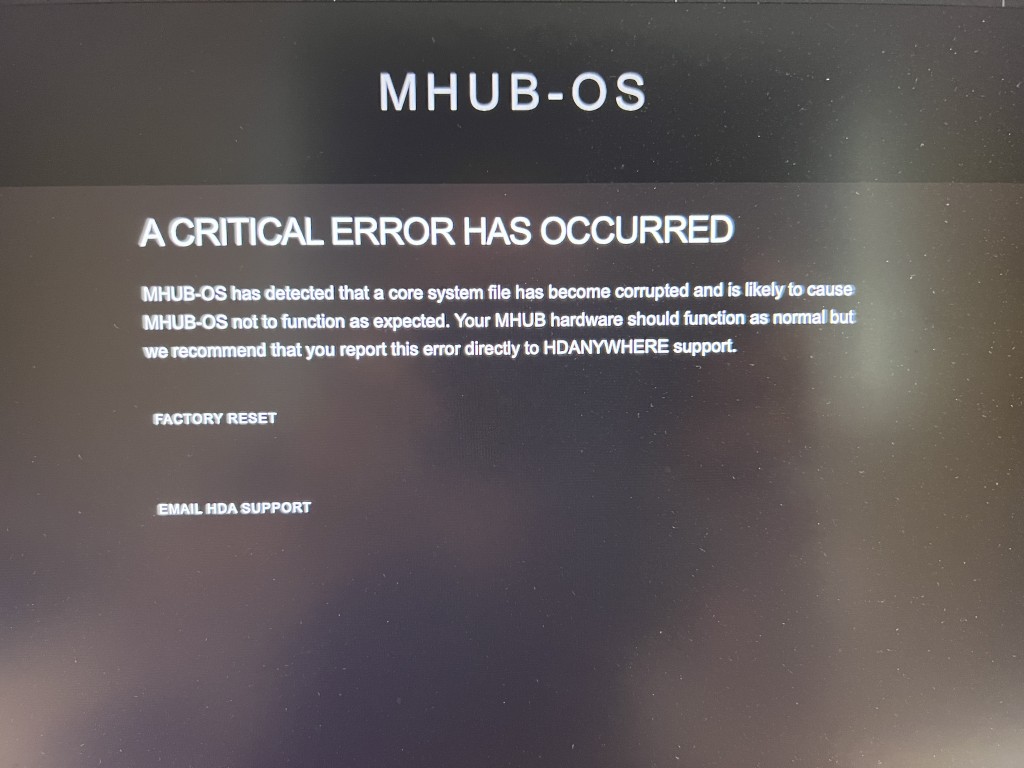
    If you notice that uControl has stopped responding or your control system is no longer controlling your MHUB or HDA device and you see a screen similar to the one above when you visit MHUB-OS’ IP address then it is likely that a core file within MHUB has become corrupted or is missing.

    Generally, this error affects systems that are on very early versions of MHUB-OS, usually versions 7 or lower (at the time of writing 8.15+ is considered stable). On systems that are already on 8+ it is possible to restore the system sucessfully from a backup but earlier ones will need a HDA technician to check your system to identify the damaged system file and repair it.

    If your system is out of warranty then there is a charge of 1 unit for this repair. Please contact HDANYWHERE first to arrange a technician slot.

  • Using Sky Q and MHUB on maximum video and audio settings

    If you have a Sky Q 4K capable box and 4k capable displays this support post will guide you through getting the most out of your setup when using HDA systems.

    Does my HDA system support Sky Q maximum output

    You will need to confirm if your system is capable of passing the signal from your Sky box. Only the following systems are supported –

    1. MHUB PRO 2.0
    2. MHUB S
    3. MHUB U systems running MHUB-OS version 8.26 or greater

    If your system isn’t listed above it may still support Sky Q at 4K, however, HDR will not be supported.

    Configuring the MHUB System

    You may need to do some minor configuration on the MHUB to get the most out of the Sky Q. To do this you will need to adjust the MHUB’s EDID settings for the input where the Sky is connected. Where possible we would recommend copying the EDID from your display. To configure EDID settings follow this guide – EDID Settings

    Setting Sky Q to output 4K 10 bit

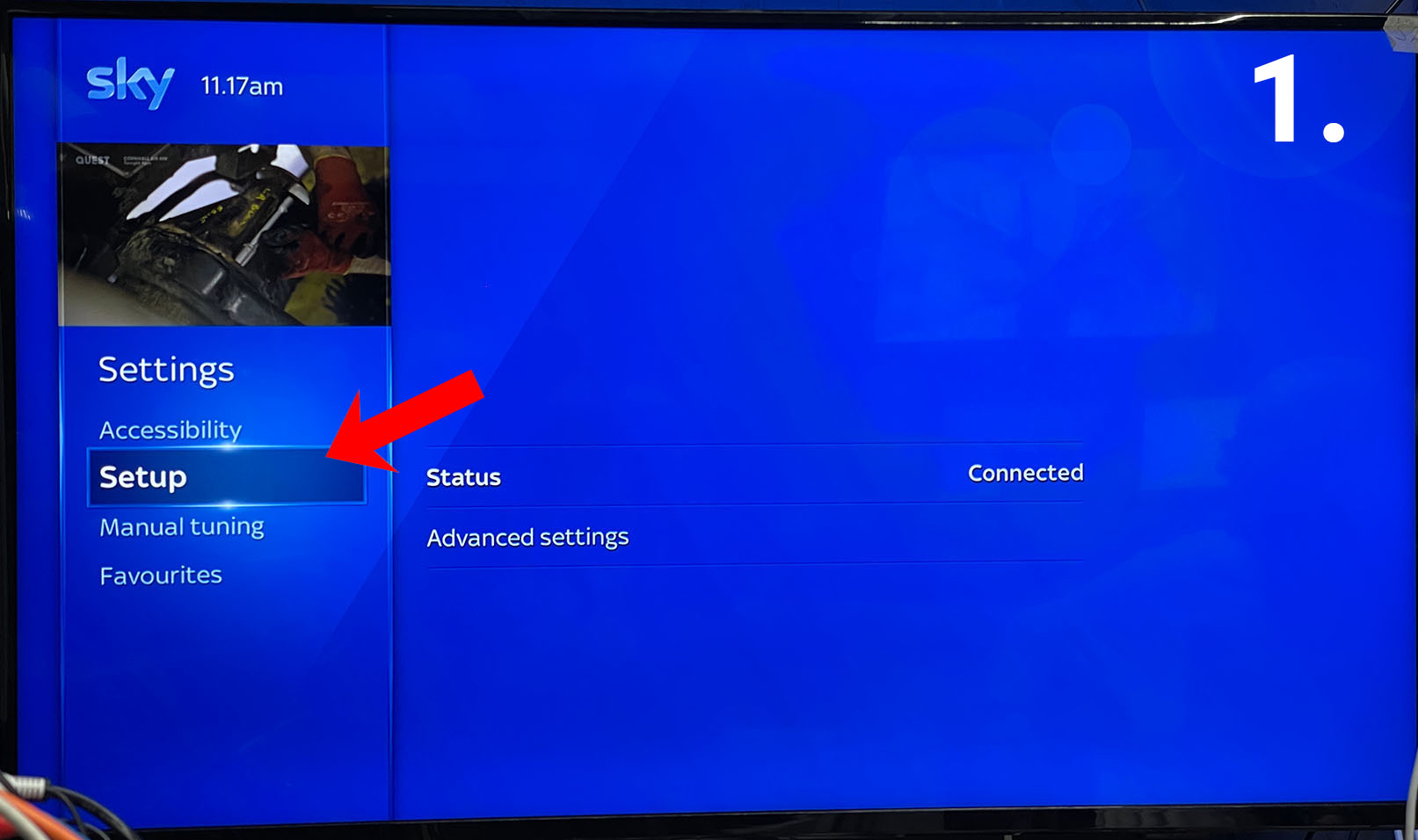
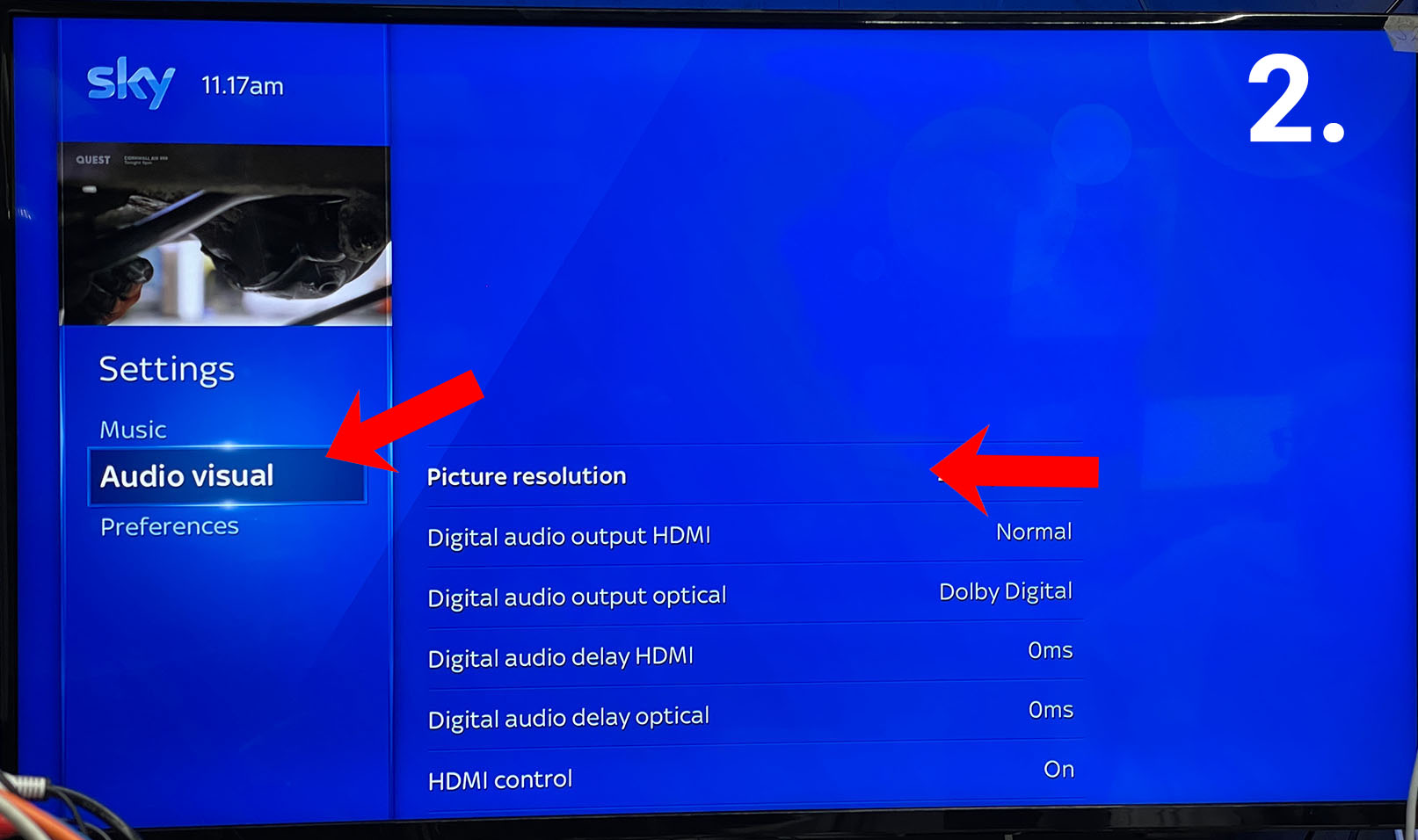
    After setting the EDID on your MHUB you will then need to set the output of the Sky Q system. To do this Press the HOME button and scroll down to settings. Then in the settings menu scroll down to SETUP, then AUDIO VISUAL.

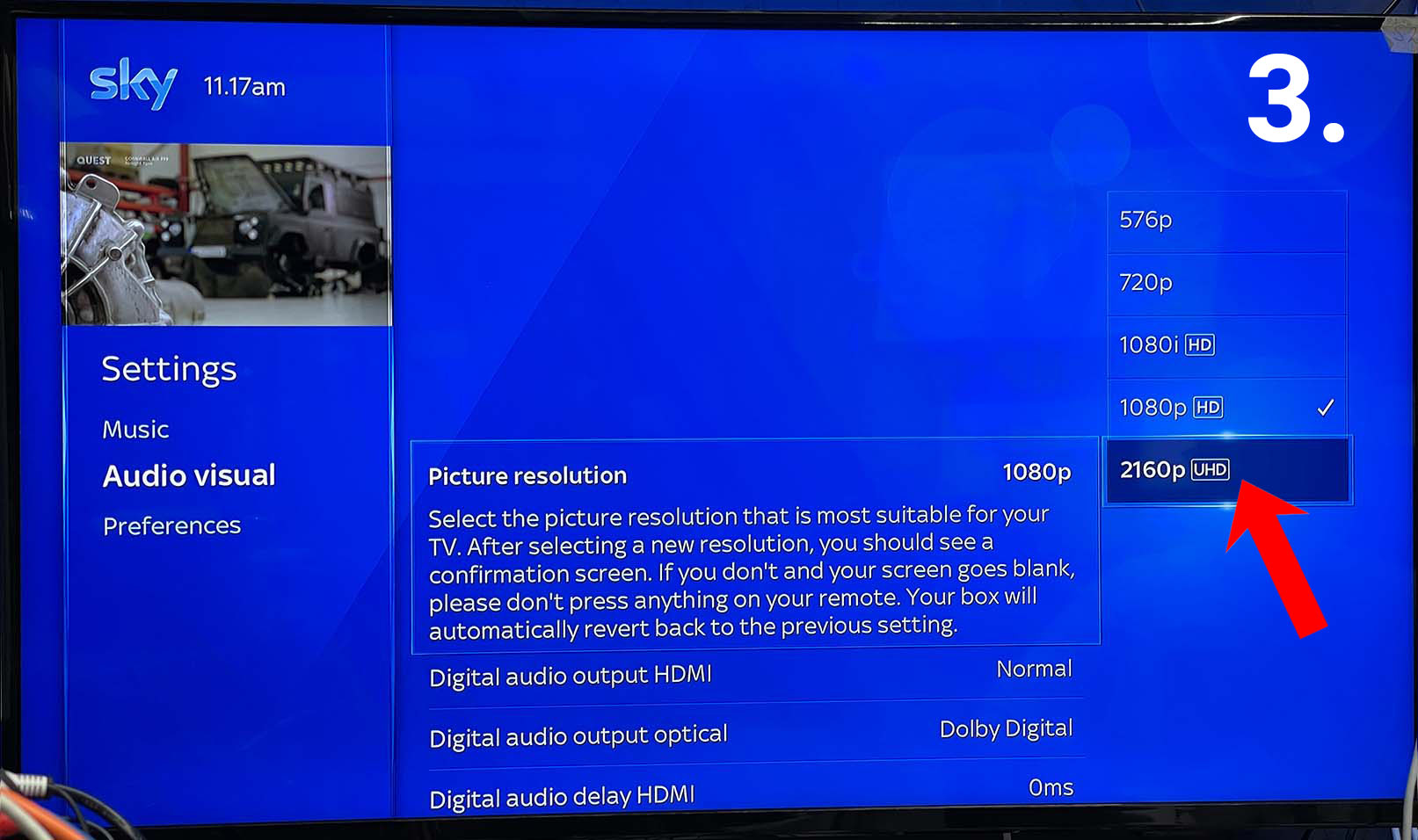
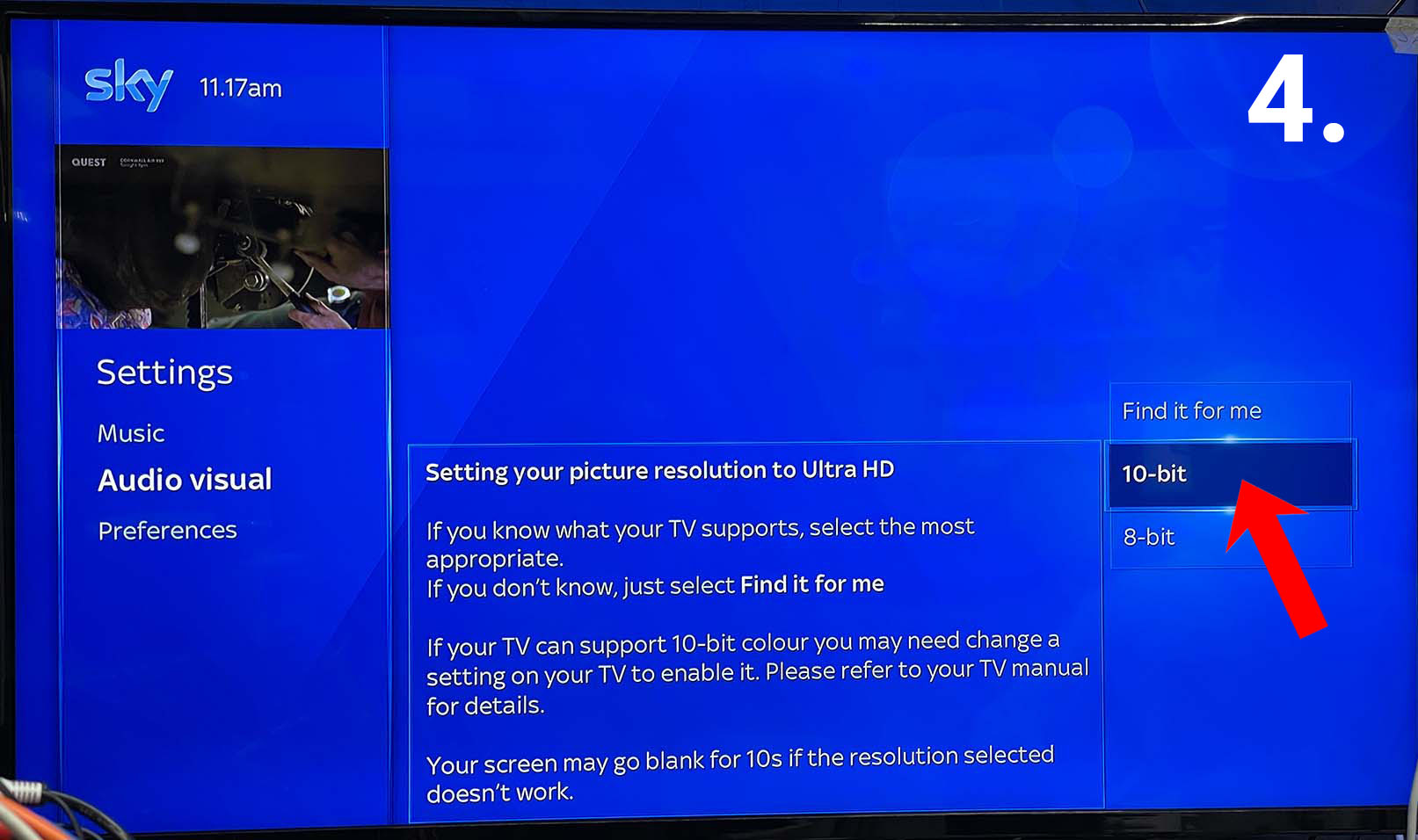
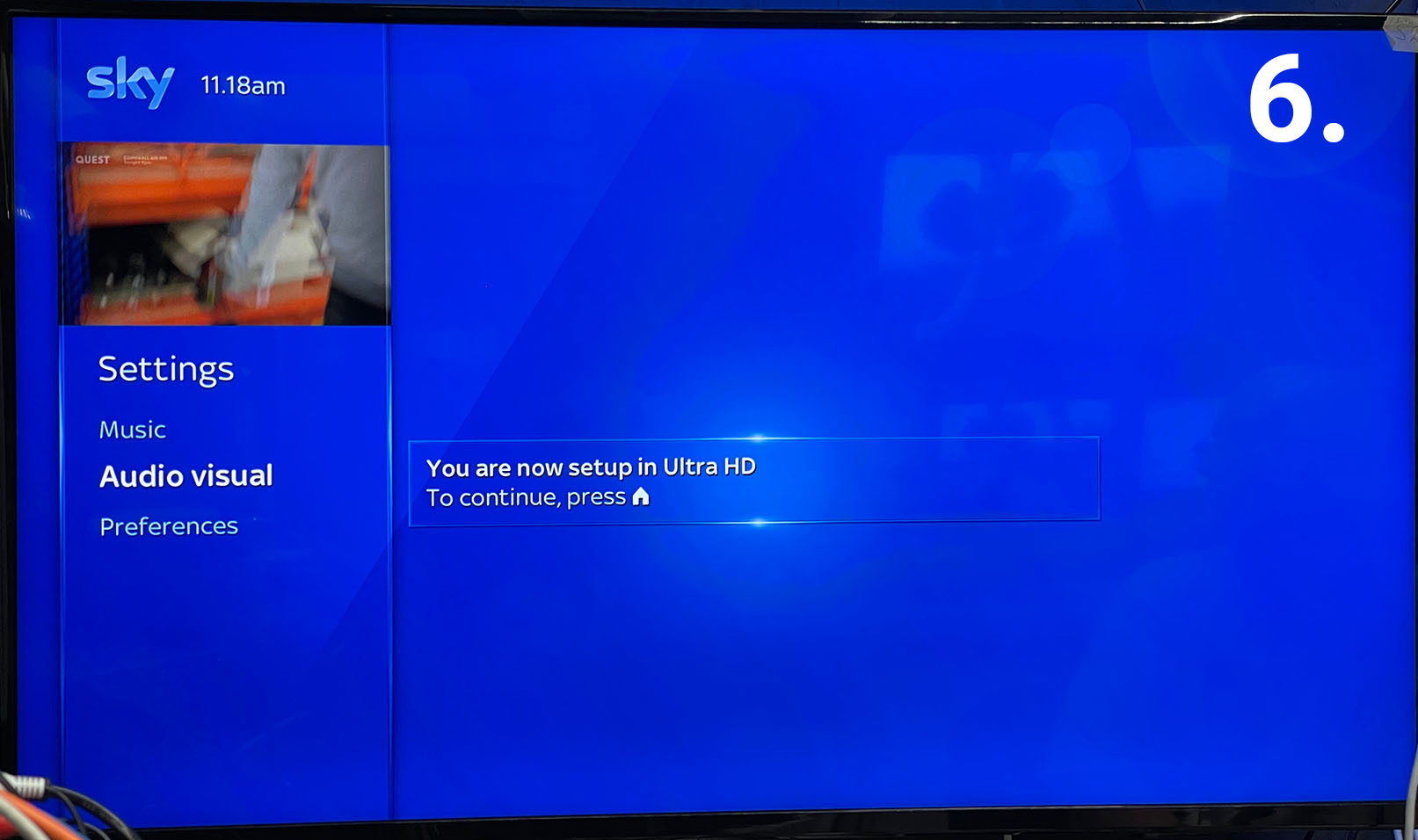
    The first option will be Picture resolution, use the D-Pad and select 2160 [UHD]. You will then get onscreen instructions to select either 10-bit or 8-bit colour. Select 10-bit colour, then confirm everything is fine by following the onscreen instructions. You can also check out Sky’s guide here – Changing Resolution

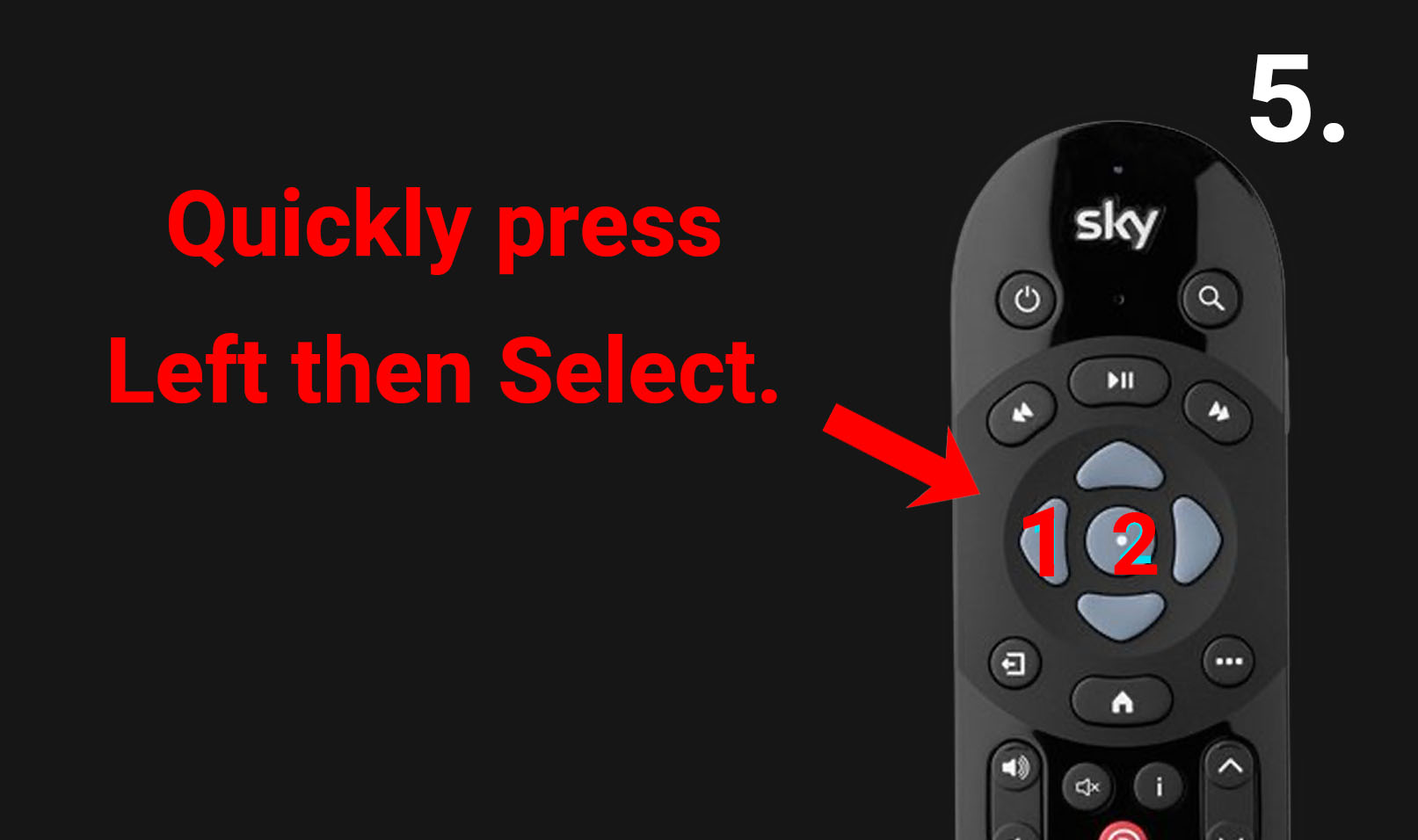
    There is a timer to confirm the picture is fine, if it expires before you can confirm simply press LEFT and ENTER after selecting 10-bit colour whilst the screen is still black.

    Setting Sky Q to output Dolby Atmos Audio

    to get Dolby Atmos from your sky box you need to change the Audio settings. These are located in the same menu as the video settings above. Scroll down to DIGITAL AUDIO OUTPUT HDMI. The setting required is ‘Dolby Digital Plus’.

    Please be aware if any display cannot handle a 4K output and decode Dolby Digital Plus you may get no video and audio. If this happens you may have to adjust these settings.

    1

    2

    3

    4

    5

    6

    7

  • Resetting your system

    DO NOT RESET YOUR SYSTEM IF YOU DO NOT KNOW WHAT YOUR HDA DEVICE DOES:
    Your HDA hardware is an integrated system and very similar to a central heating boiler.
    It maybe controlling your AV sources, displays, speakers, lights etc. If you reset your system and you do not know how to restore it yourself then it could render your AV unusable.

    Is your system managed by a HDA Pro Installer?

    If your system has been built and serviced by a HDA Pro Installer then please contact them first before resetting your device. This is especially important if they are servicing your system. If you proceed with a system reset then your HDA Pro can reserve the right to charge a call out fee to restore your system to a working state.

    Resetting your system

    If you are already connected to a HDA system:
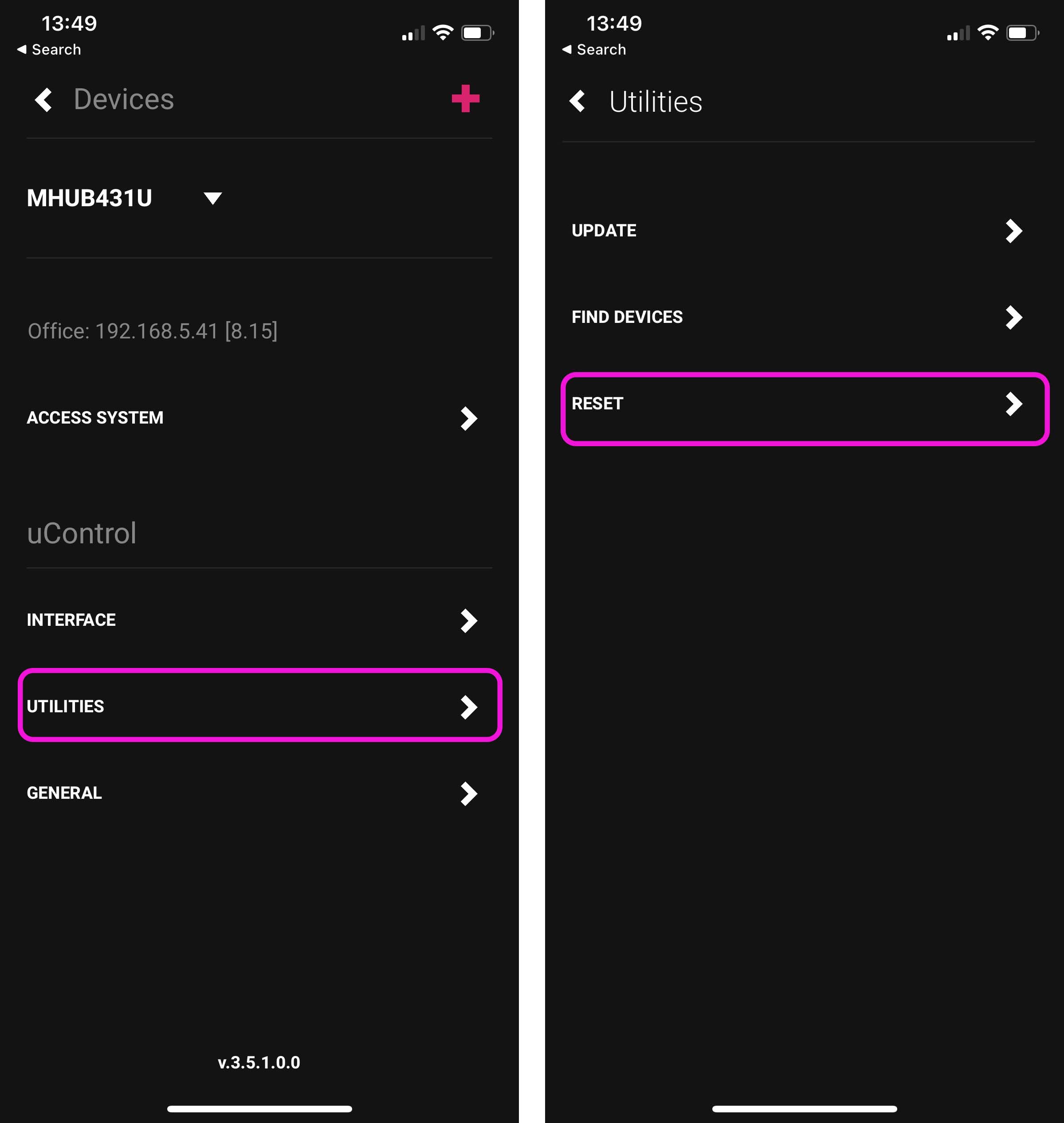
    uControl menu (top left menu icon) > Settings Cog (bottom left) > Utilities > Reset

    1-2-con

    If you are not connected to any system:
    uControl Splash Screen > Advanced > Utilities > Reset

    1-2-ncon

    Tapping on reset will not work. You will need to tap the reset button 10 times in order to unlock the reset process. Follow instructions inside the app to continue with the system reset.

  • Setting up Apple Hey Siri

    Siri Shortcuts & HDANYWHERE.

    With any Apple device along with an MHUB or Zone Prossesor you can use Apple “Hey Siri” and our API to send commands to uControl/uOS to control virtually any display, source inputs plus lighting control.

    Below you will find a step by step how-to guide.