Author: HDA Support Team

  • HDBaseT compatibility with Panasonic CX/CS series

    blog

    The recent release of Panasonic’s new CX/CS HDTVs feature no support for the HDBaseT transmission technology found in HDanywhere’s multiroom matrices (Modular 4×4 and 8×8 / mHub 4K / 100m Pro Extender).

    This software incompatibility caused these displays to be unable to display picture from HDanywhere products. Please note that this only affects NEW Panasonic CX/CS range displays.

    Yesterday, Panasonic released firmware updates resolving this issue. There is now full compatibility between HDanywhere products and Panasonics entire range of displays.

    A Quick tip for updating the TVs on a network: if you select update firmware in the normal way, it will probably say that it’s already up to date. You need to go to apps then select Netflix, and that will force it to check the update server.

    If your TV isn’t downloading the update automatically you can manually update it.

    For CX you need version 3.206 or higher and for CS you need 3.014 and up.

  • Modular Error Codes (4×4 and 8×8)

    Error Code Description
    1001 Corrupt Service Card – Replace the SDCard or format and re-create
    1002 Insert valid SDCard – No card detected or installed in the unit
    1003 Write Protect Mode – SDCard is in write protect mode
    1004 System Failure – MatrixOS is missing from the system and needs to be installed – i.e. rebuild the SDCard
    1005 Insert Service Card – Insert an SDCard with a valid matrix OS firmware image
    1006 Update failed – No firmware image found
    1007 Update failed – Firmware image is corrupt or invalid
    1008 Update failed – Firmware image is too large for the system.
    1009 Remove service card – A bulk update card is installed and the update is complete, ready for a normal service card.
    1010 Onscreen message varies – The unit update has failed and will be showing where internally in the unit it has failed.
    1011 Update failed writing to flash. A critical error and process was stopped
    1012 Communication Fault – The system cannot bring up internal communication bus and is unable to proceed
    1013 Module Fault – Comes with specified module number
    1014 System Fault – An internal IC has failed, indicated by the extended error code
    1015 Input hotplug fault. Unable to enable the hot plug 5V voltage for one or more input modules
    1016 EDID Setup Fault – The system cannot bring up the EDID mixing routines
    1017 Communication fault – The system cannot bring up the 5V I2C communication line
    1018 IR Mux fault – The system cannot bring up the IR Mux subsystem
    1019 IR Capture fault – The system cannot bring up the IR capture subsystem
    1020 Local Network Failure – Unable to ping the local gateway
    1021 Remote Net Failure – Unable to ping DNS servers
    1022 Module Power Fault – The system reports that one of the voltages used to power modules is not functioning correctly
    1023 Network HW Fault – The network hardware has a hardware fault
    1024 Network HW Fault – EDID Read Failure – the system has failed to read the EDID from a connected device
    1025 Network HW Fault – Filesystem Fault – The system has an issue reading from the SDCard
    1026 Network HW Fault – Invalid update URL – The custom URL for retrieving updates is not valid
    1027 Network HW Fault – Discovery failure – the system has failed to enable its auto discovery feature (SDDP)
    1028 Network HW Fault – Invalid Aux MCU – the Component fitted is incorrect
    1029 Update failed – This version is too old for this part
    1030 Invalid Module – A module is inserted in the wrong port
  • EX50: temporary compatibility issue

    ex50-pair


    We have recently become aware of a compatibility issue between the EX-50 extender and certain models of Panasonic televisions, which we are currently working hard to resolve.

    If you have a Panasonic TV and experience picture drop-out when using IR with the EX-50 HDMI 50m extender set, then please get in touch with us. We have replacement receivers available that don’t suffer from this issue.

    If you purchased EX50s directly from HD Connectivity or the HDanywhere website get in touch via email (support@hdanywhere.com) or phone 01684 575 324. If you purchased it through a distributor (including AWE, ACE or Unicam) then please contact them directly.

    Email: support@hdanywhere.com

  • Modular 8×8 Firmware version 1.5.100 – IMPORTANT

    On Monday 18th of May we rolled out a firmware release to all live Modular 8×8 units. Whilst the update was being delivered to the units we suffered an ISP issue causing the update file to be corrupted in some instances. Most units will repair themselves automatically. If your unit is displaying a ‘1021 cant reach gateway’ error or stuck in a boot loop please follow the instructions below

    1. Remove and re-insert the SDCard from the slot on the front by pressing it once to pop it out and press again to pop it back in. This should resolve things in most cases. (This may need to be repeated if the first attempt fails)

    2. In more rare cases, it may be that removing all of the cat5 cables from any HDBaseT outputs and then removing and replacing the SDCard is required.

    3. In extreme instances, a manual software update is required. To perform this, the SDCard needs to be fully removed from the unit and placed in a Windows based PC. Open The SD Card and remove all files except the ‘SETTINGS.INI’ File. Then file below needs to be downloaded, extracted, then the three files within need to be placed on the root of the 8×8 SDCard. Once there, the card can be inserted back into the 8×8, it should reboot and apply the correct software. Normal operation of the 8×8 will then resume.

    If none of the above works, or you require further assistance please contact the technical team via phone or email on 01684576348 & support@hdanywhere.com

    Firmware files – Download

  • HDMI 2.0- the must-know info.

    hdmi-2.0-the-must-know-info

    HDMI 2.0

    HDMI technology has different versions or specifications, the newest of which is HDMI 2.0, which has been causing a lot of confusion and questions within the AV distribution world.

    The main feature of this HDMI 2.0 specification which is relevant to custom installers, is this:

    “The HDMI 2.0 specification defines a new, more efficient signalling method, for speeds above the limits of the earlier HDMI 1.4b specification (10.2Gbps), to allow higher bandwidths (up to 18Gbps) over existing High Speed HDMI Wire Cables.” (HDMI.org) 

    What does this mean?

    This will allow transmission of higher bandwidth video formats such as 2160p @60Hz 4:4:4 UHD / 4K and 4:2:0 UHD with HDR. It’s worth pointing out that currently there is only ONE HDMI source device in existence (the Sony FMP-X10 4K) that is capable of outputting these resolutions and is HDMI 2.0 licensed. But more HDMI 2.0 licensed source devices will probably begin to appear at the end of 2015.

    Will you need new cables or specific HDMI 2.0 cables?

    HDMI 2.0 is backwards compatible, so you won’t need new cables (as long as the HDMI cables you’ve been using are high speed, passive and under 5m)

    What is HDCP 2.2? 

    HDCP 2.2 is the new encryption format for UHD content. It’s designed to create a secure connection between a source and a display. This is so you can’t take the output from a source (a Blu-ray player, say) and plug it into a recording device to make a copy of the content. HDCP doesn’t care what goes across the cable, as long as that cable is secure.

    The key point is all devices in a chain need to be HDCP 2.2 compliant or you’ll get an error message.

    What is the point of HDMI matrixes with HDCP 2.2 but NOT HDMI 2.0? Should I invest?

    The best way to answer that is with another question: ‘what HDCP 2.2 compliant devices are you planning on installing that don’t need HDMI 2.0?’

    The big push for compliance is going to come at the end of the year when new UHD Blu-Ray players are released. These will definitely require HDMI 2.0 and won’t work on the HDCP 2.2 matrices that have just hit the market.

    Another key point is that HDMI 2.0 will require HDCP 2.2, but HDCP 2.2 does NOT require HDMI 2.0. Hence new HDCP 2.2 compatible matrices hitting the market before HDMI 2.0 + HDCP 2.2 compliant matrices.

     The other big factor is what Sky will do with UHD. The current industry belief is that the new sky box won’t need HDCP 2.2. The logic is that there are not enough HDCP 2.2 compatible TV’s in the UK currently to be able to justify a new Sky box that isn’t compatible.

    What TVs are HDMI 2.0?

    The vast majority of  TV’s marketed as UHD or 4K that were bought  before 2015 don’t have HDMI 2.0 and don’t have HDCP 2.2. Some manufacturers have produced TVs with one or more HDMI 2.0 ports with HDCP 2.2, these are below:

    Samsung UE65HU8500

    Samsung UE55HU7500

    Sony KD-65X9005B

    Panasonic CX600 and CX 650 Series


  • EDID management: 3D when using EX50 50m extender set

    If you’re looking to distribute a 3D source device using the EX50 50m extender set, then carry out the following steps.

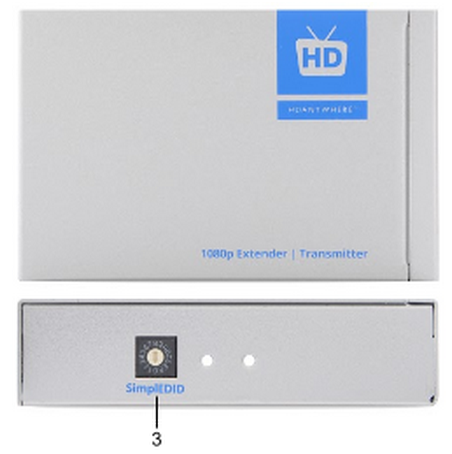
    1. Before you connect your 3D source device to the transmitter, locate the SimplEDID dial on the side of transmitter, which is labelled with the figure 3 below:

    SimplEDID

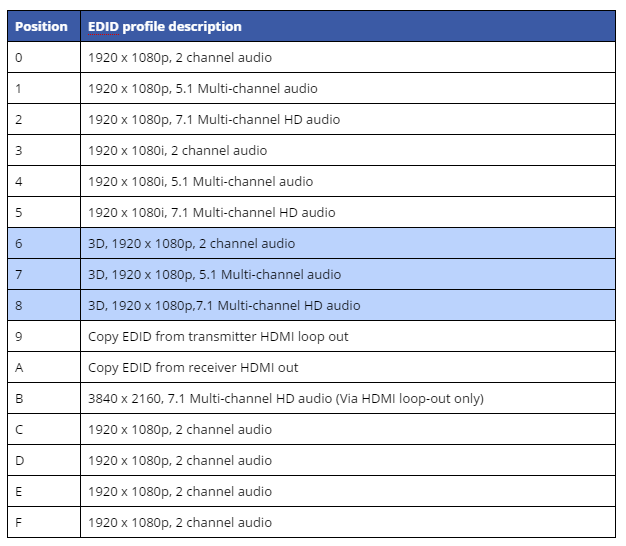
    2. On the SimplEDID profile table in the EX50 manual, there are three choices of 3D EDID profiles (highlighted below). Pick the profile that suits the audio format that you wish to distribute.

    EDID profiles


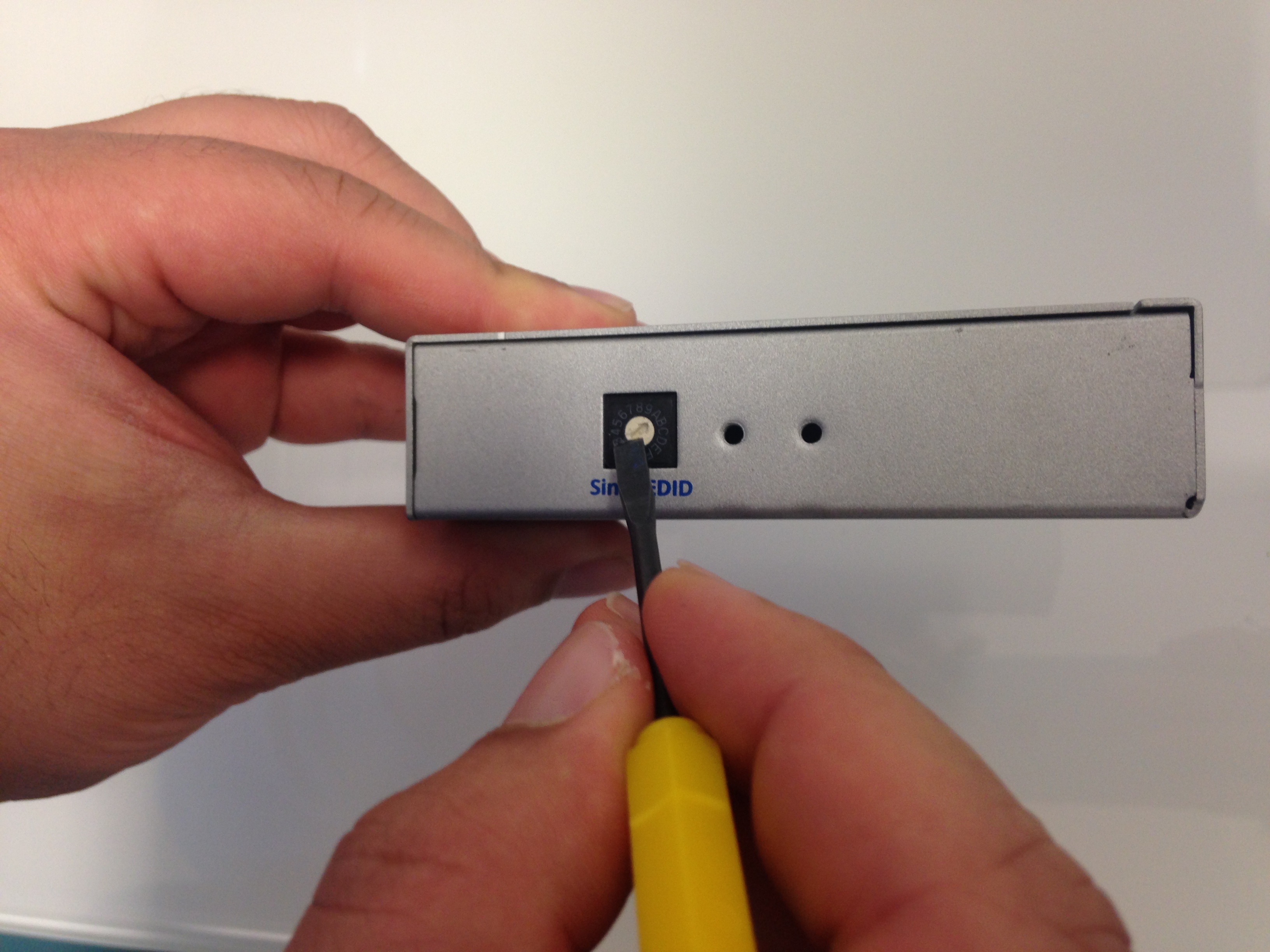
    3. Now use a small screw driver to turn the dial manually to the desired 3D EDID profile, which are lettered / numbered on the dial, as show below.

    IMG_0305


    4. Finally, connect your 3D source device to the transmitter via HDMI cable. Connect the transmitter to the receiver using a single run of Cat cable and connect the receiver to the display using a HDMI cable.

    If distributing to a local display via the HDMI loop out on the receiver, then also connect the receiver to the local display using a HDMI cable.

    Power the source device on and the TV(s) should be showing the 3D video and outputting the chosen audio correctly.

    IMPORTANT: With EX50s, changes EDID profiles are only recognised once the transmitter is powered off then on again.  

    If you need to change the EDID profile of the EX50 extender set once the extender is up and running then you must disconnect / power off the transmitter. Next, manually change the EDID profile once again. Connect up the EX50s as step 4 recommends. You cannot change an EDID profile whilst the transmitter is connected / on.


  • EDID management: Modular 4×4 and 8×8

    EDID (Extended Display Identification Data) is information provided by a display to describe its capabilities to a source. It contains information including resolution, audio formats and frame rates. Modular has the ability to ‘Fix’ the EDID profile to allow a source to always pass video with a fixed resolution and/or specific audio output (i.e 1080p 60Hz, with 5.1 multi-channel audio)

    If the system is functioning as normal, then no EDID management is required, however if you have a source that will not output the correct resolution/audio type, this can be resolved by following the instructions below

    Please remove the SD card from the unit and connect it to a PC (Please do not use a MAC). On the route of the SD card is a file called ‘settings.ini’, this is the file that will be edited. Open the file in a text editor such as notepad, then scroll down to the bottom of the file

    Enter one or more the following lines where required

    edidprofile1 = x     ; sets the EDID profile for source connected to input 1
    edidprofile2 = x     ; sets the EDID profile for source connected to input 2
    edidprofile3 = x     ; sets the EDID profile for source connected to input3
    edidprofile4 = x     ; sets the EDID profile for source connected to input4
    edidprofile5 = x     ; sets the EDID profile for source connected to input 5  (8×8 only)
    edidprofile6 = x     ; sets the EDID profile for source connected to input6 (8×8 only)
    edidprofile7 = x     ; sets the EDID profile for source connected to input 7 (8×8 only)
    edidprofile8 = x     ; sets the EDID profile for source connected to input 8 (8×8 only)

    where x equals:
    0 – Presents the source with the 1080p template EDID
    1 – Fixes the EDID
    2 – presents the source with the 4K template EDID
    3 – presents the source with the 1080p template EDID with 5.1 enabled
    101  – presents source with the EDID of the Sink connected to Output 1
    ..

    108  – presents the source with the EDID of the Sink connected to Output 8


    Once all editing has been done, save the settings.ini file, and reinsert the SD card back into the Modular unit.

    Also please reboot any source where the EDID profile has been modified to allow the new EDID data to be passed.

  • mHub 4K Network Discovery Tool

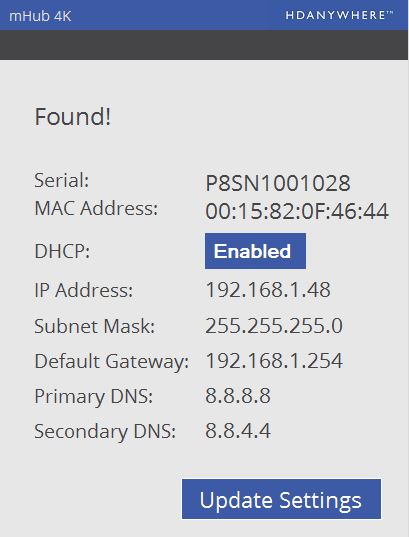
    mHub 4K Network Discovery tool

    To enable access to the mHub 4K web interface, you will require the IP address of the unit.

    This is found using the Network Discovery tool. Simply download and run the software below and this will give you the current IP settings of your unit, and also the option to change the settings to suit you network infrastructure.

    Discoverytool

    To change to fixed IP settings, please click ‘Enabled’. This then allows you to manually enter network information. Finally click ‘Update Settings’ to store entered information.

    Download software – Network Discovery Tool

  • General purpose IR / Pronto codes for MHUB systems

    IR codes for MHUB systems (not Modular or Multiroom+) including power control available here:

  • HDMI over Cat Wiring Guide

    HDanywhere 2K systems, such as the mHub 2K family, require a single network cable to be run from each HDTV location, back to a central point.

    HDanywhere 2K systems use HDMI over Cat technology to transmit over a single Cat5e/6/7 cable up to a 50 metre distance.

    (more…)