Please read this first before updating your system:
This guide will assist you with updating your MHUB, MZMA or Zone Processor to uControl OS (uOS) 11.
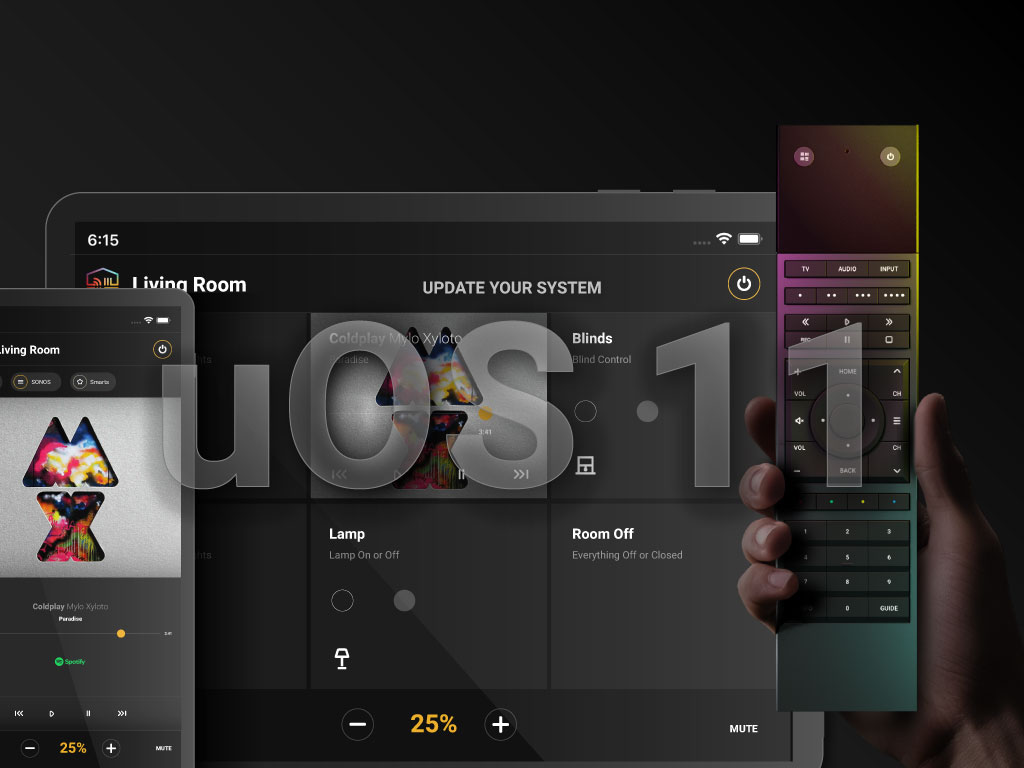
The update will enable support for both the new uControl App and the uControl Remote which can be configured after completing the steps in this support post.
It is strongly recommended that you read this guide carefully before you start the update process.
STACKED SYSTEMS:
It is recommended that every device in your stacked system is updated to uOS 11. Start by updating your master controller, followed by each MHUB or MZMA in your stack. If parts of your stacked system feature older MHUB’s or MHUB Audio systems running MHUB-OS then you will not need to update these.
1. Load uControl 2016 app to start the update process.
Load the uControl 2016 app and follow the instructions in this guide to update your system(s). Ensure that you complete this process for all HDA devices which can be upgraded to uOS 11 (see checklist above). Please note that any MHUB operating on MHUB-OS (black background colour) can not be updated to uOS 11.
2. Check that your HDA system has updated to uOS 11.
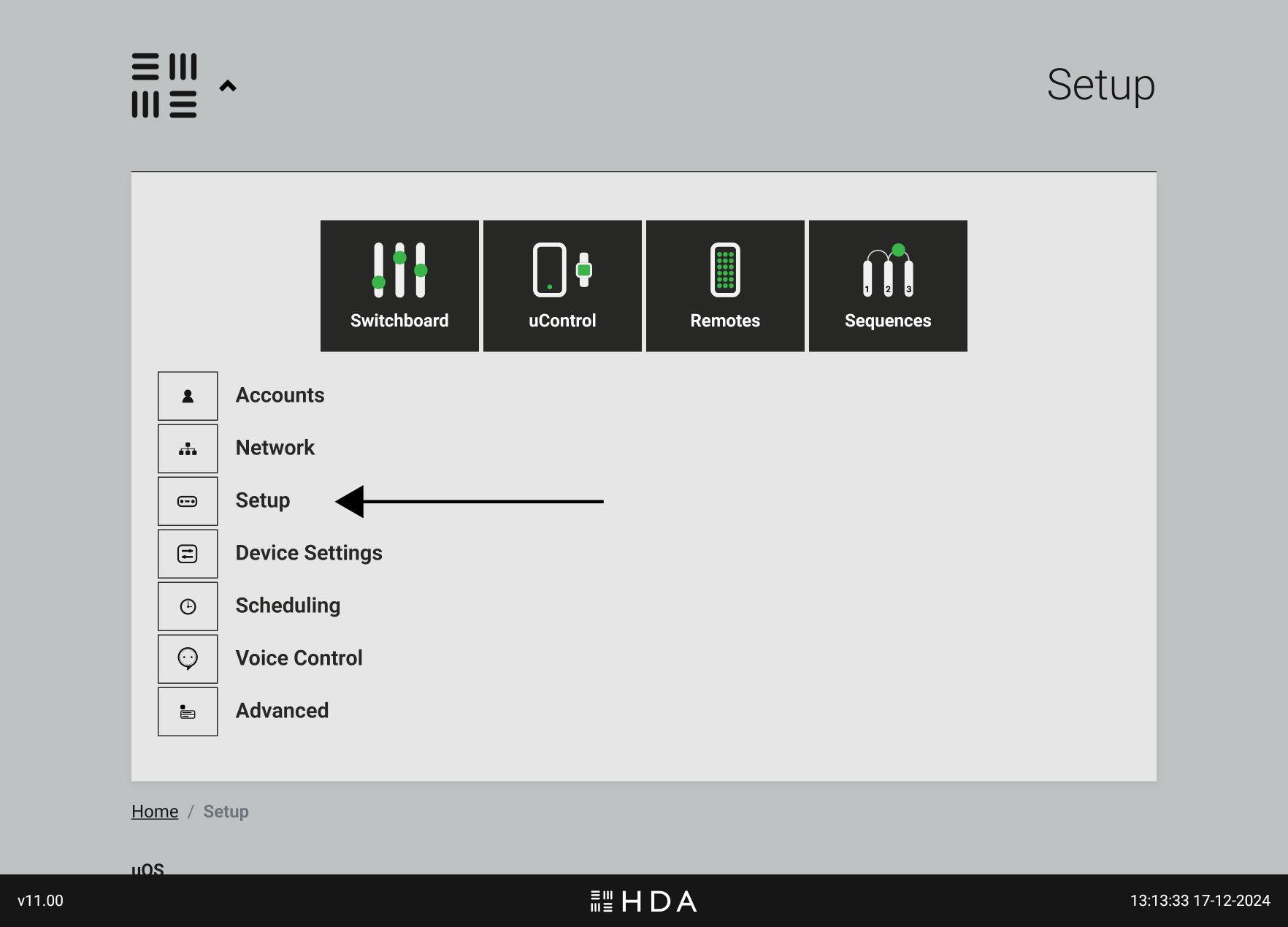
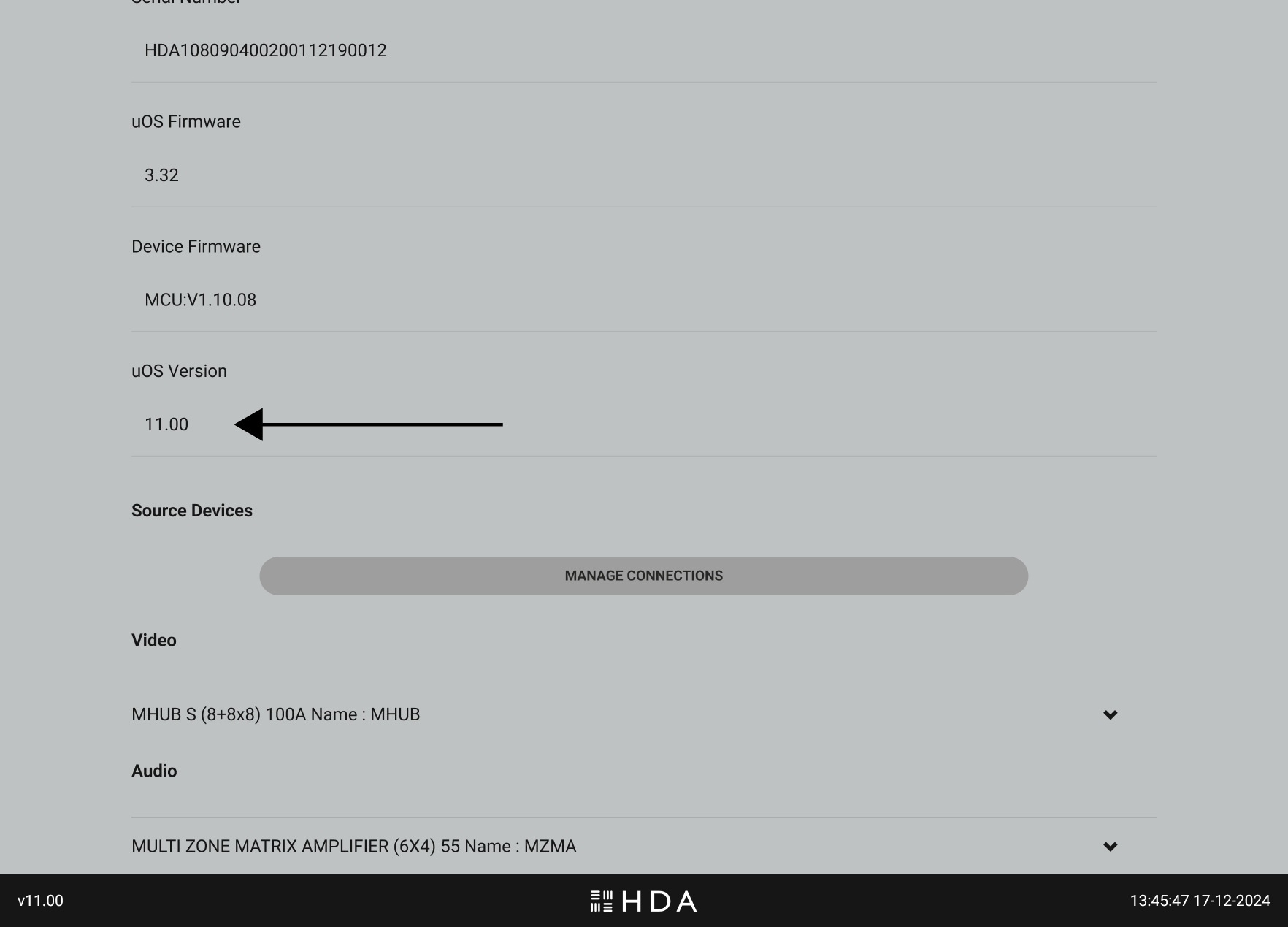
After the update completes, check uOS to confirm that it is running uOS 11 which can be done by visiting the IP address of your HDA device. Repeat this step for each HDA device on your network if you are operating a stacked system.
Figure 1: Visit uOS and navigate to the “Setup” page to find your uOS version.Figure 2: The software version will appear in the top 1/3 of the page under “uOS version”. The current version can also be seen on the footer of the page.
If you are using a control system (Crestron, Control4, Savant, URC etc) then you’re complete at this stage. If you plan to use a HDA interface like uControl Remote or uControl app to control your system then continue to Step 3 below.
3. You’re almost there! Prepare uOS for uControl app and uControl Remote.
You need to make two small changes in uOS to make ensure that the new uControl app or uControl Remote will work when you are ready to configure them.
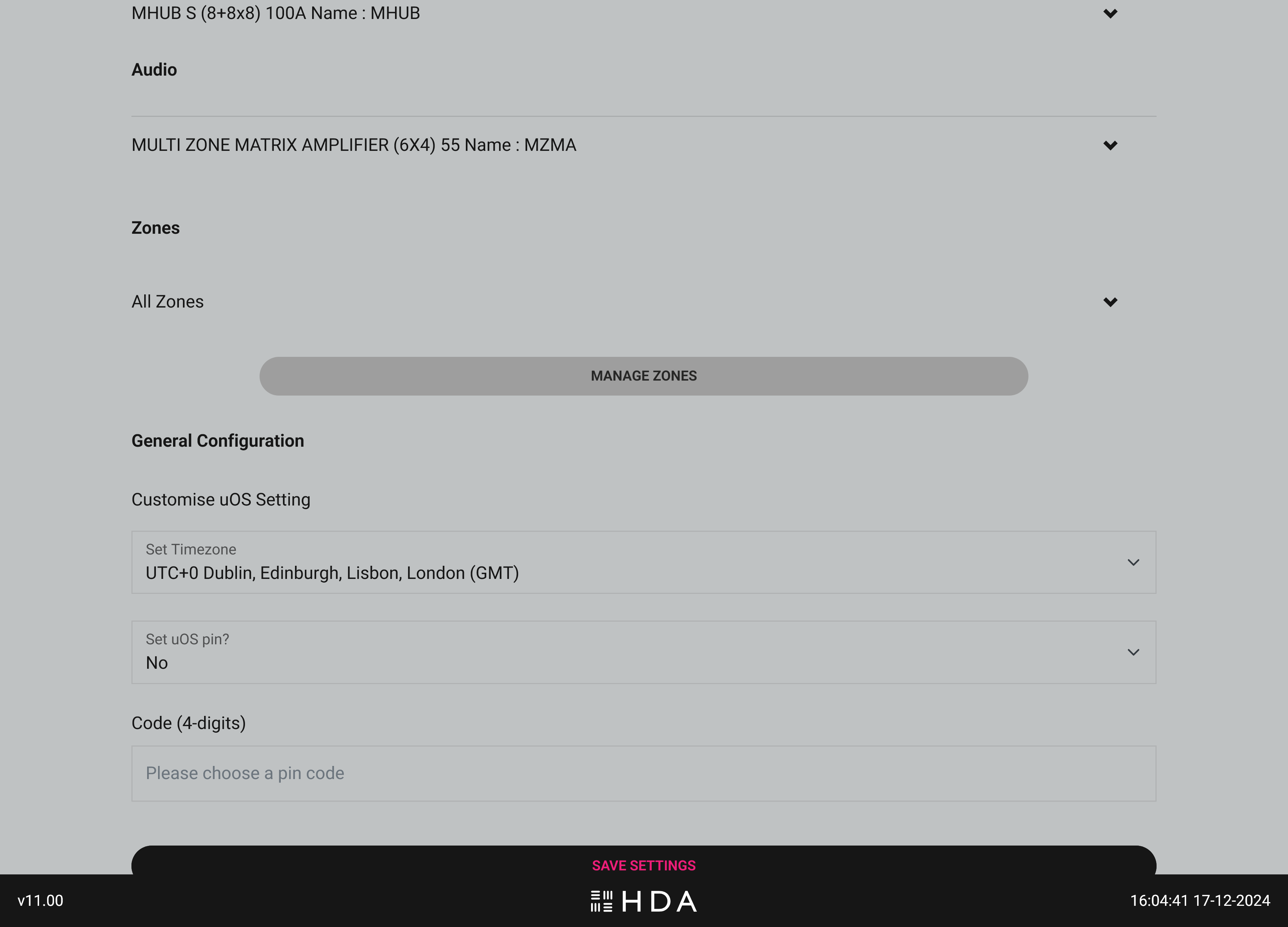
Return back to the uOS “Setup” page and scroll down until you see the “Manage Zones” button, then select it.
Figure 3: Go to uOS “Setup” page and scroll down the page until you see the “Manage Zones” option.
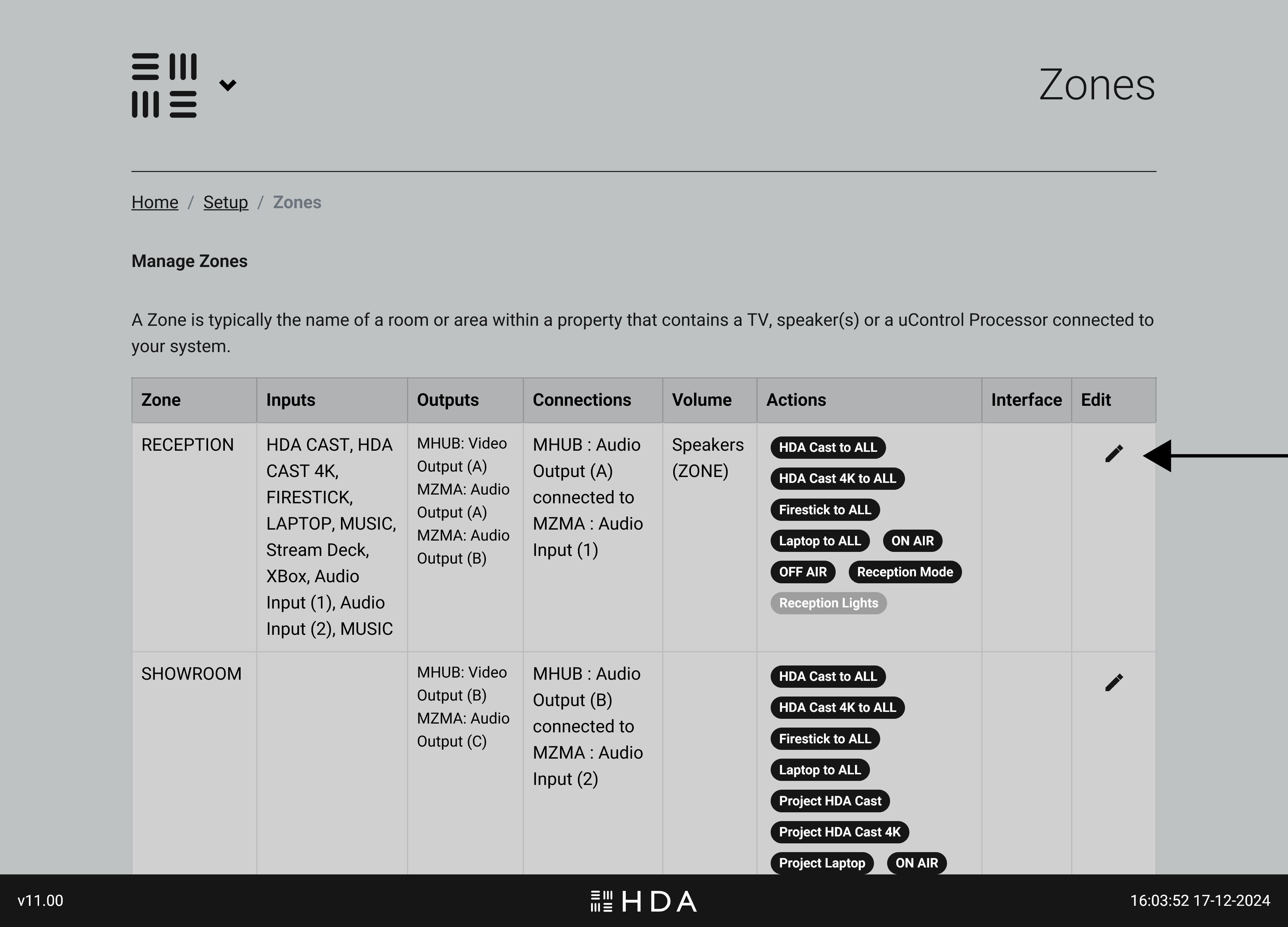
A page will load with a table that lists all the Zones you have defined in uOS. Select the Zone that you wish to edit by tapping on the edit button (pencil icon)
Figure 4: Tap on the Zone that you wish to update.
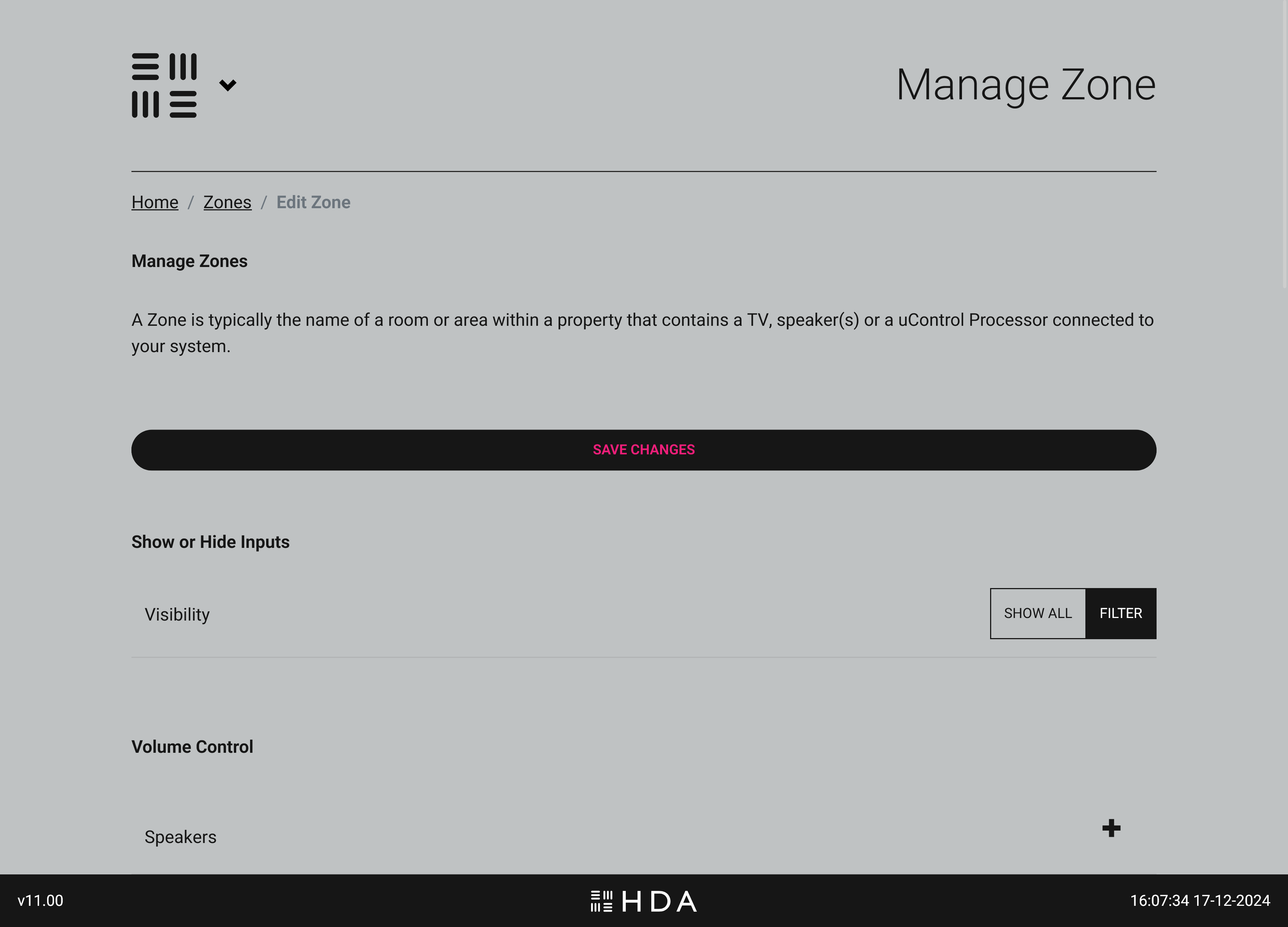
You will now see all information pertaining to that particular zone, you will need to make two small changes for every zone in your system..
Figure 5: The newly updated Manage Zones interface which summarises all zone information in one place.
Change #1: Choose your video & audio source visibility.
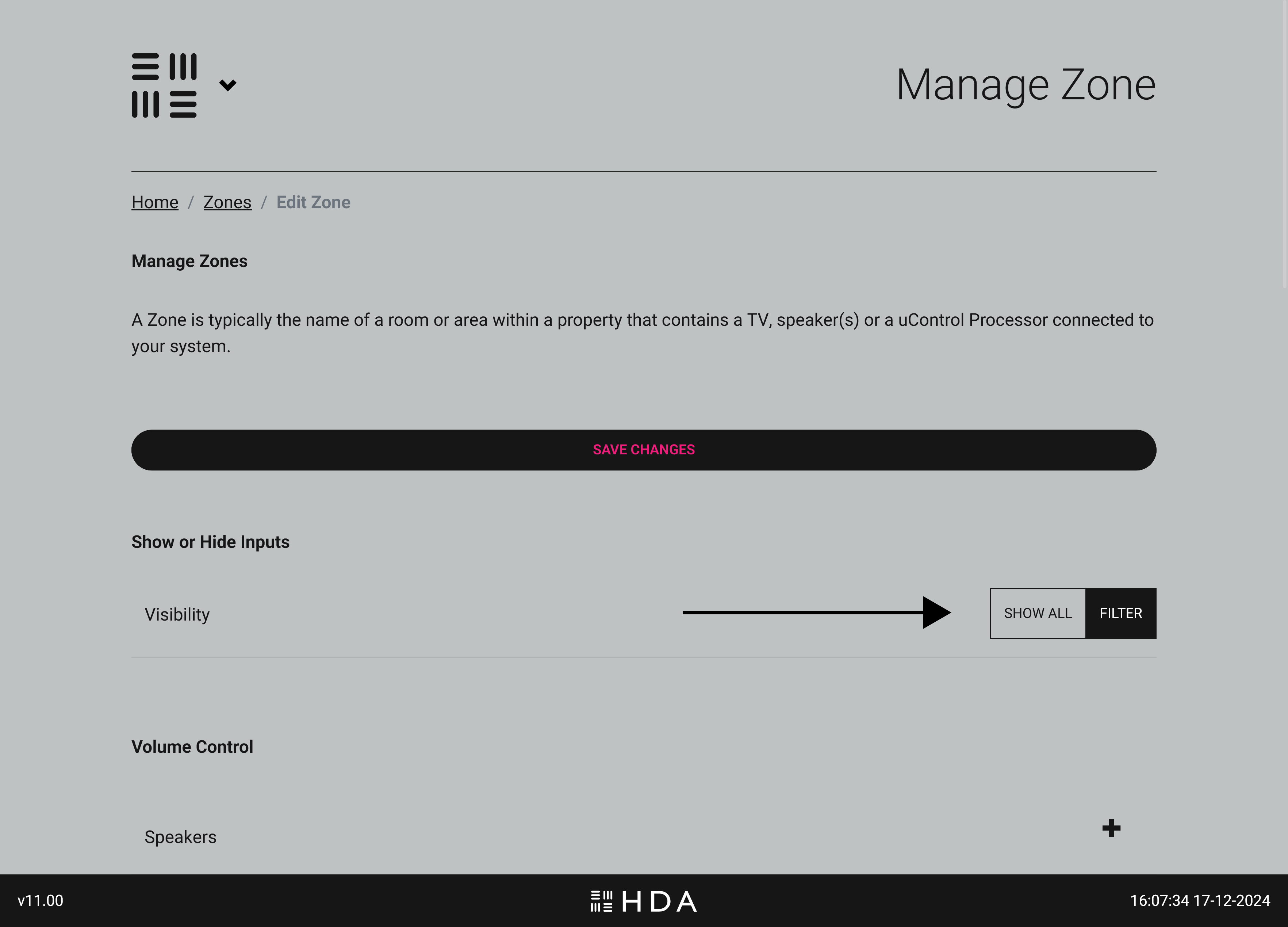
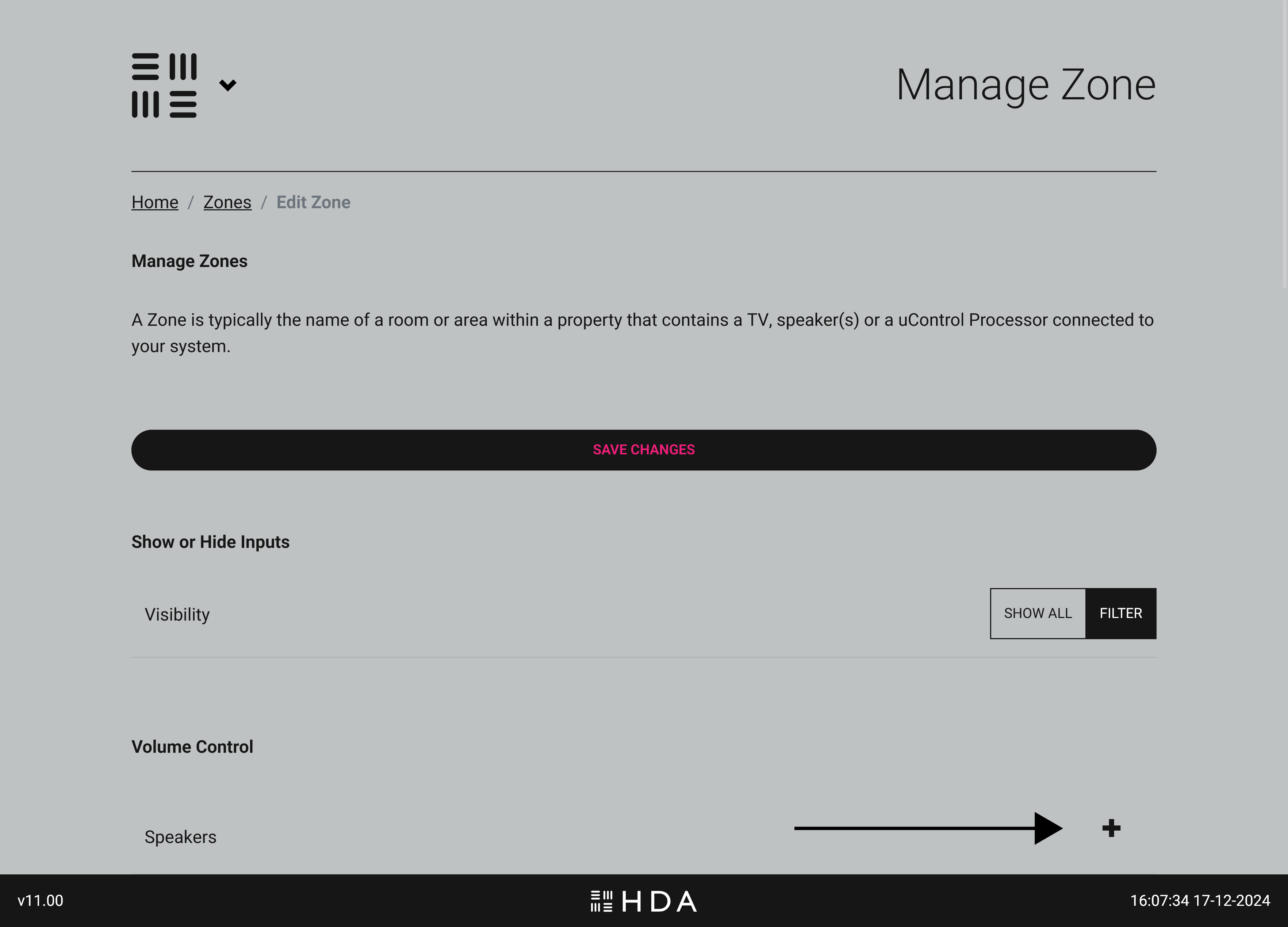
uOS 11 gives you the ability to show or hide any input that is connected to your HDA system. You can choose to show all inputs or filter them so that only AV inputs you select are visible in that zone. If you’re unsure or in a rush you can choose “Select All” and edit this option later.
Figure 6:Choose to show all inputs in that zone or filter them so only the ones you want are visiable in uControl app and uControl Remote.
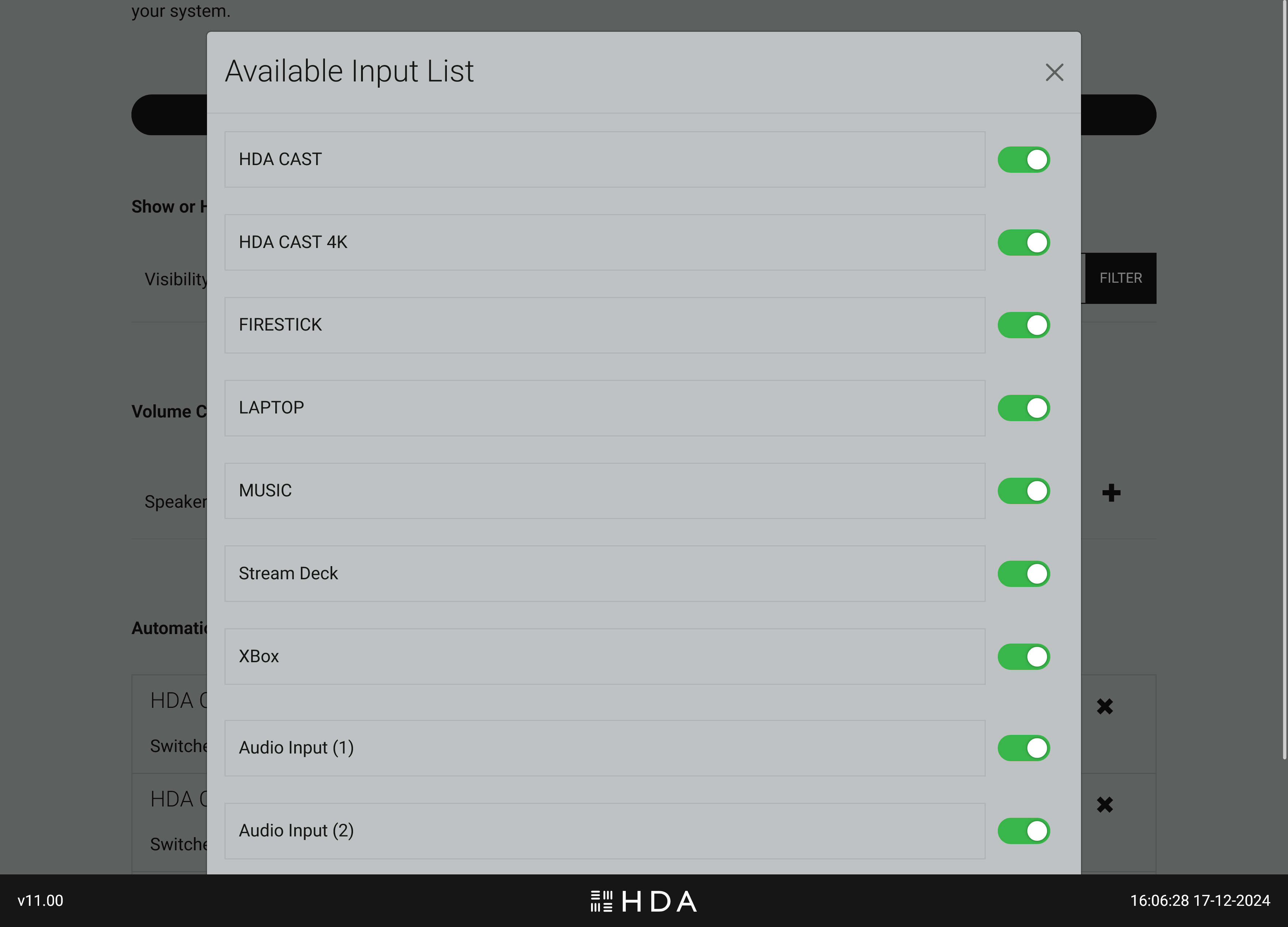
If you select “Filter” a list of all inputs that your HDA system is controlling will appear with a green coloured switch, here you can choose to turn that input on or off inside that zone.
Figure 7:If you have chosen to filter inputs in your desired zone then you can specify what inputs are available and what are not. This change will apply throughout the system.
Change #2: Set the default volume for every zone.
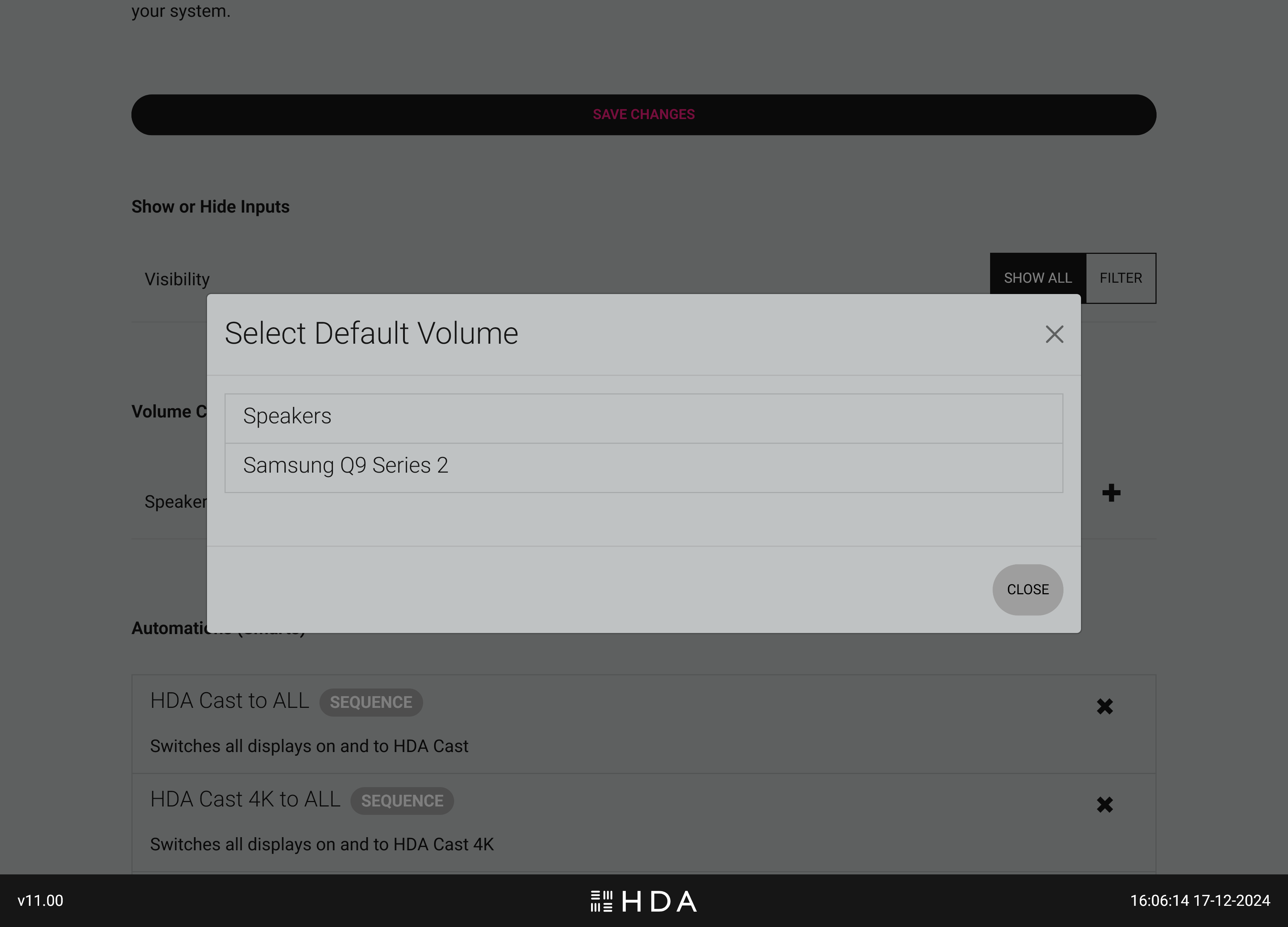
New to uOS 11 is a declaration of what device is controlling the volume. This is a new setting and will ensure that both uControl app and uControl Remote’s default volume keys are mapped to the device you choose here.
Figure 8:Click on the “+” icon to select the device controlling the volume in your zone.Figure 9:uOS will display all available devices that are capable of controlling volume in your zone..
IMPORTANT:
You must repeat this step for every zone in your system if you wish to use the new uControl App or uControl Remote. If you fail to do this step uControl App will not work correctly and you may experience problems when configuring uControl Remote.
Your HDA system is now ready to use!
Congratulations, your HDA system is now updated and ready to work with the new uControl app and uControl Remote.
Open the menu and go to Device Preferences > About.
Scroll down until Build is highlighted, then tap ok several times. You will get an onscreen message that developer mode has been enabled.
Click back, scroll to the bottom of the menu you will see { } Developer Options.
Open the menu and enable developer options
Scroll down to Enable network debugging
Step 2 – Installing the ADB pack.
In the example below we will install the pack for FireTV.
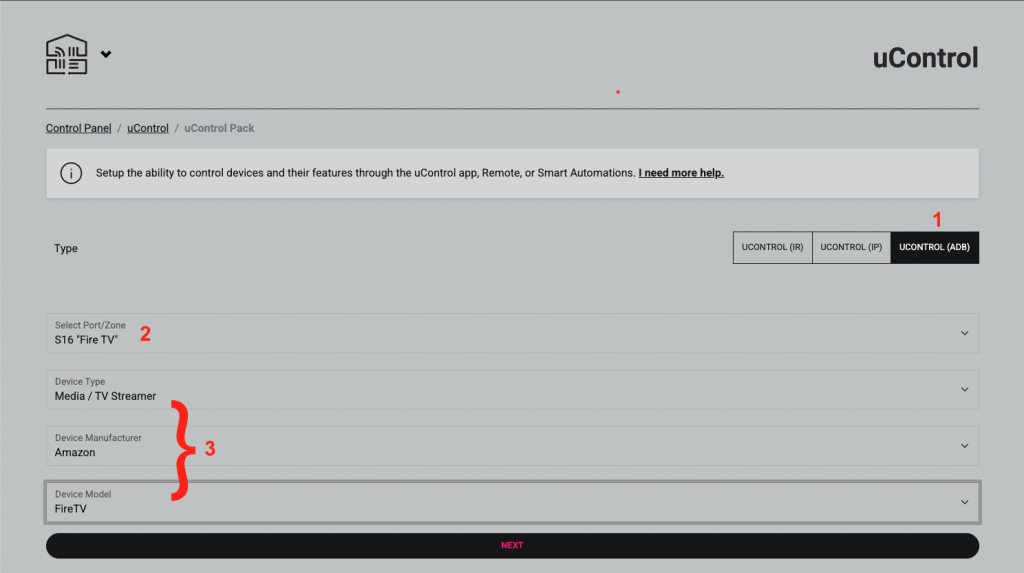
2a – Select the pack
Select uControl (ADB)
Select the port or zone when the pack will be installed
Select the device
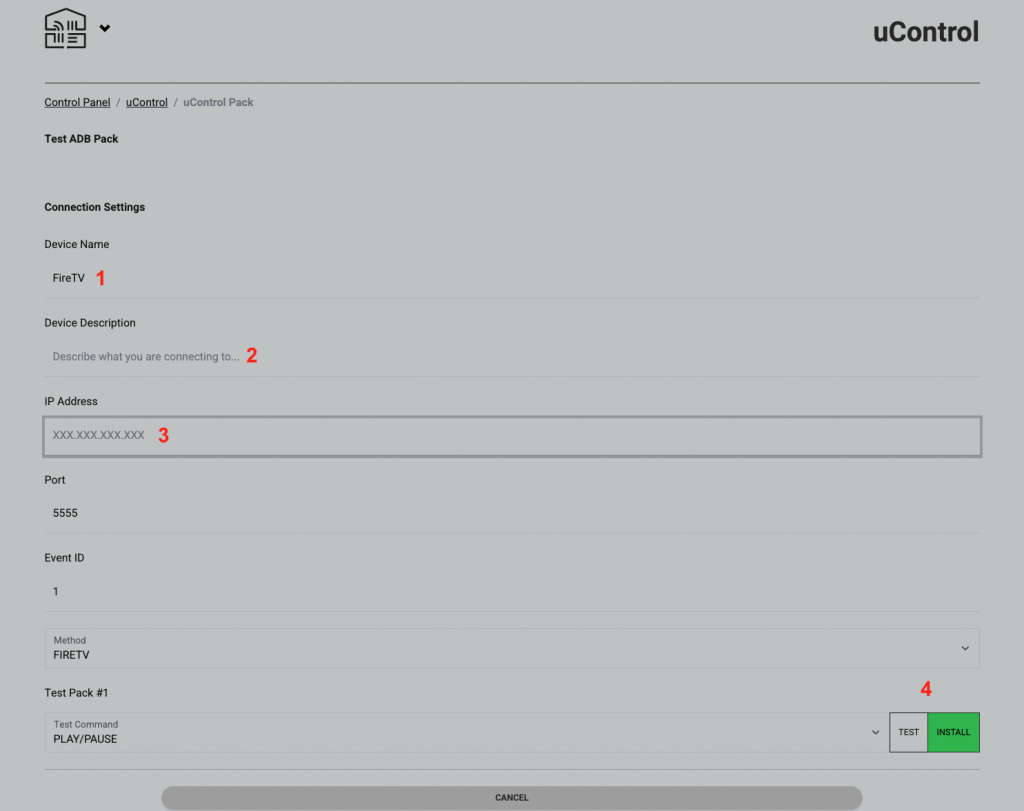
2b – Test and confirm installation
Use the default name or enter a custom one. This will be displayed on the uControl app and remote
Describe what you are connecting to, this field is not compulsary to install the pack
Enter the IP address in the fireTV in the format xxx.xxx.xxx.xxx For example, 192.168.0.25.
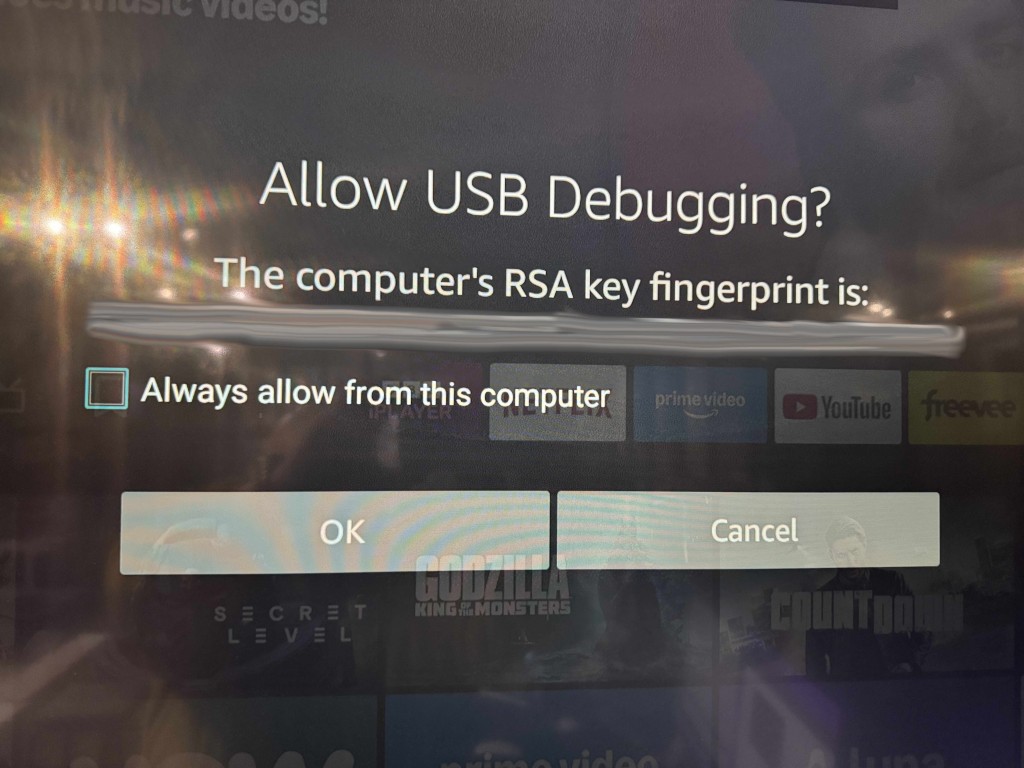
IMPORTANT – the first time to connect to the device you will get an onscreen message like the one shown below. Please select always allow then click ok.
Once tested, click install and the pack is ready to use
This guide will show you how to trigger events in a Loxone system using a ‘Virtual Text Input’. This allows us to send a command that can trigger switching, lighting actions, shading and more.
Before you begin, you will need:
The Loxone Miniserver IP address
A fully-commissioned Loxone system with the Miniserver on the same network as the HDA system
A fully-commissioned HDA or uControl system with the latest version of uOS (MHUB-OS does not support IP integrations) on the same network as the Loxone system.
A laptop running the Loxone config software
Access to uOS using any of the most popular browsers (or an iPhone with the uControl app, at the very least) on the same network as the HDA system