Category: Matrixes

  • Unable to get HDR through MHUB or XTND to TV / Projector

    If your MHUB is marked with “TPC” then it is capable of passing a HDR picture to your display. There are a number of reasons why HDR may not be fed through your HDA device. This support post aims to troubleshoot the most common reasons and how to resolve them.

    Important: there are different versions of HDR, make sure your display supports the format your source is outputting!
    There are multiple variants of HDR such as HLG, HDR10+ and Dolby Vision, please ensure your display supports the relevant HDR technology.

    When connecting your HDR enabled source and display to a HDA system you may need to adjust some settings to get it to work.

    1. First, disconnect the source and connect it directly to your display. Do you get HDR?
    2. Ensure you are using High Speed HDMI Cables, this is important as long HDMI cables (over 5m) unless Active or Fibre will not work.
    3. Was you HDA device manufactured before 2019? Does it have TPC markings or 18G/18Gbps on it anywhere? If it doesn’t then there is a good chance that your HDA device does not support HDR as it was made before the specification was finalised.
    4. Does your HDA device support scaling? If so please ensure it is set to bypass.
    5. Copy or set a custom EDID directly from your display. This post explains how to copy EDID directly from your display.
  • MHUB-OS 8: a quick guide to zones

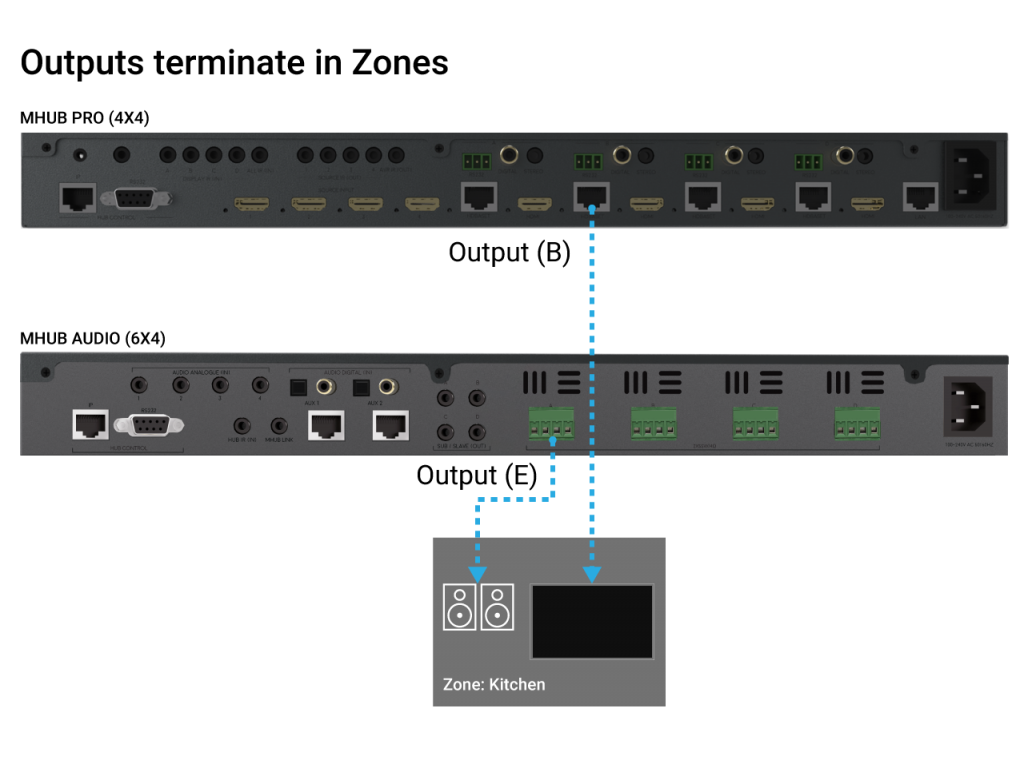
    Zones define a physical space in a property where outputs from MHUB terminate.

    A Zone can include a maximum of 1 video output and a maximum of 4 audio outputs. For example, you can create a zone called “Kitchen” and assign 1 video and 1 audio output to it to provide you with viewable TV and sound. A Zone must contain at least 1 output from an MHUB for it to be addressable for control. Note: outputs can not be shared or split to more than 1 Zone.


    MHUB zones

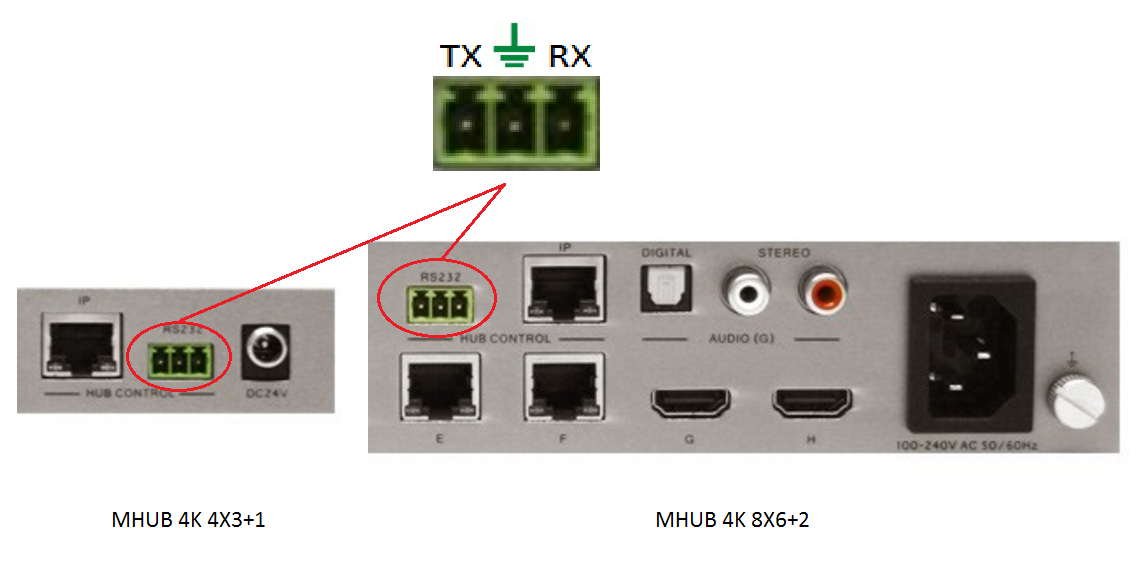
  • MHUB 4K 4×3+1/8×6+2 RS232 Connection

    If you wish to control your MHUB 4K 4×3+1/8×6+2 from an external control system via a RS232 connection you will need to wire the included phoenix connector to the following specification.

    rs232

  • Daisy Chaining IR – How To

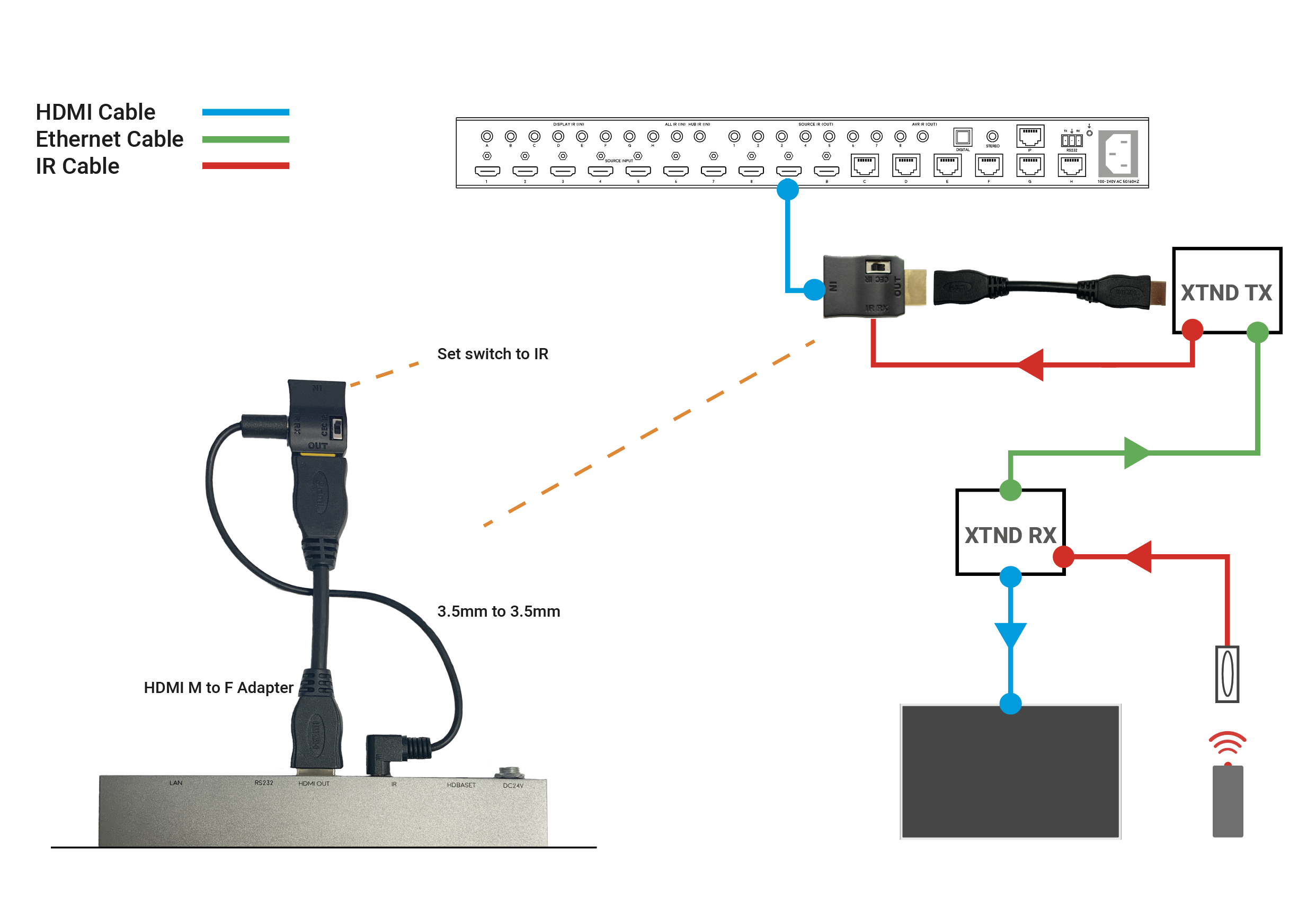
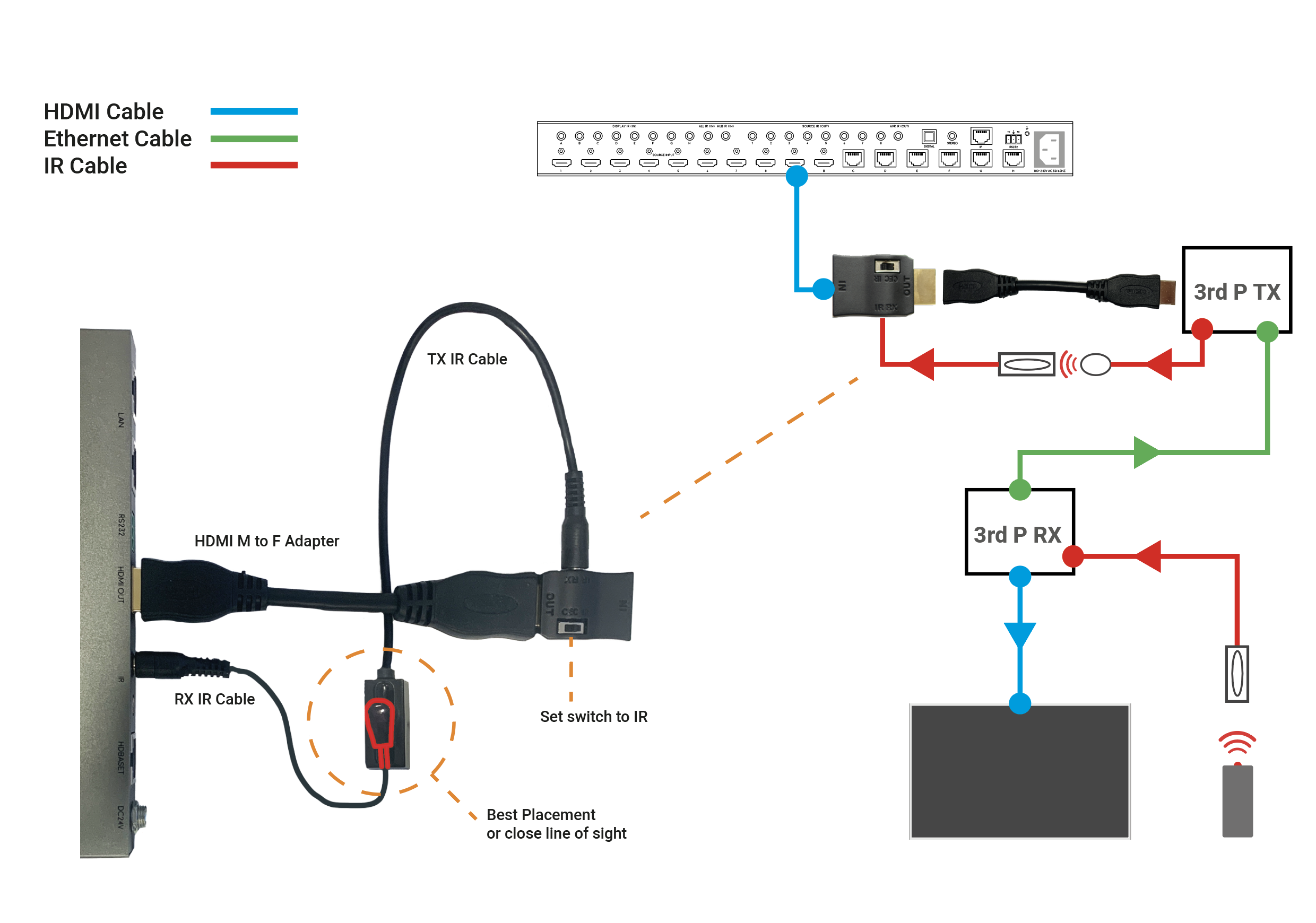
    Daisy chaining IR can allow you to connect the IR systems of 2 devices. This allows IR to pass from one device to another

    This does not work for HDMI Mirrored ports.

    a) The diagram below shows how you can link two HDA devices, such as an MHUBU86240 and an XTND4K40TPC using a MHUB + XTND Integration Kit
    Screenshot 2020-12-08 at 14.29.15

    b) This second diagram shows how you would connect a HDA system to a 3RD PARTY extender or device such as a Harmony Remote by Daisy-chaining the IR transmitter from the 3RD party device and the IR receiver included with the MHUB system.

    Screenshot 2020-12-08 at 14.21.04

    c)

    Screenshot 2020-12-08 at 14.21.04

  • Software configuration tool for MHUB 2K and MHUB 4K (2014-2016)

    Windows configuration tool for MHUB 2K and MHUB 4K systems. Search for MHUB, configure EDID and network settings.

    Download the MHUB 2K and MHUB 4K configuration tool.

    The software configuration tool has been written for an older version of Windows. If you run the exe file on your laptop and you receive a C++ error message then please read this support article.

  • mHub 4K control system integration

    The mHub 4K range has full support for most popular control systems via serial (RS232) or IP.

    All control strings and current available drivers are available in the mHub control pack, available here – Download
    IP control

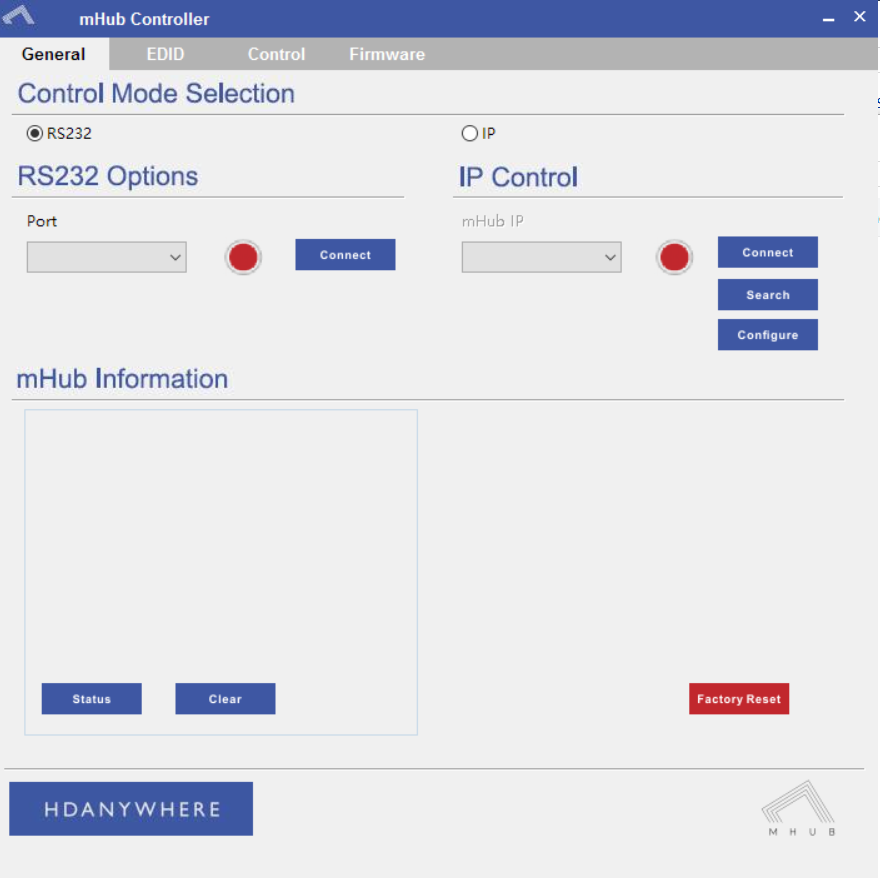
    To control the mHub 4k unit via IP you will first need to discover it by using the mHub controller software available in the control pack above

    The mHub 4K will acquire an IP address via DHCP the first time it is connected to your home network, use the controller software to locate it on your network.

    mhub controller pic 1

    In the mHub controller software select IP and then press the ‘search’ button, this should locate your mHub matrix. Press ‘connect’ the red button should turn green.

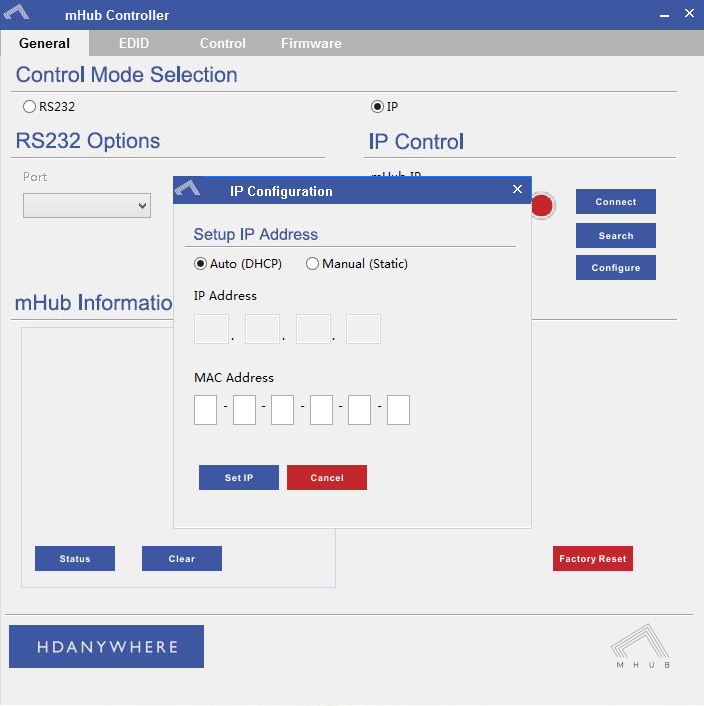
    Press the configure button

    mHub IP

    From here you can set the matrix to a static IP if you wish (this is generally good practice)

    Your matrix is now on your home network and will be able to receive IP commands from whatever control system you are using.

    Looking for the mHub 2K information, go here – mHub 2K

  • How to disable the beep on mHub 2K and 4K (4×4 and 8×8)

    To disable the beep on the mHub 2k range of matrices please following the instructions below using either I.P or RS232 connection methods.

    To adjust the settings on the mHub range of products, you will need to download the controller software Download

     A) Connecting to the mHub Via I.P

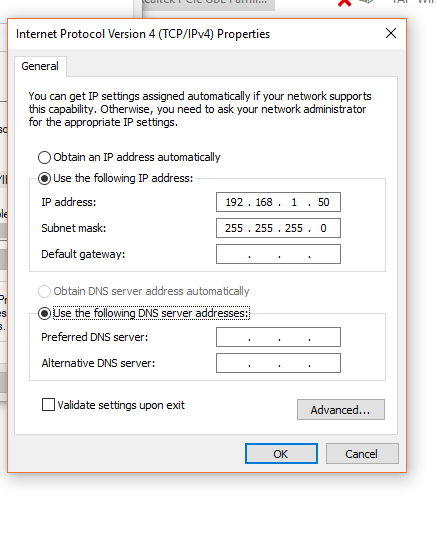
    The mHub 2K’s IP address is pre-configured as 192.168.0.100, your computer will need to have it’s IPV4 range configured to be within the same range initially while you setup the matrix. (You don’t need to follow this step if you have a mHub 4K system)

    To configure your IPV4 settings you will need to navigate to the following menu

    ->Network and sharing center

    —>Ethernet
    —–>Properties
    ——->Internet Protocol Version 4 (TCP/IPv4)
    ———>Properties

    IPV4

    Once you have changed the IP settings on your PC, open the Mhub controller software.

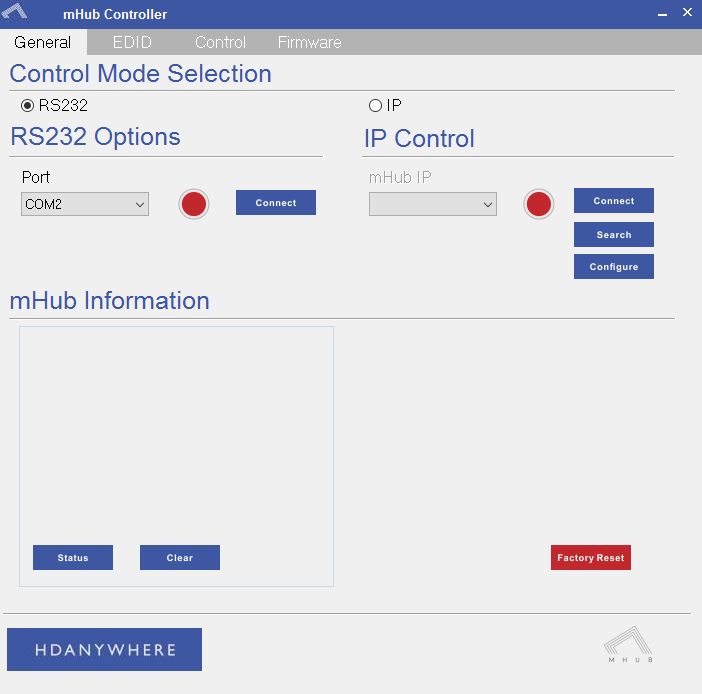
    In the Control Mode Select Box choose ‘IP’, then click the ‘Search’ button. When the IP address shows in the mHub IP box, click connect.


    B)  Connecting to the mHub Via RS232

    To connect via RS232 use the supplied serial cable can connect between the mHub and your PC, then on the Controller software select ‘RS232’, then in the RS232 Options section select the Com port being used from the drop down menu then click connect

    Capture


    C) Disabling the Beep

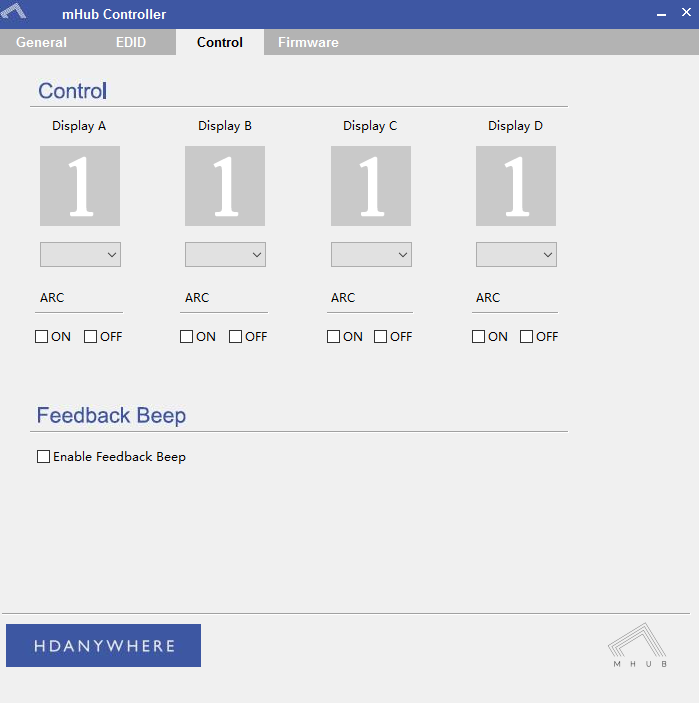
    To disable the beep select the ‘Control’ tab and untick the box labeled ‘Enable Feedback Beep’.

    mHubbeepimage

    Once changed, you can verify the beep has been disabled by performing a source switch operation.

  • Modular Error Codes (4×4 and 8×8)

    Error Code Description
    1001 Corrupt Service Card – Replace the SDCard or format and re-create
    1002 Insert valid SDCard – No card detected or installed in the unit
    1003 Write Protect Mode – SDCard is in write protect mode
    1004 System Failure – MatrixOS is missing from the system and needs to be installed – i.e. rebuild the SDCard
    1005 Insert Service Card – Insert an SDCard with a valid matrix OS firmware image
    1006 Update failed – No firmware image found
    1007 Update failed – Firmware image is corrupt or invalid
    1008 Update failed – Firmware image is too large for the system.
    1009 Remove service card – A bulk update card is installed and the update is complete, ready for a normal service card.
    1010 Onscreen message varies – The unit update has failed and will be showing where internally in the unit it has failed.
    1011 Update failed writing to flash. A critical error and process was stopped
    1012 Communication Fault – The system cannot bring up internal communication bus and is unable to proceed
    1013 Module Fault – Comes with specified module number
    1014 System Fault – An internal IC has failed, indicated by the extended error code
    1015 Input hotplug fault. Unable to enable the hot plug 5V voltage for one or more input modules
    1016 EDID Setup Fault – The system cannot bring up the EDID mixing routines
    1017 Communication fault – The system cannot bring up the 5V I2C communication line
    1018 IR Mux fault – The system cannot bring up the IR Mux subsystem
    1019 IR Capture fault – The system cannot bring up the IR capture subsystem
    1020 Local Network Failure – Unable to ping the local gateway
    1021 Remote Net Failure – Unable to ping DNS servers
    1022 Module Power Fault – The system reports that one of the voltages used to power modules is not functioning correctly
    1023 Network HW Fault – The network hardware has a hardware fault
    1024 Network HW Fault – EDID Read Failure – the system has failed to read the EDID from a connected device
    1025 Network HW Fault – Filesystem Fault – The system has an issue reading from the SDCard
    1026 Network HW Fault – Invalid update URL – The custom URL for retrieving updates is not valid
    1027 Network HW Fault – Discovery failure – the system has failed to enable its auto discovery feature (SDDP)
    1028 Network HW Fault – Invalid Aux MCU – the Component fitted is incorrect
    1029 Update failed – This version is too old for this part
    1030 Invalid Module – A module is inserted in the wrong port
  • General purpose IR / Pronto codes for MHUB systems

    IR codes for MHUB systems (not Modular or Multiroom+) including power control available here:

  • HDMI over Cat Wiring Guide

    HDanywhere 2K systems, such as the mHub 2K family, require a single network cable to be run from each HDTV location, back to a central point.

    HDanywhere 2K systems use HDMI over Cat technology to transmit over a single Cat5e/6/7 cable up to a 50 metre distance.

    (more…)