Category: uControl

  • ADB Control Packs

    With uOS 11.08 support for ADB control of android devices is now included.

    Supported Devices

    • Amazon FireTV
    • Nvidia Shield
    • Android/Google Powered TV’s

    To enable ADB control, ensure the device you want to control is powered on and awake. You will need to know the device’s IP address.

    Step 1 – Enabling Developer Options

    To be able to use ADB control you will need to enable Developer Mode.

    For Amazon devices, follow the instructions here – Enabling Developer Tools

    For other devices –

    1. Open the menu and go to Device Preferences > About.
    2. Scroll down until Build is highlighted, then tap ok several times. You will get an onscreen message that developer mode has been enabled.
    3. Click back, scroll to the bottom of the menu you will see { } Developer Options.
    4. Open the menu and enable developer options
    5. Scroll down to Enable network debugging

    Step 2 – Installing the ADB pack.

    In the example below we will install the pack for FireTV.

    2a – Select the pack
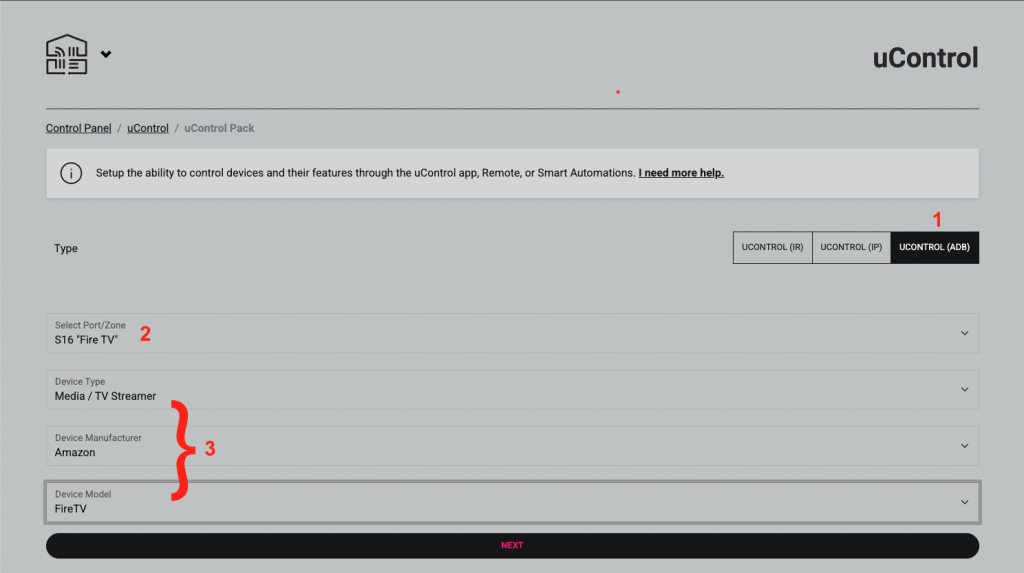

    1. Select uControl (ADB)
    2. Select the port or zone when the pack will be installed
    3. Select the device

    2b – Test and confirm installation
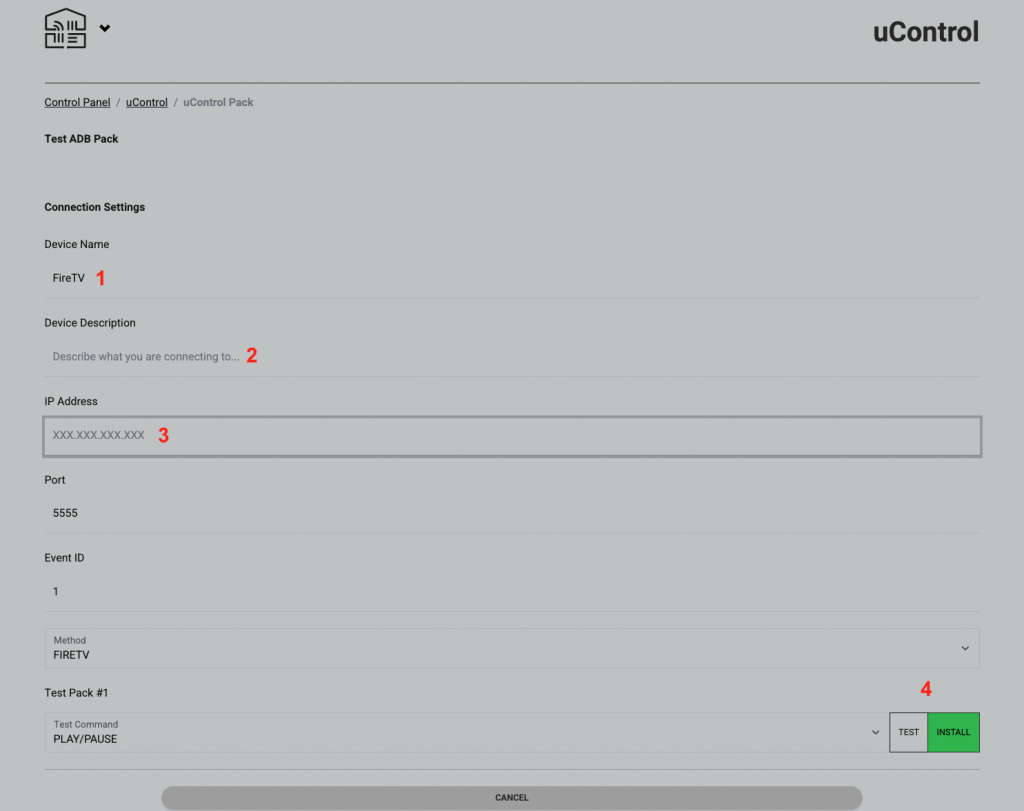

    1. Use the default name or enter a custom one. This will be displayed on the uControl app and remote
    2. Describe what you are connecting to, this field is not compulsary to install the pack
    3. Enter the IP address in the fireTV in the format xxx.xxx.xxx.xxx For example, 192.168.0.25.
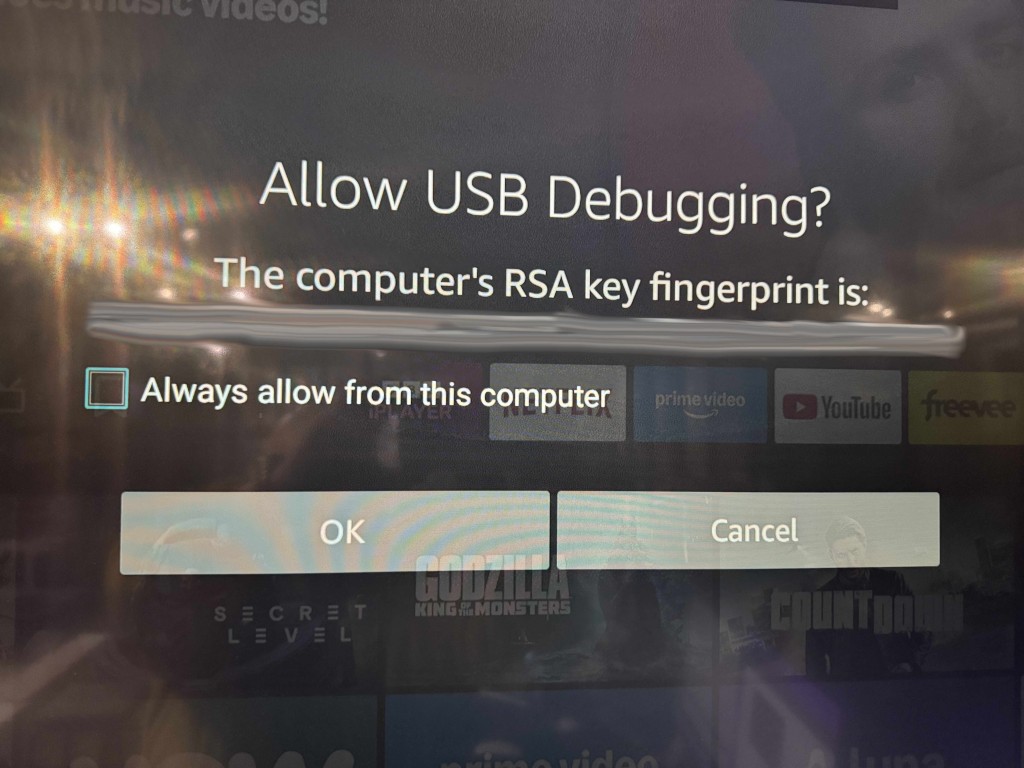
    4. IMPORTANT – the first time to connect to the device you will get an onscreen message like the one shown below. Please select always allow then click ok.
    5. Once tested, click install and the pack is ready to use
  • Controlling Loxone from uOS

    This guide will show you how to trigger events in a Loxone system using a ‘Virtual Text Input’. This allows us to send a command that can trigger switching, lighting actions, shading and more.

    Before you begin, you will need:

    • The Loxone Miniserver IP address
    • A fully-commissioned Loxone system with the Miniserver on the same network as the HDA system
    • A fully-commissioned HDA or uControl system with the latest version of uOS (MHUB-OS does not support IP integrations) on the same network as the Loxone system.
    • A laptop running the Loxone config software
    • Access to uOS using any of the most popular browsers (or an iPhone with the uControl app, at the very least) on the same network as the HDA system


    Step 2:Build an IP Connection in uOS


    Examples of the most popular Loxone commands – Loxone Command Examples

  • Controlling Rako scenes and lights from uOS

    This guide will show you how to trigger Scenes or even individual Lights and Blinds using the Rako API

    • For Rako Hub API click Here
    • For Rako Bridge API click Here

    Rako Hub API


    Before you begin, you will need:

    • The Rako Hub IP address
    • A fully-commissioned Rako system with a Rako Hub on the same network as the HDA system
    • A fully-commissioned HDA or uControl system with the latest version of uOS (MHUB-OS does not support IP integrations) on the same network as the Rako system.
    • A tablet or laptop using any of the most popular browsers (or an iPhone with the uControl app, at the very least) on the same network as the HDA system.

    Step 1:Get data about the Rako system

    You need to know:

    • Room ID
    • Channel ID
    • Scene ID

    Use your browser: type http://[Rako Hub IP]/rako.xml (e.g.http://192.168.1.13/rako.xml)

    The Example below shows Room ID 17, Channel ID 1 and Scene ID 1


    <Room id="17"> -Room ID
    <Type>Lights</Type>
    <Title>Office</Title>
    <Channel id="1"> -Channel ID
    <type>Default</type>
    <Name>Office Spotlights</Name>
    <Levels>FFBF7F3F000000000000000000000000</Levels>
    </Channel>
    <Scene id="1"> -Scene ID
    <Name>White</Name>
    </Scene>
    </Channel>

    If no scenes are listed, default scenes are set as –

    Scene 1 – All on 100%
    Scene 2 – All on 75%
    Scene 3 – All on 50%
    Scene 4 – All on 25%
    Scene 0 – All Off

    Based off this we can build the command

    SUB,BASIC,V4,uControl
    SEND,17,1,SCENE,1


    Step 2:Build an IP Connection in uOS


    command-generator-link
    Examples of the most popular Rako commands – Rako Command Examples

    Rako Bridge API


    Before you begin, you will need:

    • A fully-commissioned Rako system with a Rako Hub on the same network as the HDA system
    • A fully-commissioned HDA or uControl system with the latest version of uOS (MHUB-OS does not support IP integrations) on the same network as the Rako system.
    • A tablet or laptop using any of the most popular browsers (or an iPhone with the uControl app, at the very least) on the same network as the HDA system.

    Step 1:Get data about the Rako system

    You need to know:

    • Room ID
    • Channel ID
    • Scene ID

    – Use Rasoft Pro if you set up the Rako yourself or have been given the Project File.
    – Use your browser: type http://[Rako Hub IP]/rako.xml (e.g.http://192.168.1.13/rako.xml)

    Example of Rako XML data


    Step 2:Build an IP Connection and Function in uOS


    Step 3:Build Functions to control individual Channels or trigger Scenes


    Examples of the most popular Rako commands – Rako Command Examples

  • Update your system to uOS 11

    Update to uOS 11

    Please read this first before updating your system:

    This guide will assist you with updating your MHUB, MZMA or Zone Processor to uControl OS (uOS) 11.

    The update will enable support for both the new uControl App and the uControl Remote which can be configured after completing the steps in this support post.

    It is strongly recommended that you read this guide carefully before you start the update process.

    15 minutes (approximately). Difficulty: Easy.

    What this guide will cover:

    Before you start the update, check that:

    • Your HDA controller is currently running uOS (10.XX)
    • You have uControl 2016 app installed
    • Your HDA controller and uControl 2016 app have access to the Internet
    • All HDA devices and uControl 2016 app are visible on your network.
    • A note of all HDA device IPs on your network, or the ability to scan for them using an app like Fing.
    • IMPORTANT:Once your system has updated, uOS will need some additional configuration applied before the new uControl app or uControl Remote will start to work.

    STACKED SYSTEMS:
    It is recommended that every device in your stacked system is updated to uOS 11. Start by updating your master controller, followed by each MHUB or MZMA in your stack. If parts of your stacked system feature older MHUB’s or MHUB Audio systems running MHUB-OS then you will not need to update these.


    1. Load uControl 2016 app to start the update process.

    Load the uControl 2016 app and follow the instructions in this guide to update your system(s). Ensure that you complete this process for all HDA devices which can be upgraded to uOS 11 (see checklist above). Please note that any MHUB operating on MHUB-OS (black background colour) can not be updated to uOS 11.

    GUIDE: How to update your MHUB or HDA Device

    2. Check that your HDA system has updated to uOS 11.

    After the update completes, check uOS to confirm that it is running uOS 11 which can be done by visiting the IP address of your HDA device. Repeat this step for each HDA device on your network if you are operating a stacked system.

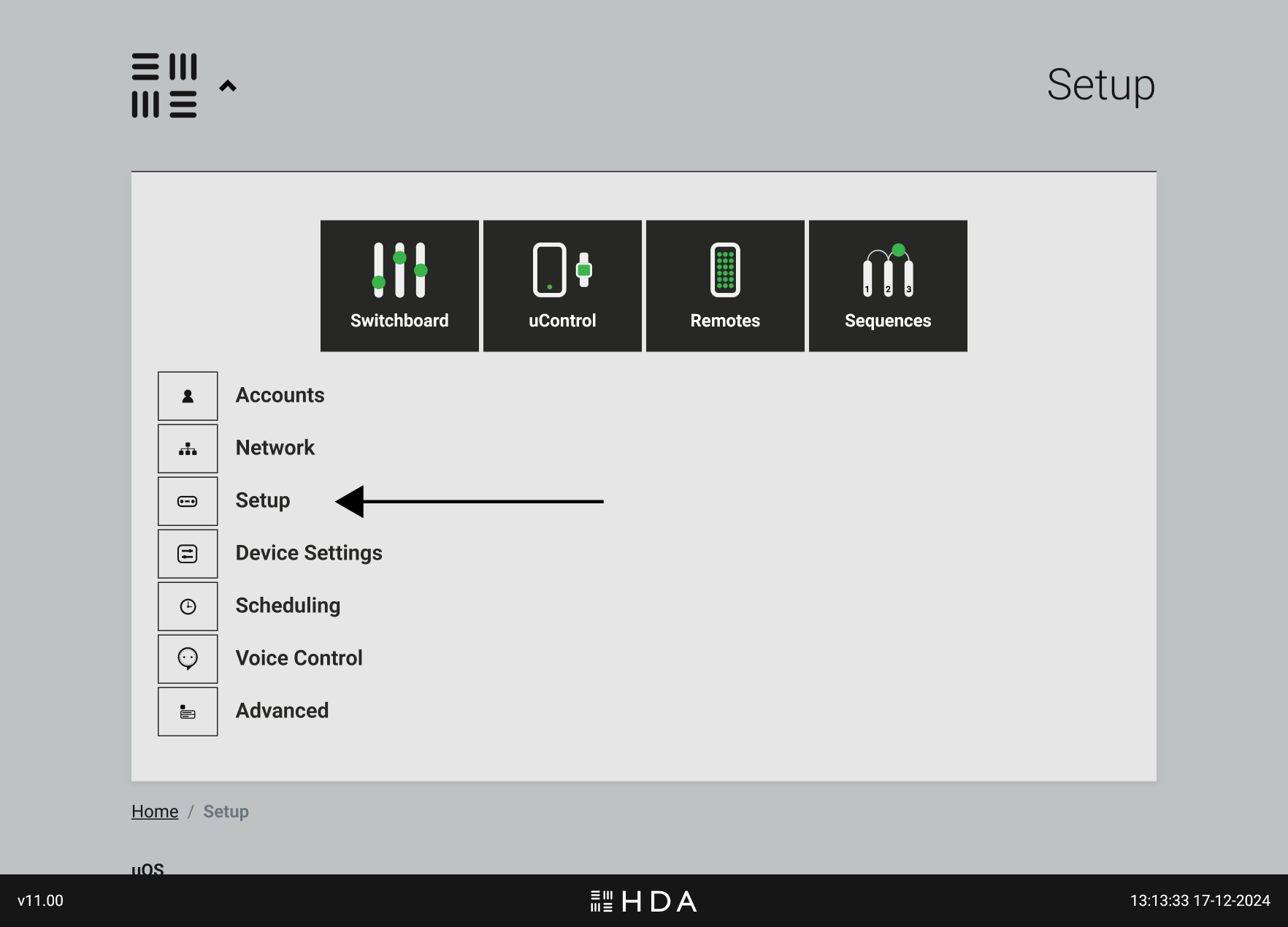
    uOS Setup Page
    Figure 1: Visit uOS and navigate to the “Setup” page to find your uOS version.
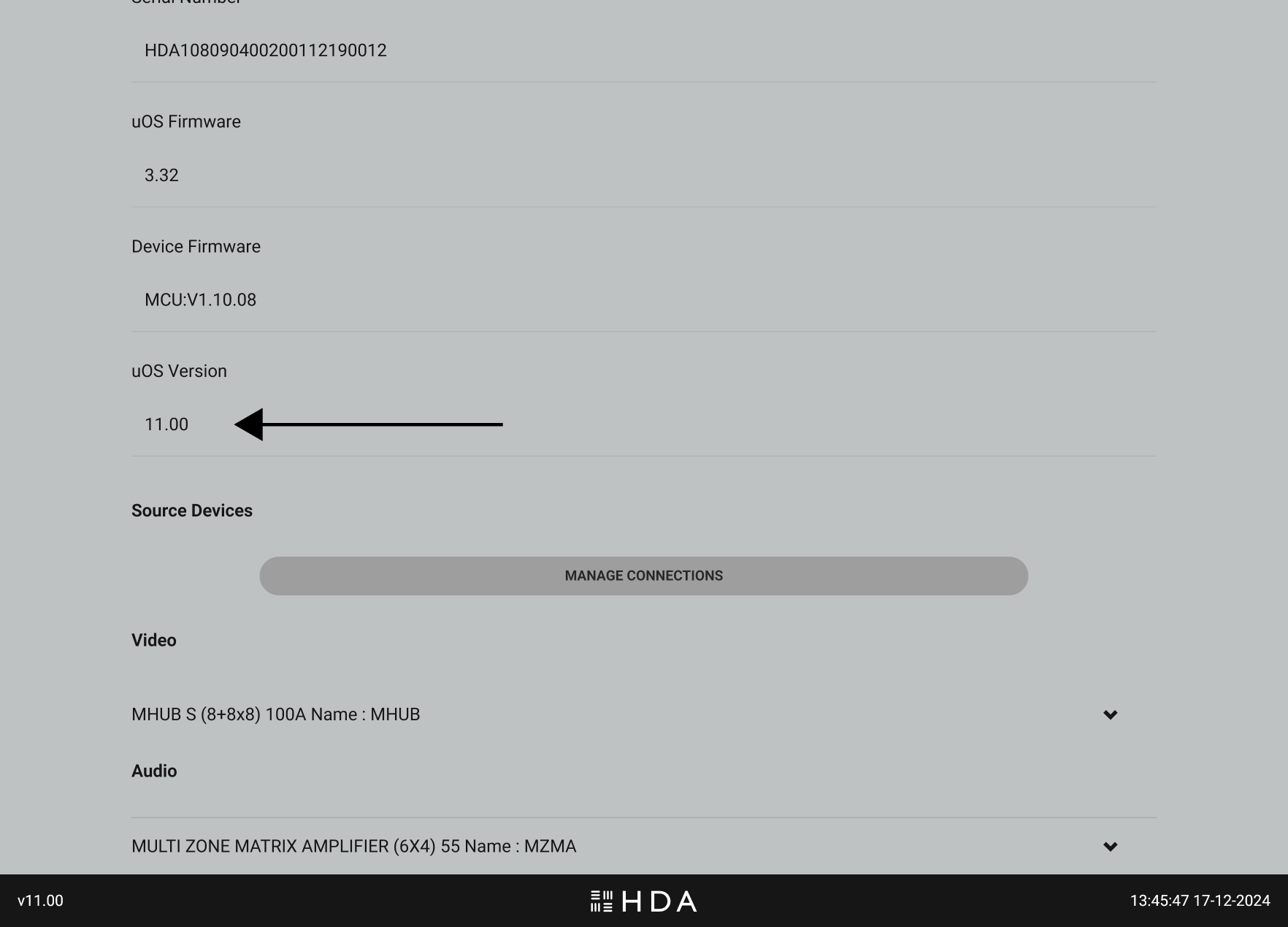
    Check if uOS has updated to version 11
    Figure 2: The software version will appear in the top 1/3 of the page under “uOS version”. The current version can also be seen on the footer of the page.

    If you are using a control system (Crestron, Control4, Savant, URC etc) then you’re complete at this stage. If you plan to use a HDA interface like uControl Remote or uControl app to control your system then continue to Step 3 below.

    3. You’re almost there! Prepare uOS for uControl app and uControl Remote.

    You need to make two small changes in uOS to make ensure that the new uControl app or uControl Remote will work when you are ready to configure them.

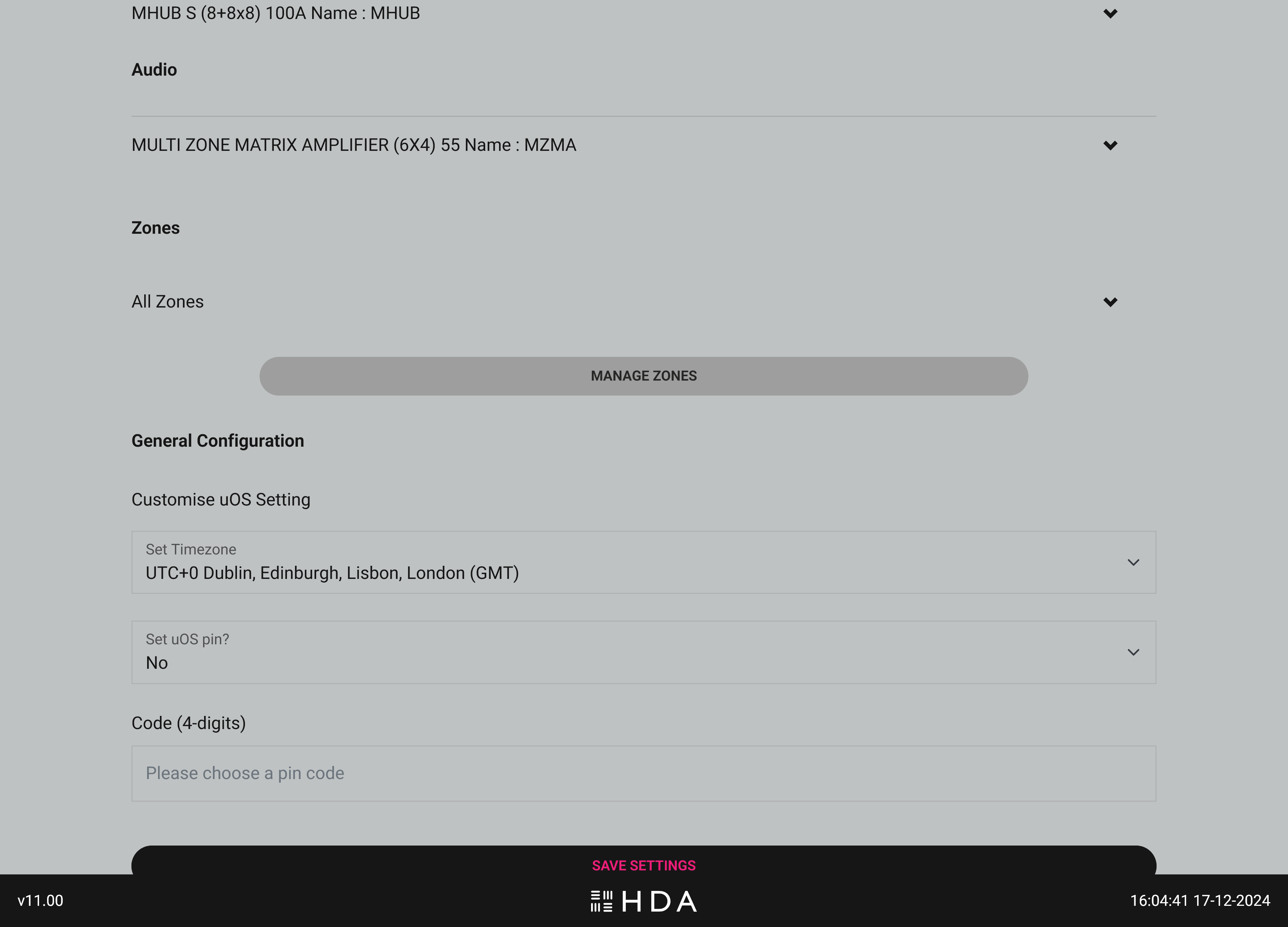
    Return back to the uOS “Setup” page and scroll down until you see the “Manage Zones” button, then select it.

    uOS Setup Page
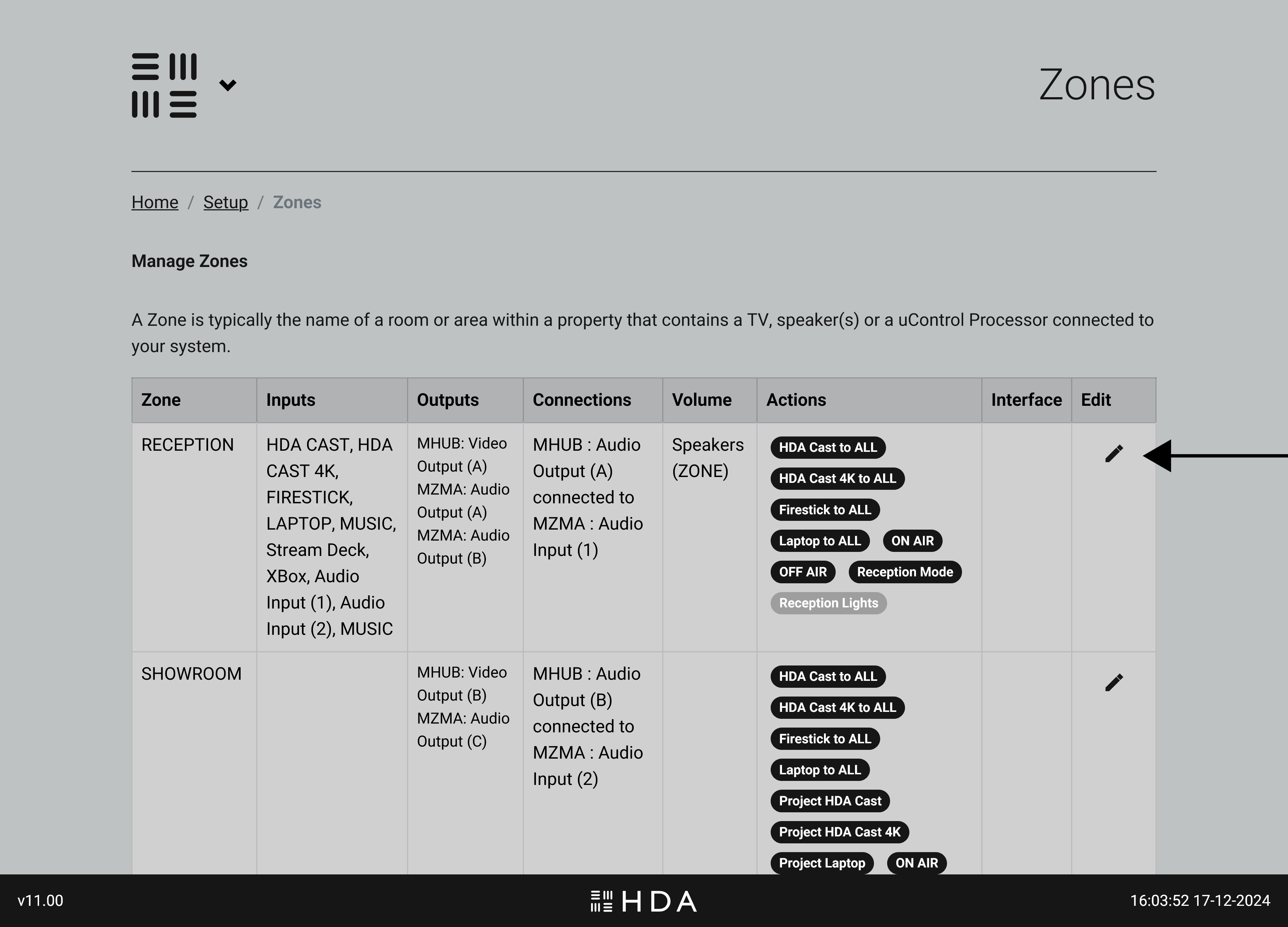
    Figure 3: Go to uOS “Setup” page and scroll down the page until you see the “Manage Zones” option.

    A page will load with a table that lists all the Zones you have defined in uOS. Select the Zone that you wish to edit by tapping on the edit button (pencil icon)

    uOS Setup Page
    Figure 4: Tap on the Zone that you wish to update.

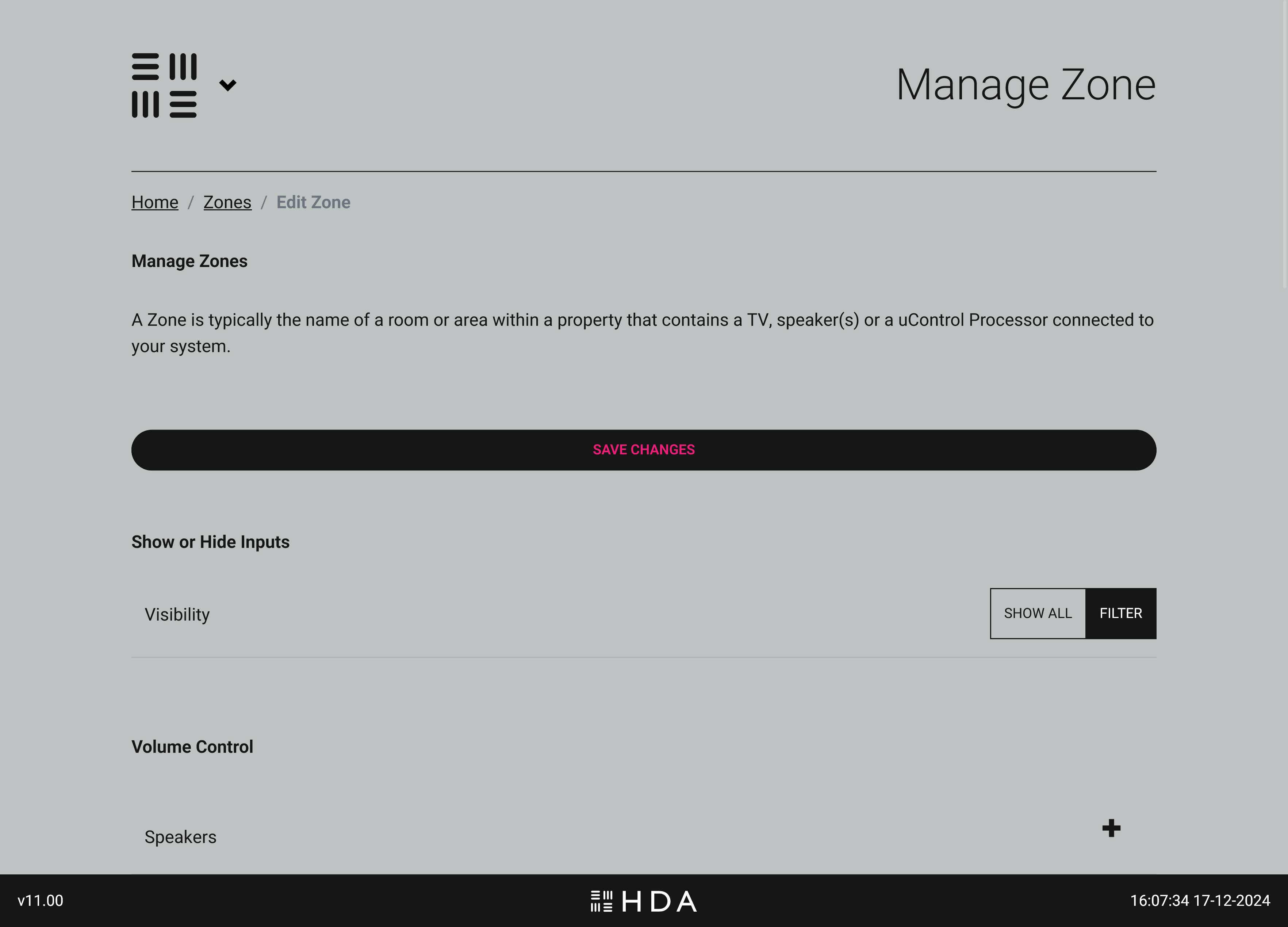
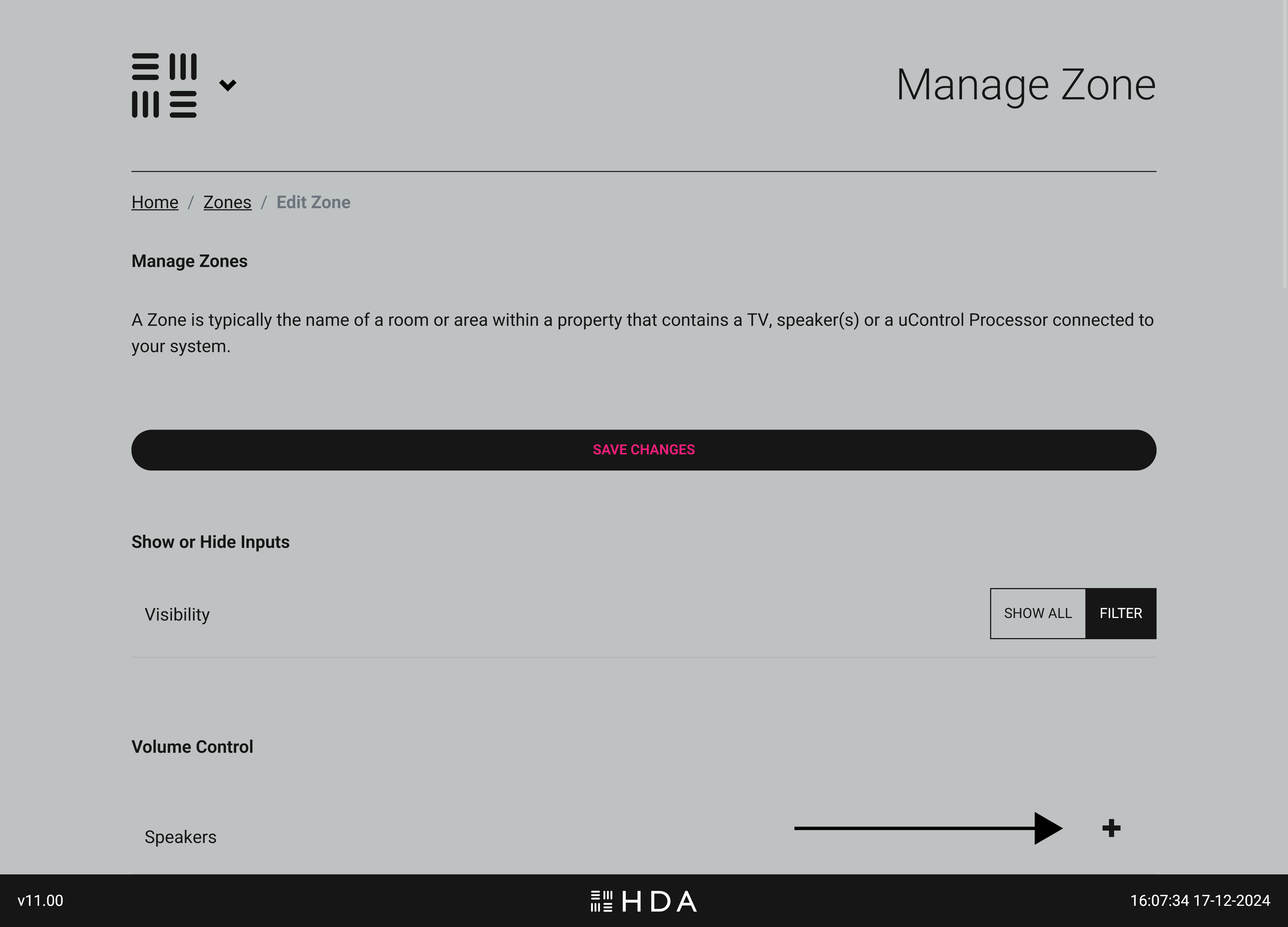
    You will now see all information pertaining to that particular zone, you will need to make two small changes for every zone in your system..

    uOS Setup Page
    Figure 5: The newly updated Manage Zones interface which summarises all zone information in one place.

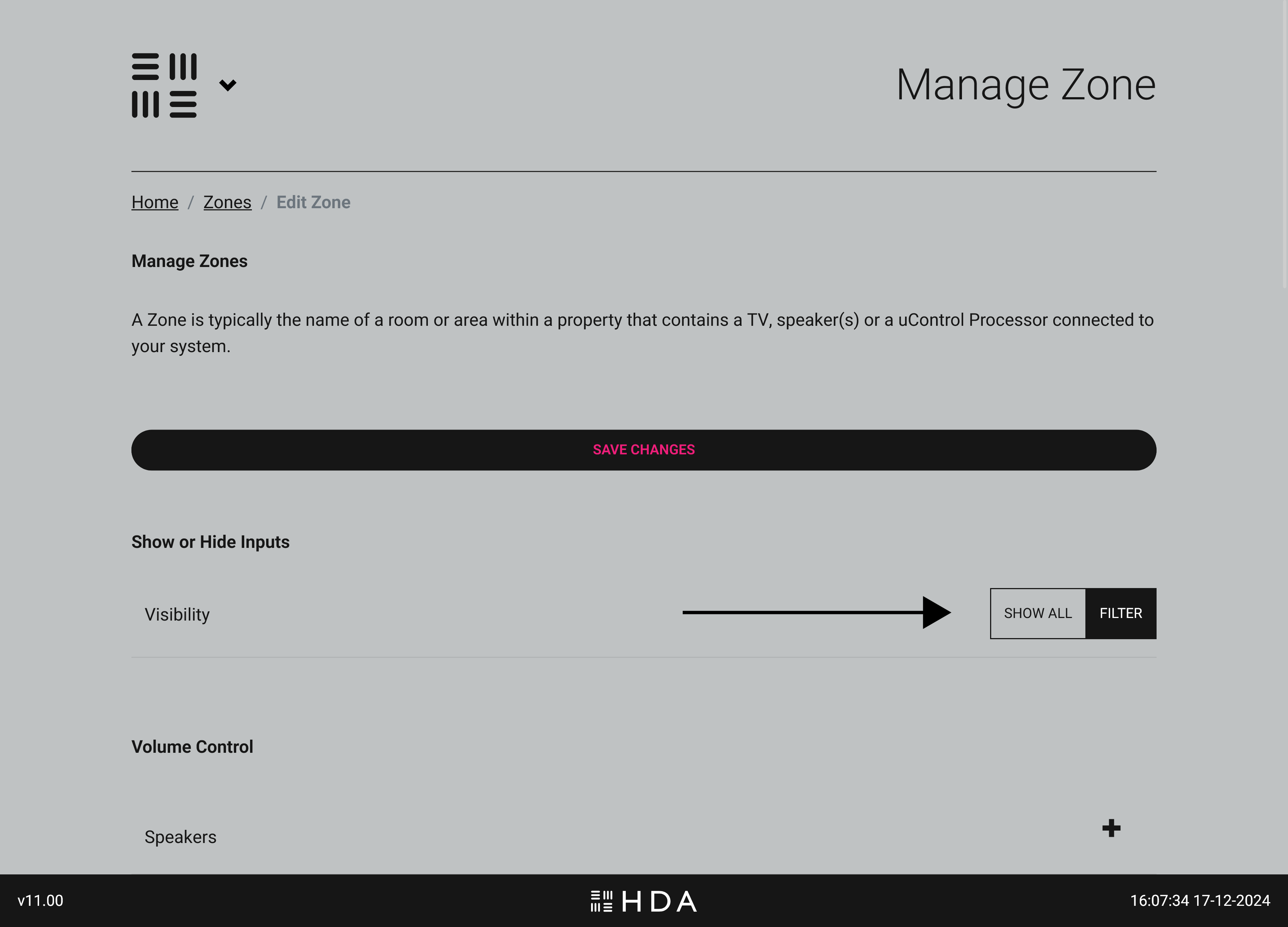
    Change #1: Choose your video & audio source visibility.

    uOS 11 gives you the ability to show or hide any input that is connected to your HDA system. You can choose to show all inputs or filter them so that only AV inputs you select are visible in that zone. If you’re unsure or in a rush you can choose “Select All” and edit this option later.

    uOS Setup Page
    Figure 6:Choose to show all inputs in that zone or filter them so only the ones you want are visiable in uControl app and uControl Remote.

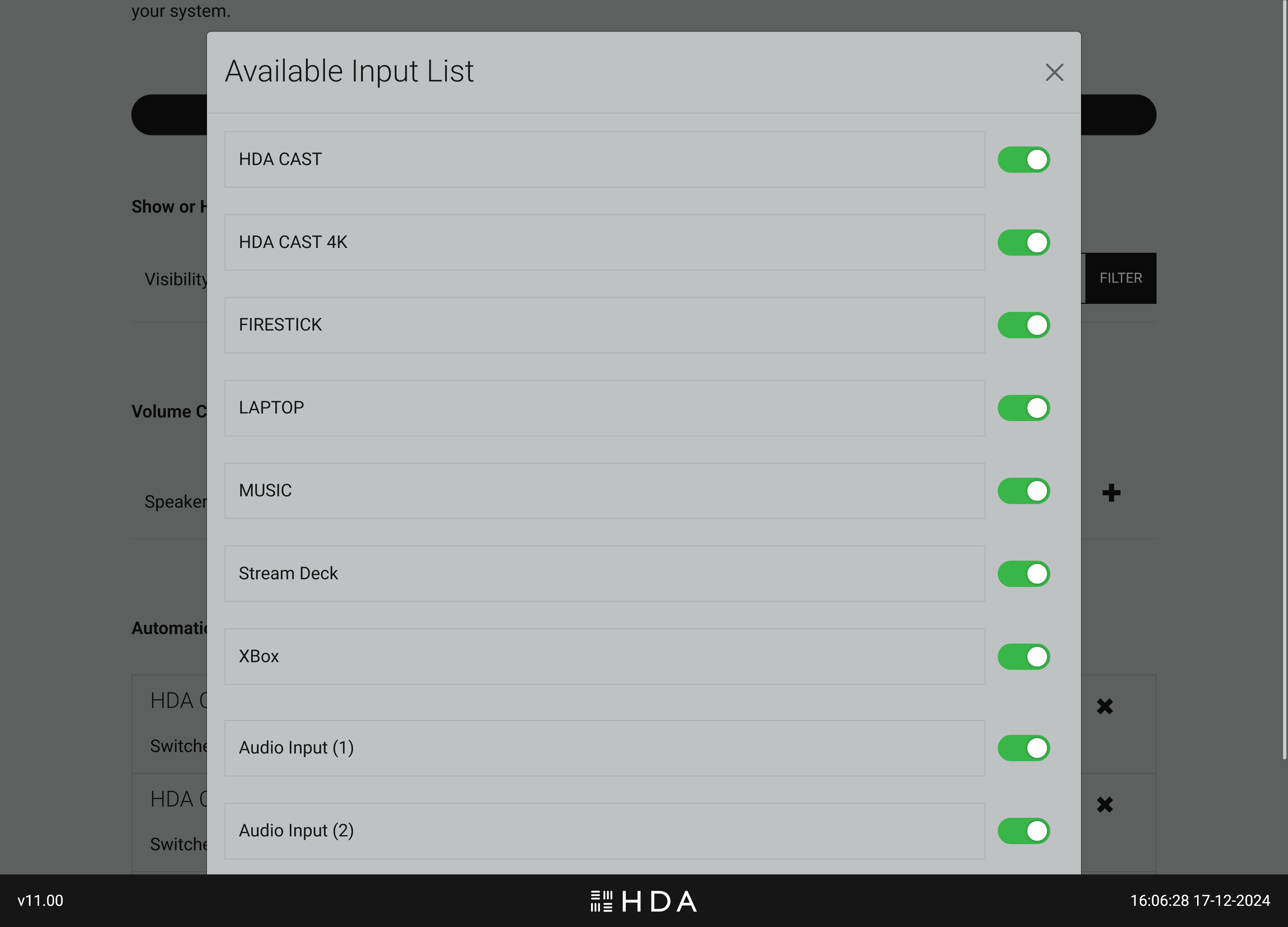
    If you select “Filter” a list of all inputs that your HDA system is controlling will appear with a green coloured switch, here you can choose to turn that input on or off inside that zone.

    uOS Setup Page
    Figure 7:If you have chosen to filter inputs in your desired zone then you can specify what inputs are available and what are not. This change will apply throughout the system.

    Change #2: Set the default volume for every zone.

    New to uOS 11 is a declaration of what device is controlling the volume. This is a new setting and will ensure that both uControl app and uControl Remote’s default volume keys are mapped to the device you choose here.

    uOS Setup Page
    Figure 8:Click on the “+” icon to select the device controlling the volume in your zone.
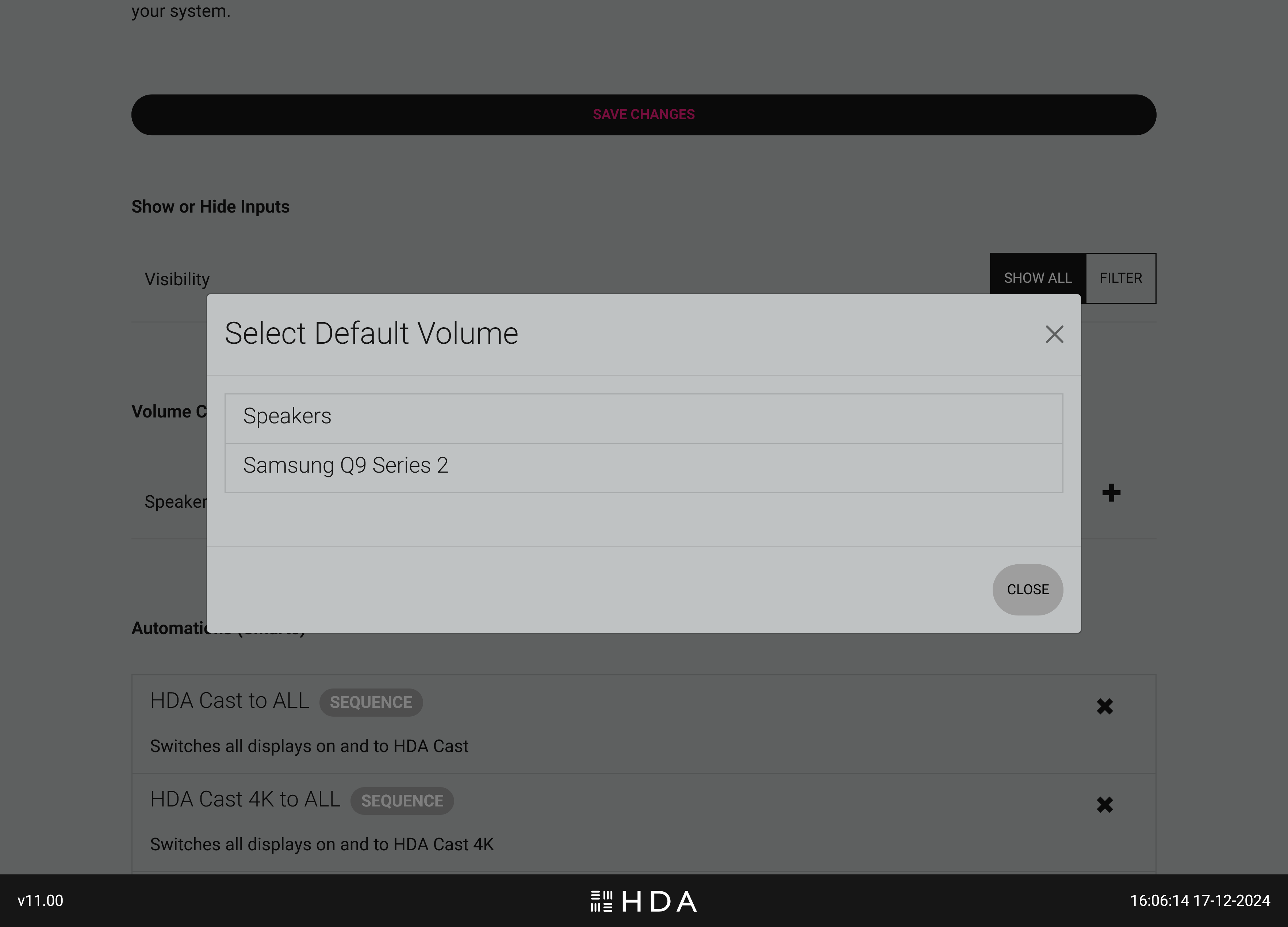
    uOS Setup Page
    Figure 9:uOS will display all available devices that are capable of controlling volume in your zone..

    IMPORTANT:
    You must repeat this step for every zone in your system if you wish to use the new uControl App or uControl Remote. If you fail to do this step uControl App will not work correctly and you may experience problems when configuring uControl Remote.

    Your HDA system is now ready to use!

    Congratulations, your HDA system is now updated and ready to work with the new uControl app and uControl Remote.

  • Controlling GUDE power switching from uOS

    This guide explains how to pull data from the Gude API so you can control it directly from uOS, uControl App and uControl Remote.


    Before you begin, you will need:

    • A HTTP test program such as Postman, available here
    • The Gude IP address on the same network as the HDA system
    • A fully-commissioned HDA or uControl system with the latest version of uOS (MHUB-OS does not support IP integrations) on the same network as the Gude
    • A tablet or laptop using any of the most popular browsers (or an iPhone with the uControl app, at the very least) on the same network as the HDA system.

    Step 1:Get data from the Gude system

    There are a few ways you can get the IP address of your Gude device:

    • Using a network scanner application like Fing on your mobile phone to scan your network.
    • Log into your wireless router and look up Gude in the DHCP table.


    Step 2: Build Function


    Example Commands

    Gude Command Examples

  • Controlling Rako scenes and lights from uOS

    This guide explains how to pull data from Rako’s API so you can control it directly from uOS, uControl App and uControl Remote.

    Rako Lighting in uOS

    What this guide will cover:

    1. How to find room, channel, scene and level IDs in Rako’s API.
    2. How to create a Rako API so that you can control any light or scene in the property.
    3. How to add that API into uOS.

    Important: you must setup Rako first

    For the purposes of this guide we are going to assume that your Rako controller is on IP address 192.168.1.15 and your uOS device (MHUB, MZMA or Zone Processor) is on 192.168.1.196. We will use this to illustrate all examples moving forward.

    Important: To get an overview of your project, which for this example is on IP address 192.168.1.15, type 192.168.1.15/rako.xml into a web browsers search engine and enter.

    What a typical Rako API looks like

    192.168.1.15/rako.cgi?room=5&ch=4&sc=0

    In most cases you will either want to turn a light on/off or change the scene in any particular room. To do this you will need to send an API which looks like the example above.

    In the example above we are going to send a command to the Rako controller (at 192.168.1.15) to execute a Scene 0 in Room 5 on Light 4.

    Understanding what those numbers in the API above mean:

    room=5
    This is the ID of the room which your Rako devices are installed in.

    ch=4
    This is the channel which is how Rako refers to individual lights or RGB values.

    sc=3
    This is the scene ID.

    “&”
    This is a separator which is used to separate room, channel and scene values or IDs.

    HELPFUL: Commonly used Scene IDs in Rako

    • Scene 0 = Off.
    • Scene 1-16 = Custom Scenes which you have made in Rako (lights at 10%, RGB value etc).

    Testing your APIs

    We recommend that you test every API before you enter them into uOS. All IP based APIs all have different requirements when it comes to testing but the Rako API is great because it is super simple.

    To test your API, open a web browser and enter the full API in the URL window and hit enter.

    Screenshot 2023-05-11 at 11.55.56

    Testing your Rako API is as easy as entering it into your favourite browser and hitting enter. If the Rako device does what you expected it to then you’re good to enter it into uOS.

    If the Rako device responds as you expected then your API is working and you can proceed adding it into uOS.

    If it doesn’t work then try the following:

    • Make sure the IP address is correct.
    • Make sure that you do not have any typos.
    • Ensure that your IDs are correct and that you’re observing a light in the correct room and location.
    • Make sure that the structure of the API matches our example (no spaces, no special characters, data is in the correct case (often lowercase).

    How to add your APIs into uControl

    Need more help with the API? Get in touch.

    All HDA staff are able to help with any API questions you might have including any advanced features. Get in touch for help or assistance.

  • Resetting your system

    DO NOT RESET YOUR SYSTEM IF YOU DO NOT KNOW WHAT YOUR HDA DEVICE DOES:
    Your HDA hardware is an integrated system and very similar to a central heating boiler.
    It maybe controlling your AV sources, displays, speakers, lights etc. If you reset your system and you do not know how to restore it yourself then it could render your AV unusable.

    Is your system managed by a HDA Pro Installer?

    If your system has been built and serviced by a HDA Pro Installer then please contact them first before resetting your device. This is especially important if they are servicing your system. If you proceed with a system reset then your HDA Pro can reserve the right to charge a call out fee to restore your system to a working state.

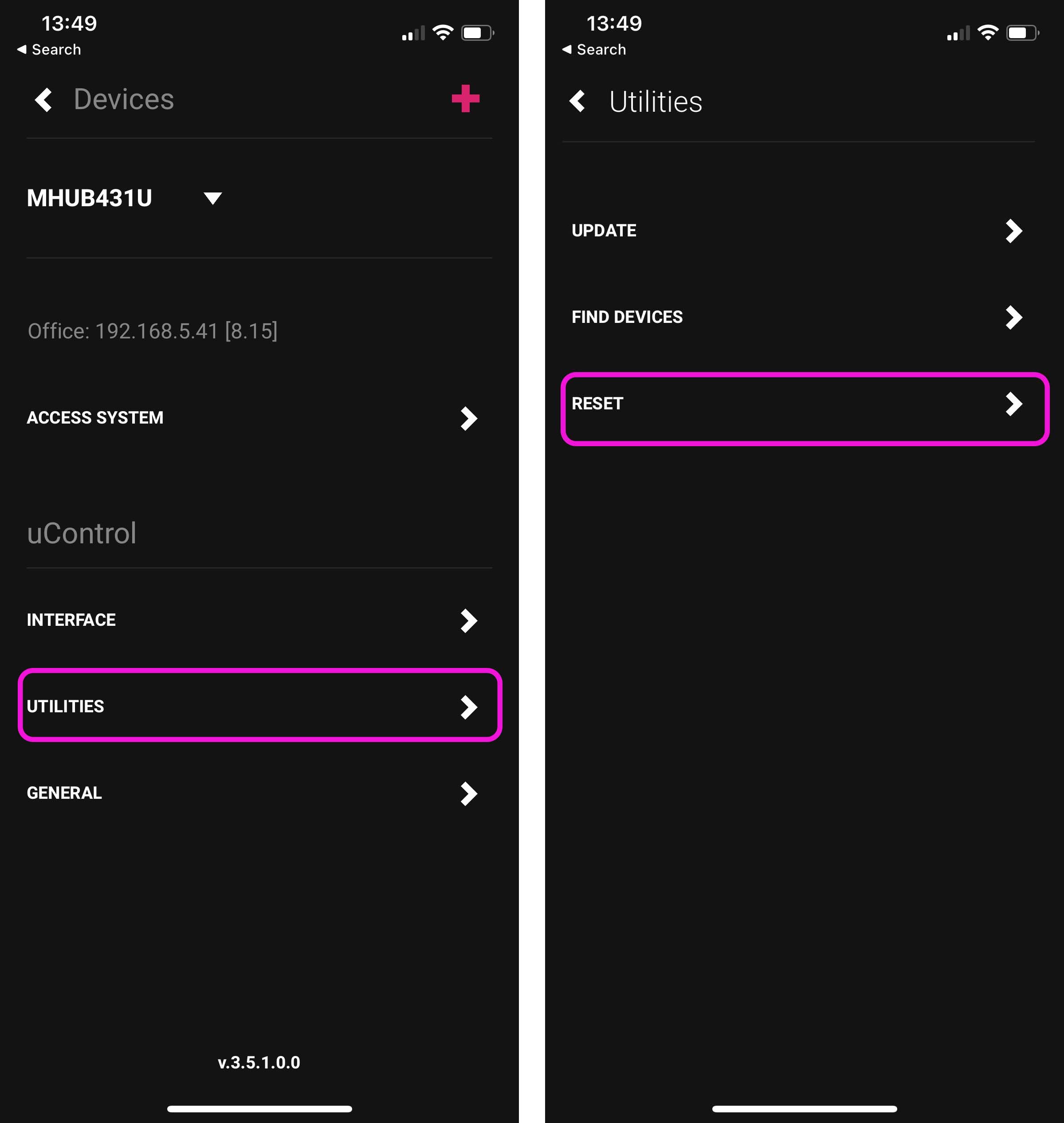
    Resetting your system

    If you are already connected to a HDA system:
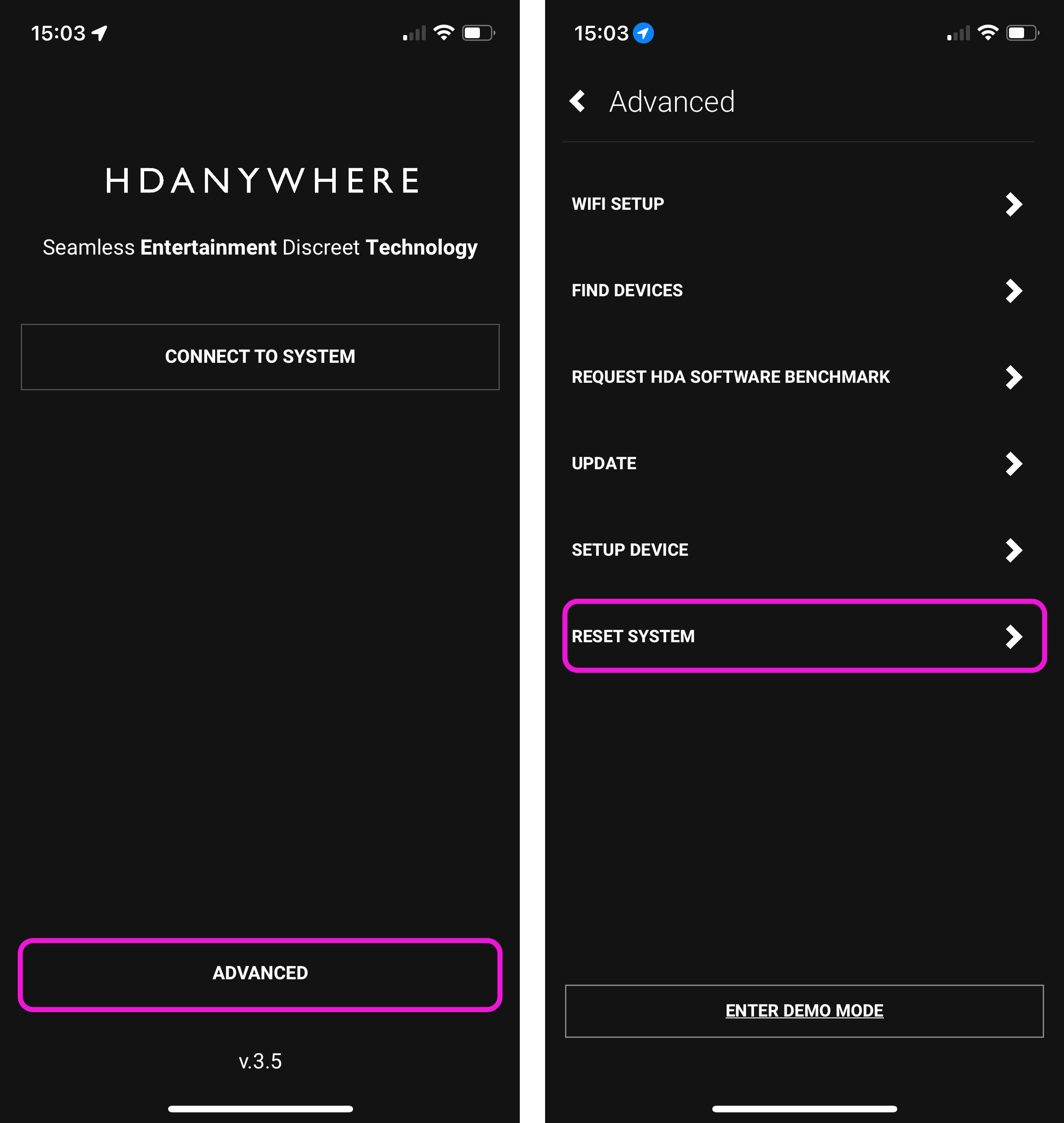
    uControl menu (top left menu icon) > Settings Cog (bottom left) > Utilities > Reset

    1-2-con

    If you are not connected to any system:
    uControl Splash Screen > Advanced > Utilities > Reset

    1-2-ncon

    Tapping on reset will not work. You will need to tap the reset button 10 times in order to unlock the reset process. Follow instructions inside the app to continue with the system reset.

  • Using Flirc with Amazon devices for use with uControl

    Some devices no longer have built in IR receivers. To enable them to be used with the uControl app you can add a third party device called FLIRC. This connects to a source device via USB and turns IR codes into control commands the source device recognises.

    There are two Flirc devices that we are compatible with, the first part of this guide is for the older model which can be found here. The second part of this guide is for the Flirc device that is specifically for the Amazon Fire TV and can be found here.

    Regular Flirc

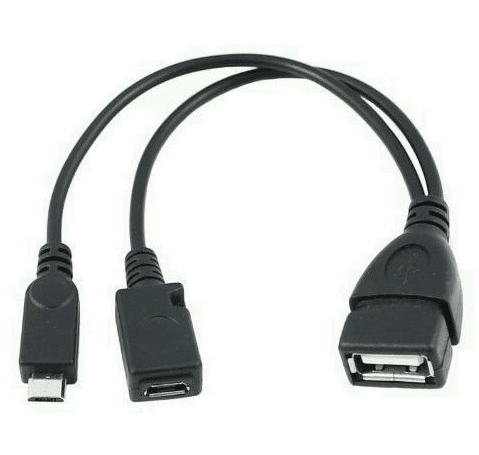
    If you are using the older model of Flirc you will need an OTG cable like this –


      update-mos

    Install the Flirc software on your computer and install this profile onto your laptop/PC – Fire TV

    Load up the Flirc software and in the top left click File, and then Load Configuration and choose the Fire TV profile you have just downloaded.

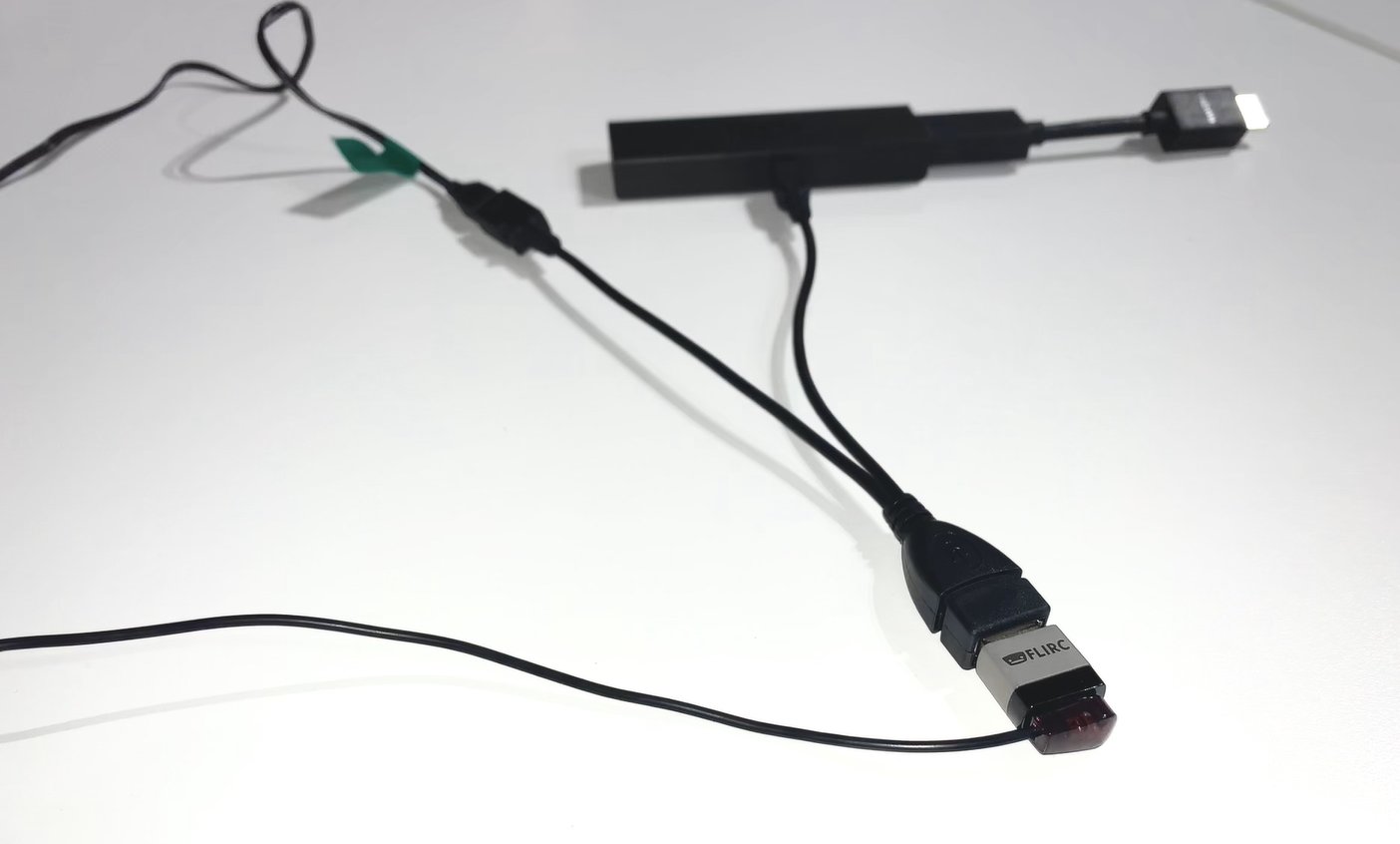
    Remove your Flirc from the laptop/PC and connect it to the female USB port on the OTG cable. Then taking the male micro USB section of the cable plug it into the Firestick. Lastly plug your power into the female micro USB port.

    Next place the IR transmitter from you HDANYWHERE device on or near to the Flirc. You may need to move it around to test which positioning works best, but we recommend taping it to the top of the Flirc.


      update-mos

    Once this is done you can install the FireTV(FLIRC) IR pack and control your Amazon device with uControl.

    Amazon Fire TV Flirc

    If you are using the Fire TV specific Flirc you will not need the OTG cable, but will need to install the Flirc software on your computer and install this profile onto your laptop/PC – Fire TV

    Load up the Flirc software and in the top left click File, and then Load Configuration and choose the Fire TV profile you have just downloaded.

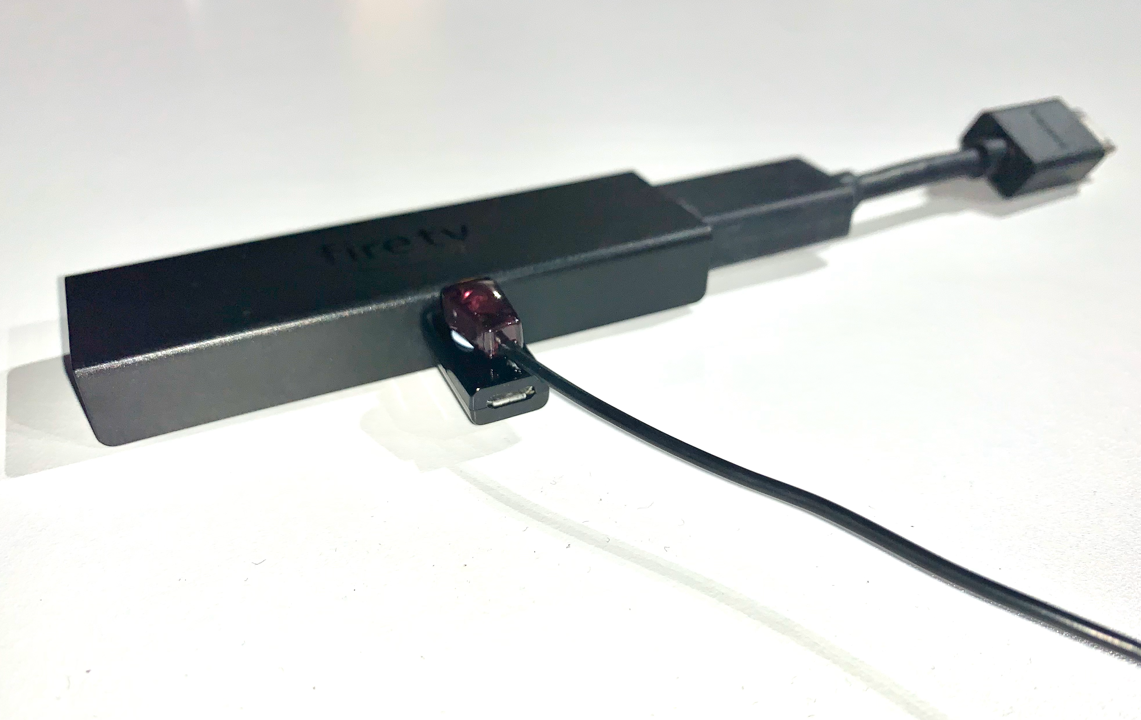
    Remove the Flirc from your laptop/PC and connect the power lead to the micro female USB port on the Flirc. Plug the other side of the Flirc (male USB) into the side of the Firestick, and then plug the Firestick into your desired input.

    Lastly place the IR transmitter from you HDANYWHERE device on or near to the Flirc. You may need to move it around to test which positioning works best, but we recommend taping it to the side, adjacent to the Flirc.


      update-mos

    Once this is done you can install the FireTV(FLIRC) IR pack and control your Amazon device with uControl.

  • Voice control with Amazon Alexa* using the “MHUB AV” Skill

    HDANYWHERE (HDA) Amazon Alexa App Skill

    *Before you activate the Alexa Voice Service with your MHUB, make sure Amazon support your territory and version. We cannot guarantee voice services or offer support to those territories not officially supported by Amazon. Check here: https://www.amazon.co.uk/gp/help/customer/display.html?nodeId=202207000

    What you need to get your MHUB to respond to voice commands:

    1. You have completed the first-boot procedure within MHUB-OS
    2. You have MHUB-OS version 8.10 or higher installed on your MHUB
    3. You have an active HDA Cloud account
    4. You have downloaded uControl packs for all displays and source devices you want to control
    5. You have completed input mapping in MHUB-OS
    6. You have an active Amazon account
    7. You have an Amazon Alexa enabled device, such as Amazon Dot/Echo/Show

    Setting up AV Skill

    Configure voice commands to do exactly what you want

    Let’s take the command “Alexa, Turn on football” as an example.

    It might appear like a very simple command but there are a number of things that need to happen in order to watch football! First the TV might need to turn on, but in which room? The volume might need to be set to a desired limit. The correct source input might need to be selected on MHUB and finally that source will need to navigate to the channel hosting the football.

    You can configure all those actions in what we call a “Sequence”.

    Taking the example above:
    Alexa (this wakes up your Amazon Dot/Echo/Show)
    Turn on… (this invokes the smarthome skill)
    football (this is your custom name for the Sequence, it can be anything you want)

    Inside MHUB-OS we can configure exactly what “football” does.

    • You can select if you want MHUB to turn your TV on and adjust the volume
    • You can tell MHUB to switch to the source device with has the football on it
    • You can instruct MHUB to change the channel on that source device

    Read more about Sequences and Scheduling.

    Troubleshooting

    • When searching for devices, nothing is found
      1. Check you cloud account details were entered correctly
      2. Ensure only 1 system is linked with the cloud account being used
      3. Ensure you have backed up the system to cloud after configuring the Alexa Skill on MHUB-OS
    • When you try to control a zone Alexa says the command isnt supported
      1. Ensure there are no other devices linked to the Alexa that have the same name as the zone.

    Here’s a table of all the commands you can tell your MHUB to do…

    Now you’re ready to go. Take a look at a full list of commands that you can say to your Echo.