Category: Miscellaneous

  • Picture loss/dropout on one or more displays when using MHUB

    ​Your MHUB is similar to a central heating system in that there are many components that all need to come together to deliver a working system. An intermittent or full loss in picture on one or more displays can be down to a number of things.

    • HDMI cables going into MHUB and from the display receivers to the displays
    • Your network cabling infrastructure, the termination quality, the distance of the cable run and the number of times that cable runs through patch panels or wall plates.
    • The physical output port on the MHUB
    • The display receivers
    • The actual source devices (more common than you think!) and the AV they are outputting (4K, 1080p, surround sound, HDCP format etc)

    Unfortunately, there is no fast way to determine this. To do this test correctly you will need to test for several days to ensure the results are accurate and your system is stable.

    If dropout occurs on one display in your property…

    The first thing to do is disconnect all sources and outputs from MHUB so you are left with 1 source (preferably the source you notice picture loss on) and 1 output (preferably the display you notice picture loss most frequently on).

    Grab a piece of paper and log the following outcomes when you test the following:

    1. If picture loss is happening only in one location in your property then take a display receiver (and the HDMI cable going into the display) from a known working location and swap it in the area you’re noticing picture loss.
    2. If you still experience picture loss then run freshly terminated Cat 6 cable from the MHUB to the display receiver point-to-point (no breaks in cable) and check again.
    3. If you are still having a problem then connect your new Cat 6 cable to another output port on MHUB.
    4. If #3 doesn’t resolve the problem then disconnect your source from MHUB (and the HDMI cable) and plug it directly into your test display using the same HDMI cable.
    5. If the picture is stable then take the source and the HDMI cable back to MHUB and plug it into another HDMI input and test for picture loss on your display.
    6. Finally, drop the resolution on your HDMI source to something you know the display will accept easily (something like 1080p Stereo)

    If dropout occurs on all displays in your property…

    Start by disconnecting your source from MHUB (and the HDMI cable) and plug it directly into a test display using the same HDMI cable.

    Grab a piece of paper and log the following outcomes when you test the following:

    1. If the picture is stable then take the source and the HDMI cable back to MHUB and plug it into another HDMI input and test for picture loss on your display.
    2. If you still experience loss in picture then drop the resolution on your HDMI source to something you know the displays will accept easily (something like 1080p Stereo)
    3. Remove all outputs from MHUB until you’re left with only one output connected, it could be any port but we recommend starting with A. Check for a stable picture and repeat for each output port individually.
    4. If all ports passed the test in #4 then start connecting additional outputs back to MHUB starting B (so you should have A + B now), if the picture is stable add output C and so on.

    If you log any problems or positives with each test then let us know and we can assist you further.
  • Sending TV audio from MHUB to in-wall or ceiling speakers using MHUB PRO 2.0 and MHUB AUDIO

    Extracting video audio from MHUB and sending it to speakers

    Today’s TVs are very thin with the latest models able to be rolled away into a box! A thinner TV is lighter, easier to install and generally more pleasing to the eye as these new advancements can radically change how your traditional TV looks or is installed into your property.

    These advancements have reduced the space inside the TV to an absolute minimum and often a causality of this is the internal TV speaker. Speakers are either located on the rear of the panel (leading to muffled audio) or underneath and in many cases can not provide the type of audio amplification to match the large screen sizes found in the marketplace today.

    Soundbars have plugged the gap, but they aren’t the solution.

    Soundbars have plugged this gap as customers try to achieve audio reproduction that matches their picture quality. Whilst a soundbar is a simple solution to the problem it fair to say that it doesn’t present itself as the most elegant in that it’s additional (visible) hardware that you need to add to your AV setup. The soundbar is also tied to the function of the TV; so it’s not very easy to listen to music on the same device, for example.

    De-embed the audio and manage it separately.

    Using MHUB it’s possible to extract the audio that would be sent to your TV – or even the audio generated from your TV apps like Disney+ or Netflix and send that to speakers in your room. Additionally, when the TV is off you can listen to music on the same speakers. If your speakers are embedded in your walls or are in the ceiling then you won’t even notice them, but you’ll hear the difference.

    Watch the setup video instead.

    MHUB PRO 2.0 + MHUB AUDIO: how does it work

    To achieve this you will need to use MHUB PRO 2.0 and MHUB AUDIO operating together as one system which we call V&A (video & audio).

    Download the MHUB (V&A) guide.

    The MHUB PRO 2.0 can de-embed the audio from any video stream or TV app (using ARC) and downmix it into 2 channel stereo. This audio is then fed into the inputs on MHUB AUDIO which manages amplification of that audio. If you have inputs that require amplification then you can stack another MHUB AUDIO (up to three times using uControl) or as many as you want if you’re using a control system.

    We are here to help. Let us know if you have any questions…

    .

    Contacting us is super easy and we respond fast. Let us know if you have any questions about setting up a V&A system.

  • Handling Dolby Audio (Atmos) and DTS-HD audio with MHUB

    Using a matrix and providing Dolby Atmos or DTS-HD audio.

    atmos-mhub

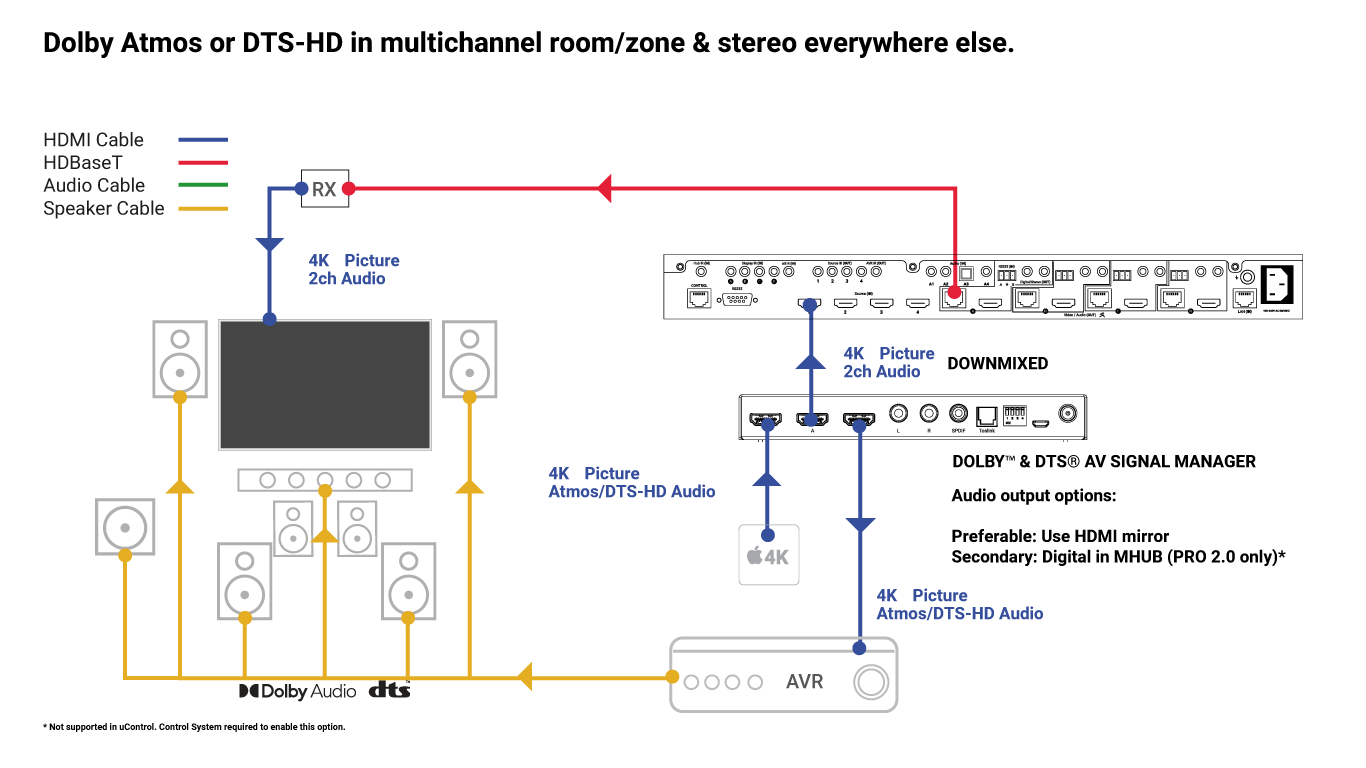
    If you are planning a cinema or media room supplied by MHUB that requires a multichannel audio signal like Dolby Atmos or DTS-HD then you will need additional hardware to achieve this result.

    Why do I need additional hardware and what does it do?

    In order to enjoy Dolby or DTS audio in a cinema or media room you will need to instruct your source device (AppleTV / Bluray / Set top box etc) to output its audio in Dolby Atmos or DTS-HD only.

    If all the zones in your property can accept a multichannel Dolby or DTS signal then you will have no problem but the chances are that the rest of the rooms in the property will just have a standard TV with a left and right speaker only – think of a kitchen TV display or a TV in a kids room.

    You therefore need a device that sits in-line (between) your HDMI video source and the MHUB that does the following important things:

    1. Sends an untouched signal from your HDMI source to your AVR (as if they were connected directly to one another) to provide it with Atmos or DTS-HD audio and…
    2. Split the signal and ‘downmix’ it so all those channels of audio are mixed into a left and right only for all other displays that the MHUB serves.

    What is it called?

    The device that you need is called the Dolby™ & DTS® AV Signal Manager.

    What devices does it work with?

    It will work with MHUBs and XTND hardware which feature HDMI mirrored outputs.

  • MHUB, XTND and soundbars

    Soundbars

    As TVs have become thinner, the space required for housing speakers within them have diminished, often leaving TV audio weak, lacking in depth and richness. Soundbars are an effective solution to that problem and HDANYWHERE works with them absolutely fine.

    Picking the right soundbar.

    There are generally three types of soundbar available.

    1. Stereo soundbars
    2. Multichannel 5.1 soundbars
    3. Multichannel (Spacial) soundbars that support Dolby Atmos and DTS-HD

    1. Stereo soundbars

    If you have #1 (stereo soundbars) then you’re good to go. This will work all over your property as the speaker arrangement and capability is just a better version of what your TV already supports.

    2. Multichannel soundbars

    If you intend on fitting #2 then you will need to consider what capability your other rooms/zones can handle around your property. If your soundbar supports 5.1, then we suggest reading the guidance here.

    What the guidance above says (briefly).

    If you want your soundbar to output 5.1 then you will need to make sure your source is also set to output 5.1. When you do this all displays connected to MHUB will receive a 5.1 audio signal and if that display can’t decode 5.1 audio and downmix it into stereo then you will have an audio problem.

    3. Multichannel (Immersive) soundbars

    If you intend on installing a soundbar with this capability and require the source to be distributed then you will need additional hardware to manage the signal. We would recommend that you read Using MHUB and providing Dolby Audio (Atmos) and DTS (DTS-HD) audio.

    Confused? Help is available, drop us an email for a fast response.

  • Using MHUB with an AVR

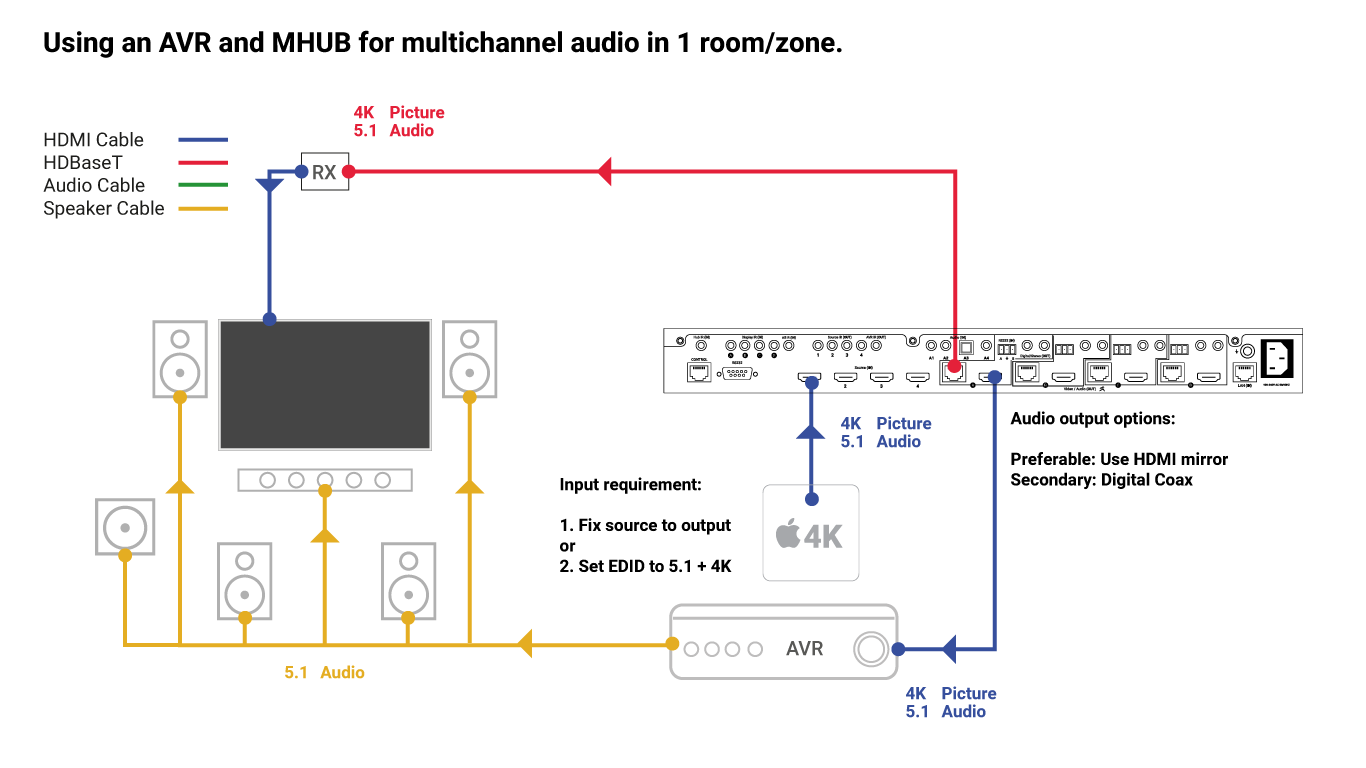
    Using an AVR and MHUB for multichannel audio in 1 room/zone.

    Adding a cinema or media room to MHUB is a relatively easy task for the MHUB to do but if you are planning to have a room with equipment inside it that is of a higher specification to the rest of the property then you need to do a little pre-planning beforehand.

    multichannel-1

    For best results the source(s) that will be watched in that room should be fixed to serve just that room.

    The chances are that this room will have the best display capability and the best audio capability. Because all HDMI sources (bluray, AppleTV, Amazon Fire etc) can only output one format of video and one format of audio at any given time you should ideally serve this room with sources dedicated to it. This way the source can be set to output the correct video resolution and audio format without having to readjust when the stereo 1080p TV accidentally tries to request a picture from the source.

    If you have MHUB PRO then we recommend using the HDMI cable direct to your AVR and then the digital coax after.

    … Then tell MHUB to only request what that room can handle

    Other displays in your property (like that 1080p display in the kitchen) are able to contact your source device to downgrade it’s audio and video capability. You can block this from happening by selecting an appropriate EDID profile for your source from within MHUB-OS.

    You don’t need to do this if you fix the output from the source device to your room but we recommend it to make sure your system doesn’t suffer from strange behaviour.

    I would like that source available throughout my property? What happens if I fix the source and set EDID above?

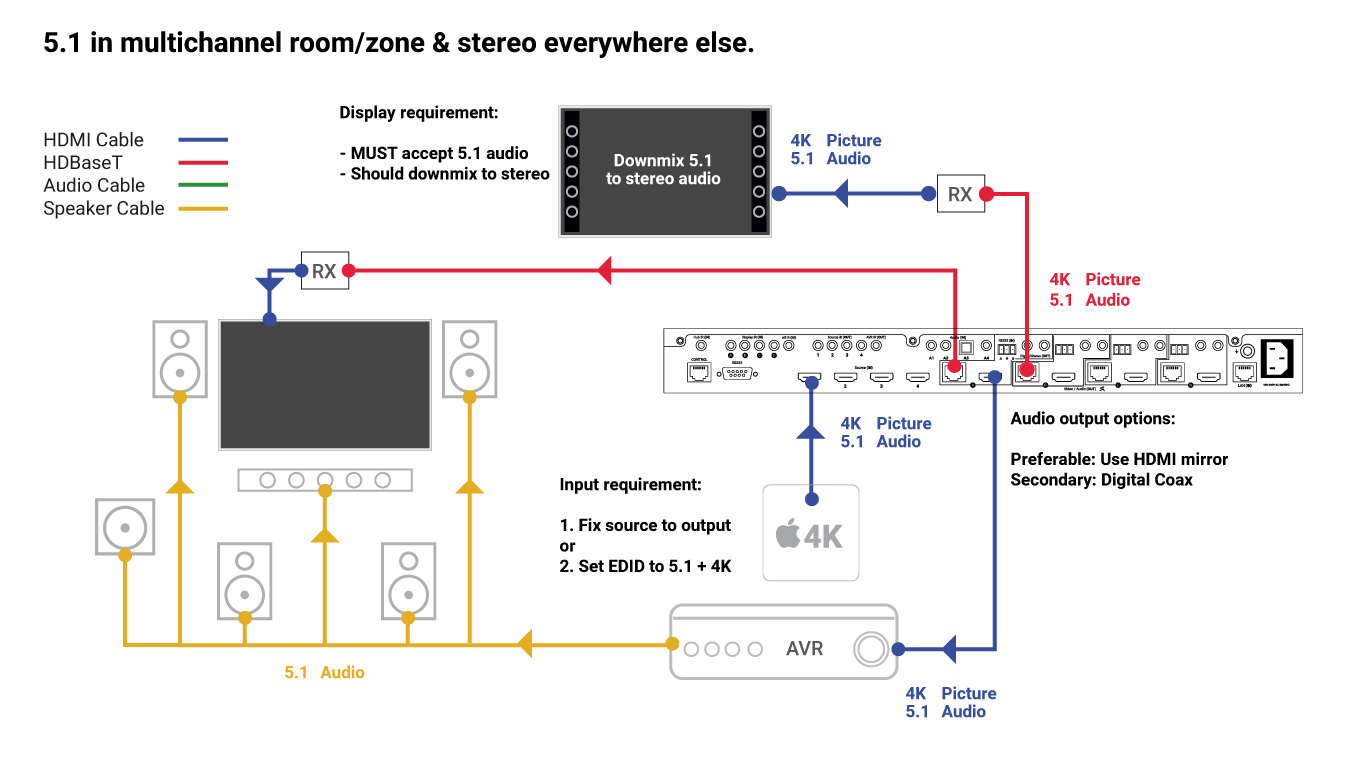
    If the source is fixed to output 5.1 then MHUB will deliver 5.1 audio to all HDBaseT outputs connected to MHUB. If your TV or display can decode and downmix multichannel audio into stereo (many now do) then you will hear the content correctly in stereo. If the TV is unable to decode the 5.1 audio then you are likely to have audio problems or hear nothing at all.

    Listening to content on all displays.

    Are there any ways around this problem?

    Yes. Many modern TVs can accept a 5.1 audio signal so that they can work with 5.1 compatible soundbars over HDMI ARC or Optical connections. Depending on the TV specification, it can work in two ways:

    1. MHUB outputs 5.1 audio to the TV and it passes the audio directly to a compatible soundbar (additional soundbars required).
    2. MHUB outputs 5.1 audio to the TV and the TV downmixes the audio back into stereo.

    multichannel-2

    This will mean that you get 5.1 audio in rooms where you need it and stereo everywhere else. It is important that you check the specification of your displays carefully before considering this option. Older TVs are not likely to handle multichannel audio at all ruling out this option entirely.


  • Using control drivers which require authorisation before use.

    update-mos

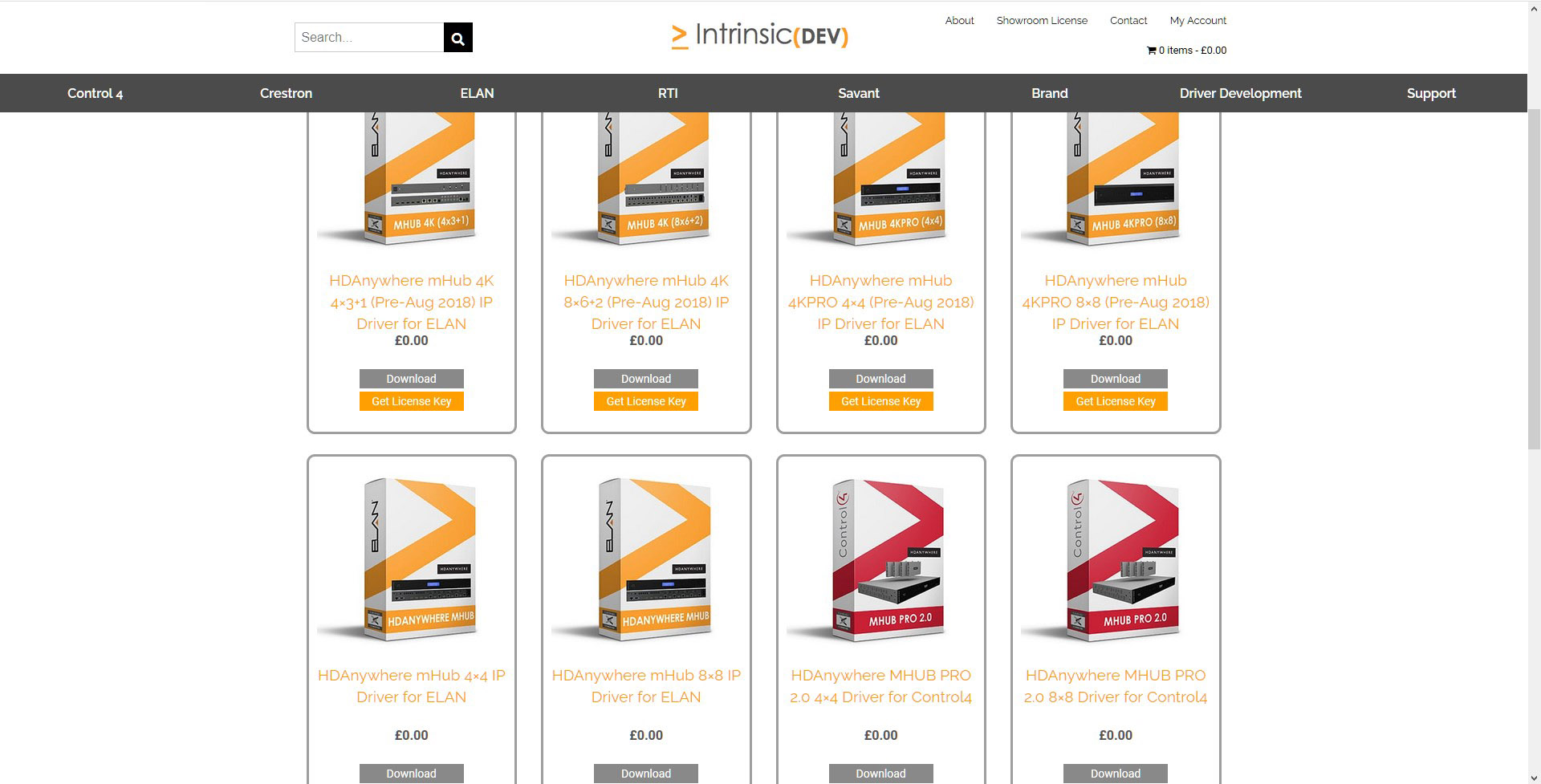
    HDANYWHERE are now working with Intrinsic Dev for control driver integration.

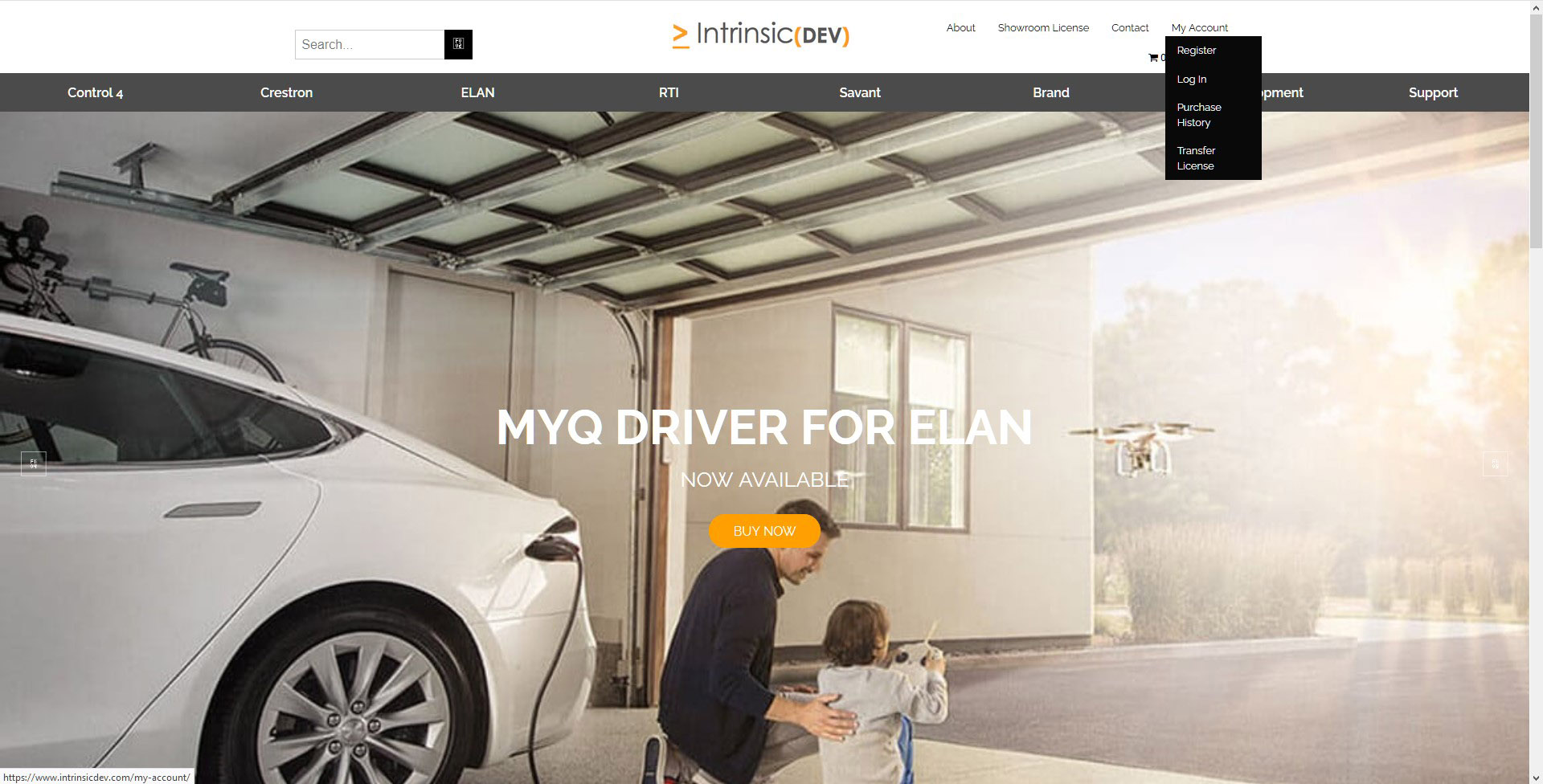
    If you see the label “DRIVER REQUIRES LICENSE ACTIVATION FROM VENDOR” then this means you need to create an account and generate a license key before the driver will work. As always, the driver remains FREE OF CHARGE. The process takes under 5 minutes to complete and offers HDA Pros the following benefits:

    1. Track and find your drivers for every install you commission.
    2. Be kept updated if the driver gets patched or improvements are added.
    3. Check to see if the driver is operating correctly.
    4. The ability to improve your HDA Pro listing

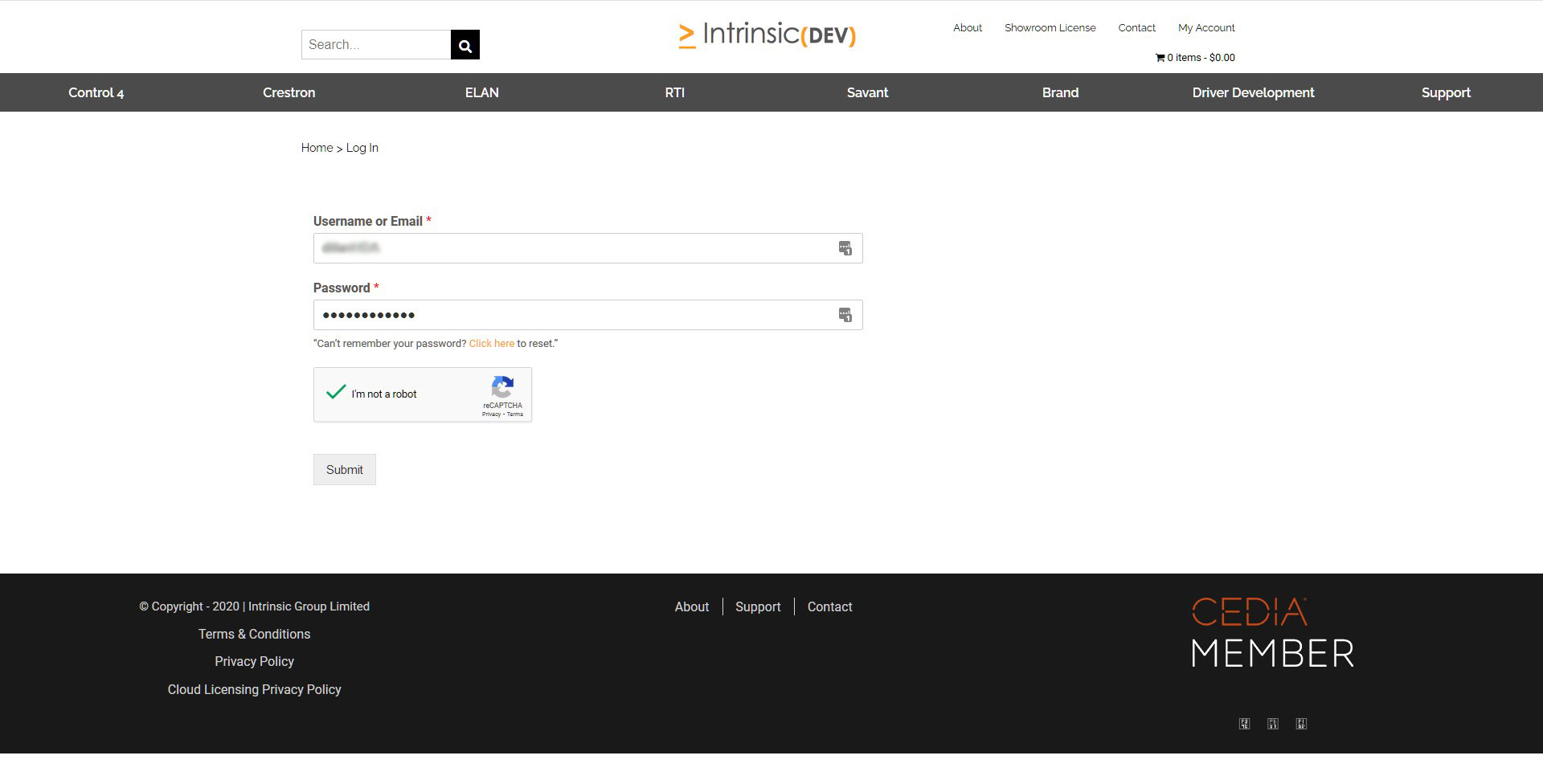
    2. Ensure that you are logged in.

    3. Find the HDA driver you want to download https://www.intrinsicdev.com/brands/hdanywhere


    4. Click on “Get License Key”


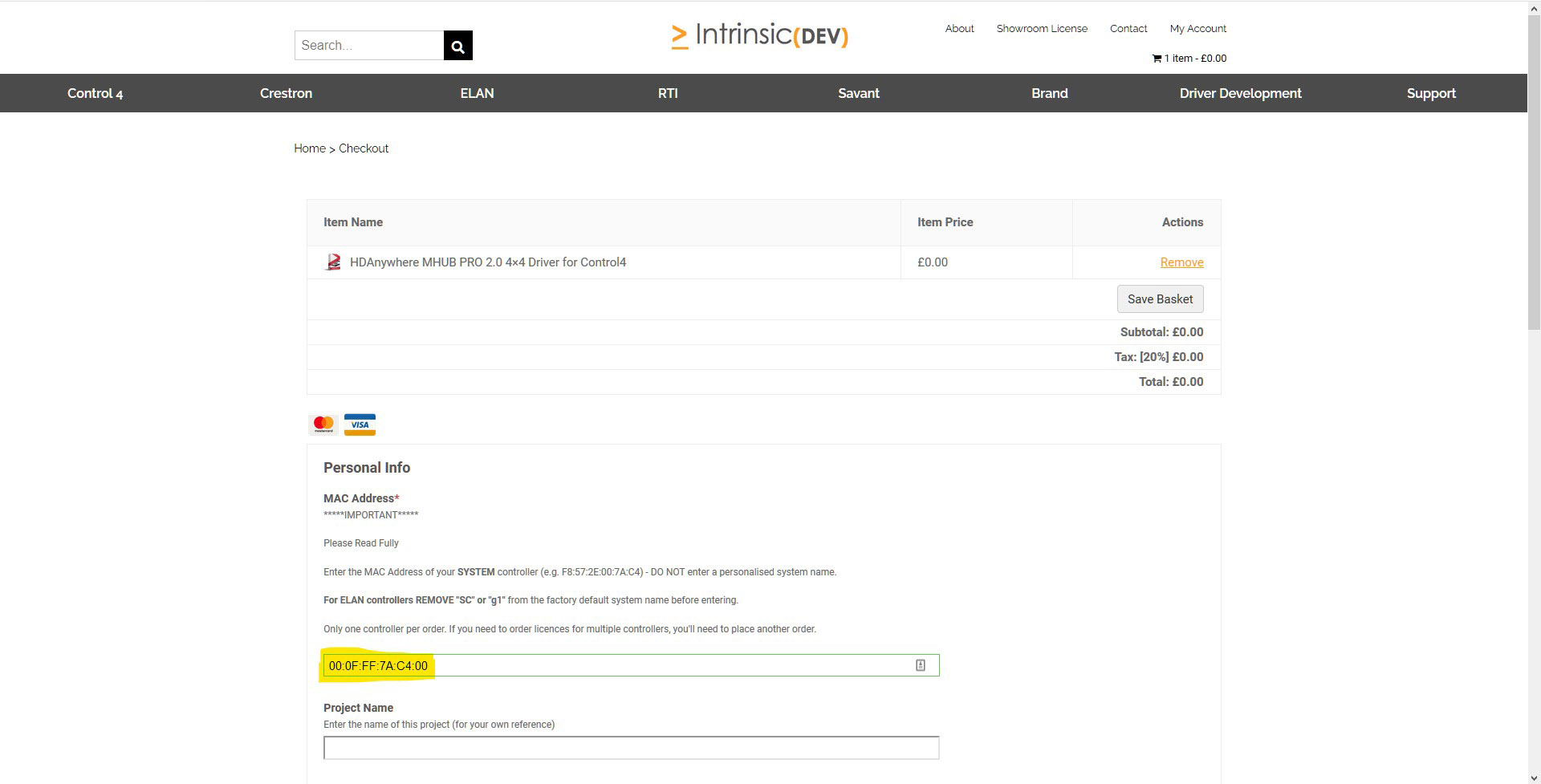
    5. You will need to provide the MAC address of your controller and some site details. Scroll to the bottom of the page and a button will appear to proceed/download. If you have not completed this step correctly then the button to download will not appear.


    6. Download the driver and make a note of the activation code.

  • HDANYWHERE product information on power usage and BTU outputs

    The table below details the PSU DC rating, the system power draw in watts and BTU(British thermal unit) heat output of each device.

    Product Code Release PSU Rating (DC) Power Draw (watts) BTU

    XTND

    XTND2K30 2017 5V 1A 2.5 9
    XTND4K40ARC 2018 24V 1A 20 68
    XTND4K100TPC 2018 24V 1A 12 41

    MHUB

    MHUBAUDIO64 2018 24V 13.4A 520 1774
    MHUBMAX44 2018 24V 2.71A 19.2 66
    MHUB431U 2018 24V 2.71A 36 123
    MHUB862U 2018 24V 2.71A 28 198
    MHUBPRO4440 2018 24V 2.71A 40 136
    MHUBPRO8870 2018 24V 6.3A 98 334
    MHUB4K44PRO 2016 24V 2.71A 42.72 146
    MHUB4K88PRO 2016 24V 6.3A 100 341
    MHUBPRO24440 2019 24V 5A 68 232
    MHUBPRO288100 2019 24V 6.3A 130 444

    SPLITTERS AND SCALERS

    SPLITTERMAX12 2019 5V 1A 2 7
    SPLITTERMAX14 2019 5V 1A 2 7
    SIGNALMANAGER 2018 5V 1A 1.65 6
  • MHUB-OS 8 and uControl 2 update troubleshooting and FAQ

    Below is a list of three issues which have been reported to HDANYWHERE (HDA) after updating older systems to MHUB-OS 8 (MOS 8). If you have encountered any of these problems then you will find a solution below. If your issue is not shown below then contact the HDA support team via email on – support@hdanywhere.com.

    Jump to issues and solutions:

    1. My MHUB is stuck in a loop and is always prompting me to update again – I can not access any other MHUB-OS page.
    2. I am having problems connecting with HDA Cloud because there is an error with my serial number.
    3. I have connected to my MHUB and all my settings are gone.
    4. I can’t get uControl to connect to MHUB.
    5. I have an 8×8 system and I can not control my TVs anymore.

    1.
    I’ve clicked the update from within MHUB-OS and now appear to be stuck on an update page and cannot access any other MHUB-OS page.

    This error can occur when MHUB fails to complete the update process completely. This can be caused by a power outage, multiple sessions of MHUB-OS being open at the same time (browser tabs, app) or network issues as the update is applied to MHUB. This has been patched in version 8.02 of MHUB-OS. However, if you find yourself with a problem like this, you will need to contact HDANYWHERE technical support services by emailing support@hdanywhere.com with the subject line: “Update error code:728” and we will treat this with the highest priority.

    2.
    I’ve updated to MHUB-OS 8 and when linking to HDA cloud it says there is an error with my serial number.

    This error can occur when the MHUB cannot connect with HDA cloud. This can be caused by network issues or power outage. This has been patched in MHUB-OS version 8.02. However, should you find yourself in this situation you can recover the serial number following these steps

    1. Step 1 – Load a web browser on a pc or mac(such as Chrome), and enter the following in to the URL bar [MHUB IP ADDRESS]/diagnostics.php. Then click on “GET SERIAL NUMBER”
    2. Step 2 – Confirm that you want to change the serial number
    3. Step 3 – You will get a notifcation saying that the serial number has been updated, and should notice the serial number is showing in the system information section near the top of the page.

    If after using the serial number recovery method above, it still does not appear, you will need to contact HDANYWHERE technical support services by emailing support@hdanywhere.com with the subject line: “Update error code:628”

    3.
    uControl has updated, when I reconnected to my MHUB all my settings were gone.

    This can occur when reconnecting to your MHUB after uControl has updated to version 2 or greater and selecting the incorrect option. When uControl loads you are shown 2 options:

    • “SETUP A NEW MHUB SYSTEM” – This is used when you are connecting to a brand new or unconfigured MHUB system. If you select this option and have a previously configured system, all user data will be removed requiring the MHUB to be fully reconfigured like a new system.
    • “CONNECT TO AN EXISTING MHUB SYSTEM” – This is used when you are connecting to a previously configured MHUB system. Existing data will remain untouched, and uControl will sync the data stored. If you were connected with a previous version of uControl this option should be used.

    4.
    After the update, uControl can not connect to MHUB

    HDANYWHERE released an update to uControl and all MHUB systems on Wednesday 10th October 2018. To ensure that your MHUB works correctly both your MHUB and uControl must be on the correct software version.

    MHUB / MHUB-OS = version 8 or above
    uControl (iOS / Android) = version 2 or above

    If you find that one version of uControl can connect to MHUB and the other can not then it is very likely that you did not complete the update to MHUB-OS. As soon as you have run this process then uControl should work on all devices with no issue. For this solution HDANYWHERE are assuming that your system is already in a pre-configured state and that you are wanting to CONNECT TO AN EXISTING SYSTEM.

    Steps to resolve this issue:

    1. Ensure that you have the latest version of uControl installed on your iOS or Android device. Download uControl for iOS or download uControl for Android
    2. Once you have the app installed, please load it up and follow the instructions here:

    5.
    I have a 8×8 or 8×6+2 system and after the update, I lost the ability to control my TVs

    If you are able to control your source devices with uControl but can not control your displays then a quick update to your MHUB will resolve this problem. Instructions detailing how to update your MHUB can be found here. Ensure that you use uControl to update your MHUB and do not try to update your system via MHUB-OS.

  • MHUB-OS 8: a quick guide to zones

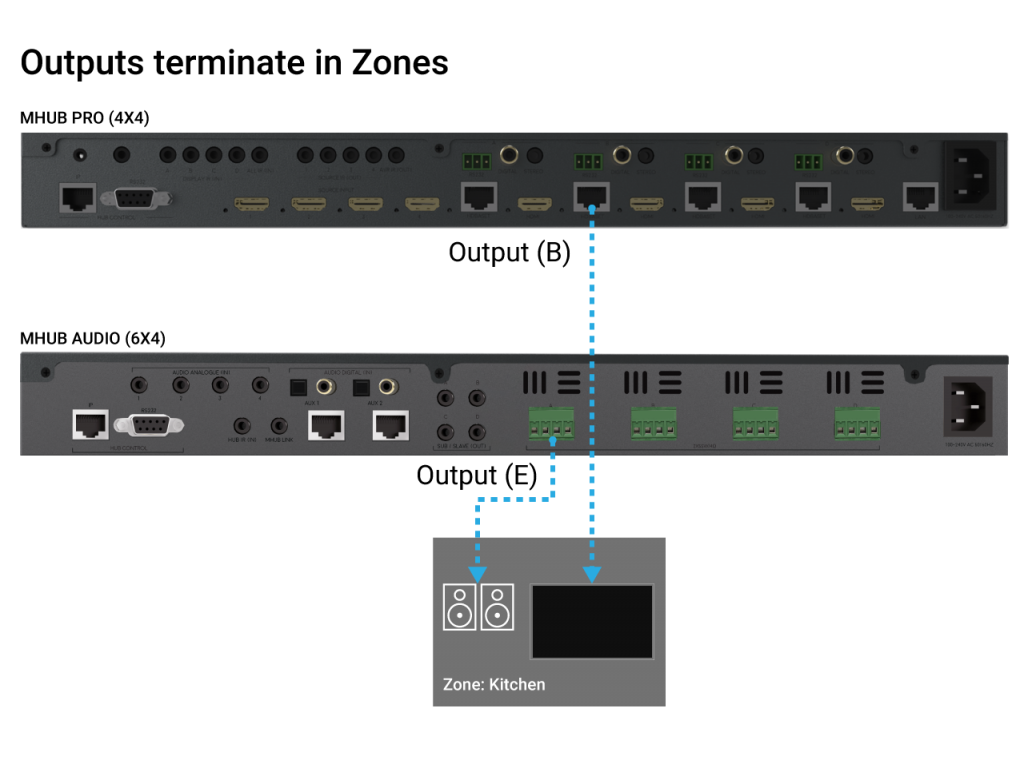
    Zones define a physical space in a property where outputs from MHUB terminate.

    A Zone can include a maximum of 1 video output and a maximum of 4 audio outputs. For example, you can create a zone called “Kitchen” and assign 1 video and 1 audio output to it to provide you with viewable TV and sound. A Zone must contain at least 1 output from an MHUB for it to be addressable for control. Note: outputs can not be shared or split to more than 1 Zone.


    MHUB zones

  • MHUB-OS 8 first boot process

    The first boot process for MHUB-OS has remained largely unchanged with the exception of zones.

    The slideshow below walks you through the steps within MHUB’s first boot process and how to setup zones to refect the different rooms or areas within you property.

    If you wish to configure a stacked system please watch this video – Creating a MHUB stacked system.

    You should be able to complete the process in under 10 minutes.

    MHUB-OS first boot steps are as follows:

    1. EULA and Privacy policy
    2. Name your MHUB
    3. Name your source devices
    4. Create zones
    5. Assign outputs to zones
    6. Confirm zones
    7. Connect MHUB to HDA Cloud
    8. Complete setup

    HDANYWHERE(HDA) recommends that every MHUB install goes through its first boot process to ensure that the MHUB is setup correctly.

    How long does the process take to complete

    If you have an update to install then then first boot usually take about 10 minutes. If there is no update you can normally finish the entire process and have an operational MHUB system well within 5-7 minutes.

    Yes. You do not need to access MHUB-OS if you don’t want to. But this is only recommended if you intend to control you MHUB via a control system. You will also miss the opportunity to increase your warranty period and open your MHUB to additional features or services.

    I don’t want to use MHUB-OS or go through the first boot process, will MHUB work like a normal?

    Yes. You do not need to access MHUB-OS if you don’t want to. But this is only recommended if you intend to control you MHUB via a control system. You will also miss the opportunity to increase your warranty period and open your MHUB to additional features or services.

    I made a mistake in the first boot process, can I go back or make a change?

    Yes. You can go all the way back to the update step and correct any incorrect information you entered. Alternatively, you can also access MHUB-OS (after you have completed first boot) and change anything then.