Important: The tail end connects into your MHUB system
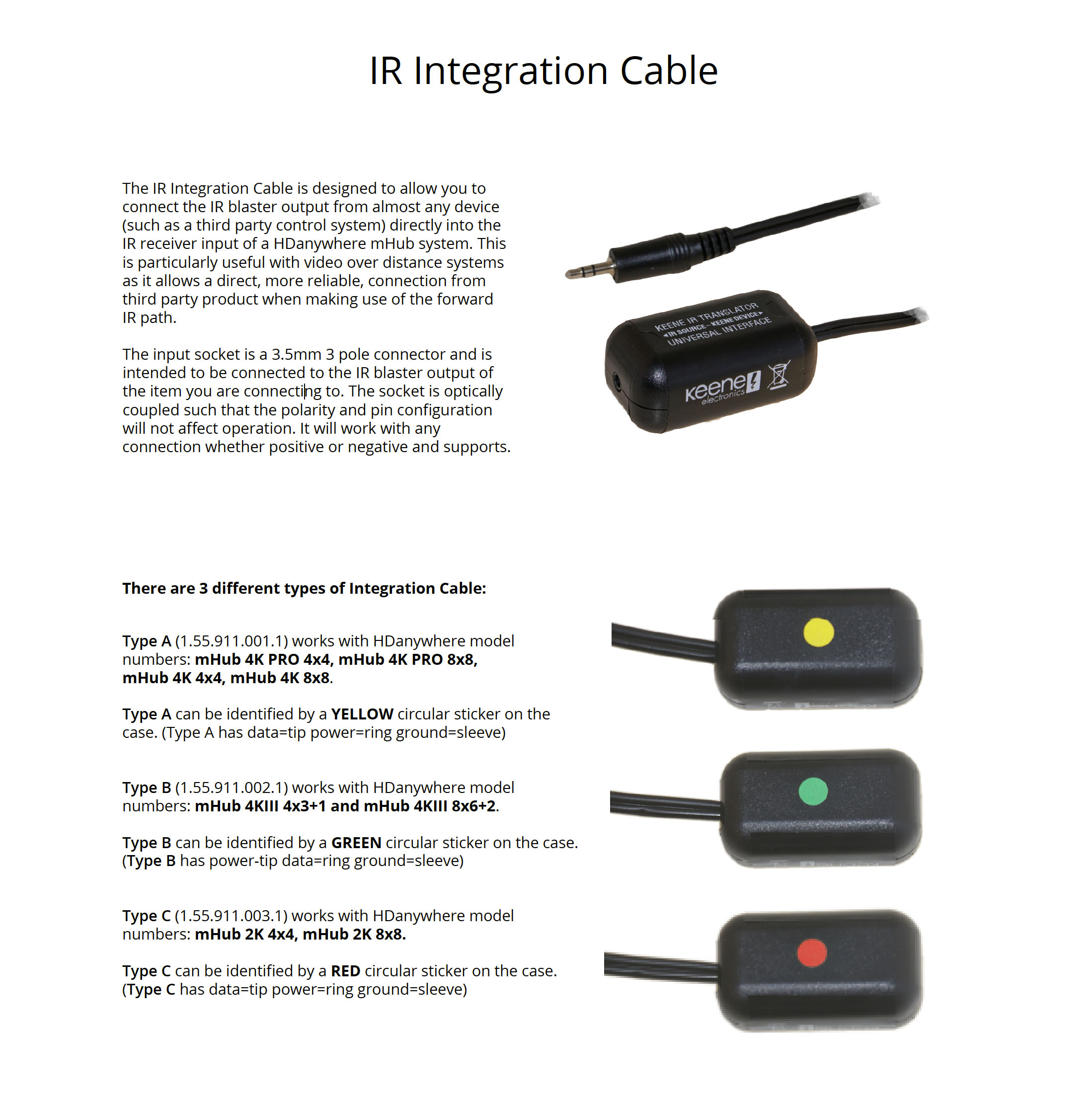 These can be purchased here: https://hdanywhere.com/products/accessories
These can be purchased here: https://hdanywhere.com/products/accessories
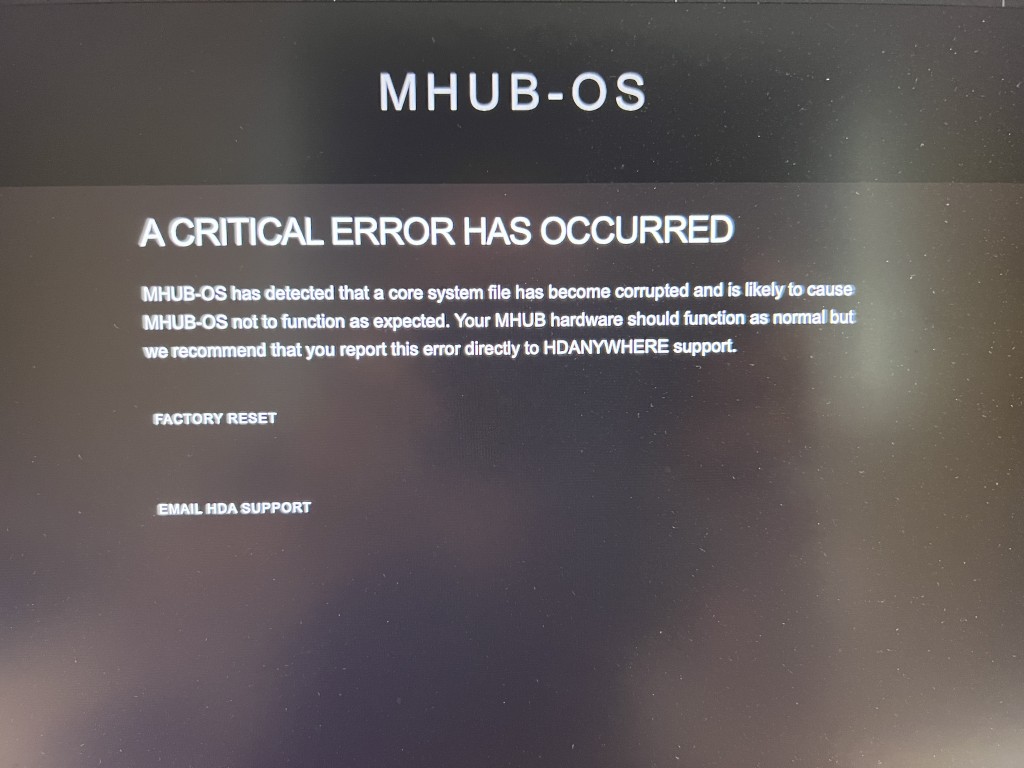
If you notice that uControl has stopped responding or your control system is no longer controlling your MHUB or HDA device and you see a screen similar to the one above when you visit MHUB-OS’ IP address then it is likely that a core file within MHUB has become corrupted or is missing.
Generally, this error affects systems that are on very early versions of MHUB-OS, usually versions 7 or lower (at the time of writing 8.15+ is considered stable). On systems that are already on 8+ it is possible to restore the system sucessfully from a backup but earlier ones will need a HDA technician to check your system to identify the damaged system file and repair it.
If your system is out of warranty then there is a charge of 1 unit for this repair. Please contact HDANYWHERE first to arrange a technician slot.
If you have a Sky Q 4K capable box and 4k capable displays this support post will guide you through getting the most out of your setup when using HDA systems.
Does my HDA system support Sky Q maximum output
You will need to confirm if your system is capable of passing the signal from your Sky box. Only the following systems are supported –
If your system isn’t listed above it may still support Sky Q at 4K, however, HDR will not be supported.
Configuring the MHUB System
You may need to do some minor configuration on the MHUB to get the most out of the Sky Q. To do this you will need to adjust the MHUB’s EDID settings for the input where the Sky is connected. Where possible we would recommend copying the EDID from your display. To configure EDID settings follow this guide – EDID Settings
Setting Sky Q to output 4K 10 bit
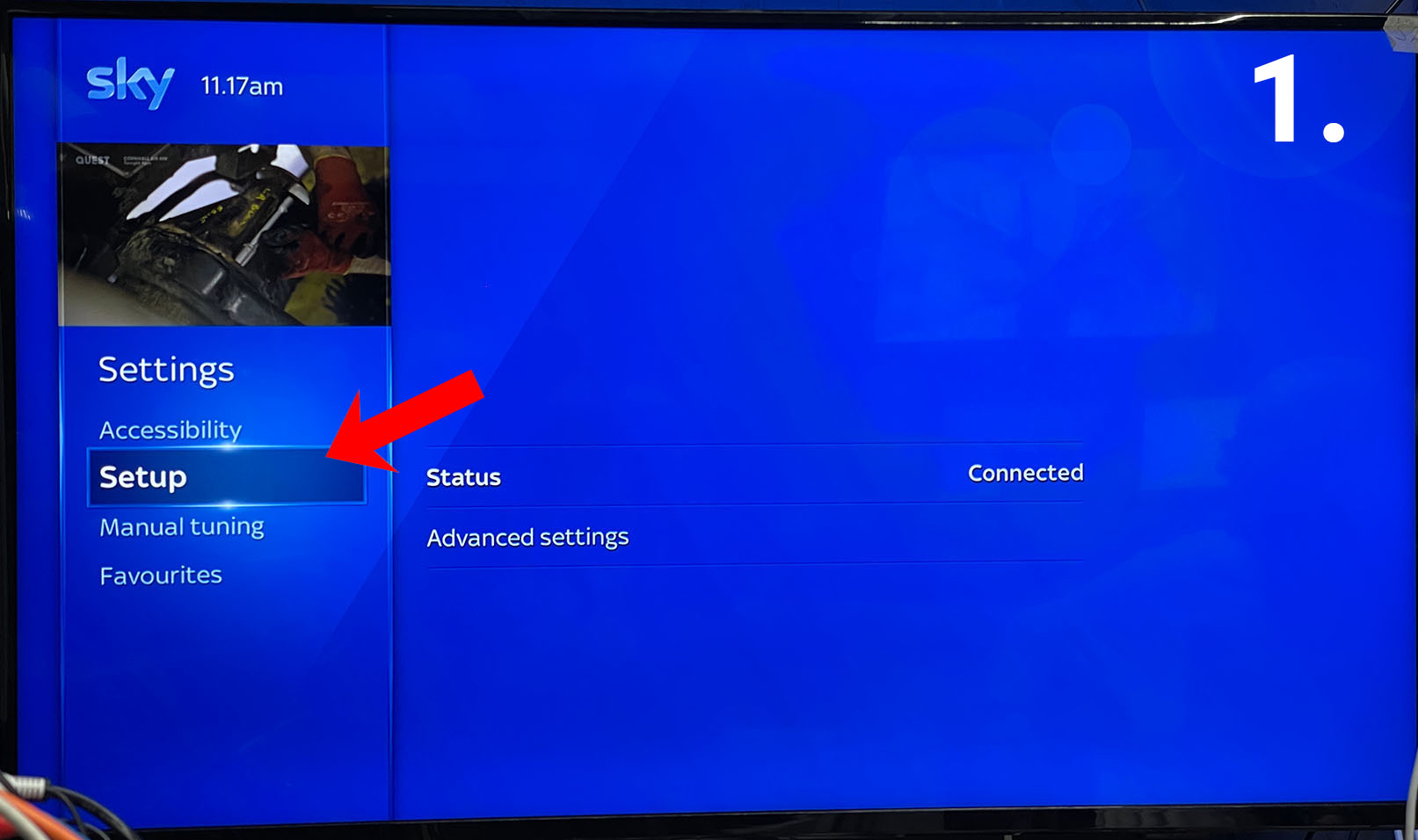
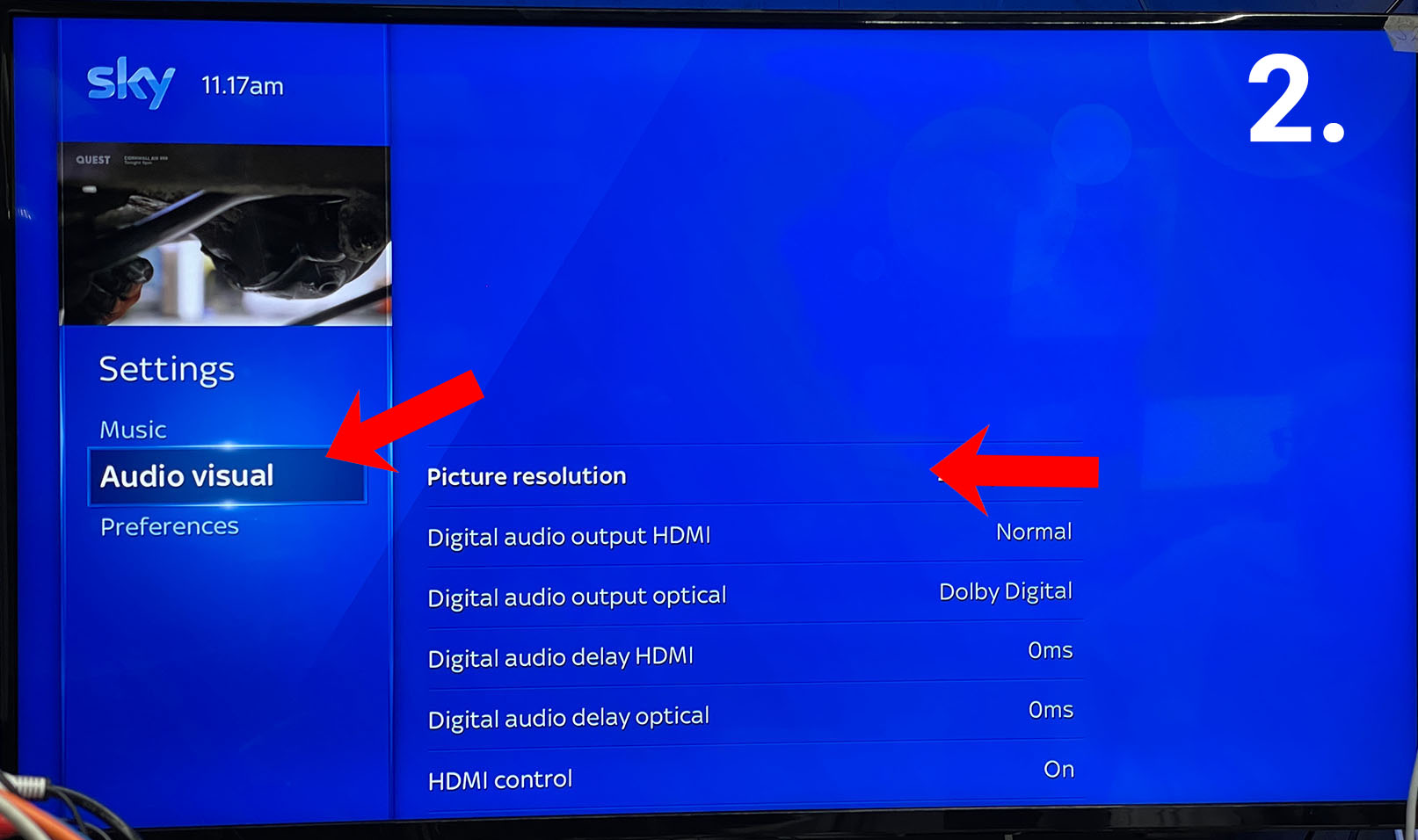
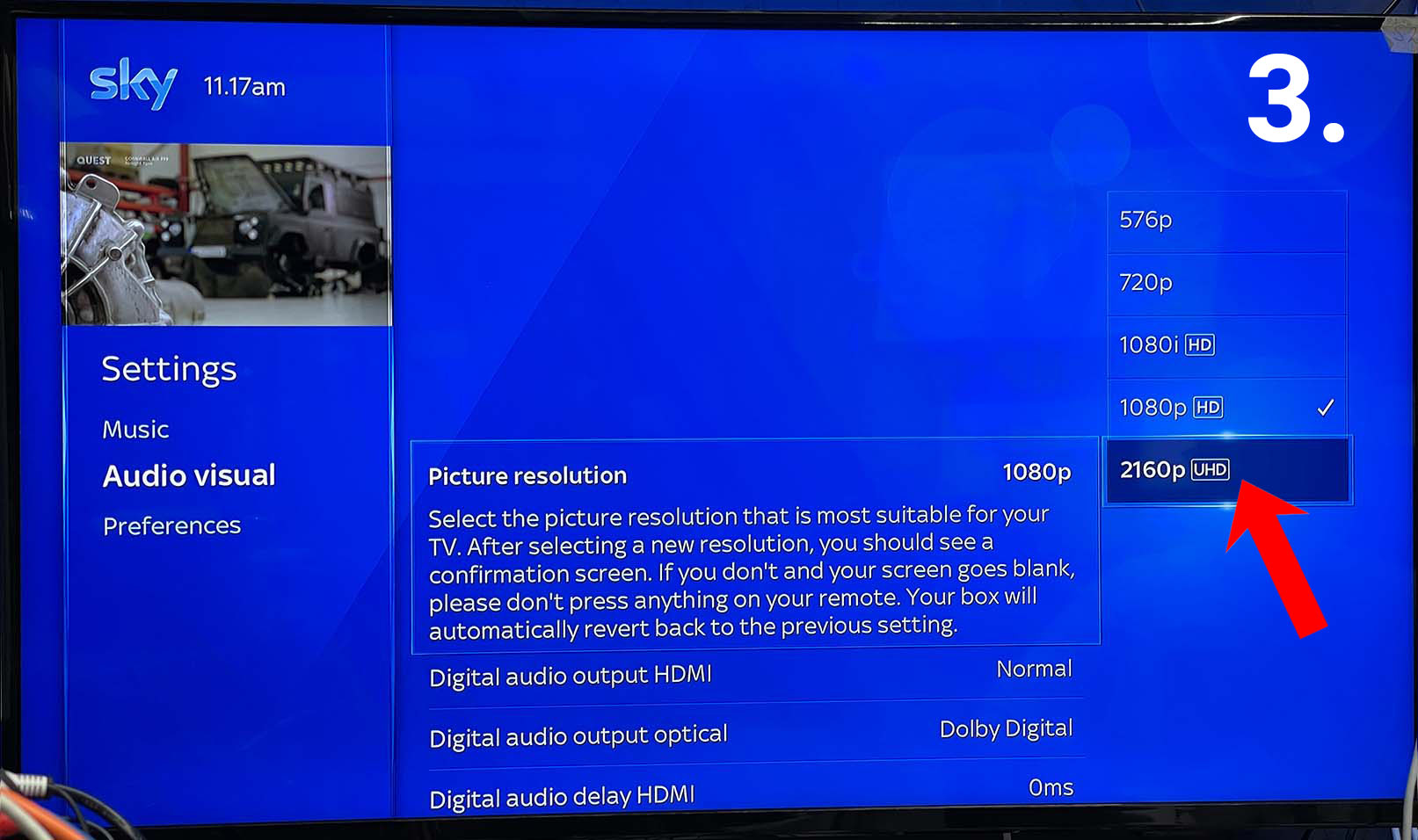
After setting the EDID on your MHUB you will then need to set the output of the Sky Q system. To do this Press the HOME button and scroll down to settings. Then in the settings menu scroll down to SETUP, then AUDIO VISUAL.
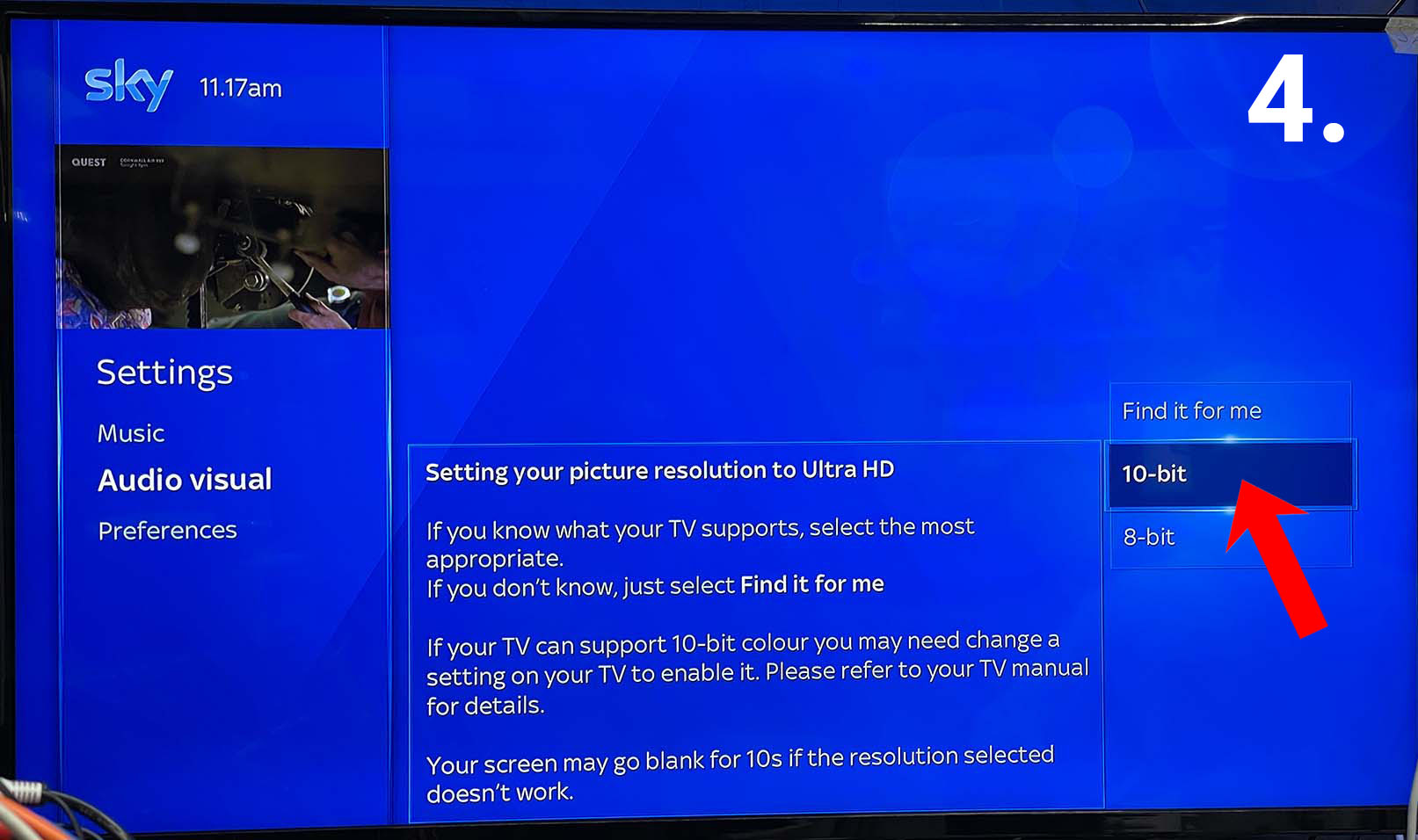
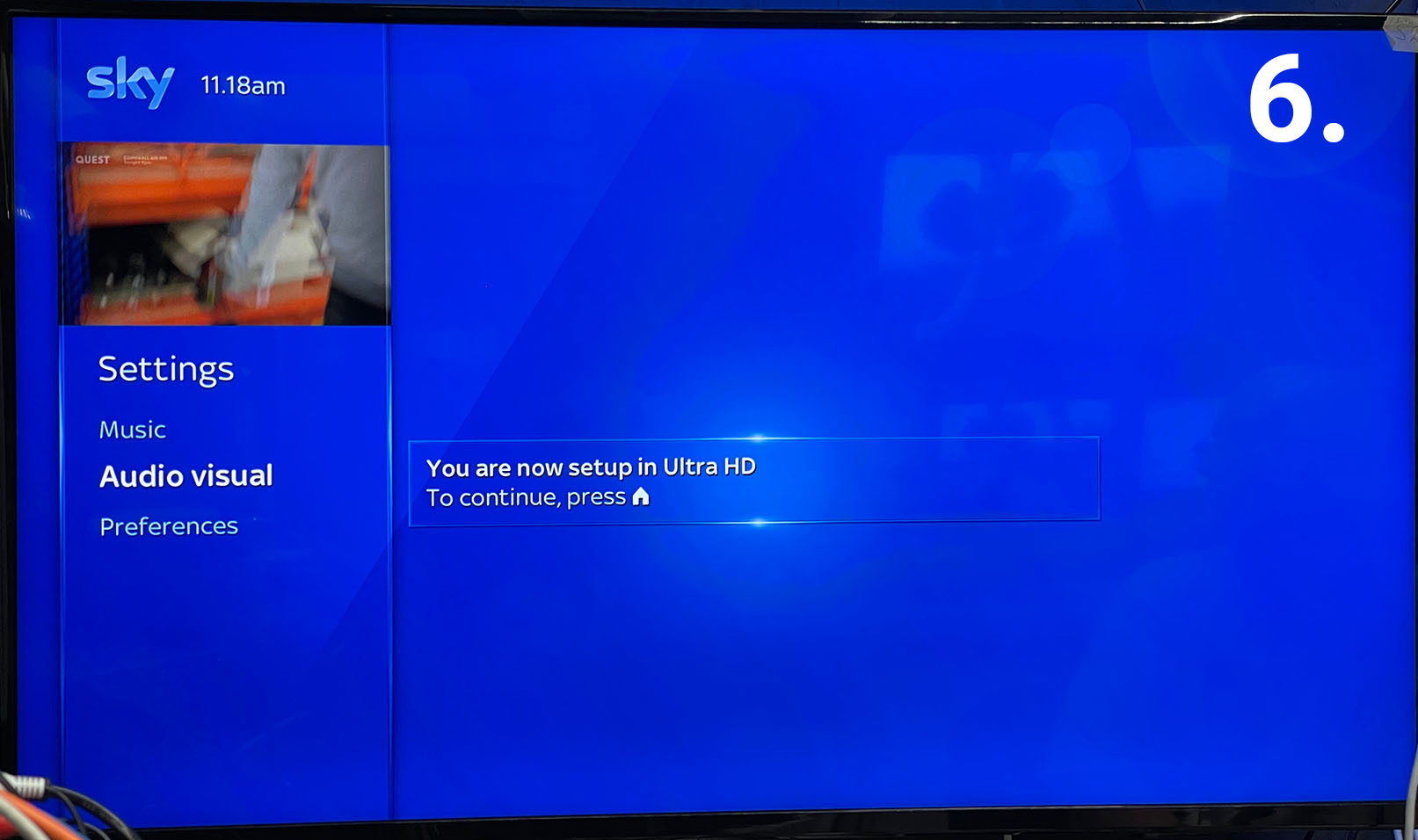
The first option will be Picture resolution, use the D-Pad and select 2160 [UHD]. You will then get onscreen instructions to select either 10-bit or 8-bit colour. Select 10-bit colour, then confirm everything is fine by following the onscreen instructions. You can also check out Sky’s guide here – Changing Resolution
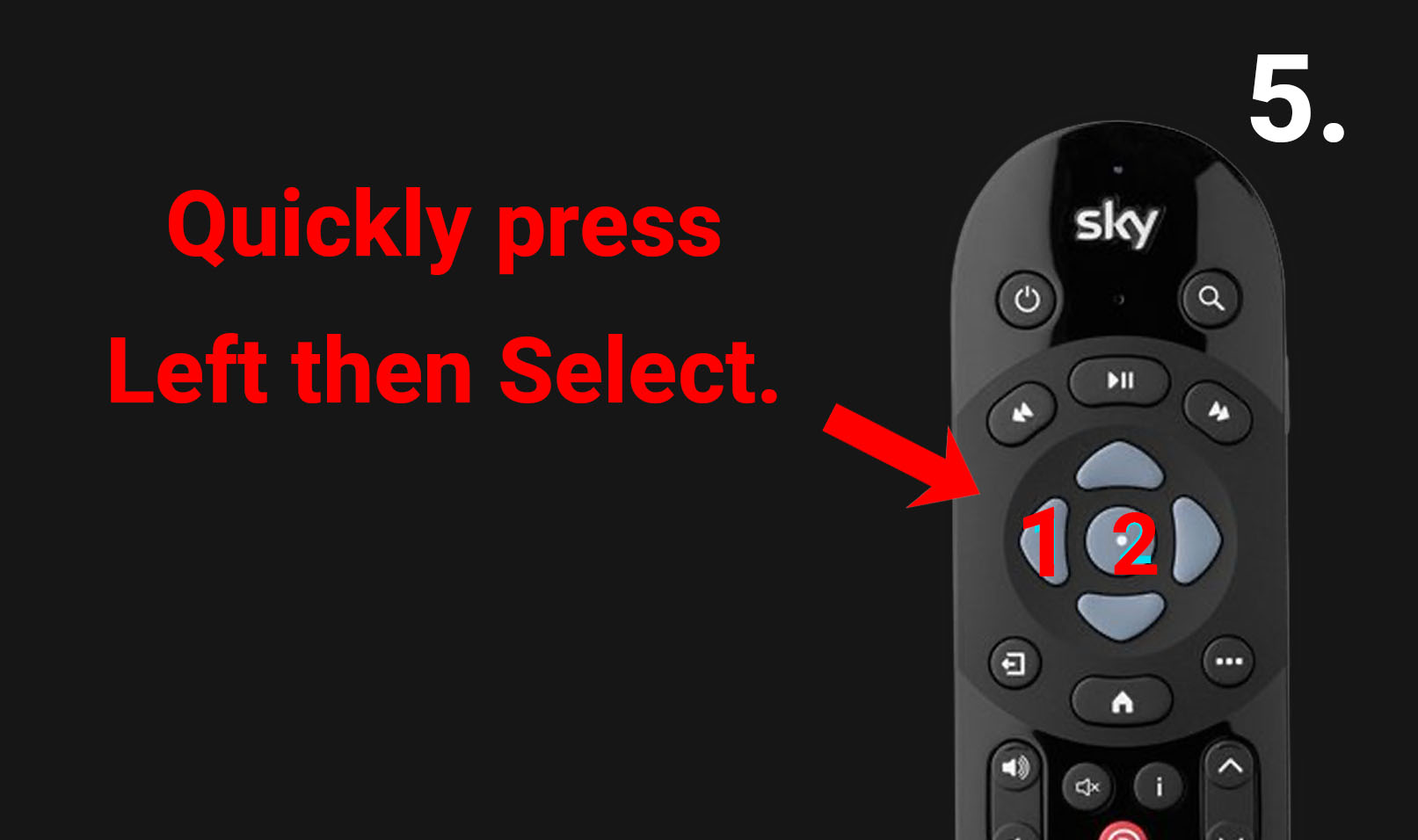
There is a timer to confirm the picture is fine, if it expires before you can confirm simply press LEFT and ENTER after selecting 10-bit colour whilst the screen is still black.
Setting Sky Q to output Dolby Atmos Audio
to get Dolby Atmos from your sky box you need to change the Audio settings. These are located in the same menu as the video settings above. Scroll down to DIGITAL AUDIO OUTPUT HDMI. The setting required is ‘Dolby Digital Plus’.
Please be aware if any display cannot handle a 4K output and decode Dolby Digital Plus you may get no video and audio. If this happens you may have to adjust these settings.

MHUB and XTND systems use IR passback to pass signals from your Sky remote back to the Sky Q box. By default, these remotes ship to customers with IR disabled. In order for your remote to work with your HDANYWHERE system you will need to change the mode of operation from Bluetooth to IR.
If you would like to change your Sky Q remote from Bluetooth to IR and vice versa just press 4 & 6 together AFTER you have paired the remote.

With any Apple device along with an MHUB or Zone Prossesor you can use Apple “Hey Siri” and our API to send commands to uControl/uOS to control virtually any display, source inputs plus lighting control.
Below you will find a step by step how-to guide.
If your MHUB is marked with “TPC” then it is capable of passing a HDR picture to your display. There are a number of reasons why HDR may not be fed through your HDA device. This support post aims to troubleshoot the most common reasons and how to resolve them.
Important: there are different versions of HDR, make sure your display supports the format your source is outputting!
There are multiple variants of HDR such as HLG, HDR10+ and Dolby Vision, please ensure your display supports the relevant HDR technology.
When connecting your HDR enabled source and display to a HDA system you may need to adjust some settings to get it to work.
HDMI Specification 2.1 or HDMI 2.1 is the most recent update of the HDMI specification (June 2021). The headline is that any source, display and everything in between must support HDMI 2.1 in order to take advantage of the higher video resolution support (8K up to 10K!) and faster refresh rates (4K up to 120fps and 8K at 60fps). If you have an older HDMI cable then it is unlikely that it will be able to handle the bandwidth that’s required for HDMI 2.1.
Answer
If your MHUB has been configured with a fixed IP address and you changed your network infrastructure then your MHUB may become unreachable by your new router.
With MHUB PRO models you can enable DHCP from the MENU button on the front panel by holding it down for 3 seconds. For MHUB 100A & MHUB U (4×1+1) 40 models you need to follow Guide 1, for MHUB U (4×3+1) 40 & (8×6+2) 40 models follow Guide 2 and for older MHUB U (micro USB on front) models use Guide 3.
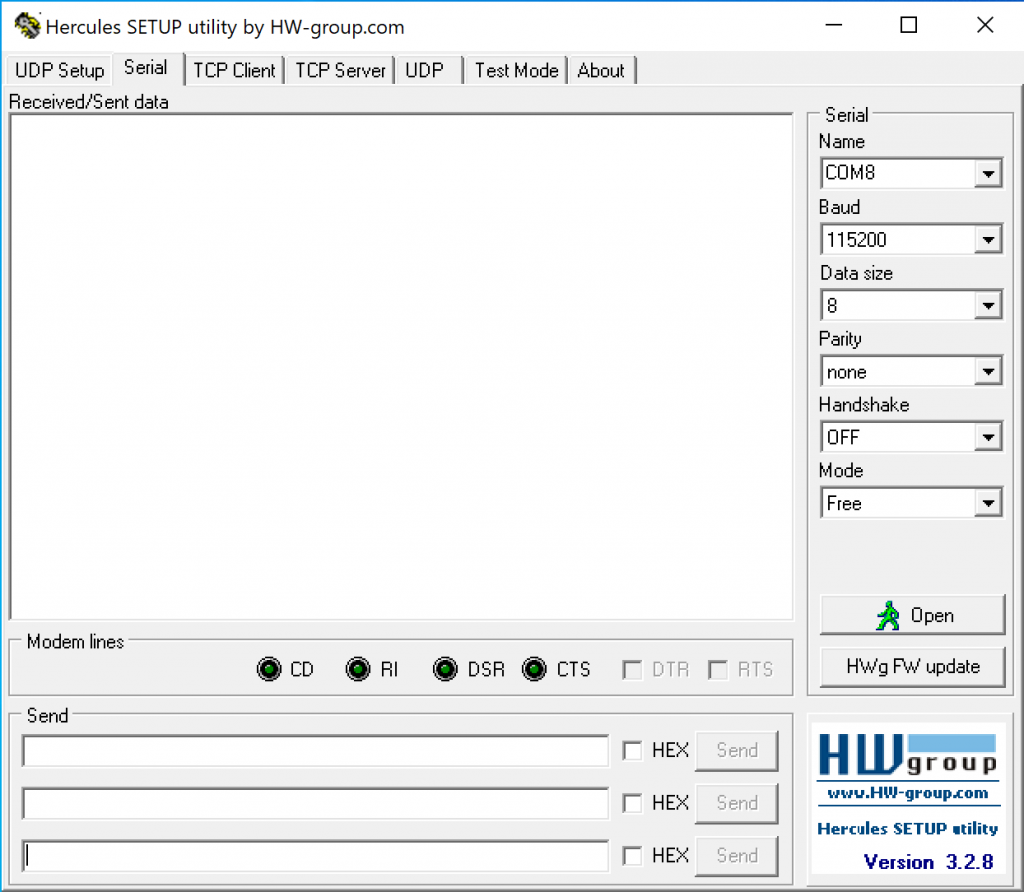
To reset DHCP on an MHUB (4×4, 6×6, 8+8×8) 100A you can either use the Hercules method which is included below, or you can hold down Output A on the front panel of the matrix for 10 seconds.
To reset an MHUB S (16+16×16) 100A press and hold button 1 for 10 seconds.
To reset to DHCP on an MHUB U (4×1+1) 40 you can press and hold the 2 front panel buttons for 10 seconds.
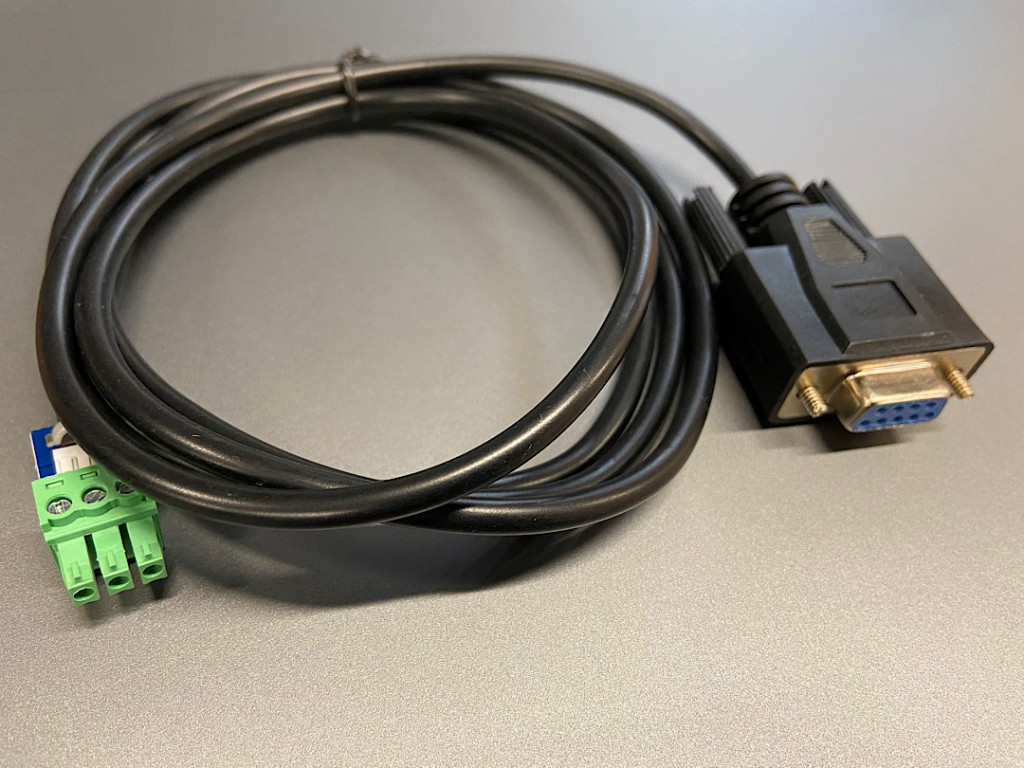
Serial to phoenix Cable
If your MHUB U has a micro USB port on the right hand side of the front panel then please follow these steps to reset your system. Using Hercules from the steps above, send the following command:

4K is a complicated subject matter. 4K isn’t one format, it’s an umbrella term for many combinations of resolutions, frame rates and colours. Talking about 4K in too generalised a way is dangerous. When I discuss 4K with anyone, in as non-patronising a way as possible to simplify and aid understanding, I refer to ‘i’ and ‘p’, (like 1080i and 1080p) but my ‘i’ and ‘p’ doesn’t mean interlaced and progressive, I mean first generation 4K and next-generation 4K, or in other words ‘interim’ and ‘proper’. P could also quite easily stand for ‘premium’.
This is my take on the two-speed world of 4K UHD devices at the moment. It may be labelled and marketed as 4K, it may even support HDCP 2.2 – but is it 4Ki or 4Kp?
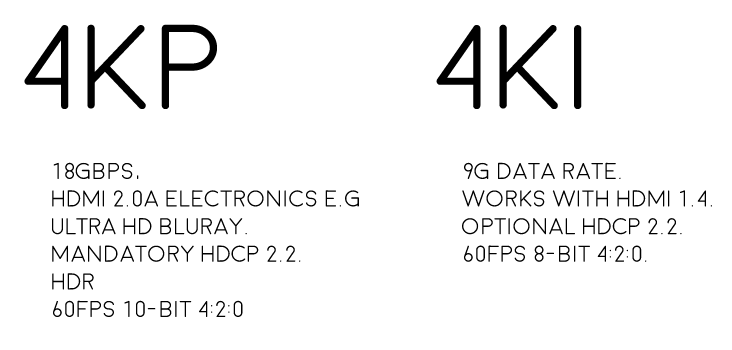
Proper 4K (4Kp) is next-generation HDMI 2.0 spec 4K, it’s what Ultra HD Blu-ray is and what premium 4K content will be. Ultra HD video refreshes at a smooth 60 frames per second in amazing 10-bit 4:2:0 colour (or if your display doesn’t support 10-bit) 8-bit 4:4:4 colour – basically hugely superior colours than what we have seen before over HDMI. 4Kp can also support HDR content and runs at very high 18Gbps data rates and, as a result, will require all new high-bandwidth HDMI 2.0a* spec electronics. 4Kp will also have HDCP 2.2 copy protection encrypting the content, which I’ll touch on later.
What is most important from integrator perspective is that single-cable HDBaseT DOES NOT carry 4Kp. It will only carry 4Ki because HDBaseT is max 10.2Gbps and 4Kp requires 18Gbps.
Most devices out there today labelled as ‘4K’ do not support 4Kp, they only support 4Ki. And by most, I mean over 95%. But this is improving, more and more displays are coming out now that support HDMI 2.0 and have a 10-bit panel. Ultra HD Blu-ray is likely going to be the first 4Kp source device we see. So what is 4Ki?
Interim 4K (4Ki) runs at a 9G data rate (half that of 4Kp) and doesn’t necessarily require new HDMI 2.0 electronics. It will work on older HDMI 1.4 spec devices. It may or may not have HDCP 2.2 encryption. And colour-wise if it’s running at 60fps it can only be the lesser 8-bit 4:2:0 quarter colours. For 4:4:4 a lower 30fps refresh rate is used instead and smooth panning shots are sacrificed. 10-bit colour content just flatly isn’t supported full stop.
What is so important about colours?
4Kp/60 and 4Ki/60 if watched in black and white are EXACTLY the same. The same number of pixels wide and high, refreshing at 60 times per second, with the same pixel data for light and dark contrast. So no difference in sharpness, motion or contrast.
Where they differ is with a compromise on colour. The resolution of the colour layer that gets laid over the top of the black and white frame when combined to make the final image. With 8-bit 4:4:4 each pixel can choose a colour, whereas with 4:2:0 every 4 pixels have to share a single colour choice. Even though a cluster 4 pixels are sharing the same colour, the overlay of the black and white image creates different shades. The resulting 4:2:0 video content, although a lesser quality, is not as substantially different from 4:4:4 as you might think. In fact, when viewing the two from a couple of metres away, the human eye really struggles to differentiate them.
OK, now that you’re thinking is in tune with there being two primary types of 4K material and you understand the difference between the two.
You also NEED to be aware of a couple of associated meteors about to hit the AV side of the CI industry that relate to the facilitation of working 4K HDMI systems. (Remember HDMI is a system, NOT a cable) One is called ‘HDMI 2.0’ and the other is ‘HDCP 2.2’. The two meteors should really hit simultaneously, but not necessarily.
Meteor 1: HDMI 2.0 is the new twice-as-big digital pipeline to accommodate the higher data rates of proper 4K jumping from 9G to 18G bandwidth. Its not a new cable design, its new electronics at either end of the existing (short) HDMI cable we use. So that is new source devices (Ultra HD Blu-ray players for example) and new displays (10-bit SUHD Samsung panels for example). However for longish cable distances, say 3m and over, current passive cables may struggle with the higher data rates. We’ll begin to see some new breeds of HDMI cable types appear to solve this. Some will use integrated active/powered boosting chips and others are likely to be a copper/fibre hybrid cable. Existing long length HDMI cables, that may be buried in walls for example will be able to be utilised through the use of restorative dongles that can be placed at the start and end of the cable run. I expect to see this HDMI cable rescue/fixer market grow over the coming years sharply.
Meteor 2: HDCP 2.2 is the new 128 bit encryption designed to secure 4K content from being pirated. It is the same level of security encryption as credit card issuers use for internet transactions. Unless every device in the signal path is HDCP 2.2-capable, theoretically the content will not be shown. Source, matrix, AVR, balun, display, projector must all support HDCP 2.2. One weak link means black screen. The thing about HDCP 2.2 support is that it’s essential to ensure the best chance of displaying 4K content from your favourite content providers (i.e Hollywood and sports). The HDCP 2.2 event horizon will largely be determined by the release of Ultra-HD 4K Blu-ray and 4K content being delivered via our set-top-boxes.
Conclusion
In summary, until more next-gen 4Kp source devices, like Ultra HD Blu-ray, set-top-boxes, and media players are released we live in a kind of interim 4K limbo land, a phoney, interim 4K world with no proper, premium 4K content to enjoy. In addition to this, more displays with HDMI 2.0, HDCP 2.2 and 10-bit panels need to be released so that users can take full advantage of the advancements in picture quality offered by 4Kp. Month-on-month this situation improves.
From an integrator perspective, quite rightly there is a lot of emphasis currently on HDCP 2.2 support within matrixes. But even when HDCP 2.2 compliant, single-cable HDBaseT is a bottleneck in many video distribution systems, which will result in premium 4K content video quality being downgraded when distributed. There is a quality compromise currently in order to deliver a distributed solution over a single network cable.
SIDELINE RED HERRING: What about 4K streaming like Netflix?
Well it’s not 4Kp and it’s not 4Ki… It’s dynamically compressed, streamed 4K content using AVC H.264 and HEVC H.265 codecs with varying quality from home to home according primarily to the speed and quality of their network. For the purposes of this article, I am talking about uncompressed 4K content.
More info here: http://www.dailytech.com/Netflix+to+Stream+House+of+Cards+in+4K+via+HEVC+H265+Compression/article33962.htm