If your HDA device has uControl, you are able to setup Sequences which allow you to combine commands together to trigger a response from the system. This can be useful for scheduling certain actions like switching on/off a rooms devces at the push of a button.
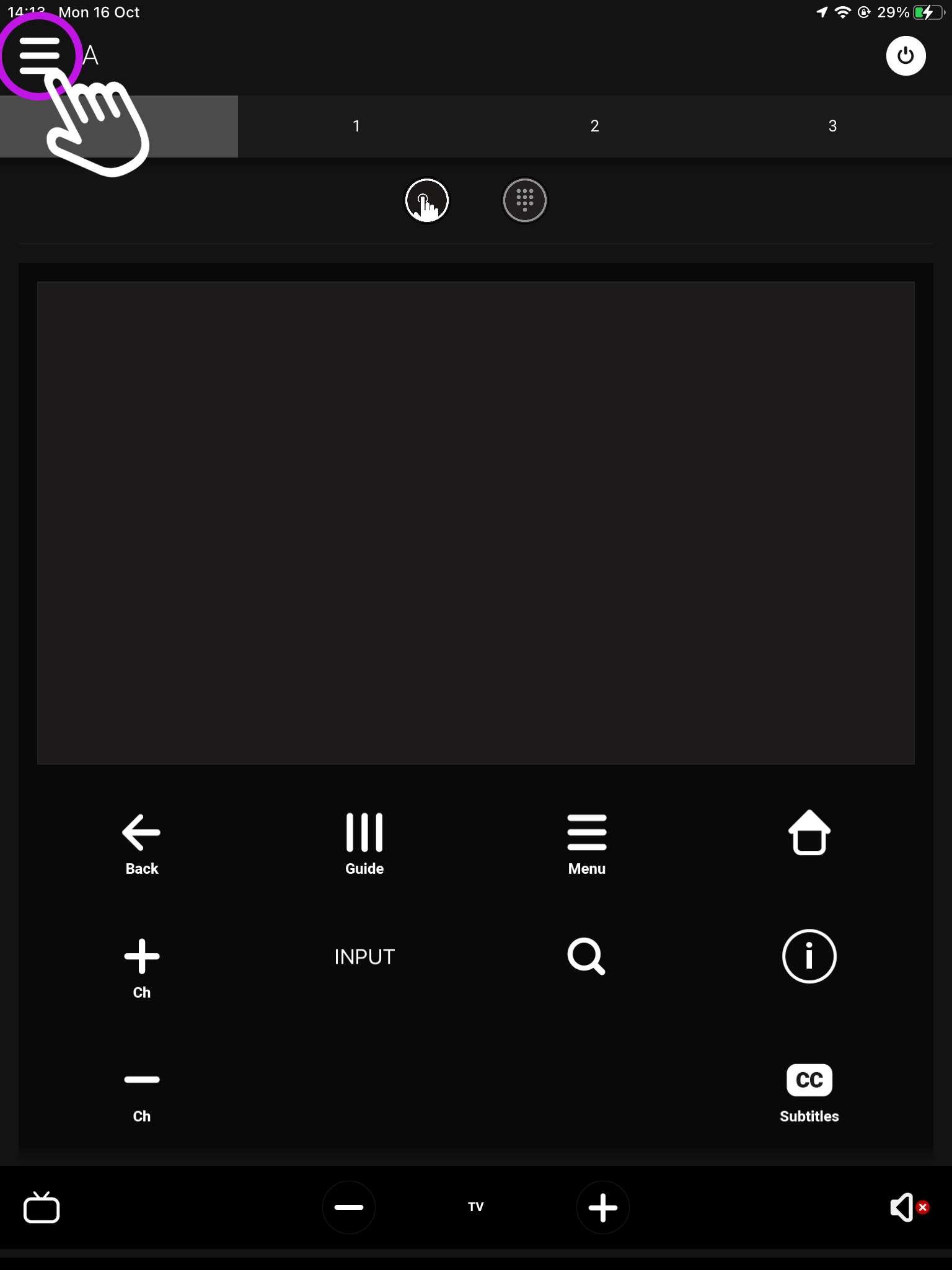
From the main screen navigate to the menu in the top left.
Open uControl
What you see on the main screen may differ, however, the three lined menu bar will still be there.
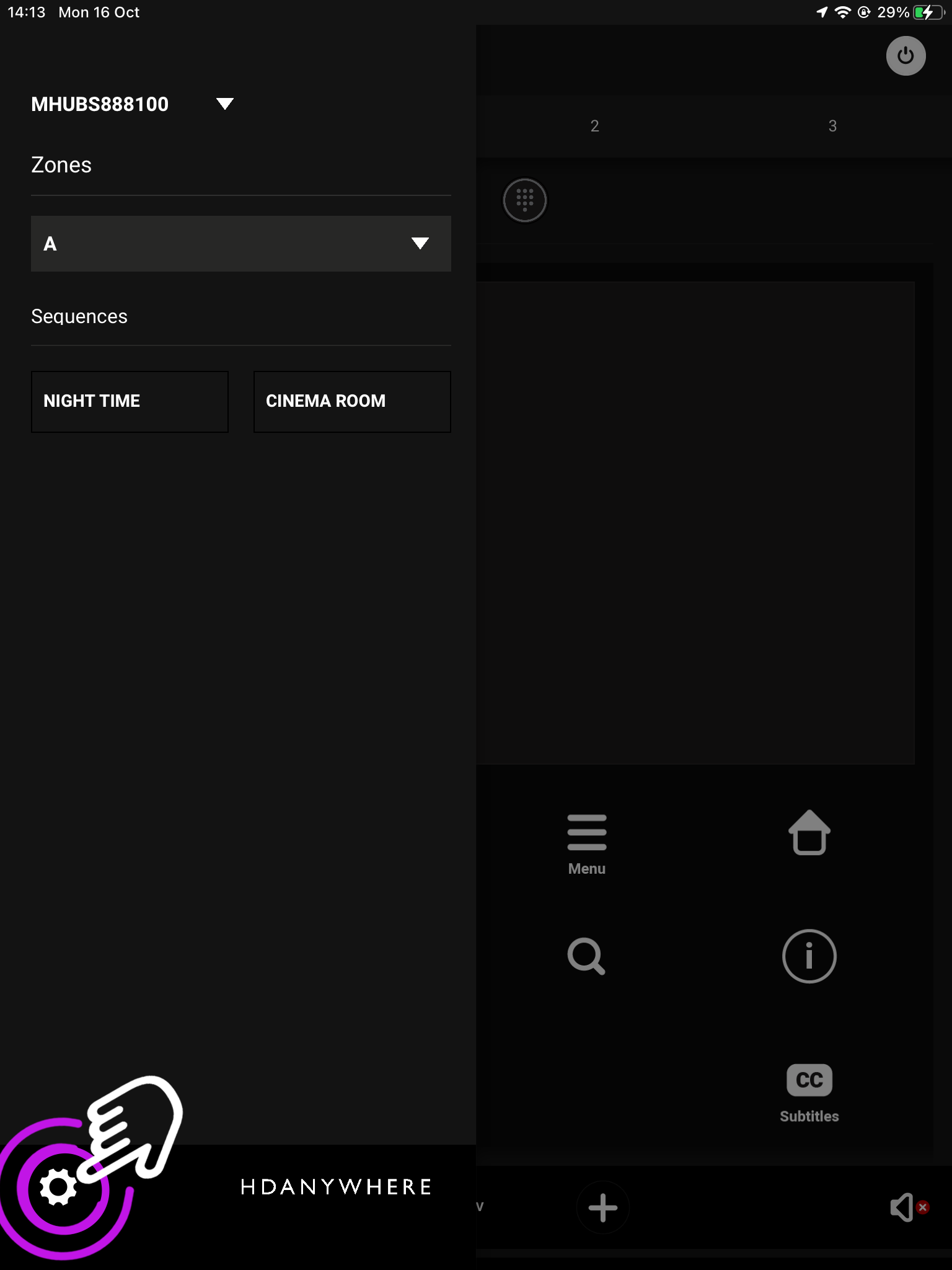
2. Navigate to your settings
Look for the settings icon located in the bottom left corner.
Open uControl
Settings
The icon may vary depending on your mobile devices size, although it will still be in the bottom left corner.
3. Access System
From here press “Access System”.
Open uControl
Settings
Access System
This is your device page which displays your units model and IP address.
4. Sequences
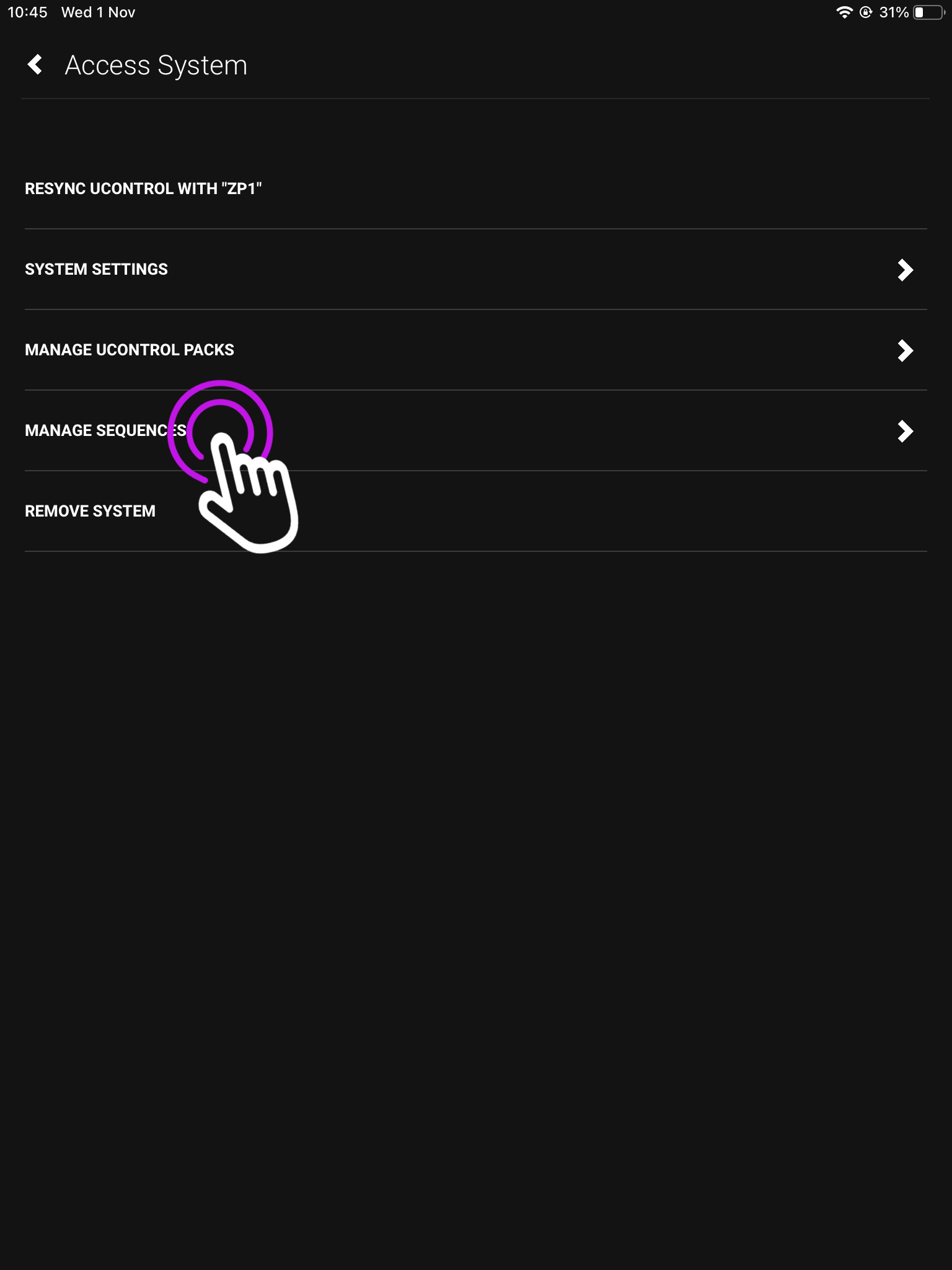
In this menu press “Manage Sequences”.
Open uControl
Settings
Access System
Sequences
From this page you can also manage uControl IR/IP packs.
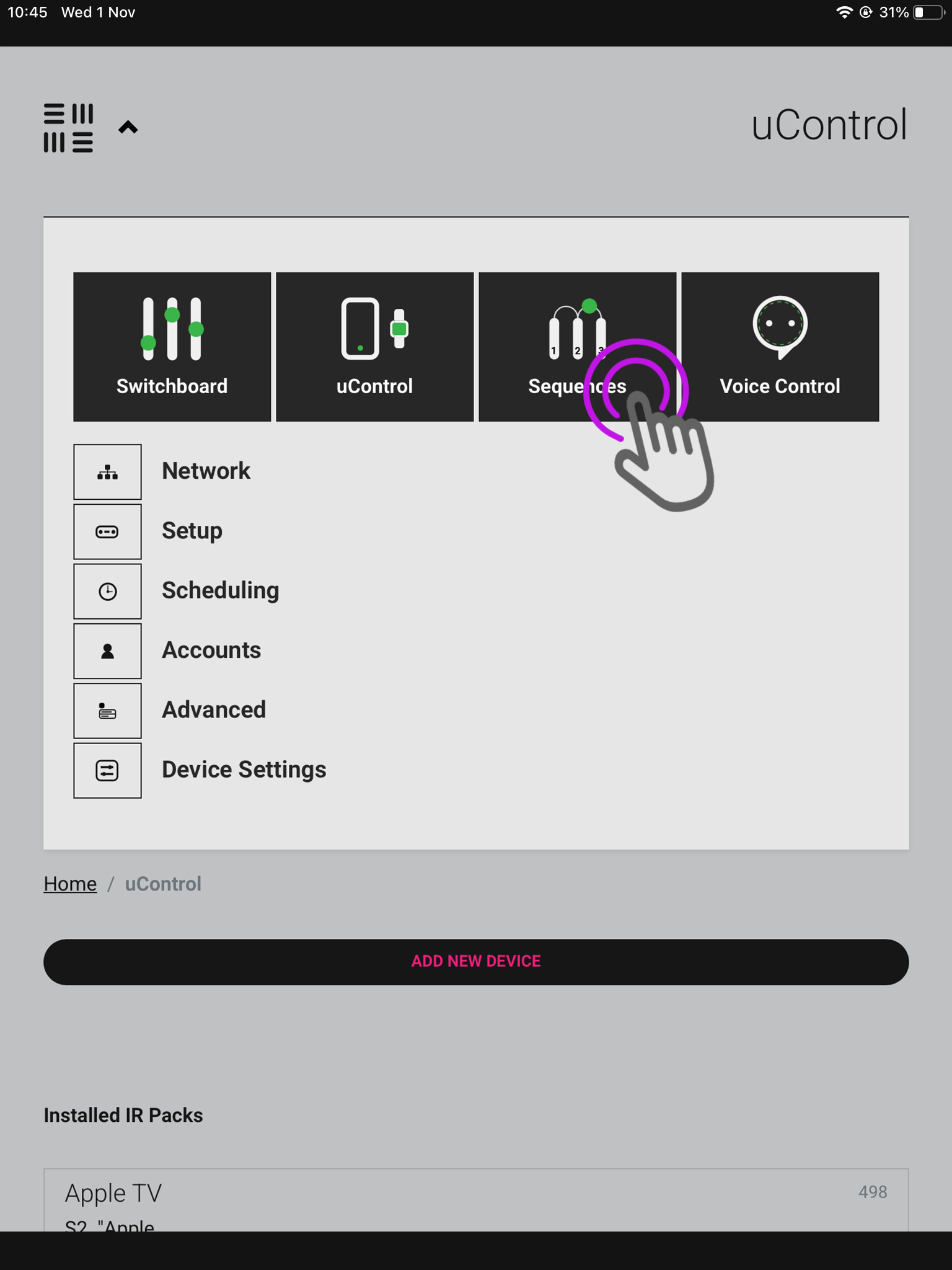
5. webUI
The webUI can also be easily accessed by typing you devices IP address into a website URL.
Open uControl
Settings
Access System
Sequences
webUI
You will be taken to the uOS home page, open the menu in the top left and select “Sequences”.
6. Add new Sequence
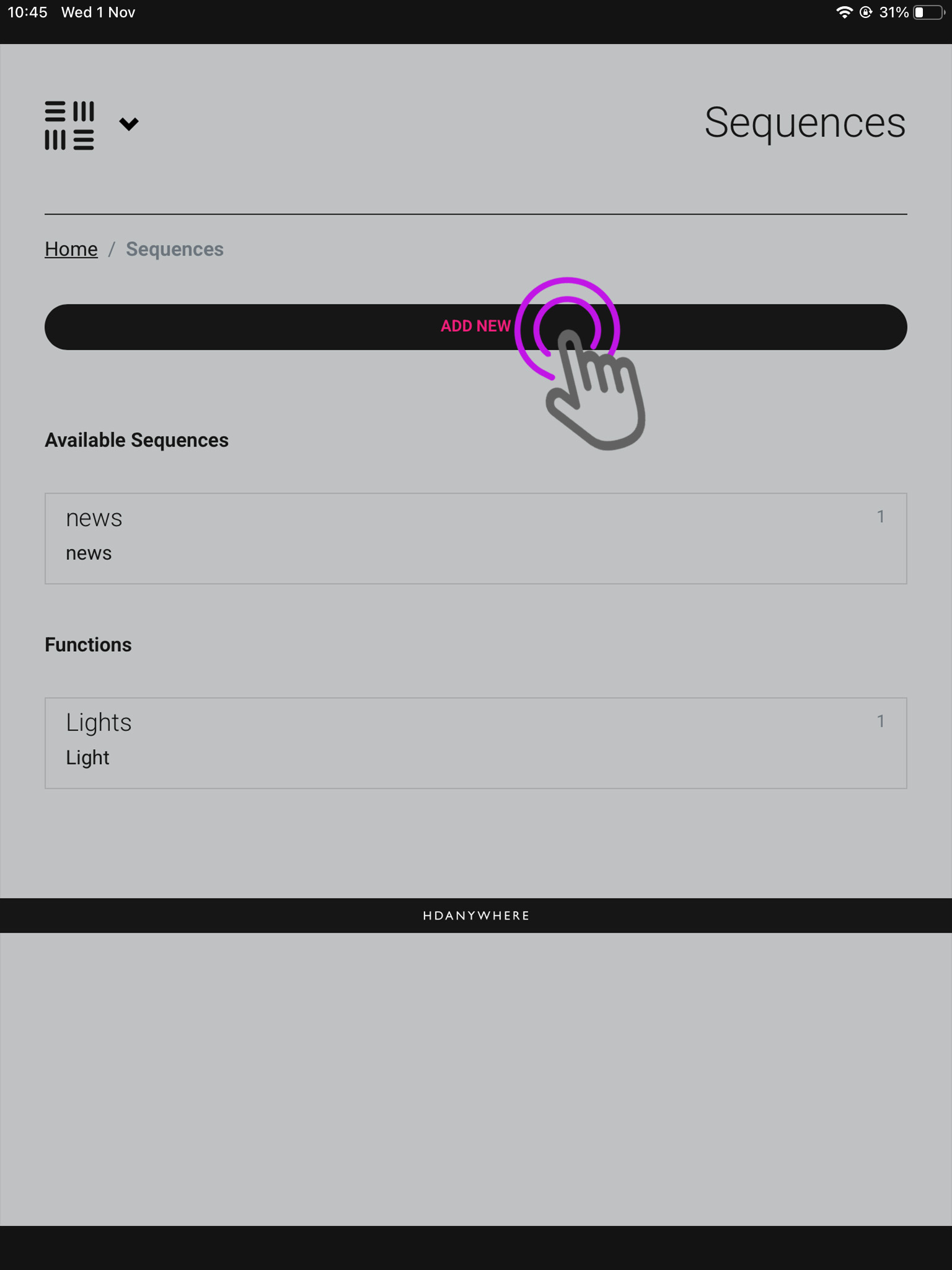
We are now in the sequences page where you can see your available sequences, and current functions. Press “Add New”.
Open uControl
Settings
Access System
Sequences
webUI
Add Sequence
A pop-up will appear asking if you’re creating a Function or Sequence, choose Sequence.
7. Input details
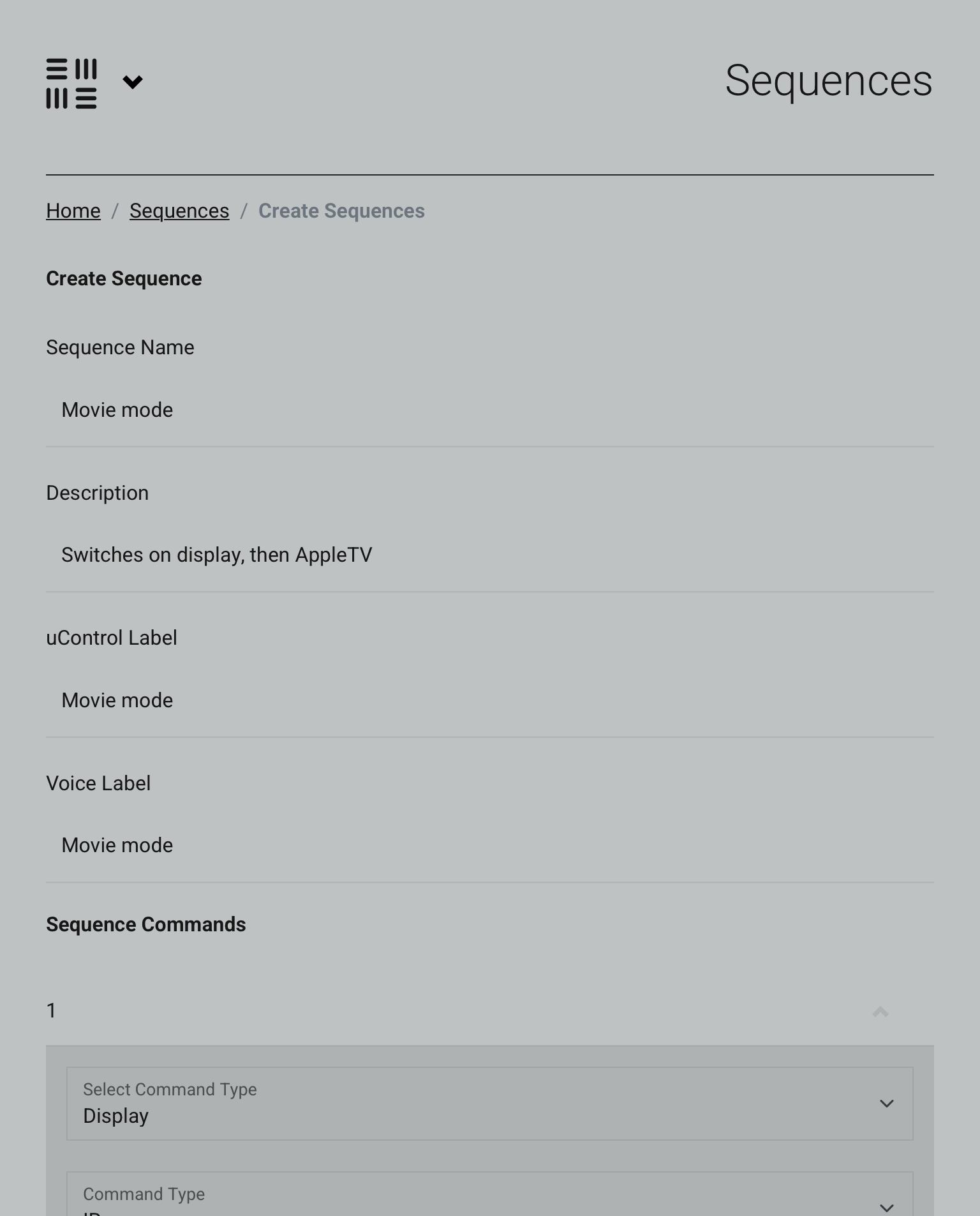
Now we need to input the details of your Sequence.
Open uControl
Settings
Access System
Sequences
webUI
Add Sequence
Make sure to label it so its clear what your sequence performs when you execute it.
8a. Adding your command(s)
We have the description of our Sequence, but now need to add the commands.
IP address
webUI
Add new Sequence
Input details
Adding your command(s)
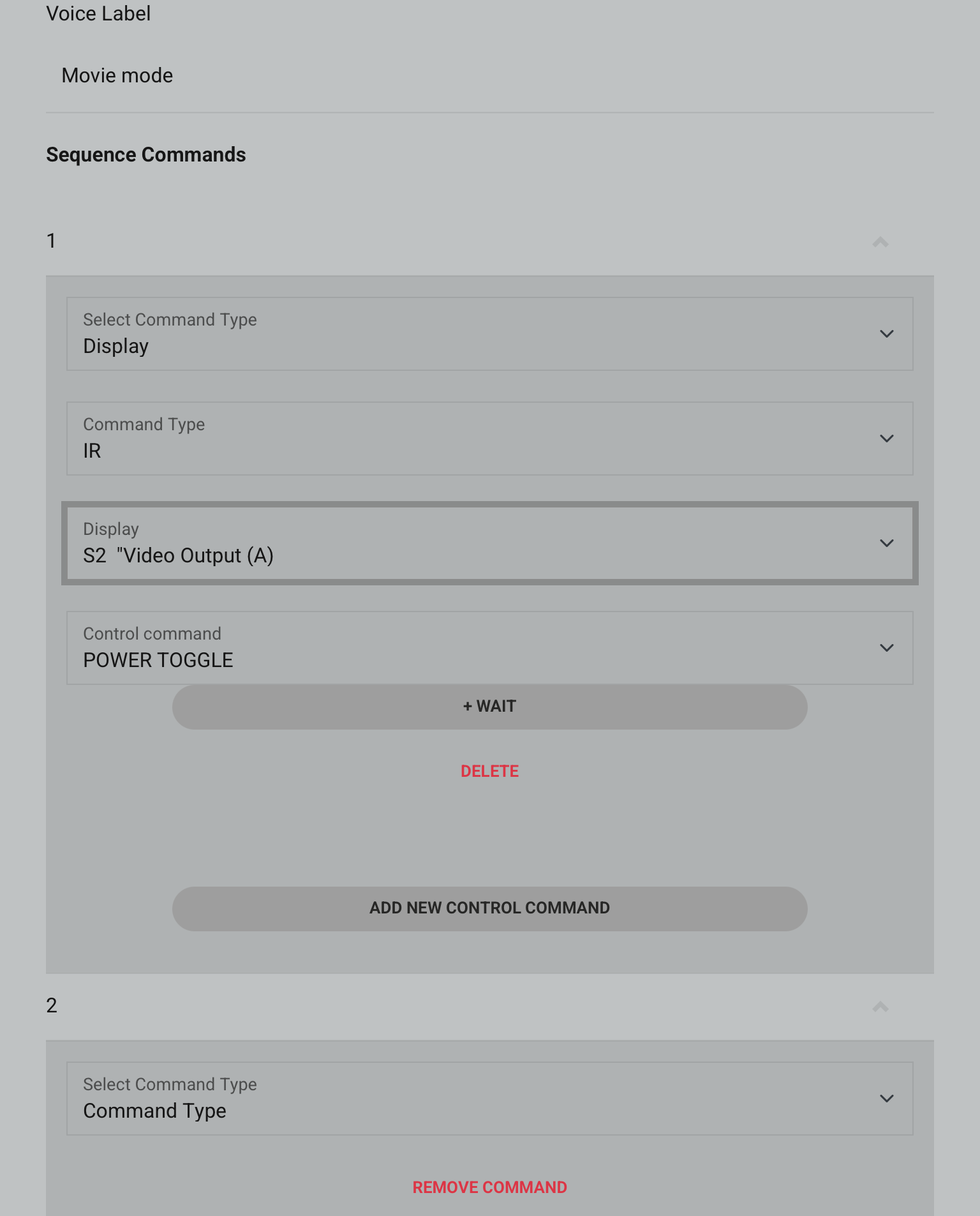
This first command is to switch the TV on or off, depending on the condition you set (True/False).
8b. Adding your command(s)
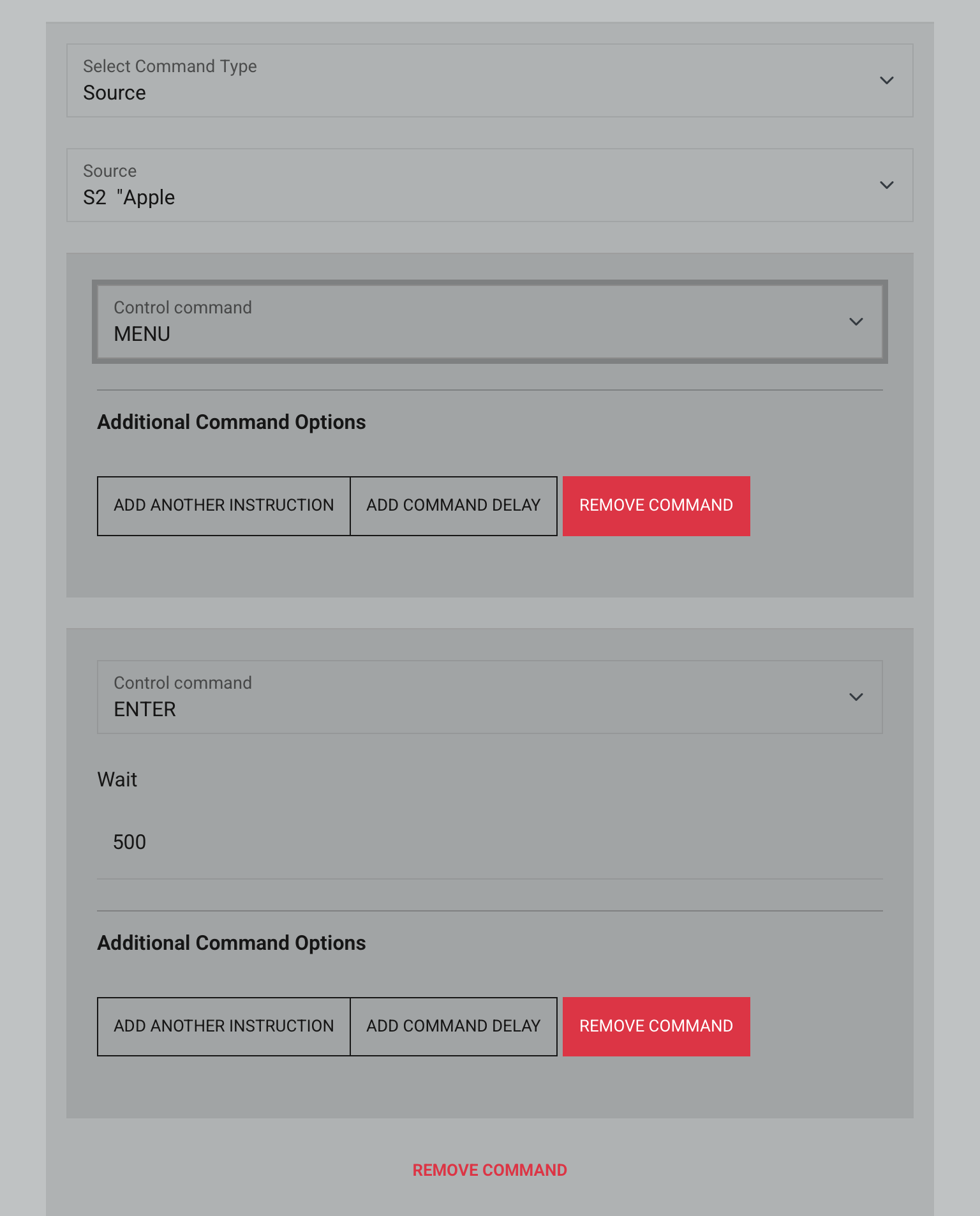
The next command speaks to the source device AppleTV by firstly going to the main menu. From here the next action command is “Enter”, which will open up AppleTV movies as it is the first icon in the menu. It also has a half a second delay before the second action is executed.
IP address
webUI
Add new Sequence
Input details
Adding your command(s)
There are plenty of commands to choose from and you can get quite creative.
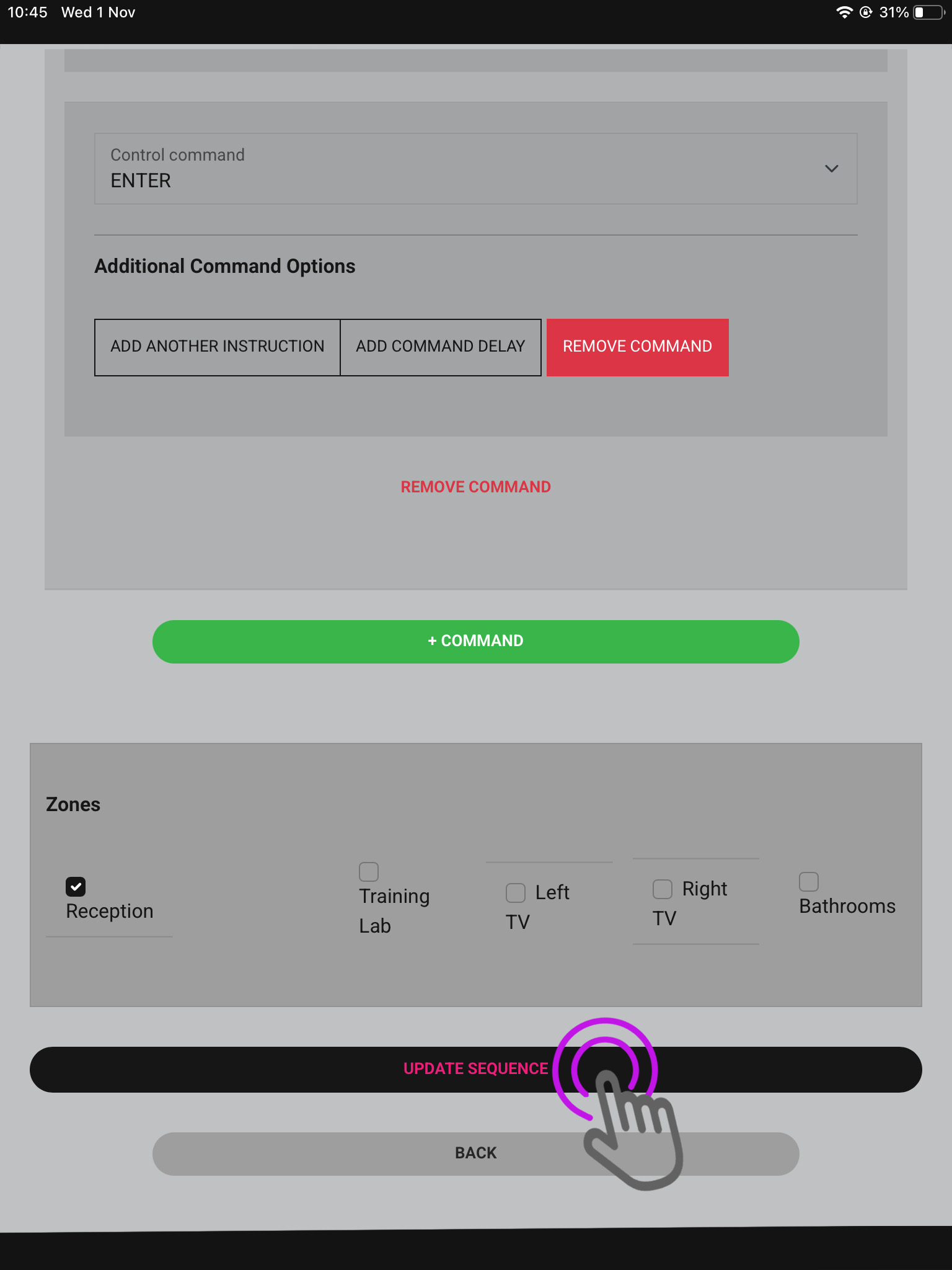
9. Zone selection
Certain rooms won’t require sequences to be present in them as the devices you’re controlling are in another room, so select which Sequences are required where appropriate.
IP address
webUI
Add new Sequence
Input details
Adding your command(s)
Zones
There are plenty of commands to choose from and you can get quite creative. Once finished press Update Sequence.
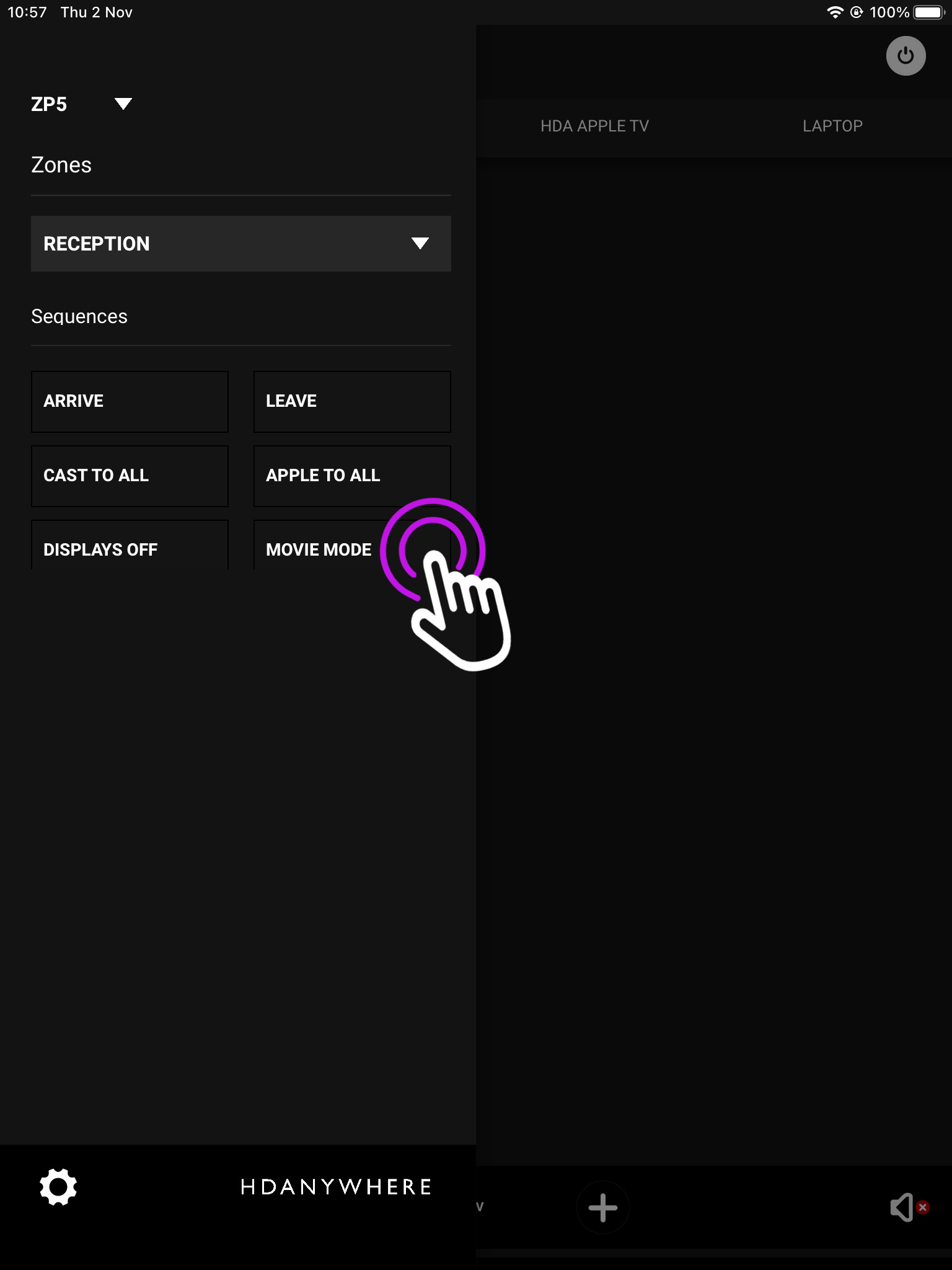
10. Activating your sequence
Open the menu in the top left and you will see your available Sequences.
IP address
webUI
Add new Sequence
Input details
Adding your command(s)
Zones
Activating Sequence
You may have only selected a certain zone for your Sequence to be available in, to chnage between zones press the downward arrow and you can switch between them.
Using a Rithum Switch along with an MHUB or Zone Prossesor you can use the device and uControl to execute sequences in uControl/uOS to control your home automation.
Using an Elgato Stream Deck along with an MHUB or Zone Prossesor you can use the Elgato device and our API to send commands to uControl/uOS to control virtually any display, source inputs and lighting control.
Your HDA device will be supplied with the latest stable software version already installed. To access the latest features or maintain your system, it is recommended that you perform periodic updates to the OS. This process must be done manually as we do not push updates to systems automatically. Ensure that your system has access to a good internet connection and that power to your HDA device is stable during the process.
Once you have typed in your IP address, press “Continue”.
4. Updating your device
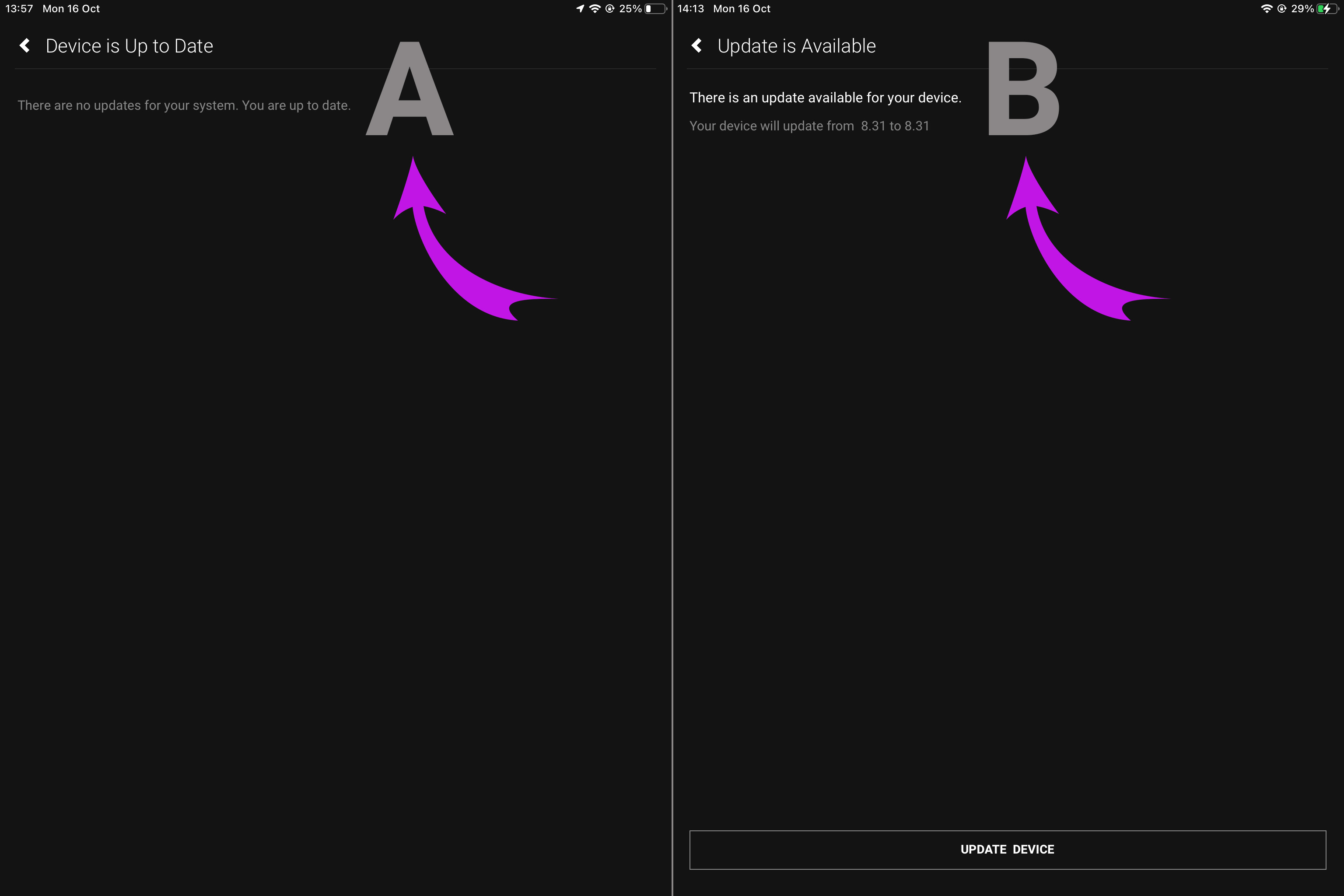
A. If there is an available update press “Update Device”. B. If your device is already up to date, exit this page.
Open uControl
Update
Enter IP Address
Update Device
If your HDA device has an issue that prompted you to update, but it is already up to date please contact support.
5. Terms and Conditions
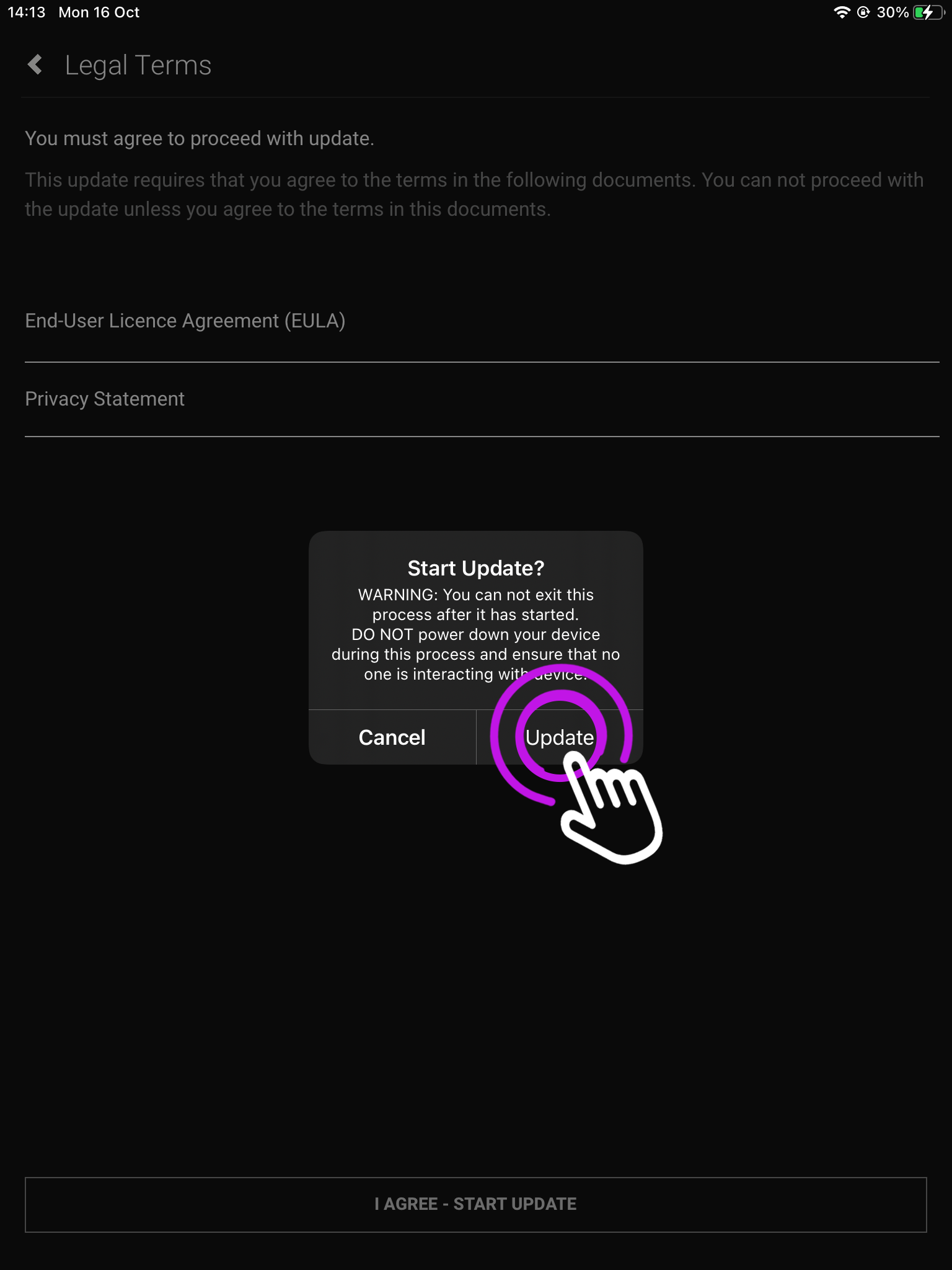
To proceed accept the End User Licence Agreement (EULA) and Privacy Statement.
Open uControl
Update
Enter IP Address
Update Device
Legal Terms
For more information click on the terms.
6. Update begins
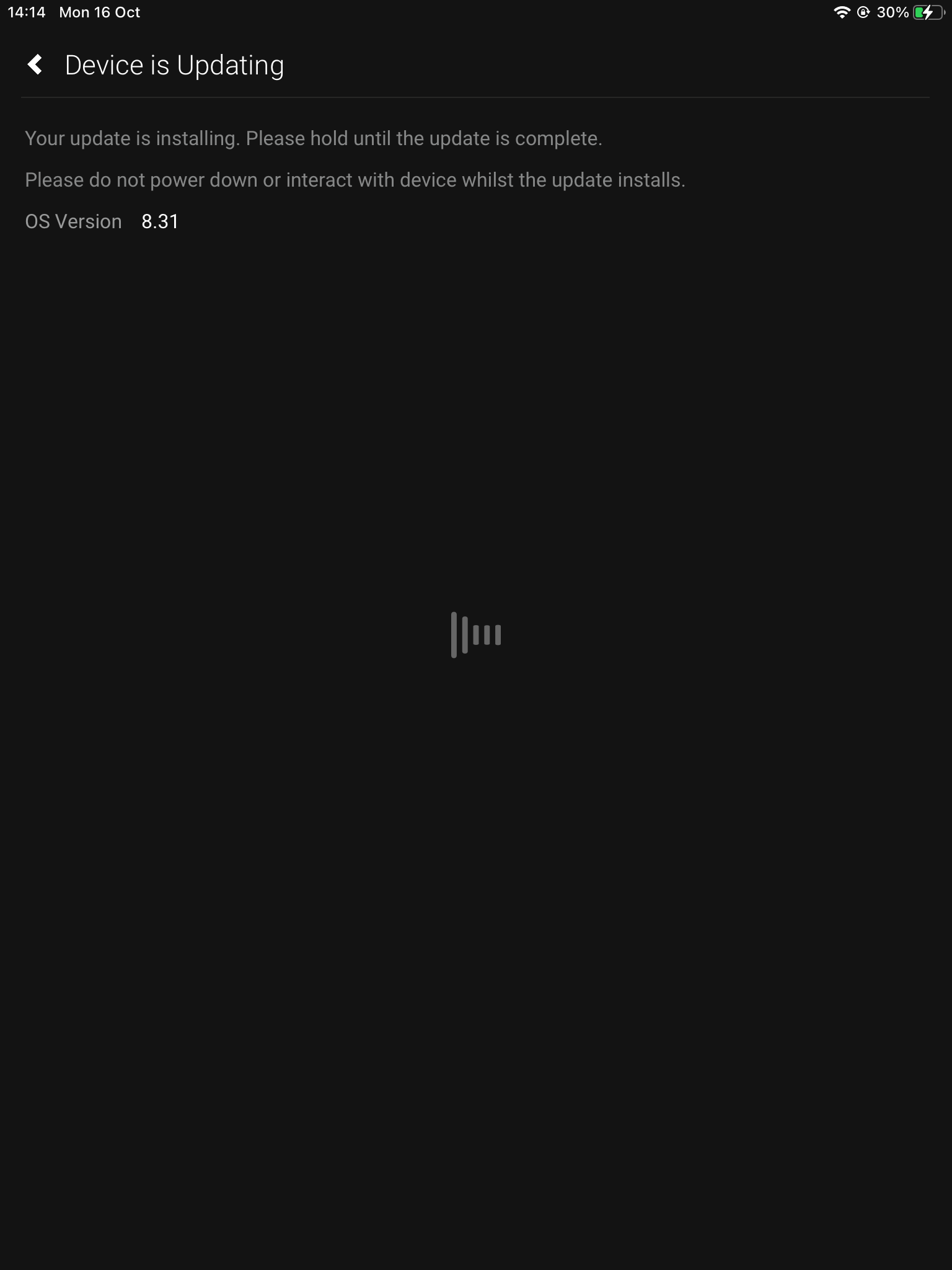
This process can take up to 5 minutes, however, depending on your network it could be longer.
Open uControl
Update
Enter IP Address
Update Device
Legal Terms
Downloading
Please do not switch off your HDA device whilst updating.
7. Update completed
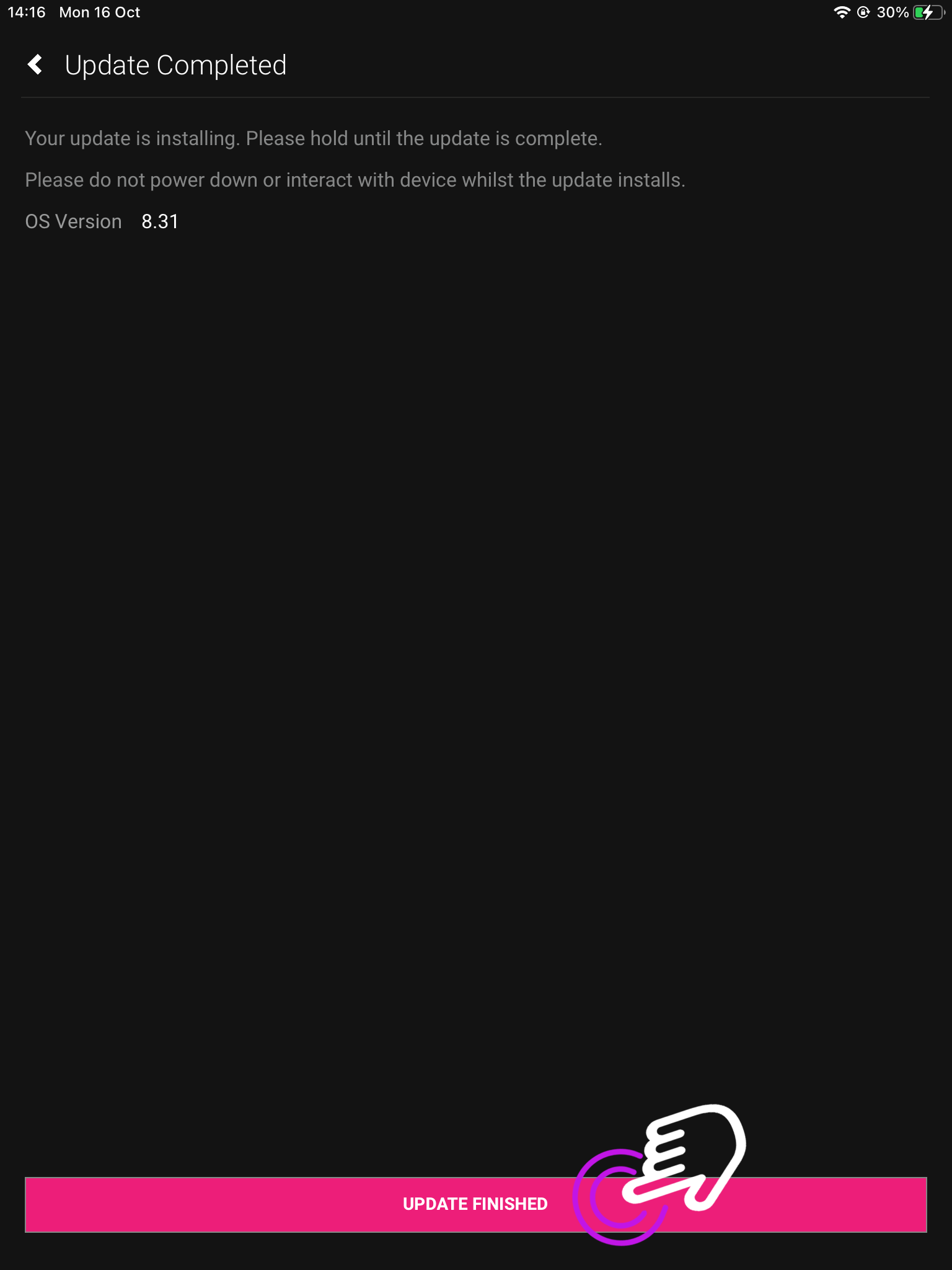
uControl will display your OS Version.
Open uControl
Update
Enter IP Address
Update Device
Legal Terms
Downloading
Complete
Press “Update Finished”.
If you are connected to a device
1. Open up uControl
If you’re already connected to a system then you will need to access uControl’s settings. From the main screen you will see something similar to this (see below). From here, look for a menu icon (three horizontal lines) in the top left corner, press that to reveal the Zone selector and Zone control menu.
Open uControl
What you see on the main screen may differ, however, the three lined menu bar will still be there.
2. Navigate to your settings
Look for the settings icon located in the bottom left corner.
Open uControl
Settings
The icon may vary depending on your mobile devices size, however, it will still be in the bottom left corner.
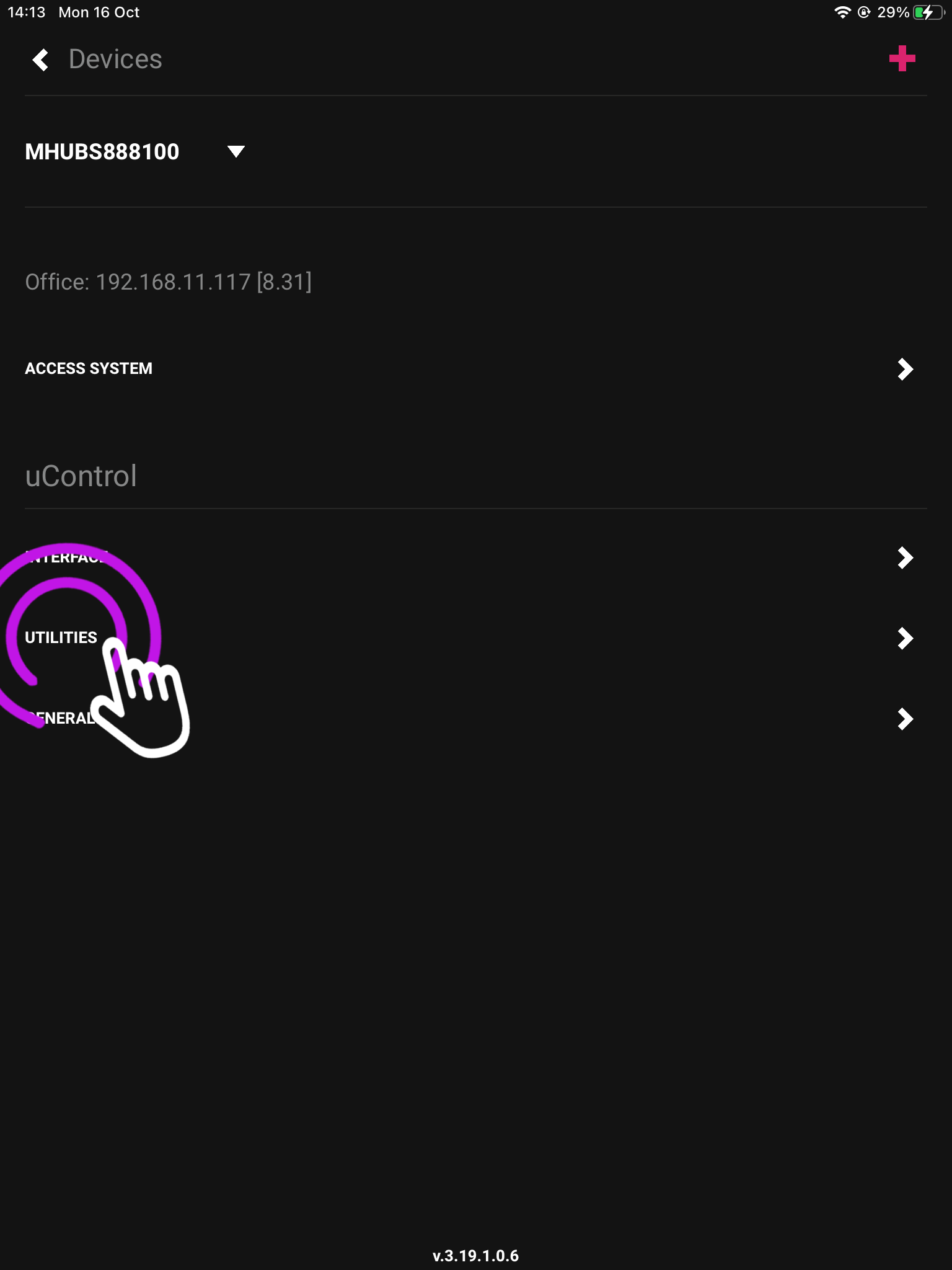
3. Press “Utilities”
This will take you to your devices service page.
Open uControl
Settings
Utilities
From here you can also see your connected devices IP address(s).
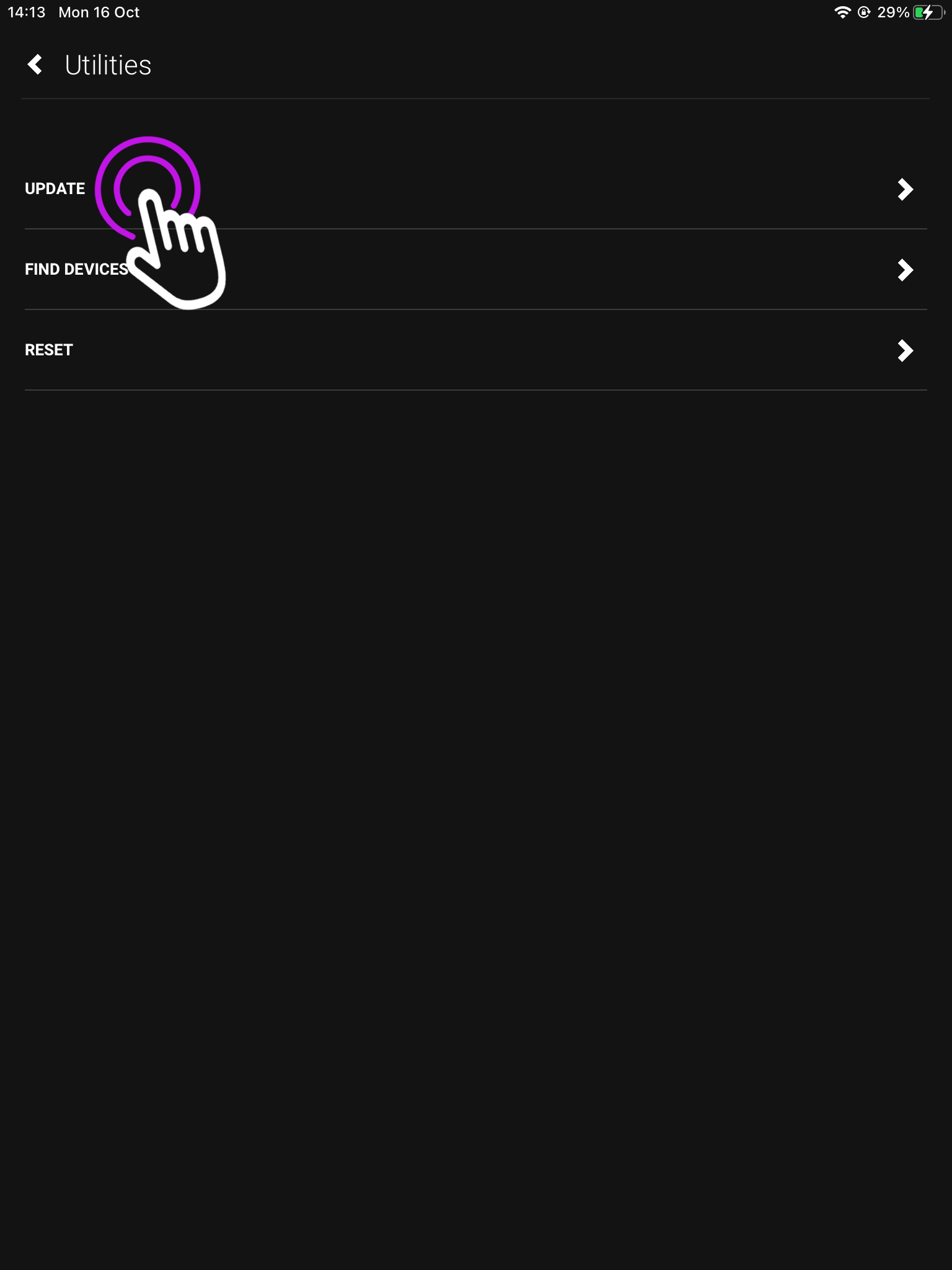
4. Press “Update”
From this page you can also find your devices, and reset one. To find out more check out our uOS Utilities page.
Open uControl
Settings
Utilities
Update
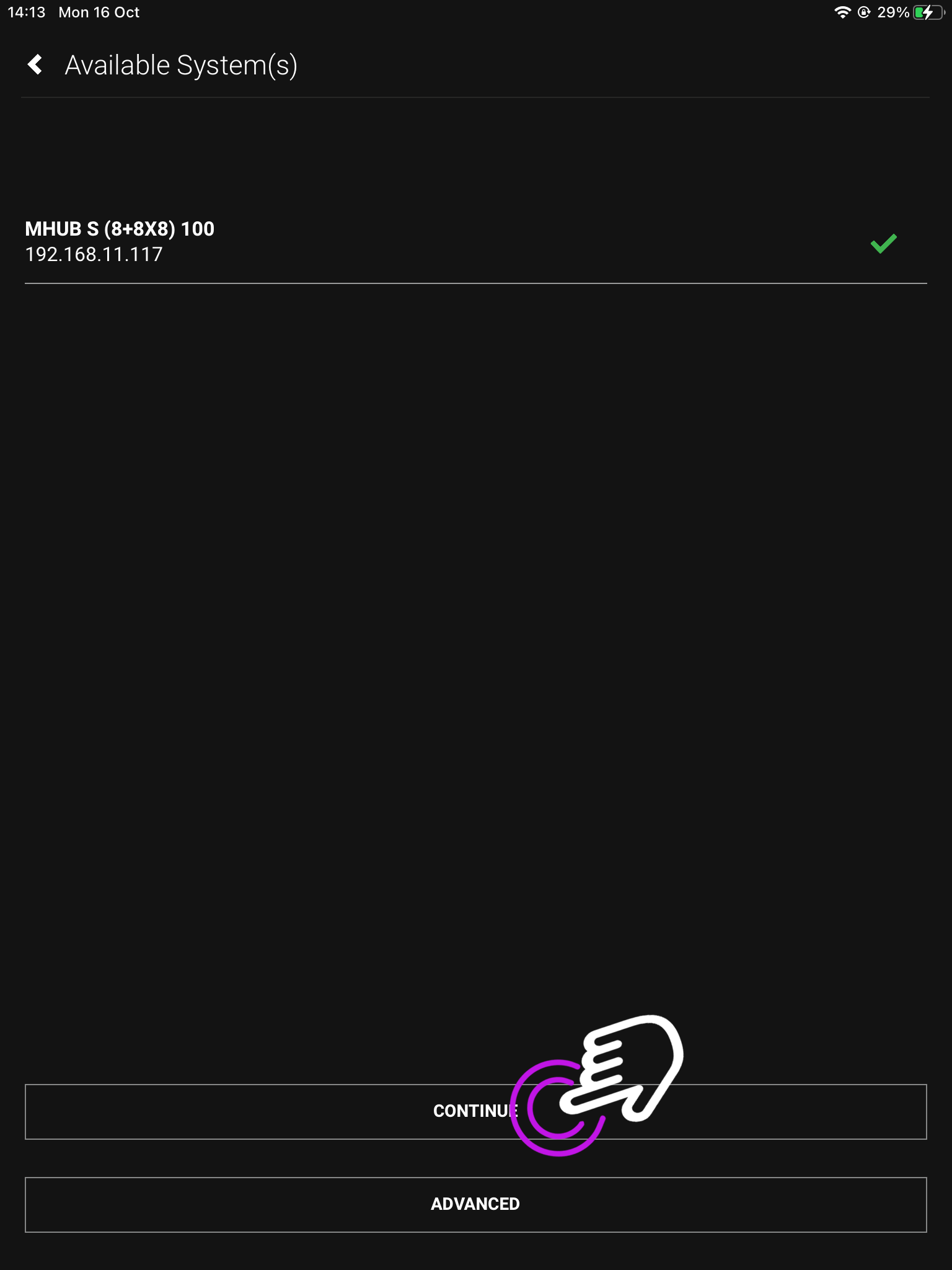
The next page will show you your connected HDA devices.
5.“Available Systems”
If you have a stacked system, or multiple devices they will show here.
Open uControl
Settings
Utilities
Update
Available Systems
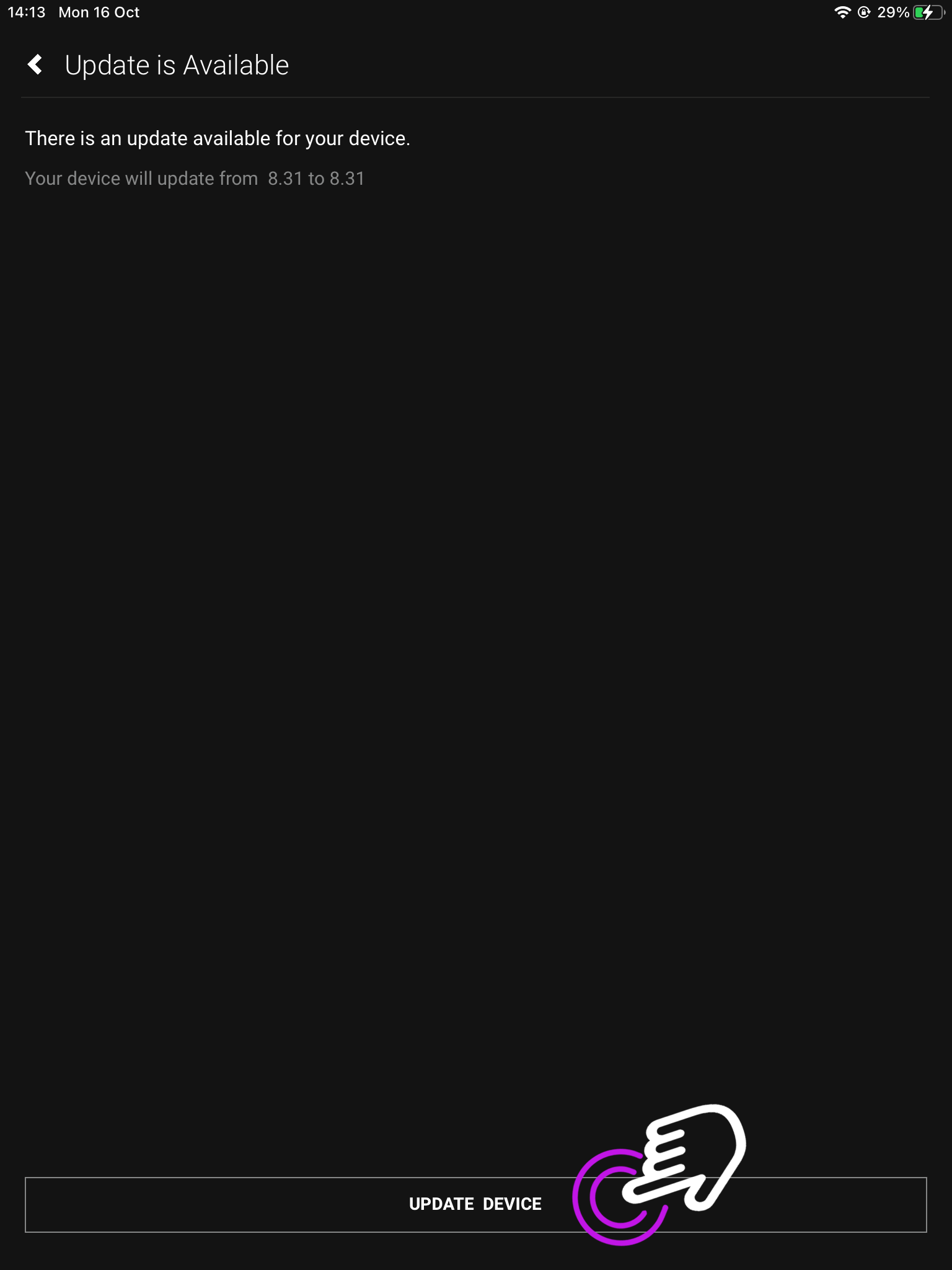
Once an update is found you will be taken to the update screen.
6. Begin update
If your device is updateable it will start, and include which version you’re updating to.
Open uControl
Settings
Utilities
Update
Available Systems
Begin Update
Press “Update Device”.
7. Terms and Conditions
To continue please acknowledge the legal terms.
Open uControl
Settings
Utilities
Update
Available Systems
Begin Update
Legal Terms
For more information on the legal terms, you can read the End-User Licence Agreement (EULA) and the Privacy Statement.
8. Await download
This process can take up to 5 minutes, however, depending on your network it could be longer.
Open uControl
Settings
Utilities
Update
Available Systems
Begin Update
Legal Terms
Downloading
Please make sure not to power down your device whilst the update is downloading.
9. Update completed
uControl will now let you know the update is complete.
Your HDA device will be displayed as an available system when connected to uControl. You may have more than one device connected, or be operating a stack and need to see which devices are connected.
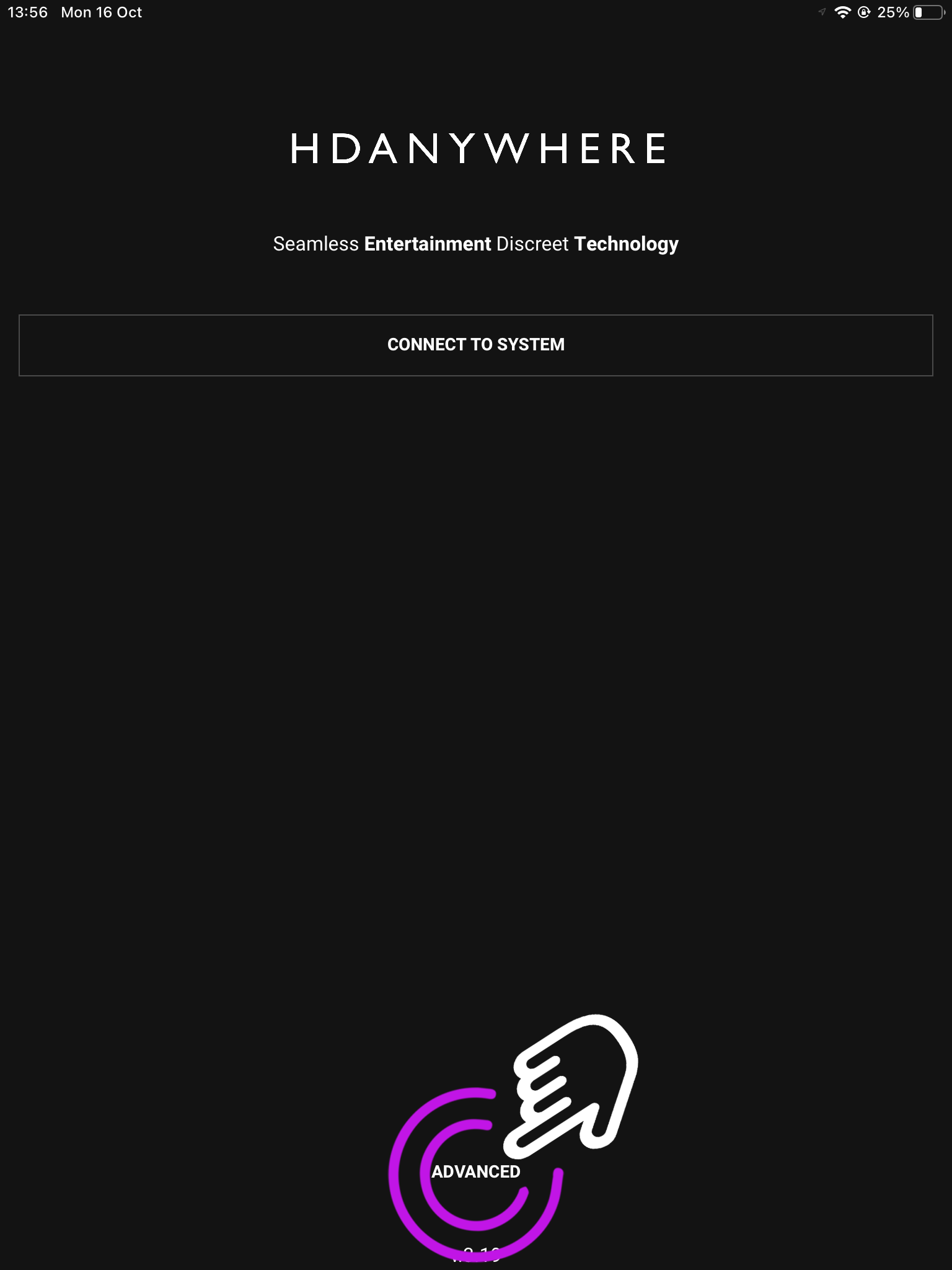
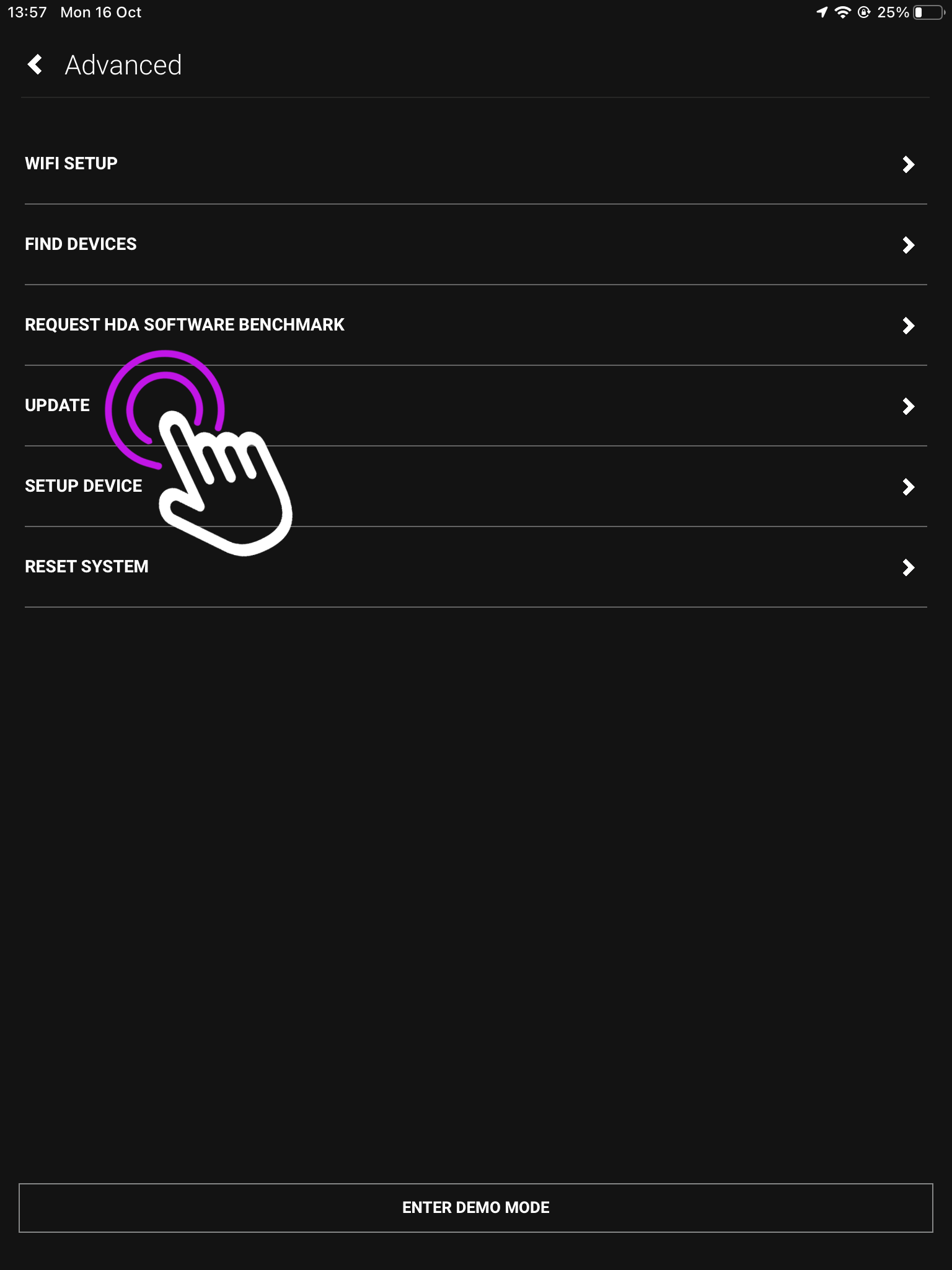
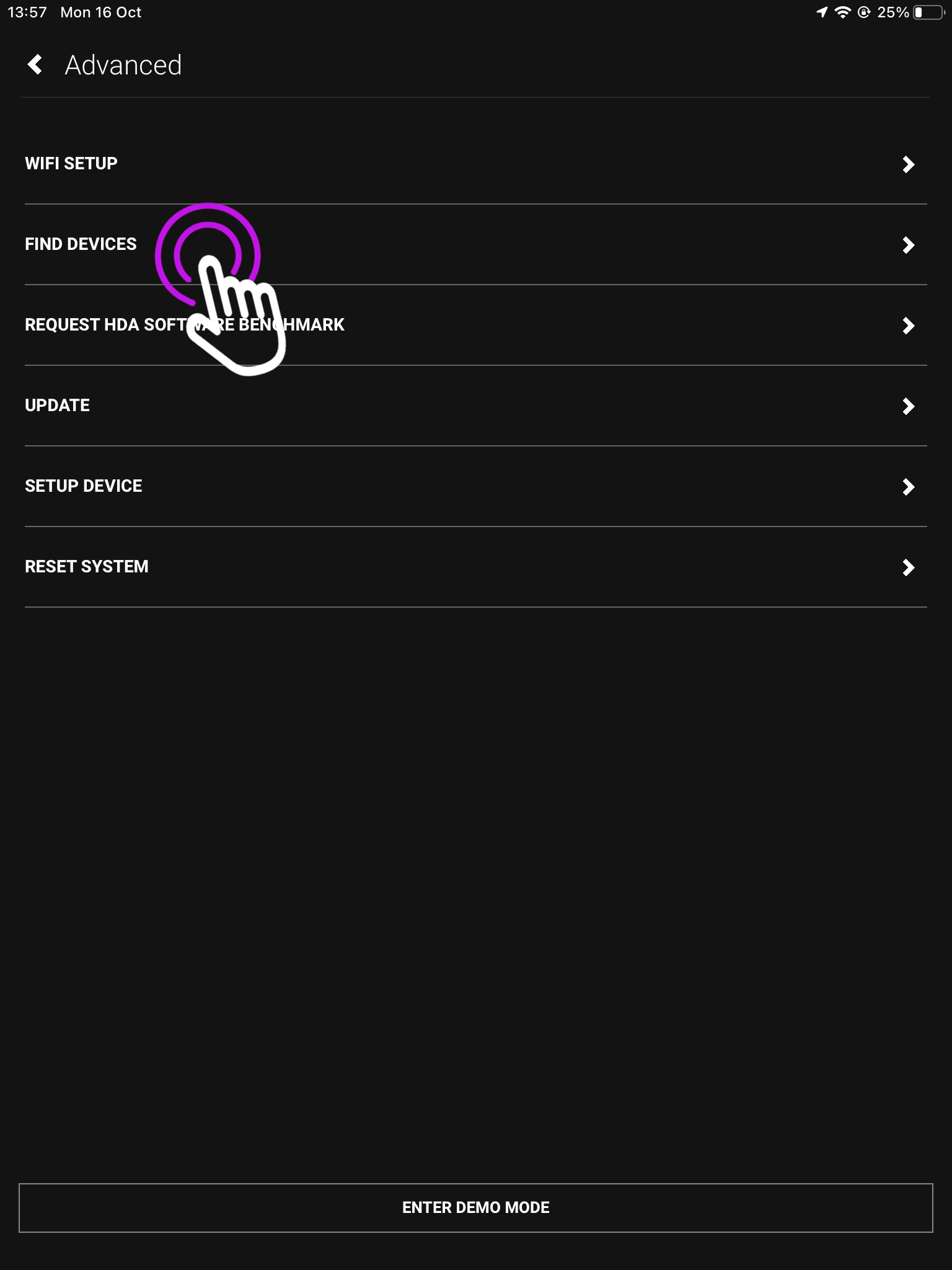
This is the advanced screen where you can find your devices, connect over WiFi, reset your system and more.
Open uControl
Find Devices
It is the main navigation page for your devices options.
3. Available Systems(s)
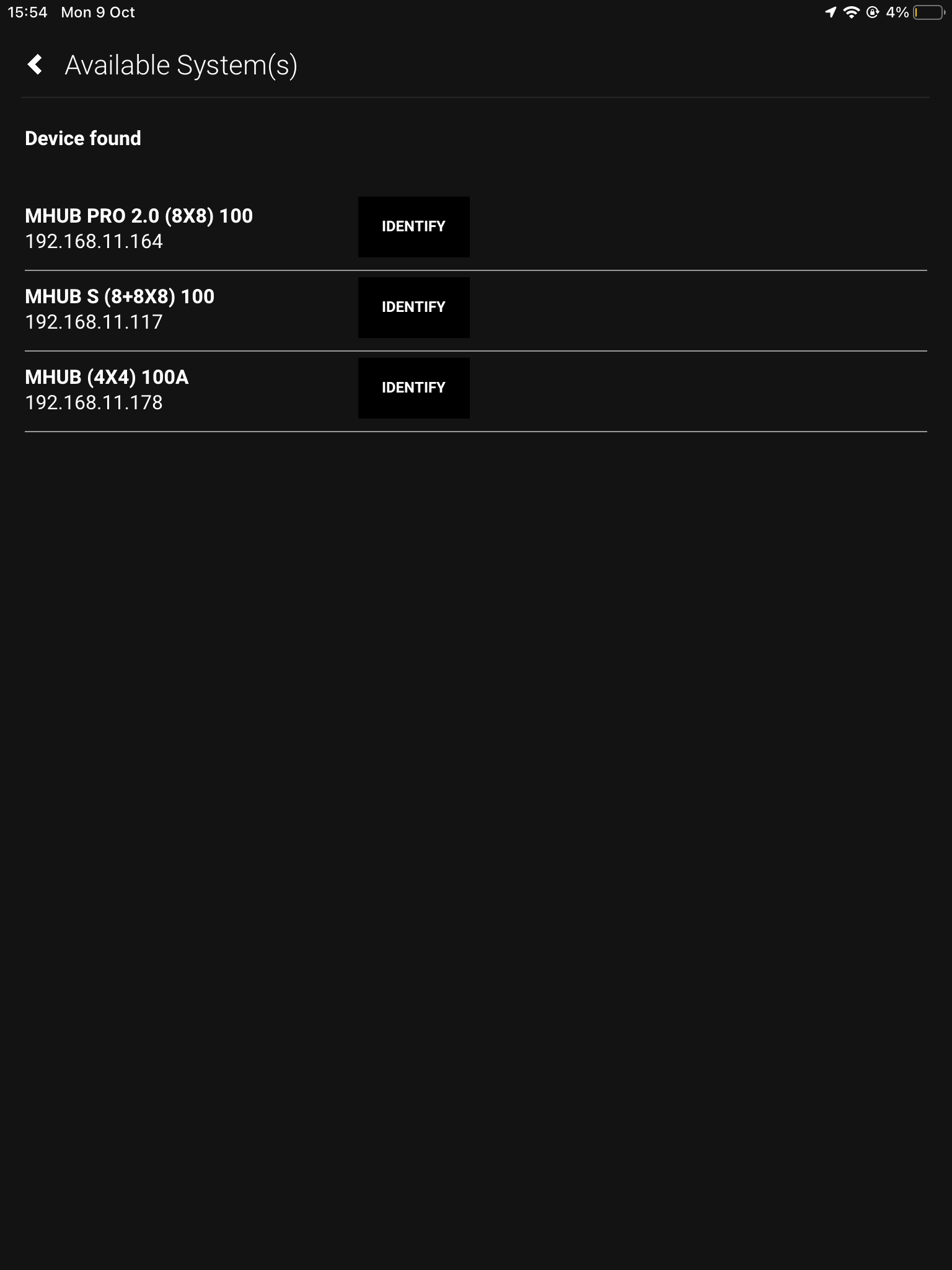
This is where your connected devices will show.
Open uControl
Update
Available System(s)
If you have more than one connected device, you can click “identify” to make the power LED of that unit flash.
When you’re connected in uControl
1. Open up uControl
If you’re already connected to a system then you will need to access uControl’s settings. From the main screen you will see something similar to this (see below). From here, look for a menu icon (three horizontal lines) in the top left corner, press that to reveal the Zone selector and Zone control menu.
Open uControl
What you see on the main screen may differ, however, the three lined menu bar will still be there.
2. Navigate to your settings
Look for the settings icon located in the bottom left corner.
Open uControl
Settings
The icon may vary depending on your mobile devices size, however, it will still be in the bottom left corner.
3. Press “Utilities”
This will take you to your devices service page.
Open uControl
Settings
Utilities
From here you can also see the IP address of the device you’re currently controlling.
4. Press “Find Devices”
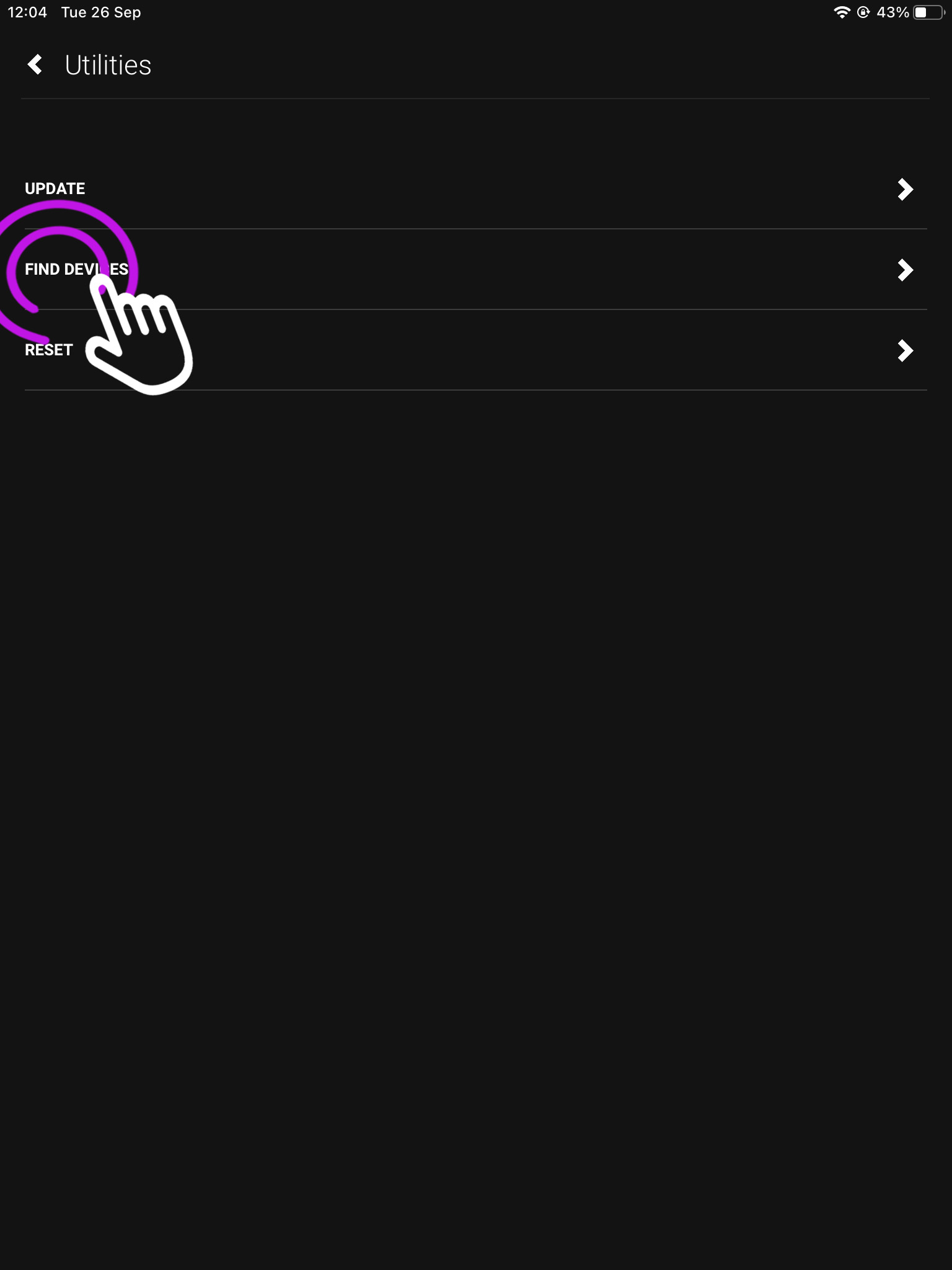
From this page you can also update, and reset your HDA device. To find out more check out our uOS Utilities page.
Open uControl
Settings
Utilities
Find Devices
The next page will show you your connected HDA devices.
5. Available Systems(s)
If you have a stacked system, or multiple devices they will show here.
Open uControl
Settings
Utilities
Update
Available Systems
If you have more than one connected device, you can click “identify” to make the power LED of that unit flash.
Your HDA device broadcasts its IP address using a protocol called mDNS over your Local Area Network (LAN). The easiest way to find your IP address is to use our app, uControl.
This is your Advanced Page where you can find the HDA systems connected to your network.
Open uControl
Find devices
From here you can find your devices, connect over WiFi, reset your system and more.
3. “Available System(s)”
Your connected devices will show here along with their IP address.
Open uControl
Find Devices
Available Systems
If you have more than one device you can use the identify button to make the power LED blink.
Finding your device if you’re already connected to a system
1. Open up uControl
If you’re already connected to a system then you will need to access uControl’s settings. From the main screen you will see something similar to this (see below). From here, look for a menu icon (three horizontal lines) in the top left corner, press that to reveal the Zone selector and Zone control menu.
Open uControl
What you see on the main screen may differ, however, the three lined menu bar will still be there.
2. Navigate to your settings
Look for the settings icon located in the bottom left corner.
Open uControl
Settings
The icon may vary depending on your mobile devices size, however, it will still be in the bottom left corner.
3. Utilities
This is your device page which displays your model and IP address, if you want a list of all connected devices go to utilities.
Open uControl
Settings
Utilities
From here you can also add another device to your setup using the plus sign in the top right.
4. Find Devices
This page is where you can update, reset or find your available connected systems.
Open uControl
Settings
Utilities
Find Devices
To reset your system as you can see below, you will need to press it 10 times.
5. Available Systems
Here you will see all your connected devices, and their IP addresses.
Open uControl
Settings
Utilities
Find Devices
Available Devices
If you have multiple devices connected, you can distinguish between them by pressing the identify button which will make the power LED flash.
Using other methods to find your device
Network scanner
You can also use an mDNS network scanner to find your devices IP address. There are many network scanners to choose from, we recommend using Advanced IP Scanner as it is efficient and free.
Unable to see device on your network?
If your HDA device is not appearing in a network scan please try the following:
Ensure your device is LAN (Local Area Network) connected.
Check the lights either side of the network port, (green and orange) they should be static and not flashing.
Ensure your HDA device is on the same network as the mobile device you’re trying to connect with.
Make sure your router is working properly, and has no closed ports.
If you see a HDANYWHERE or third party device marked with “uControl inside” then it contains our control system inside it. You can find out what it can do by visiting uControl’s website here.
Comparing AV and Full versions of uControl inside
Some devices are marked “AV” where others are “Full”. This is determined by the operating system found on the device. The “full” implementation of uControl can be found in devices which have uControl OS (uOS) inside. “AV” means that the system is running MHUB-OS (MOS) and control capability is restricted to AV only or the devices that are directly connected to the MHUB system.
Full
Control over sources, AVRs, displays and projectors (IR)
Control over sources, AVRs, displays and projectors (IP/CEC)
IP control over lighting, blinds, shades, PDUs, relays and more See all here
uControl app, Alexa, Watch support
uControl Remote
Super Sequences, Functions and Scheduling
AV
Control over sources, AVRs, displays and projectors (IR)